


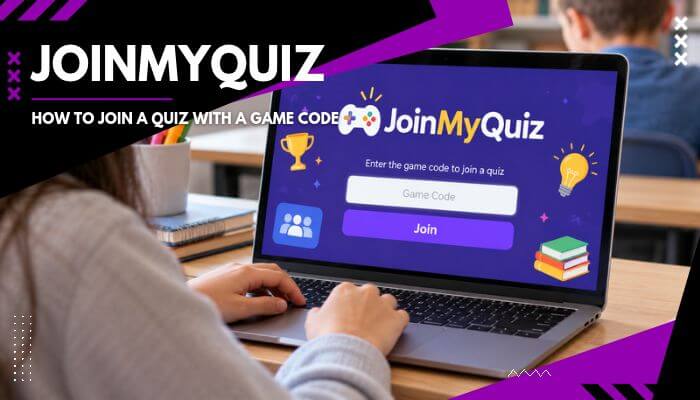

JoinMyQuiz gives students a quick way to enter classroom quizzes, live games, and homework activities using a code from their teacher. Originally associated with Quizizz, the joining service now connects students to Wayground following the platform’s rebranding.
Students can join live quizzes, open assignments, and participate in certain games without creating an account. However, expired codes, incorrect links, and sign-in restrictions can sometimes prevent access.
This guide explains how to use JoinMyQuiz with a game code, find the correct joining page, fix common errors, and access quizzes through Wayground.
Quick Answer: How Do You Join JoinMyQuiz?
To join JoinMyQuiz, visit wayground.com/join, enter the game code provided by your teacher, and select Start after entering your name if prompted. Live quizzes may require you to wait for the host, while homework activities can be started according to the assignment settings.
Key Takeaways
- JoinMyQuiz lets students access live quizzes and homework through Quizizz, now called Wayground.
- Students can join through wayground.com/join using a game code, invitation link, or QR code.
- Game codes are generated for individual sessions and expire when those sessions end.
- Some quizzes allow participation without an account, while restricted activities may require sign-in.
- Teachers can manage quiz attempts, answer visibility, question order, and assignment deadlines.
- Invalid codes, expired sessions, and browser or network issues can prevent access.
What Is JoinMyQuiz and How Does It Work?
JoinMyQuiz is a web-based joining address associated with Wayground, formerly known as Quizizz. Students use a game code shared by their teacher to access live quizzes, classroom activities, or homework assignments without searching for individual quizzes.
JoinMyQuiz helps students access educational activities commonly used for:
- Classroom quizzes: Test knowledge during live lessons.
- Homework assignments: Complete quizzes within assigned deadlines.
- Revision exercises: Practice subjects and review important concepts.
- Knowledge checks: Assess understanding of classroom topics.
- Educational competitions: Participate in interactive quiz challenges.
How the JoinMyQuiz Process Works
| Step | Action | What Happens |
|---|---|---|
| 1 | Select a quiz | Teacher chooses or creates an activity on Wayground. |
| 2 | Start a session | Wayground generates a unique game code. |
| 3 | Share the code | Teacher provides the code or invitation link. |
| 4 | Join the quiz | Students enter the code at wayground.com/join. |
| 5 | Complete the activity | Students answer questions, and teachers review results. |
Important: Game codes belong to individual sessions, not permanent quizzes. Once a session ends, its code expires.
How to JoinMyQuiz With a Game Code Step by Step
Joining a quiz through JoinMyQuiz takes only a few steps. Keep the active game code shared by your teacher ready before starting.
Step 1: Open the Official Joining Website
Open Chrome, Safari, Firefox, or another modern browser and visit:
- wayground.com/join — Current official joining page.
- joinmyquiz.com — Older address that remains supported.
Both addresses provide access to Wayground quizzes.
Step 2: Enter Your Game Code
Enter the numerical code provided by your teacher or host. Check each digit carefully, as an incorrect or expired code may prevent access.
Step 3: Enter Your Name or Nickname
Type your name in the participant field. Depending on the settings, you may also choose a randomly generated nickname. Use the name requested by your teacher.
Step 4: Adjust Your Game Preferences
Before starting, you may be able to customize:
- Background music — Turn music on or off.
- Sound effects — Adjust game sounds.
- Memes — Enable or disable quiz memes.
- Read-aloud support — Hear questions read aloud when available.
Step 5: Start the Quiz or Wait for Your Teacher
Click Start to continue.
- Live quiz: Wait in the lobby until the teacher starts the session.
- Homework: Select Start game when prompted to begin the assignment.
Step 6: Answer Questions and Complete the Activity
Read each question, select your answers, and follow the activity instructions. Some quizzes include timers, points, and leaderboards, depending on the teacher’s settings.
Important: If your code does not work, confirm that the session is still active and request an updated code from your teacher if necessary.
Can You Join JoinMyQuiz Without a Game Code?
Yes. Students can access certain JoinMyQuiz activities without manually entering a game code through these methods:
- Direct invitation link: Open the quiz link shared by your teacher to join the session.
- QR code: Scan the QR code using your phone or tablet to access the activity.
- Google Classroom or other school platforms: Open the assignment through Google Classroom, Canvas, or Schoology.
- Wayground Classes: Sign in to your existing class and access quizzes assigned by your teacher.
Note: A valid invitation or class access is still required. Some activities may also require students to sign in.
JoinMyQuiz.com, Quizizz, and Wayground Explained
JoinMyQuiz.com was a familiar joining address for Quizizz, which became Wayground in 2025. Students can now visit wayground.com/join to enter their game codes and access classroom quizzes.
Search terms such as joinmyquiz com, quizizz join, and quizizz join code generally refer to the same joining process. Existing Quizizz accounts remain supported, but students need a valid code for each active quiz session.
Where Can You Find a JoinMyQuiz Game Code?
A JoinMyQuiz game code is generated automatically when a teacher starts or assigns a Wayground session. Students receive the code from their teacher or quiz host.
Common Places to Find a Game Code
- Classroom screen: Teachers display codes during live quizzes.
- Google Classroom: Codes or invitation links appear in assignments.
- School learning platforms: Teachers share access through supported systems.
- Email or messages: Teachers send codes directly to students.
- QR codes: Students scan a code to open the quiz invitation.
Can You Search Online for a Working JoinMyQuiz Code?
JoinMyQuiz codes are unique to individual sessions, so random codes found online are not reliable. Ask your teacher for an active code or invitation link.
Why Does JoinMyQuiz Ask You to Sign In?
Some JoinMyQuiz activities allow students to participate with a game code and nickname, while others require account verification.
Sign-in may be necessary when:
- Joining class-linked assignments.
- Accessing activities with limited attempts.
- Using school learning management systems.
- Participating in restricted classroom sessions.
Can You Still Use an Old Quizizz Account?
Yes. Existing Quizizz accounts continue working under Wayground. Students can generally sign in using their previous account credentials without creating another account.
What If Your School Google Account Cannot Sign In?
Your school may restrict third-party applications. Contact your teacher or school IT administrator to check account permissions and approved access.
Can You Join a JoinMyQuiz Game After It Has Started?
Yes. Students can join a live JoinMyQuiz game after it begins if the session is still accepting participants. Visit wayground.com/join, enter the active code, and follow the instructions. Once the host ends the session, the code expires.
Why Does JoinMyQuiz Show a Waiting Screen?
A JoinMyQuiz waiting screen usually means the teacher has not started the live activity. Teacher-paced sessions may also pause while the host controls question progression.
If the screen remains unchanged, confirm with your teacher that the game has started before refreshing.
JoinMyQuiz Live Games vs Homework Assignments
A JoinMyQuiz session can involve a live classroom game or an assigned homework activity. The main differences are participation timing, pacing, and deadlines.
| Feature | Live Quiz | Homework Quiz |
|---|---|---|
| Participation | During a live session | During the assignment period |
| Start | Controlled by host | Based on assignment availability |
| Learning pace | Depends on game mode | Generally self-paced |
| Code validity | Until session ends | Until assignment closes |
| Retakes | Based on host settings | Based on assignment settings |
Live games support classroom interaction, while homework activities allow students to complete tasks more independently.
How Long Does a JoinMyQuiz Game Code Remain Valid?

JoinMyQuiz codes are tied to individual sessions and expire when those sessions end. The available joining period depends on the type of activity and its settings.
How Long Does a Live Quiz Code Last?
A live quiz code remains valid while its session is active. Once the teacher ends the game, students need a new code for another session.
How Long Does a Homework Quiz Code Last?
Homework codes remain usable while the assigned session accepts participation. Teachers can configure deadlines and allow late submissions.
Can You Reuse an Old JoinMyQuiz Code?
No. An expired code cannot be reused for a new session, even when the teacher hosts the same quiz again. Request the latest code.
What Happens When a JoinMyQuiz Homework Deadline Passes?
Students may still submit homework after the deadline if their teacher enables Allow Late Submissions.
- Late submissions enabled: Students can submit after the original deadline.
- Final close date reached: Further submissions are blocked.
- Missed assignment: Contact the teacher if access is unavailable.
Late submissions are marked in the teacher’s session report.
Can You Retake a JoinMyQuiz Quiz With the Same Code?
Retaking a JoinMyQuiz quiz depends on the teacher’s settings. Supported sessions may allow one, two, three, or unlimited attempts.
Students must sign in when attempt limits require account tracking. Retaking an entire quiz is different from retrying an individual question.
Why Can’t You See the Correct Answers After a JoinMyQuiz Game?
Teachers can control when students see correct answers and receive feedback.
Depending on the settings, students may:
- See correct answers immediately after answering.
- See feedback only without revealing the correct answer.
- Review answers after completing the session.
- Have answer review disabled for the activity.
If correct answers are unavailable, ask your teacher whether a review will be provided.
Why Do Students See Different Questions in the Same JoinMyQuiz Game?
Wayground allows teachers to shuffle questions and answer choices, meaning students may see different question orders.
Some assessments also support differentiated or rotating question sets, so students may receive different combinations of questions.
These settings help teachers manage assessments and discourage answer copying. Different question orders do not necessarily mean students joined the wrong session.
How to Use JoinMyQuiz on Mobile Phones, Tablets, and Computers
JoinMyQuiz works through modern web browsers, allowing students to access quizzes without installing a separate app.
- Android phones: Open Chrome, visit wayground.com/join, and enter your game code.
- iPhone or iPad: Use Safari to open the joining page, enter your code, and follow the instructions.
- Chromebook or laptop: Open the joining website in Chrome or another supported browser and enter the code provided by your teacher.
- Wayground app: Installing an app is optional for browser-supported quizzes. Students can also use the official mobile app where available.
Note: A stable internet connection and a valid game code are required for code-based participation.
How Does JoinMyQuiz Support Students Who Need Extra Time?

JoinMyQuiz connects students to Wayground activities, where teachers can provide individual accommodations for students who need additional learning support.
Available features include:
- Extra time: Additional time to answer questions.
- Read-aloud support: Text-to-speech for questions and answers.
- Language translation: Content translated into supported languages.
- Reduced answer choices: Fewer options to simplify questions.
- Reading adjustments: Larger text, adjusted spacing, and accessible fonts.
- Extended deadlines: More time to complete homework.
- Additional attempts: Extra opportunities to answer questions.
Note: Features vary by activity and settings. Students should request accommodations from their teacher before starting a quiz.
What Is the Difference Between a JoinMyQuiz Game Code and a Class Code?
A JoinMyQuiz game code provides access to an individual quiz session, while a Wayground class code allows students to join a class and receive multiple assignments.
| Feature | Game Code | Class Code |
|---|---|---|
| Purpose | Join a quiz session | Join a class |
| Joining page | wayground.com/join | wayground.com/join/class |
| Validity | Until session ends | Up to 14 days |
| Account | Depends on session | Required |
| Access | Individual activities | Class assignments |
How to Join a Wayground Class Using a Code
- Sign in to your Wayground student account.
- Visit wayground.com/join/class or open Classes.
- Select Join a Class and enter your teacher’s class code.
- Provide a parent or guardian’s email address if requested.
- Click Join class to access assigned activities.
What If Your Wayground Class Code Has Expired?
JoinMyQuiz session codes and Wayground class codes have different validity periods. Class invitation codes remain active for up to 14 days, while quiz codes expire when their sessions end.
If your class code has expired, ask your teacher to generate a new invitation. You can join using your existing student account.
Why Is JoinMyQuiz Not Working? Common Problems and Fixes
JoinMyQuiz may stop working because of expired game codes, browser issues, unstable internet connections, or school network restrictions. Check the code and official joining page before troubleshooting.
| Problem | Possible Cause | Recommended Fix |
|---|---|---|
| Invalid code | Incorrect digits | Recheck the code with your teacher |
| Expired code | Session ended | Request a new code |
| Page not loading | Browser or connection issue | Refresh or try another browser |
| Waiting screen | Teacher hasn’t started | Wait for the host |
| Sign-in failure | Account or school restrictions | Contact your teacher or school IT |
| Questions or images missing | Cache or network filtering | Clear cache or contact IT |
| Cannot retry | Attempt limit reached | Ask your teacher about retakes |
| Homework unavailable | Assignment closed | Request updated access |
How to Fix an Invalid JoinMyQuiz Code
JoinMyQuiz codes are unique to each session. Check that you entered the correct digits and that the activity is still active. If the code has expired, request a new one from your teacher.
How to Fix a JoinMyQuiz Loading Problem
If the joining page fails to load, try these steps:
- Refresh the page and check your internet connection.
- Visit the official website at wayground.com/join.
- Update your browser or try Chrome, Safari, Firefox, or Edge.
- Clear browser cache and cookies if the issue continues.
- Contact school IT if network restrictions prevent access.
Note: Clearing cookies may sign you out of your account.
Why Does JoinMyQuiz Work on One Device but Not Another?
If JoinMyQuiz works on one device but not another, the issue may involve browser versions, cached data, network settings, or school restrictions.
Try updating the affected browser and checking its connection. Contact school IT if the problem occurs on a managed device.
What If You Lose Your Internet Connection During a Quiz?
If your connection drops, reconnect and reopen the original quiz link or enter the active game code.
Your previous answers may still be saved, depending on the activity. If your progress is missing or the session has ended, contact your teacher to confirm your submission status.
How Teachers Can Create and Share a JoinMyQuiz Code
Teachers can generate a JoinMyQuiz game code by hosting a live quiz or assigning homework through Wayground.
- Sign in: Visit wayground.com and log in to your teacher account.
- Choose a quiz: Select an existing activity or create a new one.
- Select a mode: Click Start now for a live quiz or Assign for homework.
- Adjust settings: Set timers, question order, answer visibility, and attempt limits as needed.
- Generate the code: Start or assign the activity to receive a unique game code.
- Share with students: Display the code in class or send it through Google Classroom, messages, or invitation links.
- Track results: Monitor participation and review student performance through Wayground reports.
Note: Each session receives its own game code, which expires when the session ends.
Can Students Create Their Own JoinMyQuiz Games?
Yes. Students can create JoinMyQuiz game sessions through Wayground’s Challenge Friends feature and invite others to participate.
To start a challenge:
- Sign in to your Wayground account.
- Select an existing quiz or create your own.
- Click Challenge Friends.
- Enter your name and select Start.
- Share the generated game code with friends.
- Start the game once everyone has joined.
The student hosting the challenge can also participate, making it useful for group revision and friendly competitions.
Is JoinMyQuiz Safe for Students?
JoinMyQuiz provides access to quizzes through Wayground, which maintains documented privacy and security measures. Students should use official links and avoid sharing sensitive information on unfamiliar websites.
Tips for Safe JoinMyQuiz Access
- Use official websites: Visit wayground.com/join or joinmyquiz.com.
- Protect passwords: Never enter school credentials on suspicious websites.
- Avoid unknown downloads: Do not install unverified apps or extensions.
- Keep codes private: Share classroom invitations only with authorized participants.
- Report suspicious links: Inform your teacher about unexpected requests for personal information.
How Can Teachers Prevent Unknown Participants?
Teachers can improve access control by:
- Assigning quizzes through Wayground Classes.
- Sharing invitations with enrolled students.
- Using class-based assignments instead of public codes.
- Checking participation and removing unauthorized students from classes when necessary.
Tips for a Better JoinMyQuiz Experience
A smooth JoinMyQuiz experience starts with a valid game code, a stable internet connection, and the correct account.
- Check your code: Confirm that the invitation is current.
- Use a reliable connection: Avoid switching networks during a quiz.
- Follow game rules: Check timers, deadlines, and attempt limits.
- Request accommodations: Ask your teacher about accessibility support before starting.
- Review your results: Use available feedback to improve your understanding.
- Report technical issues: Contact your teacher if the quiz freezes or your answers are missing.
Conclusion
JoinMyQuiz remains a simple way for students to access classroom quizzes, live games, and homework assignments. While Quizizz has evolved into Wayground, the core experience remains familiar. Students can still join activities through valid game codes, invitation links, and the official joining page.
The real difference between a smooth experience and a failed attempt often comes down to valid codes, session availability, and account requirements. With JoinMyQuiz, students can avoid common access problems by using the current invitation and following their teacher’s instructions. The platform’s name may have changed, but its purpose remains the same: making classroom participation accessible and interactive.
Frequently Asked Questions About JoinMyQuiz
1. Can I resume unfinished JoinMyQuiz homework later?
Yes. Rejoin the active homework session using the same game code and exact participant name to continue where you left off.
2. Can I practice on JoinMyQuiz without a teacher?
Yes. Sign in to Wayground, choose a quiz, and select Practice. Self-practice results are not reported to teachers.
3. Does JoinMyQuiz show a leaderboard in every game?
No. Teachers can disable the leaderboard in supported session settings, so rankings may not appear.
4. Can I skip a difficult question on JoinMyQuiz?
Yes, if the teacher enables Skip Questions & Attempt Later. Students can return to skipped questions before finishing.
5. Does JoinMyQuiz require a camera or microphone?
Not for a standard code-based quiz. Permission may be requested when an activity includes audio or video response questions.
6. Can teachers change JoinMyQuiz homework settings after assigning it?
Yes. While a homework session is active, teachers can update supported settings, including attempt limits and answer visibility.
7. Can students use JoinMyQuiz without individual devices?
Yes. Wayground’s Paper Mode lets students answer using printed QR cards that teachers scan with the mobile app.
8. Can students compete in teams on JoinMyQuiz?
Yes. Wayground’s Team Mode combines individual student performance into a shared team score.
