


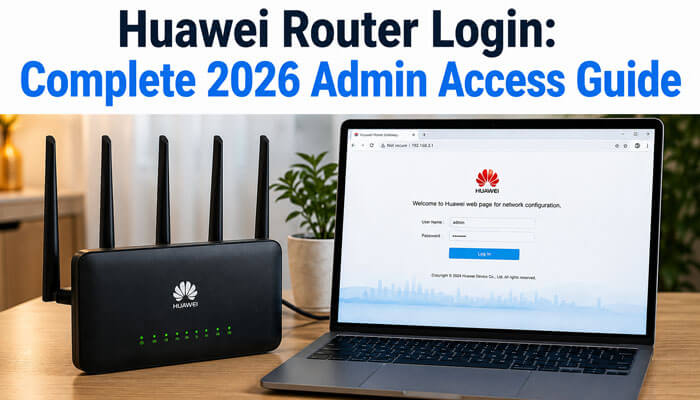

A Huawei router controls your home or office internet connection. It manages your WiFi name, WiFi password, connected devices, guest network, parental controls, security settings, firmware updates, and many other important network features. To change these settings, you need to access the Huawei Router Login page through a browser or, on supported models, through the HUAWEI AI Life app.
The Huawei Router Login process is usually simple, but many users face problems because they enter the wrong IP address, forget the admin password, connect to the wrong WiFi network, or confuse the WiFi password with the router login password. This complete 2026 guide explains how to log in, which IP address to use, how to change WiFi settings, how to fix login errors, and how to secure your Huawei router after login.
Whether you are setting up a new Huawei router, changing your WiFi password, checking connected devices, enabling guest WiFi, updating firmware, or fixing slow internet, this guide gives you clear step-by-step instructions in a beginner-friendly format.
Quick Answer: What Is Huawei Router Login?
Huawei Router Login is the process of opening your Huawei router’s web-based management page so you can manage WiFi, internet, security, and device settings. In most cases, you connect your phone or computer to the Huawei router, open a browser, enter the router IP address, such as 192.168.3.1 or 192.168.8.1, and then enter the router login password.
The exact login address can depend on your Huawei router model, internet provider, device type, carrier customization, or network setup. Many Huawei home routers use 192.168.3.1, while many Huawei Mobile WiFi and CPE devices use 192.168.8.1. Some secondary routers in Huawei mesh setups may use 192.168.4.1. The safest method is to check the label or nameplate on your router.
Huawei Router Login Details at a Glance
| Item | Details |
| Main Topic | Huawei Router Login |
| Common Home Router IP | 192.168.3.1 |
| Common Mobile WiFi/CPE IP | 192.168.8.1 |
| Secondary Router IP in Some Mesh Setups | 192.168.4.1 |
| Other Possible IPs | 192.168.1.1 or ISP-specific gateway IP |
| Access Method | Web browser or HUAWEI AI Life app |
| Required Connection | Phone or computer connected to the Huawei router via WiFi or LAN |
| Main Uses | Change WiFi name, password, security, firmware, guest WiFi, and device access |
| Best Security Step | Change the default admin password after setup |
| Reset Option | Factory reset if the login password is forgotten |
Why Huawei Router Login Is Important in 2026
Internet security is more important than ever in 2026. Homes and businesses now connect smartphones, laptops, smart TVs, CCTV cameras, gaming consoles, printers, smart speakers, remote work devices, and IoT products to the same router. If the router is not managed properly, the network can become slow, unsafe, or open to unauthorized users.
Huawei Router Login helps you:
- Change your WiFi name and password
- Create a stronger router login password
- View connected devices
- Block unknown users
- Enable guest WiFi
- Manage parental controls
- Update router firmware
- Improve WiFi performance
- Restart or reset router settings
- Configure advanced network options
- Secure your home or office internet connection
A router is not just an internet box. It is the main security gate between your devices and the internet. That is why learning the correct Huawei Router Login process is useful for every Huawei router user.
Before You Start Huawei Router Login
Before opening the Huawei router admin panel, make sure you have the basic requirements ready. This avoids common login errors.
| Requirement | Why It Matters |
| Huawei router is powered on | The router must be running before you can access the login page |
| Phone, tablet, or computer | Needed to open the login page |
| Connected to the router via WiFi or LAN | You must be on the same network |
| Correct IP address | Opens the router management page |
| Router login password | Required to access admin settings |
| Browser | Chrome, Edge, Safari, Firefox, or another modern browser |
| Router label/nameplate | Helps confirm default IP and login details |
The router login password and WiFi password are not always the same. The WiFi password connects your device to the network. The router login password allows you to enter the admin panel and change router settings.
Common Huawei Router Login IP Addresses
Different Huawei routers may use different login addresses. The correct IP address is usually printed on the router label or nameplate.
| Huawei Device Type | Common Login IP | Best Use Case |
| Huawei home WiFi routers | 192.168.3.1 | Home broadband router settings |
| Huawei Mobile WiFi devices | 192.168.8.1 | Portable hotspot and mobile internet devices |
| Huawei CPE routers | 192.168.8.1 | 4G/5G CPE internet routers |
| Huawei enterprise/AR routers | 192.168.1.1 | Business or enterprise router access |
| Huawei secondary router in some Mesh+ setups | 192.168.4.1 | Secondary router access |
| ISP-customized Huawei routers | May vary | Check the router label or the ISP guide |
If one IP address does not work, your router may use a different gateway address because of carrier settings, previous configuration, bridge mode, mesh setup, or internet provider customization.
Huawei Router Login for Carrier-Customized Routers
Some Huawei routers are sold directly to users, while others are provided by internet service providers. ISP or carrier-customized routers may not always use the same default login IP address, login screen, or available settings.
For example, one Huawei router may use 192.168.3.1, while another Huawei Mobile WiFi or CPE device may use 192.168.8.1. In some cases, the ISP may customize the router firmware, hide certain settings, or use a different gateway address.
Before trying multiple IP addresses, check:
- The router nameplate or bottom label
- The ISP installation guide
- The default gateway shown on your phone or computer
- The user manual for your exact Huawei model
- Any login details provided by your broadband provider
| Item to Check | Why It Matters |
| Router nameplate | Shows default IP, WiFi name, or management password |
| ISP documents | May include custom login details |
| Default gateway | Shows the active router IP address |
| Router model number | Helps find the correct support instructions |
| Carrier restrictions | Some settings may be locked by the ISP |
If your Huawei router was installed by an internet provider and you cannot access some settings, contact the provider before performing a factory reset.
How to Access the Huawei Router Login Page
Follow these steps to access your Huawei router admin panel.
Step 1: Connect to the Huawei Router Network
First, connect your phone, laptop, tablet, or desktop computer to the Huawei router.
You can connect by:
- WiFi network
- Ethernet cable from router LAN port to computer
- Mobile WiFi connection for Huawei portable devices
Make sure you are connected to the Huawei router you want to manage. If your device is connected to mobile data, another WiFi network, a VPN, or a different router, the Huawei Router Login page may not open.
Step 2: Open a Web Browser
Open any modern browser, such as:
- Google Chrome
- Microsoft Edge
- Safari
- Mozilla Firefox
- Opera
Use the address bar at the top of the browser, not the Google search box.
Step 3: Enter the Huawei Router IP Address
Type one of the common Huawei Router Login IP addresses:
192.168.3.1
or
192.168.8.1
Then press Enter.
For many Huawei home routers, 192.168.3.1 is common. For many Huawei Mobile WiFi and CPE devices, 192.168.8.1 is common.
Step 4: Enter the Router Login Password
When the login page opens, enter the router login password. This may be:
- The password you created during setup
- The password printed on the router label
- The same password as the WiFi if you selected that option during setup
- A password provided by your internet service provider
After entering the password, click Log In.
Step 5: Manage Router Settings
After a successful Huawei Router Login, you can manage WiFi, security, connected devices, guest network, updates, parental controls, and other router settings.
Huawei Router Login After WPS Setup
Some users set up their Huawei router using the WPS button or quick pairing feature. In certain cases, the router may ask for the management password printed on the router nameplate when accessing the web-based management page.
This means the WiFi password may not be enough to open the Huawei Router Login page. You may need the router management password, which is different from the WiFi connection password.
Check these details after WPS setup:
- Look at the router nameplate
- Find the management password
- Do not confuse it with the WiFi password
- Try logging in from a device connected to the router
- Use the browser address bar, not a search box
This small detail is useful because many users think the Huawei Router Login page is broken when they are simply entering the wrong password.
Huawei Router Login Using HUAWEI AI Life App
Some Huawei routers can also be managed through the HUAWEI AI Life app. This is useful for users who prefer mobile management instead of browser login.
With the AI Life app, you may be able to:
- Add and manage Huawei routers
- View connected devices
- Check network status
- Manage guest WiFi
- Use parental controls
- Check unauthorized access
- Update router firmware
- Manage smart devices
- Access router settings from a phone
Basic AI Life App Login Steps
- Connect your phone to the Huawei router’s WiFi.
- Open the HUAWEI AI Life app.
- Add your router if it is not already visible.
- Tap the router device card.
- Open the router management screen.
- Change or review the settings you need.
The available options may differ depending on the router model, firmware version, and region.
Huawei Router Login: Web Page vs AI Life App
| Feature | Web-Based Login | HUAWEI AI Life App |
| Access Method | Browser IP address | Mobile app |
| Best For | Full router settings | Easy mobile management |
| Device Needed | Phone or computer | Smartphone or tablet |
| Setup Required | Connect to the router and enter the IP | Install the app and add the router |
| Guest WiFi | Usually available | Often available |
| Parental Controls | Available on supported models | Available on supported models |
| Firmware Updates | Available on supported models | Available on supported models |
| Advanced Settings | Better for technical users | Better for beginners |
| Convenience | Good for desktop users | Good for mobile users |
For most users, the web-based Huawei Router Login page is the best option for full settings. The AI Life app is easier for quick changes and mobile management.
How to Change Huawei WiFi Name and Password
One of the most common reasons for Huawei Router Login is changing the WiFi name and password.
Steps to Change WiFi Name and Password
- Connect your device to the Huawei router.
- Open a browser.
- Enter the router IP address.
- Log in using the router login password.
- Go to My Wi-Fi, Wi-Fi Settings, or a similar section.
- Find the WiFi name field.
- Enter a new WiFi name.
- Enter a strong WiFi password.
- Save the changes.
- Reconnect your devices using the new WiFi password.
Tips for a Strong WiFi Password
Use a password that includes:
- Uppercase letters
- Lowercase letters
- Numbers
- Special characters
- At least 12 characters
- No personal names
- No phone numbers
- No simple words like password123
Example format:
HomeNet@2026Secure
Do not use this exact example. Create your own unique password.
Huawei Router Login Password vs WiFi Password
Many users confuse the router login password with the WiFi password. They are different in many cases.
| Password Type | Purpose | Used For |
| WiFi Password | Connects devices to WiFi | Phones, laptops, TVs, tablets |
| Router Login Password | Opens the admin panel | Router settings and security |
| ISP Account Password | Connects to broadband service | PPPoE or internet setup |
| Guest WiFi Password | Allows visitors to connect | Temporary guest access |
If your WiFi password works for internet access but not for the Huawei Router Login page, your admin password may be different.
How to Change Huawei Router Login Password
Changing the router login password is one of the most important security steps after setup.
Steps to Modify Login Password
- Connect to the Huawei router.
- Open the Huawei Router Login page.
- Enter the current login password.
- Go to System, Advanced, Account, or Modify Password, depending on your model.
- Enter the current password.
- Enter a new password.
- Confirm the new password.
- Save the changes.
- Store the new password safely.
Best Practices
- Do not use the same password for WiFi and admin login.
- Do not use simple passwords like admin, 123456, or password.
- Avoid using your name, birthday, or mobile number.
- Use a password manager if possible.
- Change the password if you shared it with someone earlier.
A strong login password helps protect your router settings from unauthorized access.
What Can You Do After Huawei Router Login?
After you successfully complete Huawei Router Login, you can manage several important features.
| Feature | Why It Is Useful |
| WiFi name change | Makes your network easy to identify |
| WiFi password change | Improves network security |
| Guest WiFi | Allows visitors without sharing the main password |
| Device management | Shows connected users and devices |
| Block unknown devices | Prevents unauthorized access |
| Parental controls | Helps manage children’s internet use |
| Firmware update | Improves performance and security |
| Signal settings | Helps optimize WiFi coverage |
| Reset settings | Restores router to factory defaults |
| Network diagnostics | Helps troubleshoot internet issues |
The exact features depend on your Huawei router model and firmware version.
Huawei Router Login for Guest WiFi Setup
Guest WiFi is useful when friends, customers, workers, or visitors need internet access but should not access your main home network.
Benefits of Guest WiFi
- Keeps your main password private
- Separates guest users from personal devices
- Improves home network security
- Useful for offices, shops, rentals, and homes
- Can be turned off when not needed
How to Enable Guest WiFi
- Complete the Huawei Router Login process.
- Open the router management page.
- Go to Guest Wi-Fi or More Functions.
- Enable Guest WiFi.
- Set a guest network name.
- Add a guest password.
- Choose a duration if available.
- Save the settings.
Use a separate password for the guest WiFi and change it regularly.
Huawei Router Login for Parental Controls
Parental controls help families manage internet use for children. After Huawei Router Login, supported routers may allow you to control access by device.
Common Parental Control Uses
- Limit internet time
- Block internet access at night
- Pause the internet for selected devices
- Manage children’s devices separately
- Reduce screen-time distractions
- Prevent unwanted access during study hours
| Situation | Parental Control Action |
| The child uses the internet late at night | Set time limits |
| The device should not access WiFi during school time | Create an access schedule |
| An unknown device appears | Block it |
| A gaming console needs limited access | Set device rule |
| Study time needed | Pause the internet temporarily |
Parental controls are helpful, but they should be used along with communication and safe browsing habits.
Huawei Router Login for Managing Connected Devices
If your internet is slow, one reason may be too many connected devices. Through the Huawei Router Login, you can view devices connected to your network.
What You Can Check
- Device name
- MAC address
- Connection status
- Online or offline devices
- Unknown users
- Internet access permissions
- Speed limits on some models
What to Do If You See Unknown Devices
- Change your WiFi password.
- Block the unknown device.
- Disable WPS if not needed.
- Restart the router.
- Use stronger WiFi encryption.
- Check all household devices before blocking.
Sometimes, unknown names are actually your own devices, such as smart TVs, printers, cameras, or phones with privacy-based device names.
Huawei Router Login for Blocklist and Trustlist Settings
Blocking unknown devices is one of the most useful things users can do after logging in to a Huawei router. Some Huawei routers allow users to create a blocklist or trustlist.
A blocklist prevents selected devices from connecting to the router. A trustlist allows only approved devices to connect.
| Feature | Meaning | Best For |
| Blocklist | Blocks selected devices | Removing unknown users |
| Trustlist | Allows only selected devices | Strict home or office security |
| MAC filter | Controls devices by device address | Advanced device control |
When to Use Blocklist
Use the blocklist when:
- You see an unknown device
- Your internet suddenly becomes slow
- A neighbor may be using your WiFi
- A guest device should no longer connect
- A device should be restricted temporarily
When to Use Trustlist
Use trustlist when:
- You want only family devices to connect
- You manage a small office network
- You want stricter control
- You use the router in a shared building
- You want to protect business devices
Before blocking a device, confirm it is not your own smart TV, printer, camera, laptop, or phone using a private device name.
Huawei Router Login for Firmware Updates
Firmware is the software inside your router. Keeping firmware updated can improve stability, security, compatibility, and performance.
Why Firmware Updates Matter
- Fixes bugs
- Improves router stability
- Enhances security
- Adds compatibility improvements
- May improve WiFi performance
- Fixes known issues
How to Update Huawei Router Firmware
- Connect your phone or computer to the Huawei router.
- Open the Huawei Router Login page or the AI Life app.
- Go to Updates, System Update, Device Update, or Manage Updates.
- Check for available updates.
- Install the update if available.
- Do not turn off the router during the update.
- Wait until the router restarts fully.
If no update is available, your router may already be running the latest software for your model and region.
Huawei Router Login Not Working: Common Problems and Fixes
Sometimes the Huawei Router Login page does not open. Here are the most common reasons and solutions.
| Problem | Possible Reason | Fix |
| 192.168.3.1 not opening | Wrong IP address | Check the router label or the gateway IP |
| 192.168.8.1 not opening | Device not connected to the router | Connect to Huawei WiFi or LAN |
| The login page loads slowly | Browser or cache issue | Try another browser or clear the cache |
| Password not accepted | Wrong login password | Try the correct admin password or reset the router |
| WiFi connected, but the page is not opening | VPN/mobile data issue | Turn off VPN and mobile data |
| Page opens Google search | IP typed in the search box | Type IP in the browser address bar |
| Router login loops | Browser issue | Use private mode or another device |
| Cannot find the WiFi network | Router issue or WiFi disabled | Restart the router and check the settings |
| Admin panel unavailable | ISP restrictions | Contact the service provider |
| Secondary router issue | Mesh/uplink router controls settings | Manage settings on the primary router |
| Bridge/AP mode issue | Router IP changed | Find the assigned IP from the main router |
How to Find Your
Huawei Router Network
If 192.168.3.1 or 192.168.8.1 does not work, you can find the correct gateway IP from your device.
On Windows
- Press Windows + R.
- Type cmd and press Enter.
- Type ipconfig.
- Look for Default Gateway.
- Enter that IP address in your browser.
On Android
- Connect to Huawei WiFi.
- Open WiFi settings.
- Tap the connected network.
- Look for Gateway or Router IP.
- Enter that IP in your browser.
On iPhone
- Open Settings.
- Tap WiFi.
- Tap the information icon next to your network.
- Look for Router.
- Enter that IP address in Safari or another browser.
On Mac
- Open System Settings.
- Go to WiFi.
- Open network details.
- Look for Router.
- Use that address in the browser.
Huawei Router Login for Secondary Routers and Mesh Networks
Huawei routers can be used as main routers, secondary routers, or part of a mesh network. When two routers are connected together, the login IP address may change automatically to avoid an IP conflict.
For example, if the primary router uses 192.168.3.1, the secondary router may use another address such as 192.168.4.1, in some Huawei Mesh+ setups.
This matters because users may continue entering 192.168.3.1 and only reach the main router, not the secondary router.
How to Access a Secondary Huawei Router
- Connect your computer to the secondary router using an Ethernet cable.
- Check the IP address segment assigned to your computer.
- Try the secondary router IP address shown by the network.
- Log in using the router management password.
- Manage settings only if the router allows direct configuration.
| Router Type | Common Login Behavior |
| Primary Huawei router | Usually controls main internet and WiFi settings |
| Secondary Huawei router | May receive a changed IP address automatically |
| Mesh router | May be managed through the main router or AI Life app |
| Bridge/AP router | May not be directly accessible without static IP setup |
This section is important because many Huawei Router Login problems happen in homes with more than one router.
Huawei Router Login in Bridge Mode or AP Mode
Bridge mode or AP mode allows a Huawei router to work with another main router. This setup is useful when users want better WiFi coverage, but it can also change how the Huawei Router Login page works.
After bridge mode is enabled, the Huawei router may receive an IP address from the upstream router. As a result, the usual login page may not open directly from the old IP address.
Why Login May Fail in Bridge Mode
Huawei Router Login may fail in bridge mode because:
- The main router controls IP assignment
- The Huawei router may no longer use its default IP address
- The device may need a static IP address to access the router page
- The router may act only as an access point
- Some settings may move to the uplink router
What to Do
- Check the connected device list on the main router
- Find the Huawei router’s assigned IP address
- Try logging in using that assigned IP
- Use an Ethernet connection if WiFi access fails
- Set a static IP on your computer when required
- Restart the router after changing the bridge settings
This topic is important for advanced users and small offices that use multiple routers.
Huawei Router Login for Internet Access Modes
A Huawei router may support different internet access modes depending on the model and network provider. During setup, choosing the wrong mode can cause internet failure even if the WiFi connection works.
| Internet Access Mode | Best For |
| DHCP | Most home broadband connections where the router gets settings automatically |
| PPPoE | Broadband connections that need username and a password from the ISP |
| Static IP | Business or advanced connections with fixed IP details |
| Bridge/AP Mode | Using a Huawei router with another main router |
| Mobile Network Mode | Huawei 4G/5G routers and Mobile WiFi devices |
A user may complete the Huawei Router Login process successfully, but still have no internet because the internet access mode is incorrect. Router login means you can access the admin panel. Internet access means the router is correctly connected to the ISP or mobile network.
Huawei Router Login and DNS Settings
DNS settings help your router translate website names into Internet addresses. Most users can keep automatic DNS settings, but some users may change DNS for speed, filtering, or troubleshooting.
After Huawei Router Login, advanced users may find DNS settings under network or internet configuration pages depending on the router model.
When DNS Settings May Help
- Websites are not loading correctlyTheThe
- Internet is connected, but browsing fails
- ISP DNS is slow
- Some apps fail to connect
- You want family-safe DNS filtering
- You want to use public DNS services
Only use trusted DNS services. Avoid unknown DNS addresses because DNS controls how your devices reach websites.
Huawei Router Login and IPv6 Settings
IPv6 is a newer Internet addressing system used by many modern networks. Some Huawei routers allow users to enable or disable IPv6 from the router management page.
For most users, IPv6 should stay enabled if the internet provider supports it. However, if internet access becomes unstable, users may check IPv6 settings as part of troubleshooting.
| Question | Answer |
| Is IPv6 required? | Not always, but many modern networks support it |
| Should beginners change it? | Usually no |
| Can it affect connectivity? | Yes, if misconfigured |
| Where is it found? | Network settings or advanced settings |
| Should the ISP be contacted? | Yes, if IPv6 problems continue |
This adds extra depth for users looking for more than basic Huawei Router Login steps.
What to Do If You Forgot Your Huawei Router Login Password
If you forgot the Huawei router login password, first check whether you saved it in a password manager, notebook, router label, or ISP setup document. If you cannot find it, you may need to reset the router.
Before Factory Reset
Try these first:
- Check the router label
- Check the user manual
- Ask the person who set up the router
- Check ISP installation documents
- Try the password you created during the first setup
- Check whether the WiFi password was used as the router login password
Factory Reset Warning
A factory reset removes previous settings. This may delete:
- WiFi name
- WiFi password
- Admin password
- Internet connection settings
- Parental control rules
- Guest WiFi settings
- Device restrictions
- Custom network settings
After the reset, you may need to set up the router again. If your internet uses ISP-provided PPPoE login details, keep them ready before resetting.
Basic Reset Steps
- Keep the router powered on.
- Find the reset button or pinhole.
- Use a pin or small tool.
- Press and hold the reset button until the indicator changes.
- Wait for the router to restart.
- Set up the router again.
- Create a new login password.
- Create a new WiFi name and password.
The exact reset method may vary by model, so checking the router manual is recommended.
Huawei Router Login Before Factory Reset: Important Checklist
A factory reset should be the last option. It can remove WiFi settings, admin password, internet settings, parental controls, guest WiFi, and custom configurations.
Before resetting a Huawei router, check these details:
- Do you know your ISP username and password?
- Do you know whether your connection uses PPPoE, DHCP, or a static IP?
- Do you have the default router IP from the nameplate?
- Do you have the default WiFi name?
- Do you have the router management password?
- Did you save your current WiFi name and password?
- Are parental controls or blocklists important?
- Is this router part of a mesh network?
- Is it carrier-customized?
- Can your ISP help restore the internet connection?
Resetting the router may disconnect your internet until the router is configured again. If the router was provided by your internet company, contact the ISP before resetting it, especially if you do not know the broadband login details.
Huawei Router Login Security
Checklist
After logging in, use this checklist to secure your router.
| Security Task | Recommended Action |
| Change admin password | Use a strong, unique password |
| Change WiFi password | Use at least 12 characters |
| Use modern encryption | Prefer WPA3 if available, or WPA2 if WPA3 is not supported |
| Disable WPS if not needed | Reduces unauthorized access risk |
| Enable guest WiFi | Use for visitors |
| Update firmware | Check regularly |
| Review connected devices | Block unknown devices |
| Avoid simple network names | Do not reveal personal details |
| Keep the router in a safe place | Prevent physical reset by others |
| Save settings securely | Store passwords safely |
Good router security can protect your personal data, smart devices, banking activity, work files, and family internet use.
Huawei Router Login and Remote Management Safety
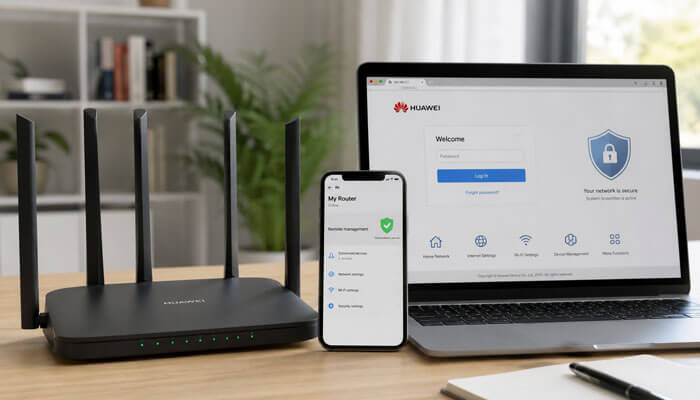
Remote management allows router settings to be accessed from outside the home network. While this can be useful for some advanced users, it may also create security risks if not configured properly.
For most home users, remote management should stay disabled unless there is a clear reason to use it.
Remote management can be risky because:
- It may expose the admin page to the internet
- Weak passwords become more dangerous
- Attackers may try repeated login attempts
- Misconfiguration can reduce router security
- Most home users do not need it
After Huawei Router Login, check whether remote management is enabled. If you do not use it, keep it turned off. This is especially important for families, students, small offices, and users who are not familiar with advanced router security.
Huawei Router Login and WPS Security
WPS allows devices to connect to WiFi more easily, often by pressing a button. It is convenient, but many security guides recommend turning it off when not needed.
| WPS Benefit | WPS Risk |
| Easy device connection | May reduce WiFi security |
| Useful for printers or smart devices | Not needed after setup |
| Simple for beginners | Can be abused if the router is accessible |
| Saves time | Less secure than entering a strong password |
For stronger security, use a strong WiFi password and disable WPS after your devices are connected.
Huawei Router Login and UPnP Safety
UPnP allows devices and apps to automatically open network ports. It can help with gaming consoles, media servers, and some smart devices. However, it can also create security risks if unknown apps or devices open ports without the user understanding what is happening.
For most basic users, disabling UPnP can improve security. However, some gaming, streaming, or smart home features may need it. If you disable UPnP and something stops working, you may need to create manual rules or re-enable it.
Best practice: keep UPnP off if you do not need it. Keep connected devices updated if you use them.
Huawei Router Login Security Settings Table
| Setting | Best Recommendation |
| WiFi encryption | Use WPA3 if available, or WPA2 if WPA3 is not supported |
| Admin password | Use a unique password different from the WiFi password |
| WiFi password | Use a strong password with letters, numbers, and symbols |
| WPS | Disable after setup if not needed |
| Remote management | Keep disabled for most home users |
| UPnP | Disable if not required |
| Firmware updates | Check regularly |
| Guest WiFi | Use for visitors instead of sharing the main password |
| Device list | Review often |
| Router name | Avoid personal names, addresses, or phone numbers |
This section makes the Huawei Router Login guide more useful for 2026 because users are not only searching for login steps; they also want safer router settings.
Best Huawei Router Settings for Home Users
For most home users, the following settings are recommended after Huawei Router Login.
| Setting | Recommended Choice |
| WiFi Name | Simple, unique, non-personal |
| WiFi Password | Strong and private |
| Router Login Password | Different from the WiFi password |
| Guest WiFi | Enable only when needed |
| Firmware Update | Keep updated |
| Device Management | Review regularly |
| Parental Controls | Use for children’s devices |
| WPS | Disable if not required |
| Router Placement | Central, open, elevated location |
| Reboot Schedule | Optional if the router supports it |
These settings help improve security, speed, and reliability.
Huawei Router Login for 2.4GHz and 5GHz WiFi Settings
Many modern Huawei routers support both 2.4GHz and 5GHz WiFi bands.
2.4GHz WiFi
Best for:
- Longer range
- Older devices
- Smart home devices
- Rooms far from the router
5GHz WiFi
Best for:
- Faster speed
- Streaming
- Gaming
- Video calls
- Nearby devices
| WiFi Band | Range | Speed | Best For |
| 2.4GHz | Longer | Moderate | Distance and compatibility |
| 5GHz | Shorter | Faster | Speed and performance |
After Huawei Router Login, you can check whether both bands are enabled and adjust the WiFi names depending on your preference.
Huawei Router Login for Slow Internet Troubleshooting
If your Huawei router’s internet is slow, the admin panel can help you diagnose problems.
Things to Check
- Number of connected devices
- Unknown users
- Signal strength
- Router placement
- Firmware updates
- 2.4GHz vs 5GHz connection
- Internet service provider issues
- Device speed limits
- Parental control restrictions
- Guest WiFi usage
Quick Fixes
- Restart the router
- Move the router to an open area
- Disconnect unused devices
- Change WiFi password
- Update firmware
- Use 5GHz for nearby devices
- Use Ethernet for computers or gaming consoles
- Contact the ISP if the broadband speed is still poor
Router login will not fix every internet issue, but it gives you control over many local network problems.
Huawei Router Login for Office and Small Business Users
Small businesses often use Huawei routers for office WiFi, billing systems, CCTV, staff laptops, printers, and customer internet access. In that case, router management becomes even more important.
Business Uses
- Separate staff and guest WiFi
- Block unknown devices
- Monitor connected devices
- Keep firmware updated
- Use strong admin passwords
- Limit guest access
- Secure POS and work devices
- Avoid sharing the main WiFi password with visitors
| Network Type | Purpose |
| Main Office WiFi | Staff laptops and work devices |
| Guest WiFi | Visitors and customers |
| Device Network | CCTV, printer, smart devices |
| Admin Access | Owner or trusted IT person only |
Small businesses should avoid using simple router passwords because unauthorized access can affect business operations and customer trust.
Huawei Router Login Safety Mistakes to Avoid
Avoid these common mistakes when managing your Huawei router.
Mistake 1: Using a Weak Password
Passwords like admin, 12345678, password, or your phone number are risky. Use a strong and unique password.
Mistake 2: Sharing Admin Password
Do not share the router login password with guests. Use the guest WiFi instead.
Mistake 3: Ignoring Firmware Updates
Outdated firmware can cause performance and security issues. Check for updates regularly.
Mistake 4: Resetting Without ISP Details
If your router uses ISP login settings, resetting without those details can disconnect your internet.
Mistake 5: Typing an IP Address in Google Search
Always type the router IP in the browser address bar.
Mistake 6: Connecting to the Wrong Network
Huawei Router Login works only when your device is connected to that router’s network.
Mistake 7: Leaving Unknown Devices Connected
Review connected devices and block suspicious ones after confirming they are not your own devices.
Mistake 8: Keeping Remote Features On Without Need
Remote management, WPS, and UPnP can be convenient, but they may also reduce network security if not managed properly.
Huawei Router Login Troubleshooting Checklist
Use this checklist if the login page does not open.
- Confirm the router is powered on.
- Connect to the Huawei router WiFi or LAN.
- Turn off mobile data on your phone.
- Disable VPN temporarily.
- Enter the IP address in the browser address bar.
- Try 192.168.3.1.
- Try 192.168.8.1.
- Try 192.168.4.1 for some secondary router setups.
- Check the router label for the correct IP.
- Find the default gateway from device settings.
- Restart the router.
- Try another browser.
- Try another phone or computer.
- Clear browser cache.
- Check whether the router is in bridge or mesh mode.
- Contact your ISP if the router is carrier-managed.
Huawei Router Login for Mobile WiFi Devices
Huawei Mobile WiFi devices are portable routers that use mobile data to create a WiFi hotspot. These devices often use 192.168.8.1 as the management page.
Common Mobile WiFi Settings
- WiFi name
- WiFi password
- Login password
- Data usage
- Network mode
- SMS settings on some models
- Device information
- Firmware version
- Connected device list
- MAC filter on supported models
Mobile WiFi Login Steps
- Connect your phone or computer to the Huawei Mobile WiFi network.
- Open a browser.
- Enter 192.168.8.1.
- Enter the login password.
- If you are using a phone and the settings do not appear properly, switch to desktop view from the browser menu.
- Open WiFi or system settings.
- Change the settings you need.
Mobile WiFi users should also use a strong password because portable hotspots are often used in public places.
Huawei Router Login: Beginner Setup Guide
For a new Huawei router, the setup process may include internet connection, WiFi name, WiFi password, and login password.
New Router Setup Steps
- Connect the router to power.
- Connect the internet cable or SIM card if applicable.
- Connect your phone or computer to the default WiFi.
- Open the router login IP address.
- Follow the setup wizard.
- Set the internet connection type.
- Create a WiFi name.
- Create a WiFi password.
- Create a router login password.
- Save settings and reconnect devices.
If your ISP provided broadband account details, enter them carefully during setup.
Huawei Router Login and Privacy
Router settings can reveal sensitive network information such as device names, MAC addresses, WiFi password fields, and internet configuration. Only trusted users should have admin access.
Privacy Tips
- Do not share screenshots of your router settings publicly.
- Do not post your WiFi password online.
- Do not reveal your router serial number unnecessarily.
- Do not allow unknown people to manage your router.
- Keep admin access limited to trusted users.
- Log out after changing settings on shared computers.
Your router protects your internet connection, so treat router login details like sensitive account information.
Huawei Router Login: Common User Intent Table
Adding a user intent table helps SEO because it answers different search needs in one place.
| Search Intent | What the User Wants | Best Section to Read |
| Huawei Router Login | Access the admin panel | Login steps |
| Huawei router IP address | Find the correct login address | IP address section |
| Huawei router password | Find or reset password | Password section |
| 192.168.3.1 login | Open the home router page | Home router login section |
| 192.168.8.1 login | Open the Mobile WiFi or CPE page | Mobile WiFi section |
| 192.168.4.1 login | Access some secondary routers | Mesh router section |
| Huawei WiFi password change | Update WiFi password | WiFi settings section |
| Huawei router reset | Restore factory settings | Reset checklist |
| Huawei router not working | Fix the login or internet issue | Troubleshooting section |
| Huawei mesh login | Access the secondary router | Mesh router section |
| Huawei router security | Protect network | Security settings section |
This table improves the article’s chance of ranking for multiple related search queries.
Recommended Huawei Router Login Article Keywords
Use these related keywords naturally throughout the article:
- Huawei Router Login
- Huawei admin login
- Huawei router setup
- Huawei router IP address
- 192.168.3.1 login
- 192.168.8.1 login
- 192.168.4.1 login
- Huawei WiFi password
- Huawei router password
- Huawei router settings
- Huawei web-based management page
- Huawei AI Life app
- Huawei router not working
- Huawei router reset
- Huawei WiFi name change
- Huawei router firmware update
- Huawei router security settings
- Huawei Mobile WiFi login
These terms help cover search intent without forcing the focus keyword too many times.
Conclusion
Huawei Router Login is an essential process for anyone who wants to manage WiFi settings, improve security, update firmware, block unknown devices, enable guest WiFi, or troubleshoot internet problems. In most cases, you can access the Huawei router admin panel by connecting to the router network, opening a browser, and entering the correct IP address, such as 192.168.3.1 or 192.168.8.1.
The most important step is to check your router label or nameplate because the exact Huawei Router Login address can vary by model, region, setup mode, or internet provider. After login, change weak passwords, review connected devices, keep firmware updated, use guest WiFi for visitors, and turn off remote management, WPS, or UPnP if you do not need them.
A properly managed Huawei router gives you better control, stronger security, and a more reliable internet experience in 2026. Whether you are using a home router, a Mobile WiFi device, a CPE router, a secondary router, or a mesh setup, understanding Huawei Router Login helps you manage your network with confidence.
Huawei Router Login FAQs
1. What is Huawei Router Login?
Huawei Router Login is the process of accessing the router’s admin panel through a browser or app. It allows you to change WiFi settings, passwords, connected devices, security options, and firmware updates.
2. What is the default Huawei router login IP address?
Many Huawei home routers use 192.168.3.1, while many Huawei Mobile WiFi and CPE devices use 192.168.8.1. The correct IP address may vary, so check the router label or nameplate.
3. Why is my Huawei Router Login page not opening?
The page may not open if you are connected to the wrong network, using the wrong IP address, typing the IP into a search box, using VPN/mobile data, or if the router IP was changed.
4. Is the Huawei Router Login password the same as the WiFi password?
Not always. The WiFi password connects your device to the network, while the router login password opens the admin settings. Some users may set them the same during setup, but it is safer to keep them different.
5. How do I change my Huawei WiFi password?
Log in to the Huawei router admin page, open My Wi-Fi or Wi-Fi Settings, enter a new WiFi password, and save the changes. After saving, reconnect your devices using the new password.
6. What should I do if I forgot my Huawei Router Login password?
First, check the router label, manual, ISP documents, or saved passwords. If you still cannot access the router, you may need to factory reset it and set it up again.
7. Is the Huawei Router Login safe?
Huawei Router Login is safe when you access it from your own network, use the correct IP address, create a strong admin password, update firmware, disable risky features when not needed, and avoid sharing login details with others.
