


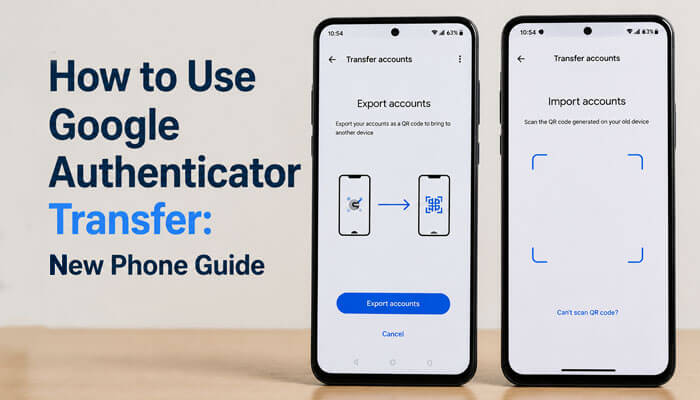

If you bought a new phone, reset your old phone, switched from Android to iPhone, or moved from iPhone to Android, you may need to move your two-factor authentication codes safely. This is why many users search for how to use Google Authenticator transfer before deleting, selling, or trading in an old device.
Google Authenticator generates time-based verification codes for accounts that use two-step verification or two-factor authentication. These codes help protect email accounts, banking apps, crypto accounts, social media profiles, website dashboards, hosting accounts, cloud tools, business apps, and work accounts.
The main risk is simple: if your Authenticator codes stay only on your old phone and you reset that phone too early, you may lose access to important accounts. This guide explains how to use Google Authenticator transfer with Google Account sync, manual QR-code transfer, backup codes, recovery options, and safe account protection steps.
Quick Answer: How to Use Google Authenticator Transfer
To transfer Google Authenticator to a new phone, install Google Authenticator on the new device. If your codes are synced to your Google Account, sign in with the same Google Account and your codes should appear automatically.
If your codes are not synced, open Google Authenticator on your old phone, go to Menu > Transfer accounts > Export accounts, select the accounts you want to move, and scan the QR code on your new phone using Transfer accounts > Import accounts.
The safest way to learn how to use Google Authenticator transfer is to keep both phones nearby, move the codes, test important accounts, save backup codes, and only then erase the old phone.
Search Intent Behind This Guide
People searching for how to use Google Authenticator transfer usually want a practical answer, not a technical lecture. They want to move their codes safely without getting locked out of email, finance, business, or personal accounts.
| Search Intent | What the Reader Wants |
| New phone setup | Move Google Authenticator to a new device |
| Safety | Avoid losing access to important accounts |
| Troubleshooting | Fix missing codes, wrong codes, or QR scan issues |
| Recovery | Know what to do if the old phone is lost |
| Cross-device help | Transfer from Android to iPhone or iPhone to Android |
| Beginner guide | Follow clear steps without confusion |
This guide covers normal transfers, lost-phone recovery, sync issues, device changes, and safety checks.
Key Takeaways
| Topic | Important Point |
| Best transfer method | Use Google Account sync if your codes are already synced |
| Manual transfer method | Use Export accounts and Import accounts with a QR code |
| Old phone required? | Yes, for manual QR-code transfer |
| Internet required? | Codes can work offline, but sync and setup may need internet |
| Main risk | Erasing the old phone before confirming the new phone works |
| Lost old phone | Use backup codes, another second step, or account recovery |
| Synced code warning | Deleting synced codes may remove them from synced devices |
| Safety tip | Never share or store the transfer QR code insecurely |
What Is Google Authenticator Transfer?
Google Authenticator transfer means moving your verification codes from one phone to another. These codes are often used for two-factor authentication, also called 2FA, multi-factor authentication, or two-step verification.
When you sign in to a protected account, you usually enter:
- Your username or email
- Your password
- A six-digit code from Google Authenticator
The code changes regularly, so a stolen password alone is not enough to access the account. If you are changing phones, understanding how to use Google Authenticator transfer helps you avoid losing those codes.
Readers usually want to:
- Move Google Authenticator from old phone to new phone
- Transfer 2FA codes from Android to Android
- Transfer Google Authenticator from iPhone to iPhone
- Move codes from Android to iPhone
- Move codes from iPhone to Android
- Recover Google Authenticator after losing a phone
- Fix missing Authenticator codes on a new phone
- Avoid being locked out before resetting an old device
What Google Authenticator Transfer Does Not Move
Google Authenticator transfer moves your authenticator codes. It does not move your full account security setup.
It does not transfer passwords, recovery email, recovery phone number, passkeys, saved browser sessions, SMS verification setup, Google prompts, banking app login access, or account recovery settings. Those items are managed separately inside each account or service.
| Item | Does Google Authenticator Transfer Move It? |
| 6-digit Authenticator codes | Yes |
| Account passwords | No |
| Passkeys | No |
| SMS verification numbers | No |
| Google prompts | No |
| Backup codes | No |
| Recovery email | No |
| Trusted devices | No |
| Banking app login approval | No |
| Website security settings | No |
This matters because transferring Google Authenticator is not the same as transferring all security settings. After moving your codes, still check the security settings for your most important accounts.
Why Transferring Google Authenticator Correctly Matters
Transferring Google Authenticator correctly matters because your 2FA codes may protect accounts that are difficult to recover.
Common accounts protected by Google Authenticator include:
- Google accounts
- Gmail and other email accounts
- Bank and finance apps
- Crypto exchanges and wallets
- Social media accounts
- Website admin panels
- Hosting accounts
- Business software
- Cloud storage
- Payment apps
- Developer tools
- Online marketplaces
- Work and school accounts
If you factory reset your old phone before transferring your codes, you may need backup codes or support recovery for each account. Some services may also delay access while they verify your identity.
Expert Tip
Many users assume that transferring data from an old phone automatically transfers Google Authenticator codes. In reality, authenticator codes often require a separate transfer process. Before resetting, selling, or trading in a device, always confirm that your authenticator codes work correctly on the new phone and that backup recovery methods are available.
Google Authenticator Transfer Methods
There are three main ways to move Google Authenticator codes to a new phone.
| Method | Best For | Requires an old phone? | Difficulty |
| Google Account sync | Users who enabled sync in Google Authenticator | No, if sync is already active | Easy |
| Manual QR-code transfer | Users who use Authenticator without Google Account sync | Yes | Medium |
| Reconnect each account manually | Users who lost the old phone and have no sync | No, but needs backup access | Hard |
The best method depends on whether your codes are synced to your Google Account or stored only on your old device.
Before You Transfer Google Authenticator
Before starting, prepare both devices and your recovery options. A little preparation makes using Google Authenticator transfer much safer, especially if you protect banking, work, crypto, or website accounts.
Checklist Before Starting
| Requirement | Why It Matters |
| Old phone with Google Authenticator | Needed for manual export |
| New phone | Needed to import or sync codes |
| Latest Google Authenticator app | Helps avoid transfer issues |
| Screen lock on both phones | Protects your codes |
| Internet connection | Needed for app download and account sync |
| Backup codes | Useful if something fails |
| Access to important accounts | Helps verify each code after transfer |
Important Safety Reminder
Do not delete Google Authenticator from your old phone until you confirm that every important code works on the new phone.
The safest process is:
- Transfer the codes.
- Test the new codes.
- Save backup codes.
- Remove old device access if needed.
- Only then reset, sell, or trade in the old phone.
This is especially important if Google Authenticator protects your email, bank account, crypto exchange, website dashboard, or business tools.
How to Check If Your Google Authenticator Codes Are Synced
One common reason users search for how to use Google Authenticator transfer is because they do not know whether their codes are synced to their Google Account or stored only on the device.
Open the Google Authenticator app and look at the profile icon in the top-right corner. If you are signed in with a Google Account and syncing is enabled, your codes may be saved to that Google Account. If you use Authenticator without an account, your codes are stored only on that device unless you manually transfer them.
Quick Sync Check
| What You See in Authenticator | What It Means |
| Google Account profile icon | Codes may be synced to that Google Account |
| “Use without an account” mode | Codes are stored only on the device |
| Codes appear after signing in on new phone | Sync is working |
| Codes do not appear on new phone | Wrong Google Account or sync was not enabled |
| Multiple Google Accounts shown | Codes may be saved under a different account |
If your codes do not appear on the new phone, first check whether you signed in with the same Google Account used inside the old Authenticator app.
How to Use Google Authenticator Transfer with Google Account Sync
The easiest method is Google Account sync. If your Google Authenticator codes are saved to your Google Account, you can sign in to the same Google Account on the new device and your codes should sync automatically.
This method is best for users who already see their Google Account profile inside the Authenticator app. For beginners, this is often the simplest answer to how to use Google Authenticator transfer on a new phone.
Steps to Transfer Using Sync
- Install Google Authenticator on your new phone.
- Open the app.
- Tap Get Started.
- Sign in with the same Google Account used in Google Authenticator on your old phone.
- Wait for the codes to appear.
- Compare the codes on both phones if you still have the old device.
- Test login on important accounts.
- Keep your old phone until you confirm everything works.
When This Method Works Best
Use Google Account sync if:
- You were already signed in inside Google Authenticator
- Your codes were saved to your Google Account
- You still have access to your Google Account
- You want easier transfer across devices
- You use multiple devices and want synced codes
When This Method May Not Work
Google Account sync may not help if:
- You used Google Authenticator without an account
- You were signed out of the Google Account
- Your codes were saved under a different Google Account
- Your old codes were device-only and never synced
- You deleted the codes from a synced device
If your codes do not appear after signing in, check whether you used a different Google Account inside the old Authenticator app.
Common Mistake: Signing Into the Wrong Google Account
A common Google Authenticator transfer problem happens when users have more than one Google Account. For example, you may use one Gmail account for personal use and another for work, YouTube, business, Android setup, or website management.
If your codes were synced to one Google Account but you sign in with another account on the new phone, your codes may look missing.
How to Fix This Problem
- Open Google Authenticator on the new phone.
- Tap the profile icon.
- Switch to your other Google Account.
- Check whether your codes appear.
- If they still do not appear, open the old phone and use manual QR-code transfer.
- After transfer, test your most important accounts before deleting anything.
Many users think their Authenticator codes are lost when they are actually saved under a different Google Account.
How to Use Google Authenticator Transfer Manually with QR Code
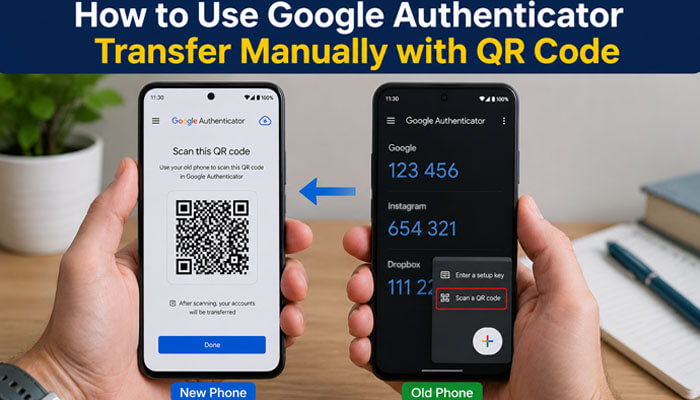
If you use Google Authenticator without Google Account sync, you can manually transfer your codes using a QR code. This is one of the most important parts of learning how to use Google Authenticator transfer safely.
You need both devices: the old phone and the new phone.
On Your New Phone
- Install Google Authenticator from the official app store.
- Open the app.
- Tap Get Started.
- Open the menu.
- Tap Transfer accounts.
- Tap Import accounts.
- Choose the option to scan a QR code.
On Your Old Phone
- Open Google Authenticator.
- Tap the menu icon.
- Select Transfer accounts.
- Tap Export accounts.
- Unlock your phone if asked.
- Select the accounts you want to transfer.
- Tap Next.
- A QR code will appear on the old phone.
Complete the Transfer
Use the new phone to scan the QR code displayed on the old phone. If you transfer many accounts, Google Authenticator may create more than one QR code. Scan every QR code until all selected accounts appear on the new phone.
After the transfer is complete, check the new phone carefully. Make sure all account names are visible and the codes are generating correctly.
Android to Android Transfer
If you are moving between Android phones, how to use Google Authenticator transfer is usually straightforward when both devices are working.
| Step | Action |
| 1 | Install Google Authenticator on the new Android phone |
| 2 | Open Authenticator on the old Android phone |
| 3 | Tap Menu |
| 4 | Select Transfer accounts |
| 5 | Tap Export accounts |
| 6 | Choose the accounts to transfer |
| 7 | Open Authenticator on the new phone |
| 8 | Tap Transfer accounts |
| 9 | Tap Import accounts |
| 10 | Scan the QR code from the old phone |
After scanning, test your most important accounts first.
iPhone to iPhone Transfer
If you are moving from one iPhone to another, you can use Google Account sync if your codes are synced. If not, use the manual QR-code transfer option.
iPhone to iPhone Steps
- Install Google Authenticator on the new iPhone.
- Open Google Authenticator on the old iPhone.
- Go to Transfer accounts.
- Choose Export accounts.
- Select the accounts you want to move.
- Open Google Authenticator on the new iPhone.
- Choose Import accounts.
- Scan the QR code from the old iPhone.
- Confirm that all codes appear on the new iPhone.
- Test the login before deleting anything from the old iPhone.
For iPhone users, how to use Google Authenticator transfer mainly depends on whether sync is enabled or whether the old iPhone is still available.
Android to iPhone Transfer
You can transfer Google Authenticator from Android to iPhone using the same QR-code method. The transfer is not limited to the same operating system.
| Device | What to Do |
| Old Android phone | Export accounts from Google Authenticator |
| New iPhone | Import accounts by scanning the QR code |
| After transfer | Test codes on important accounts |
| Before reset | Keep the old phone until all codes are confirmed |
This is useful if you are switching from a Samsung, Google Pixel, OnePlus, Xiaomi, or another Android device to an iPhone.
iPhone to Android Transfer
The same process also works when moving from iPhone to Android.
iPhone to Android Steps
- Install Google Authenticator on your Android phone.
- Open Google Authenticator on your old iPhone.
- Tap Transfer accounts.
- Tap Export accounts.
- Select the accounts.
- On Android, choose Transfer accounts > Import accounts.
- Scan the QR code from the iPhone.
- Verify that the codes appear correctly.
If you are changing operating systems, how to use Google Authenticator transfer is still based on the same idea: export from the old phone and import on the new phone.
How to Confirm the Transfer Worked
After you transfer Google Authenticator, do not assume everything is finished. Test your codes before deleting anything from the old device.
What to Check
- Are all account names visible?
- Are the codes refreshing normally?
- Do the codes match on old and new devices?
- Can you log in to your most important accounts?
- Do you have backup codes saved?
- Is your new phone protected with a screen lock?
Real-World Example
A common mistake occurs when users successfully move their codes to a new phone but never test them. Later, after resetting the old device, they discover that one important account was missing from the transfer. Testing critical accounts such as email, banking, work, and cloud services immediately after transfer helps prevent this problem.
Best Accounts to Test First
Start with the accounts that would cause the biggest problem if you lost access.
| Priority | Account Type |
| High | Main email account |
| High | Google Account |
| High | Banking or finance accounts |
| High | Crypto or investment accounts |
| Medium | Social media accounts |
| Medium | Website admin accounts |
| Medium | Work tools |
| Low | Forums or less-used apps |
What to Do Before Erasing Your Old Phone
Before resetting, selling, or trading in your old phone, complete this final checklist. This is a critical part of how to use Google Authenticator transfer without losing access.
Final Safety Checklist
- Confirm all Authenticator codes appear on the new phone
- Log in to your important accounts using the new codes
- Save backup codes for each major account
- Add a backup phone number or passkey where available
- Remove old device access from sensitive accounts
- Turn on screen lock and privacy protection
- Delete old codes only after verification
- Factory reset the old phone only when everything is confirmed
Many users get locked out because they erase the old phone too early. Always test first.
Should You Add Google Authenticator to a Backup Device?
A smart way to avoid future lockouts is to set up Google Authenticator on a backup device before your old phone is lost, damaged, or reset. This can be a second phone, tablet, or another secure device that only you control.
A backup device gives you another way to access your codes if your main phone stops working.
Backup Device Safety Tips
- Use only a device you own and control.
- Protect the backup device with a strong screen lock.
- Keep the backup device updated.
- Do not use a shared family phone for sensitive 2FA codes.
- Do not leave the device unlocked.
- Store backup codes separately.
- Test the backup device before relying on it.
| Backup Option | Best For | Risk Level |
| Second secure phone | Frequent travelers and business users | Low if locked |
| Tablet kept at home | Emergency backup | Low |
| Printed backup codes | Account recovery | Low if stored safely |
| Security key | High-security accounts | Very low |
| Shared phone | Not recommended | High |
If your accounts are very important, do not rely on only one phone. A second recovery method can prevent a stressful lockout.
What If You Lost Your Old Phone?
If your old phone is lost, stolen, broken, or already reset, manual QR-code transfer may not work because you cannot export the codes from the old device.
In that case, how to use Google Authenticator transfer changes into a recovery process. You may need backup codes, another second step, a trusted device, or account recovery.
Recovery Options
- Sign in using backup codes.
- Use another second step, such as a passkey, security key, email, or phone prompt.
- Use a trusted device where you are already signed in.
- Go to the security settings of each account and reset the authenticator app.
- Contact the service provider’s support team.
- Use account recovery if no backup method is available.
| Situation | Best Solution |
| You have backup codes | Use backup codes to sign in |
| You have another 2FA method | Use that method, then reset the Authenticator |
| You are signed in on another device | Open security settings and update 2FA |
| You lost access to everything | Start account recovery |
| It is a work or school account | Contact the administrator |
| It is a banking or crypto account | Contact official support immediately |
What to Do If Your Old Phone Was Lost or Stolen
If your old phone was lost or stolen, your first priority should be protecting your accounts, not only transferring codes. If the phone has Google Authenticator codes, someone may try to access them if the device is not properly locked.
Take These Steps Immediately
- Remotely lock or erase the lost phone if possible.
- Sign out of the lost device from your Google Account.
- Change your Google Account password if needed.
- Use backup codes or another second step to sign in.
- Remove the old phone from important account security settings.
- Reconnect Google Authenticator on your new phone.
- Review recent account activity.
- Contact support for banking, crypto, or work accounts if needed.
| Lost Phone Situation | Best Action |
| Phone is locked and trackable | Use remote lock or erase |
| Codes were synced to the Google Account | Remove the lost device from your Google Account |
| Codes were not synced | Visit each service and reset 2FA |
| You have backup codes | Use them to sign in and update 2FA |
| You have no recovery option | Start account recovery |
| It is a work account | Contact your administrator |
This section is important because the Google Authenticator transfer is not only about convenience. It is also about account safety.
Can You Transfer Google Authenticator Without the Old Phone?
You can transfer codes without the old phone only if your codes were already synced to your Google Account. If your codes were stored only on the old device and you do not have that device, you cannot export those exact codes.
For readers asking how to use Google Authenticator transfer without the old phone, the realistic answer is this: use synced codes if available, or regain access through backup methods and set up Authenticator again.
What You Need Without the Old Phone
- Backup codes
- Backup email
- Backup phone number
- Security key
- Passkey
- Trusted device
- Account recovery access
- Support verification from the service provider
Google Authenticator Transfer vs Backup
Many users confuse transfer and backup. They are related, but not the same.
| Feature | Transfer | Backup |
| Purpose | Move codes to another phone | Restore access later |
| Best time to use | When changing phones | Before problems happen |
| Needs old phone? | Yes for manual QR transfer | Not always if synced |
| Risk level | Low if tested properly | Depends on backup method |
| Best practice | Transfer and then test | Save backup codes safely |
A transfer helps you move codes now. A backup helps you recover access later.
Google Authenticator Transfer vs Re-Setting 2FA
Google Authenticator transfer and re-setting 2FA are not the same thing.
Transfer means moving existing codes from one device to another. Re-setting 2FA means logging into each account, removing the old authenticator setup, and adding the new phone again.
| Option | Meaning | When to Use |
| Transfer Google Authenticator | Move existing codes to a new phone | Old phone is available |
| Sync Google Authenticator | Use Google Account to bring codes to new device | Codes are synced |
| Re-set 2FA manually | Remove old Authenticator and set it up again | Old phone is lost or codes do not work |
| Use backup codes | Emergency sign-in method | You cannot access Authenticator |
If your old phone is working, transfer is usually faster. If the old phone is lost, you may need to re-set 2FA on each account.
Should You Use Google Account Sync or Manual Transfer?
Both methods can work, but they are useful for different users.
| Option | Pros | Cons |
| Google Account sync | Easier, faster, better for new phones | Depends on Google Account access |
| Manual QR transfer | Works without cloud sync | Requires old phone |
| Re-setup each account | Useful after losing old phone | Time-consuming and stressful |
If you want convenience, sync is easier. If you prefer keeping codes only on your device, manual transfer gives more control but requires careful backup planning.
Google Authenticator Transfer for People With Many Codes
Some users have only two or three codes, but others may have 20, 50, or more. If you manage many business, website, social media, finance, or client accounts, transfer carefully.
For power users, how to use Google Authenticator transfer is not only about scanning a QR code. It is also about cleaning old entries, naming accounts clearly, and testing high-risk logins first.
Best Method for Many Codes
Start by cleaning up your old Authenticator list. Remove only codes that are no longer connected to active accounts. Rename unclear entries so you can identify them easily after transfer.
When exporting, select accounts in smaller groups if needed. If Google Authenticator creates multiple QR codes, scan every QR code on the new phone.
After Transfer, Organize Codes
- Move high-priority accounts to the top.
- Rename unclear account labels.
- Use the search option to find codes quickly.
- Remove duplicate or unused entries.
- Save backup codes for high-risk accounts.
- Test login for your main email, banking, website, and business tools.
This makes the guide more useful for bloggers, website owners, freelancers, developers, and business account managers.
Common Google Authenticator Transfer Problems
Even when you follow the right steps, small issues can happen. Use this section to find the problem quickly.
- Codes Did Not Appear on the New Phone
This can happen if you signed in to the wrong Google Account or if your old codes were not synced.
Fix: Check the Google Account profile inside Authenticator. Try switching accounts or use manual QR-code transfer from the old phone.
- QR Code Will Not Scan
The QR code may fail if the screen is dim, cracked, dirty, or too close to the camera.
Fix: Increase screen brightness, clean the camera lens, hold the phone steady, and scan from a proper distance.
- Some Accounts Are Missing
If you selected only some accounts during export, the others will not move.
Fix: Repeat the export process and select the missing accounts.
- More Than One QR Code Appears
If you transfer many accounts, Google Authenticator may create multiple QR codes.
Fix: Scan all QR codes one by one until the transfer is complete.
- Codes Are Not Working
Codes may fail if you use the wrong account, the code expired, or your phone time is incorrect.
Fix: Use the newest code, check the account name, and make sure your device time is set automatically.
Troubleshooting Table
| Problem | Possible Cause | Solution |
| Codes missing | Wrong Google Account | Switch accounts in Authenticator |
| QR code not scanning | Camera or brightness issue | Increase brightness and rescan |
| Code rejected | Expired code | Enter the newest code quickly |
| Only some codes transferred | Not all accounts selected | Export again |
| Cannot access old phone | Device lost/reset | Use backup codes or recovery |
| Work account not working | Admin restrictions | Contact organization admin |
| Code works on old phone but not new phone | Wrong account label or time issue | Check account name and automatic time |
| Too many similar account names | Poor labeling | Rename entries after transfer |
Important Warning Before Deleting Synced Codes
If your Google Authenticator codes are synced to your Google Account, deleting a code may remove it from other synced devices too. This is different from deleting a code stored only on one phone.
Before deleting any code, ask yourself:
- Is this code synced to my Google Account?
- Do I still need this code for login?
- Does the code appear on another device?
- Have I tested the new phone?
- Do I have backup codes saved?
If you are not sure, do not delete the code yet. First, sign in to the related account and confirm that your new Authenticator setup works.
Safe Deletion Rule
Only delete old Google Authenticator codes after confirming that the same account works on your new phone or that you have replaced the 2FA method inside the account’s security settings.
How to Delete Old Google Authenticator Codes Safely
After you confirm the new phone works, you may want to delete codes from the old device. This final cleanup is part of how to use Google Authenticator transfer safely, but it should happen only after testing.
Safe Deletion Process
- Test every important account on the new phone.
- Save backup codes.
- Open Google Authenticator on the old phone.
- Delete old entries only after verification.
- Remove the old phone from account security settings where possible.
- Factory reset the old phone if you plan to sell or give it away.
Do not delete codes from synced devices unless you understand that deletion may affect other synced devices.
Security Tips for Google Authenticator Transfer
When learning how to use Google Authenticator transfer, safety is just as important as the steps.
Follow These Security Tips
- Download Google Authenticator only from official app stores.
- Do not share your QR code with anyone.
- Do not post screenshots of Authenticator codes.
- Do not save transfer QR codes in an unsecured gallery.
- Use a strong phone screen lock.
- Turn on Privacy Screen inside Google Authenticator if available.
- Keep backup codes in a safe place.
- Remove old devices from important accounts.
- Avoid public WiFi when changing security settings.
- Never give a 2FA code to someone claiming to be support.
What Not to Do During Google Authenticator Transfer
Avoid these mistakes:
- Do not factory reset your old phone first.
- Do not delete Google Authenticator before testing the new phone.
- Do not assume phone-to-phone data transfer moves all Authenticator codes.
- Do not rely only on SMS backup if your phone number may change.
- Do not ignore backup codes.
- Do not scan QR codes from unknown sources.
- Do not keep old devices logged in forever after selling them.
- Do not delete synced codes unless you know how sync affects your devices.
A good transfer guide should always warn readers about these mistakes because they are the most common causes of lockouts.
Best Practices After Transfer
After transferring Google Authenticator, improve your account safety with these steps:
- Add passkeys where supported.
- Save backup codes offline.
- Review recovery email and phone number.
- Remove unknown devices from your accounts.
- Turn on login alerts.
- Use a password manager.
- Update weak or reused passwords.
- Keep Google Authenticator updated.
- Review 2FA settings every few months.
Google Authenticator Transfer for Work or School Accounts
Work, school, and organization accounts may have extra security rules. Some accounts are managed by an administrator, so you may not be able to reset 2FA by yourself.
If your work or school account does not transfer properly:
- Contact your IT administrator.
- Ask them to reset your multi-factor authentication method.
- Do not repeatedly attempt login if your organization locks accounts after failed attempts.
- Follow company security policies.
- Use only approved authentication apps if your organization requires them.
For managed accounts, the transfer process may depend on your organization’s security policy.
Google Authenticator Transfer for Banking and Crypto Accounts
Banking, finance, and crypto accounts should be handled carefully because losing access can be stressful.
Before transferring codes for these accounts:
- Make sure your recovery email is active.
- Save backup codes if available.
- Confirm your phone number is updated.
- Check withdrawal or security delay rules.
- Avoid changing 2FA during urgent transactions.
- Contact official support only through verified websites or apps.
Never share Google Authenticator codes with anyone. Real support teams should not ask for your live 2FA code.
Google Authenticator Transfer Checklist
Use this checklist before, during, and after the transfer.
| Stage | Checklist |
| Before transfer | Update app, charge phones, check backup codes |
| During transfer | Export from old phone, import on new phone |
| After transfer | Test important accounts |
| Before deleting old phone | Confirm all codes work |
| Final step | Remove old device access and store backup codes |
Why Google Authenticator Transfer Matters More Than Ever
As more online services require two-factor authentication, losing access to authenticator codes can affect email accounts, financial services, business tools, cloud platforms, and personal data. Understanding how to use Google Authenticator transfer correctly helps users maintain account security while upgrading devices without risking account lockouts.
Conclusion
Google Authenticator transfer is simple when you prepare properly. If your codes are synced to your Google Account, moving to a new phone can be quick. If your codes are stored only on your old device, use the manual QR-code export and import method.
The safest way to use Google Authenticator transfer is to keep both phones nearby, update the app, transfer all accounts, test the codes, save backup options, and only then erase the old device. If you understand how to use Google Authenticator transfer before changing phones, you can prevent lockouts and keep your important accounts secure.
How to Use Google Authenticator Transfer FAQs
1. How to use Google Authenticator transfer on a new phone?
To use Google Authenticator transfer on a new phone, install the Google Authenticator app on your new device. If your codes are synced to your Google Account, sign in with the same Google Account and your codes should appear automatically. If your codes are not synced, export the accounts from your old phone and scan the QR code on your new phone.
2. Can I use Google Authenticator transfer without my old phone?
You can use Google Authenticator transfer without your old phone only if your codes were already synced to your Google Account. If the codes were stored only on the old phone, you will need backup codes, another second-step method, a trusted device, or account recovery to set up Google Authenticator again.
3. Is Google Authenticator transfer safe?
Yes, Google Authenticator transfer is safe when you use the official app, protect both phones with a screen lock, and never share the transfer QR code. For better safety, transfer your codes, test important accounts, save backup codes, and only then erase or sell your old phone.
4. Why are my Google Authenticator codes missing after transfer?
Google Authenticator codes may be missing after transfer if you signed in with the wrong Google Account, sync was not enabled, or some accounts were not selected during manual export. Check the profile inside Google Authenticator, switch to the correct Google Account, or repeat the QR-code transfer from your old phone.
5. Can I use Google Authenticator transfer from Android to iPhone?
Yes, you can use Google Authenticator transfer from Android to iPhone. Open Google Authenticator on the old Android phone, choose the export option, then open Google Authenticator on the iPhone and scan the QR code using the import option. Always test your important logins before deleting anything from the old device.
