



How to fix DNS server not responding is one of the most common questions users search when websites suddenly stop loading even though their internet connection appears active. This frustrating error can prevent access to websites, online services, email platforms, and other web-based tools, making it difficult to work, study, or browse normally.
In many cases, the problem is not caused by a complete internet outage. Instead, your device may be unable to communicate with the DNS server responsible for translating website names into IP addresses. Understanding how to fix DNS server not responding errors can help you restore internet access quickly without needing advanced technical knowledge.
This guide explains the most common causes of the issue and provides 12 proven solutions that work on Windows, Mac, Android, iPhone, routers, and home networks in 2026.
DNS Server Not Responding vs No Internet Connection
When searching for how to fix DNS server not responding, many users assume every internet problem means the internet is completely down. However, a DNS error and a no-internet connection issue are different problems that require different solutions.
| Factor | DNS Server Not Responding | No Internet Connection |
|---|---|---|
| Internet Connection | Usually connected | Not connected |
| Websites Loading | Websites fail to load | Nothing online works |
| Wi-Fi Status | Connected | May show disconnected or limited connectivity |
| Common Causes | DNS server issues, corrupted DNS cache, incorrect DNS settings | Router failure, modem issues, ISP outage, damaged cables |
| Online Apps | Some apps may still work | Most online apps fail |
| Best First Fix | Flush DNS cache or change DNS server | Restart router or check ISP status |
| Severity | Usually easier to fix | May require network or ISP troubleshooting |
For example, if your Wi-Fi shows as connected but websites refuse to open, the issue is often DNS-related rather than a complete internet outage. Understanding this difference is an important first step in learning how to fix DNS server not responding errors and choosing the right troubleshooting method.
Why Trust This DNS Troubleshooting Guide?
DNS issues can occur for many reasons, including router problems, incorrect network settings, outdated DNS cache records, or temporary outages from your internet service provider. Instead of relying on random fixes, this guide walks you through proven troubleshooting steps that help identify the actual cause of the problem.
Here’s what you’ll find in this guide:
- Step-by-step methods on how to fix DNS server not responding errors across different devices and operating systems.
- Practical solutions that start with basic checks before moving to advanced DNS troubleshooting techniques.
- Easy-to-follow instructions for Windows, Mac, Android, iPhone, and home network users.
- Common causes behind how to fix DNS server not responding issues, including DNS cache problems, router errors, and ISP-related outages.
- Recommended DNS settings and troubleshooting practices used by networking professionals and major DNS providers.
- Tips to prevent future connection problems after you successfully fix DNS server not responding errors.
The goal of this guide is to help you quickly diagnose DNS-related issues and restore a stable internet connection without making unnecessary changes to your network configuration.
What Does “DNS Server Not Responding” Mean?
Before learning how to fix DNS server not responding errors, it helps to understand what DNS actually does.
DNS (Domain Name System) acts like the internet’s directory. When you enter a website address such as google.com, a DNS server translates that name into an IP address so your browser can find the correct website.
When the DNS server fails to respond, your internet connection may still appear active, but websites and online services may stop loading properly.
Common Signs of a DNS Problem
- Websites fail to load even though Wi-Fi is connected.
- Browsers display messages such as “DNS Server Not Responding” or “Server DNS Address Could Not Be Found.”
- Some online apps work while websites do not.
- Internet access becomes slow or inconsistent.
- Multiple websites become inaccessible at the same time.
Why This Happens
- Corrupted DNS cache records
- Incorrect DNS settings
- Router or modem issues
- ISP DNS outages
- VPN or proxy conflicts
- Firewall or antivirus interference
Understanding these symptoms and causes is the first step in learning how to fix DNS server not responding issues correctly. Once you identify the source of the problem, it becomes much easier to apply the right solution and successfully fix DNS server not responding errors on your device or network.
How DNS Works in Simple Terms
To better understand how to fix DNS server not responding errors, it helps to know what happens when you visit a website.
Behind the scenes, DNS performs several important tasks:
- You type a website address such as google.com into your browser.
- Your device sends a request to a DNS server.
- The DNS server finds the correct IP address for that website.
- Your browser uses that IP address to connect to the website’s server.
- The website loads on your screen.
What Happens When DNS Fails?
If the DNS server cannot complete the request, the process stops before your browser can find the website.
As a result, you may notice:
- Websites fail to load.
- Browser error messages appear.
- Internet access seems available, but web pages do not open.
- Online services become unreachable.
Understanding this process makes it easier to identify the source of the problem and apply the correct solution. This knowledge can help you troubleshoot how to fix DNS server not responding issues more effectively before making unnecessary changes to your network settings.
DNS Lookup Process Explained
| Step | What Happens |
|---|---|
| 1 | User enters a website address |
| 2 | Device sends a DNS request |
| 3 | DNS server searches for the IP address |
| 4 | DNS server returns the IP address |
| 5 | Browser connects to the website |
| 6 | Website loads on the device |
Before You Start: Basic DNS Troubleshooting Checklist
Before attempting how to fix DNS server not responding issues with advanced settings, perform these quick checks first. In many cases, the problem can be identified or resolved within a few minutes.
Quick Checklist
- Confirm that your Wi-Fi or Ethernet connection is active.
- Test whether other devices can access the internet.
- Restart your browser and try again.
- Open multiple websites to determine whether the problem affects one site or all sites.
- Disconnect any active VPN or proxy service.
- Verify that your router and modem lights appear normal.
- Check whether your internet service provider has reported an outage.
- Restart your router if it has been running continuously for a long period.
Completing these checks can save time and help you determine whether the issue is related to DNS, network hardware, router settings, or internet service availability before moving on to more advanced troubleshooting methods.
Common Causes of DNS Server Not Responding Error
Understanding the cause of the problem is an important part of learning how to fix DNS server not responding errors effectively. Several factors can prevent your device from communicating with a DNS server.
Most Common Causes
- Router or modem connection issues
- Incorrect DNS server settings
- Corrupted DNS cache records
- ISP DNS outages or service disruptions
- VPN or proxy configuration conflicts
- Outdated network adapter drivers
- Antivirus or firewall software blocking DNS requests
- Weak or unstable Wi-Fi connections
- Browser cache or browser configuration issues
- Incorrect IPv4 or IPv6 network settings
- Temporary network configuration errors
- Router firmware that needs updating
Identifying the likely cause can help you apply the correct fix faster and avoid making unnecessary changes to your network configuration.
Quick Diagnosis Table
Before learning how to fix DNS server not responding errors, it helps to identify the most likely cause of the problem. Use the table below to quickly diagnose the issue and choose the most appropriate troubleshooting method.
| Symptom | Likely Cause | Recommended Fix |
|---|---|---|
| Only one browser is affected | Browser cache or extension issue | Try another browser and clear cache |
| Only one device shows the error | Device DNS settings issue | Flush DNS cache or reset network settings |
| All devices show the error | Router or ISP DNS problem | Restart the router and contact your ISP if needed |
| Internet works after disconnecting VPN | VPN DNS conflict | Change the VPN server or disable the VPN |
| Websites load very slowly | Slow DNS resolver | Switch to Google DNS or Cloudflare DNS |
| Some websites work while others fail | Cached DNS records | Flush DNS cache |
| Error started after a Windows update | Driver or network configuration issue | Update the network adapter driver |
| Error appeared after changing router settings | Incorrect DNS configuration | Restore default DNS settings |
This quick reference table can help you narrow down the root cause of the problem before trying every solution. Identifying the likely issue first makes how to fix DNS server not responding errors faster, easier, and more effective.
1. Restart Your Router and Modem
One of the first steps in how to fix DNS server not responding errors is restarting your router and modem. Many DNS issues occur when the router temporarily loses communication with your ISP’s DNS server.
Turn off your router and modem completely. Wait 30 to 60 seconds before turning them back on. Once all indicator lights return to normal, open your browser and test whether websites load correctly.
This simple step refreshes the network connection and often resolves temporary DNS communication problems without additional troubleshooting.
2. Restart Your Computer or Phone
If restarting your router does not help, restart the device experiencing the problem. This is another important step when learning how to fix DNS server not responding issues.
A restart clears temporary network glitches, refreshes background services, and reloads network configurations that may be causing the DNS error.
Restart your Windows PC, Mac, Android device, or iPhone, reconnect to the internet, and test your connection again.
3. Try a Different Browser
Sometimes the issue is not caused by DNS settings at all. Browser cache, extensions, or security settings can occasionally create problems that resemble DNS failures.
Before moving on to more advanced solutions, open the website in another browser such as Microsoft Edge, Firefox, Safari, or Chrome.
If the website loads successfully in another browser, you’ve identified the cause and may not need additional how to fix DNS server not responding troubleshooting steps.
4. Run the Windows Network Troubleshooter
Windows includes a built-in troubleshooting tool that can automatically detect common network and DNS issues.
Steps:
- Open Settings.
- Select System.
- Click Troubleshoot.
- Choose Other troubleshooters.
- Find Network and Internet.
- Click Run.
- Follow the on-screen instructions.
The troubleshooter can identify network adapter issues, DNS configuration problems, and connectivity errors. While it may not solve every situation, it is one of the easiest methods to try when searching for how to fix DNS server not responding problems on Windows.
5. Flush DNS Cache on Windows
A corrupted DNS cache is one of the most common reasons users search for how to fix DNS server not responding errors. Flushing the DNS cache removes outdated DNS records and forces Windows to request fresh DNS information.
Steps to Flush DNS Cache
- Click Start.
- Search for Command Prompt.
- Right-click Command Prompt and select Run as administrator.
- Type the following command:
ipconfig /flushdns
- Press Enter.
You should see a confirmation message stating that the DNS Resolver Cache was successfully flushed.
If cached DNS records were causing the problem, this simple step may immediately help fix DNS server not responding issues on your computer.
6. Release and Renew Your IP Address
If flushing the DNS cache does not solve the problem, the next step is to refresh your device’s network connection by releasing and renewing its IP address.
Steps to Renew Your IP Address
Open Command Prompt as Administrator and run the following commands one at a time:
ipconfig /release
ipconfig /renew
ipconfig /flushdns
After running these commands, restart your browser and test your internet connection again.
Refreshing your IP configuration can often resolve temporary network conflicts that contribute to DNS-related connectivity problems.
Router DNS vs Device DNS: What’s the Difference?
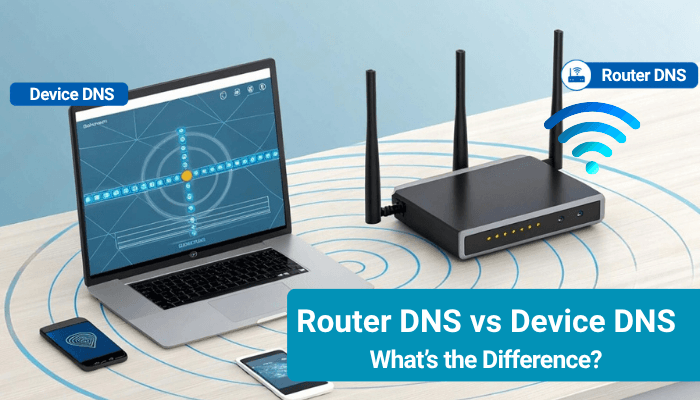
When researching how to fix DNS server not responding problems, many users wonder whether they should change DNS settings on their device or directly on their router.
Device-Level DNS
When DNS settings are changed on a computer, smartphone, or tablet, only that specific device uses the new DNS server.
Best for:
- Testing DNS changes
- Troubleshooting one device
- Personal computers and smartphones
Router-Level DNS
When DNS settings are changed on the router, every device connected to the network automatically uses the same DNS server.
Best for:
- Home networks
- Families
- Small businesses
- Multiple connected devices
If several devices experience the same DNS error, updating DNS settings on the router is often the more effective long-term solution.
7. Change DNS Server to Google DNS
One of the most reliable solutions for how to fix DNS server not responding errors is switching from your ISP’s DNS server to Google Public DNS.
Google DNS Addresses
Preferred DNS: 8.8.8.8
Alternate DNS: 8.8.4.4
Windows Setup Steps
- Open Settings.
- Go to Network & Internet.
- Select Wi-Fi or Ethernet.
- Open Hardware Properties or Adapter Properties.
- Edit DNS settings.
- Select Manual.
- Enable IPv4.
- Enter the Google DNS addresses.
- Save your changes.
Google Public DNS is known for reliability, speed, and global availability, making it one of the most popular DNS alternatives.
8. Change DNS Server to Cloudflare DNS
Cloudflare DNS is another popular option for users looking to improve DNS performance and privacy.
Cloudflare DNS Addresses
Preferred DNS: 1.1.1.1
Alternate DNS: 1.0.0.1
Cloudflare DNS is designed for speed and privacy while helping users access websites more reliably.
Benefits of Cloudflare DNS
- Fast DNS response times
- Enhanced privacy protections
- Easy setup
- Reliable global infrastructure
- Family-friendly filtering options
For many users, switching to Cloudflare DNS is another effective way to fix DNS server not responding issues caused by slow or unavailable ISP DNS servers.
IPv6 DNS Settings
Although IPv4 remains widely used, IPv6 adoption continues to grow across modern networks.
Google Public DNS (IPv6)
Preferred DNS
2001:4860:4860::8888
Alternate DNS
2001:4860:4860::8844
Cloudflare DNS (IPv6)
Preferred DNS
2606:4700:4700::1111
Alternate DNS
2606:4700:4700::1001
If your router, ISP, and device support IPv6, these DNS addresses can improve compatibility and future-proof your network configuration.
Secure DNS and DNS Over HTTPS (DoH)
Modern DNS providers now support encrypted DNS technologies that improve privacy and security.
Common Secure DNS Technologies
- DNS over HTTPS (DoH)
- DNS over TLS (DoT)
These technologies encrypt DNS requests before they travel across the network.
Benefits of Secure DNS
- Improved privacy
- Better protection on public Wi-Fi
- Reduced DNS tampering risks
- Enhanced browsing security
- More reliable DNS communication
As privacy and cybersecurity concerns continue to grow, Secure DNS has become an increasingly important feature for users learning how to fix DNS server not responding problems while also improving online security.
9. Disable VPN or Proxy Temporarily
VPNs and proxy servers can sometimes interfere with DNS requests or route them through unstable servers. Because of this, disabling them temporarily can help determine whether they are causing the problem.
Quick Test
- Turn off your VPN.
- Disable any active proxy settings.
- Restart your browser.
- Try opening the affected website again.
If websites start loading normally after disabling the VPN or proxy, you’ve likely found the source of the problem. This is a common troubleshooting step when learning how to fix DNS server not responding errors, especially on work, school, or public networks.
If the VPN is causing the issue, try switching to another server location, updating the VPN application, or contacting the provider’s support team.
10. Disable Antivirus or Firewall Temporarily
Some antivirus programs and firewall applications can accidentally block DNS traffic, preventing your device from reaching DNS servers correctly.
What to Do
- Temporarily disable your antivirus software.
- Turn off the firewall for testing purposes.
- Open your browser and test your internet connection.
If DNS starts working after disabling the security software, review its network protection settings and add your browser or network connection to the trusted list.
Important: Do not leave your antivirus or firewall disabled permanently. Re-enable security protection immediately after testing.
This step can often help users fix DNS server not responding issues caused by overly aggressive security settings.
11. Update Your Network Adapter Driver
Outdated or corrupted network drivers can cause communication problems between your device and the network, resulting in DNS errors.
Steps to Update Your Network Driver
- Right-click Start.
- Open Device Manager.
- Expand Network Adapters.
- Right-click your Wi-Fi or Ethernet adapter.
- Select Update Driver.
- Choose Search Automatically for Drivers.
- Follow the on-screen instructions.
After updating the driver, restart your computer and test your internet connection again.
Keeping drivers updated not only improves network stability but can also resolve DNS-related connectivity issues after major Windows updates.
12. Reset Network Settings
If none of the previous fixes work, resetting your network settings can restore default network configurations and remove settings that may be causing DNS problems.
Windows Network Reset Steps
- Open Settings.
- Go to Network & Internet.
- Click Advanced Network Settings.
- Select Network Reset.
- Click Reset Now.
After the reset is complete, reconnect to your Wi-Fi network and enter your password again.
A network reset is often considered one of the more advanced methods for how to fix DNS server not responding issues because it clears saved network configurations and rebuilds network settings from scratch.
13. Contact Your Internet Service Provider
If the DNS server not responding error appears on multiple devices and none of the troubleshooting steps work, the problem may be outside your home network.
Contact Your ISP If:
- All websites fail to load.
- Multiple devices show the same DNS error.
- Restarting the router does not help.
- Changing DNS servers does not solve the problem.
- Your area is experiencing a service outage.
When contacting support, ask whether there is a DNS outage, line issue, network maintenance event, or routing problem affecting your connection.
If all other troubleshooting methods fail, your ISP can often identify issues that are impossible to diagnose from the user side and help fix DNS server not responding problems caused by provider-level network issues.
DNS Troubleshooting Methods Comparison
If you’re looking for the fastest way to identify the best solution, the table below provides a quick overview of the most effective methods for how to fix DNS server not responding errors.
| Fix | Best For | Difficulty |
|---|---|---|
| Restart Router | Temporary network errors | Easy |
| Restart Device | Device glitches | Easy |
| Try Another Browser | Browser-specific issues | Easy |
| Flush DNS Cache | Corrupted DNS records | Easy |
| Renew IP Address | IP conflicts | Medium |
| Change to Google DNS | ISP DNS problems | Medium |
| Change to Cloudflare DNS | Speed and privacy improvements | Medium |
| Disable VPN | VPN DNS conflicts | Easy |
| Disable Firewall Temporarily | Security software blocking DNS | Medium |
| Update Network Driver | Windows network issues | Medium |
| Reset Network Settings | Advanced network configuration problems | Medium |
| Contact ISP | Service outages or provider-level issues | Easy |
This comparison table can help you prioritize the most relevant solution instead of testing every fix. For many users researching how to fix DNS server not responding problems, starting with the easiest solutions often produces the quickest results.
How to Fix DNS Server Not Responding on Mac
If you’re using a Mac, changing your DNS settings can often resolve connectivity problems caused by slow or unavailable DNS servers.
Steps for Mac
- Open the Apple Menu.
- Select System Settings.
- Click Network.
- Choose Wi-Fi or Ethernet.
- Click Details.
- Open the DNS section.
- Add one of the following DNS servers:
- Google DNS: 8.8.8.8 and 8.8.4.4
- Cloudflare DNS: 1.1.1.1 and 1.0.0.1
- Save your changes.
Restart your browser and test whether websites load correctly.
How to Fix DNS Server Not Responding on Android
Android devices allow users to configure DNS settings using the Private DNS feature.
Steps for Android
- Open Settings.
- Go to Network & Internet.
- Tap Private DNS.
- Select Private DNS Provider Hostname.
- Enter a trusted DNS provider hostname.
- Save your settings.
If the problem persists, forget the Wi-Fi network and reconnect to it. This can refresh network settings and help resolve DNS-related connectivity issues.
How to Fix DNS Server Not Responding on iPhone
If DNS problems occur on an iPhone or iPad, manually changing DNS settings may help restore normal internet access.
Steps for iPhone
- Open Settings.
- Tap Wi-Fi.
- Tap the Information (i) icon next to your network.
- Select Configure DNS.
- Choose Manual.
- Add DNS servers such as:
- 8.8.8.8
- 1.1.1.1
- Save your changes.
After updating the DNS settings, restart Safari or Chrome and test your connection again.
These device-specific solutions can be especially useful when how to fix DNS server not responding issues affect only one device while other devices on the same network continue to work normally.
Prevention Tips to Avoid DNS Errors
Once you successfully resolve the problem, taking preventive measures can reduce the chances of facing the same issue again. Many users searching for how to fix DNS server not responding errors experience recurring problems because basic network maintenance is often overlooked.
Best Practices to Prevent DNS Problems
- Restart your router periodically to refresh network connections.
- Keep your operating system updated.
- Use reliable DNS providers such as Google DNS or Cloudflare DNS.
- Avoid unknown VPNs, proxy services, or network modification tools.
- Update your router firmware regularly.
- Keep antivirus and security software updated.
- Avoid changing advanced network settings unless necessary.
- Monitor your network for unusual connectivity issues.
Following these simple habits can help prevent future DNS-related problems and reduce the need to repeatedly search for how to fix DNS server not responding solutions.
How to Check if a DNS Server Is Down
Sometimes the problem is not with your device but with the DNS provider itself. Before making major network changes, it’s worth confirming whether the DNS service is unavailable.
Quick Ways to Check
- Test multiple websites.
- Switch temporarily to Google DNS or Cloudflare DNS.
- Use the nslookup command.
- Test the same website on another device.
- Check your ISP’s service status page.
- Ask other users on the same network if they are experiencing similar issues.
If websites begin working after switching DNS providers, the original DNS server may be unavailable, overloaded, or experiencing technical difficulties. This is an important diagnostic step when troubleshooting how to fix DNS server not responding errors.
Why DNS Issues Are Becoming More Common in 2026
As home networks become more complex, DNS-related problems are becoming increasingly common.
Modern households now use:
- Smart TVs
- Security cameras
- Smart speakers
- Gaming consoles
- Streaming devices
- AI-powered assistants
- Connected home automation systems
Each connected device generates DNS requests. As the number of devices grows, older routers and network equipment may struggle to handle the increased traffic.
Understanding these modern network challenges can provide additional insight into how to fix DNS server not responding issues that seem to appear more frequently than they did a few years ago.
If your home contains many connected devices, upgrading router firmware or replacing outdated networking hardware may improve overall DNS reliability.
When You Should Not Change DNS Settings
Although changing DNS servers is often recommended when learning how to fix DNS server not responding problems, it is not always the correct solution.
Avoid Changing DNS Settings If:
- Your ISP is experiencing a temporary outage.
- Only one website is affected.
- Your company or school requires specific DNS servers.
- Your internet provider manages DNS settings automatically.
- The issue started immediately after installing a VPN or firewall.
In these situations, changing DNS settings may not address the actual cause of the problem.
Before making permanent changes, test the connection on multiple devices and identify whether the issue is truly DNS-related.
Common DNS Error Messages Related to DNS Server Not Responding
Different devices, browsers, and operating systems may display DNS problems using different error messages.
Common Examples
- DNS Server Not Responding
- DNS Probe Finished No Internet
- DNS Probe Finished NXDOMAIN
- Server DNS Address Could Not Be Found
- This Site Can’t Be Reached
- ERR_NAME_NOT_RESOLVED
Although the wording varies, many of these messages point to the same underlying issue. Recognizing these errors can make how to fix DNS server not responding troubleshooting faster because you’ll know where to focus your efforts.
Practical Troubleshooting Note
In real-world networking environments, DNS problems are often caused by temporary router issues, ISP DNS outages, outdated DNS cache records, or VPN conflicts rather than hardware failure.
For that reason, it is usually best to start with the simplest solutions first:
- Restart the router.
- Flush the DNS cache.
- Renew the IP address.
- Test an alternative DNS provider.
- Disable VPN services temporarily.
This step-by-step approach resolves most cases of how to fix DNS server not responding without requiring advanced technical knowledge or major network changes.
Many users waste time performing factory resets or replacing hardware before trying basic troubleshooting methods. A structured approach is usually the fastest way to fix DNS server not responding issues while avoiding unnecessary configuration changes.
By following the preventive measures and troubleshooting practices outlined in this guide, you’ll be better prepared to diagnose, prevent, and resolve future how to fix DNS server not responding problems on any device or network.
Why Public DNS Providers Are Popular
Many users switch to public DNS providers because they often offer better uptime, faster response times, enhanced privacy features, and more reliable global infrastructure than default ISP DNS servers.
Public DNS services such as Google Public DNS and Cloudflare DNS are widely used because they can improve DNS reliability while reducing the likelihood of temporary DNS-related outages.
Networking Expert Recommendation
Network professionals generally recommend starting with the simplest troubleshooting methods before making major configuration changes. In many cases, DNS problems are caused by temporary router issues, outdated DNS cache records, ISP DNS outages, or VPN conflicts rather than hardware failure.
A structured troubleshooting process helps identify the root cause more quickly and reduces the risk of unnecessary network modifications that may create additional connectivity problems.
About This DNS Troubleshooting Guide
This guide was developed using DNS networking principles, internet connectivity troubleshooting methods, network administration practices, public DNS provider documentation, and modern home-network management techniques.
The goal is to help users diagnose DNS-related connectivity problems accurately and restore internet access safely across Windows, Mac, Android, iPhone, routers, and home networks.
Conclusion
Experiencing a DNS error can be frustrating, especially when your internet appears connected but websites refuse to load. Fortunately, most DNS problems are caused by common issues such as outdated DNS records, router communication failures, incorrect DNS settings, VPN conflicts, or temporary ISP outages.
The key to how to fix DNS server not responding errors is to follow a structured troubleshooting process. Start with simple solutions such as restarting your router, testing another browser, and flushing your DNS cache before moving on to advanced fixes like changing DNS servers or resetting network settings.
By understanding the causes of DNS failures and applying the solutions covered in this guide, you can confidently troubleshoot connectivity problems across Windows, Mac, Android, iPhone, and home networks. Whether the issue is caused by your device, router, or DNS provider, knowing how to fix DNS server not responding problems can help you restore a stable internet connection quickly and avoid similar issues in the future.
Key Takeaways
- The DNS server not responding error usually occurs when your device cannot communicate with a DNS resolver.
- Restarting your router and device is often the fastest fix.
- Flushing DNS cache can resolve corrupted DNS records.
- Google DNS and Cloudflare DNS are reliable alternatives to ISP-provided DNS servers.
- VPNs, proxies, firewalls, and outdated network drivers can trigger DNS errors.
- IPv6 DNS settings and Secure DNS technologies are becoming increasingly important in 2026.
- If all devices on your network are affected, the issue may be with your router or internet service provider.
- Following the fixes in this guide can resolve most DNS server not responding errors without professional assistance.
FAQs About How To Fix Dns Server Not Responding
1. How long does it take to fix DNS server not responding errors?
Most DNS issues can be resolved within a few minutes by restarting the router, flushing DNS cache, or changing DNS settings. More complex network issues may take longer to diagnose.
2. Can restarting a router fix DNS server not responding problems?
Yes. Restarting the router is often one of the fastest ways to fix temporary DNS communication issues and restore internet access.
3. Does changing DNS improve internet speed?
Changing to a faster DNS provider such as Google DNS or Cloudflare DNS can improve website lookup times, although it will not increase your actual internet bandwidth.
4. Can a DNS server not responding error affect online gaming?
Yes. DNS issues can prevent games from connecting to servers, downloading updates, or accessing online features.
5. Is Google DNS better than my ISP’s DNS server?
In many cases, Google DNS offers better reliability and uptime than ISP-provided DNS servers, making it a popular troubleshooting option.
6. Can malware cause DNS server not responding errors?
Yes. Malware can modify DNS settings, redirect traffic, or interfere with network connections, leading to DNS-related problems.
7. Why does DNS server not responding happen randomly?
Random DNS failures are often caused by unstable Wi-Fi connections, overloaded routers, ISP DNS outages, or temporary network conflicts.
8. Should I use automatic DNS or manual DNS settings?
Automatic DNS works well for most users, but manual DNS settings may provide better reliability if your ISP’s DNS servers experience frequent problems.
9. Can DNS Problems Affect Email and Streaming Services?
Yes. DNS issues can affect any service that relies on domain-name resolution, including email platforms, streaming services, online games, cloud applications, and websites. Even if your internet connection appears active, these services may fail to connect when DNS requests cannot be completed.
