


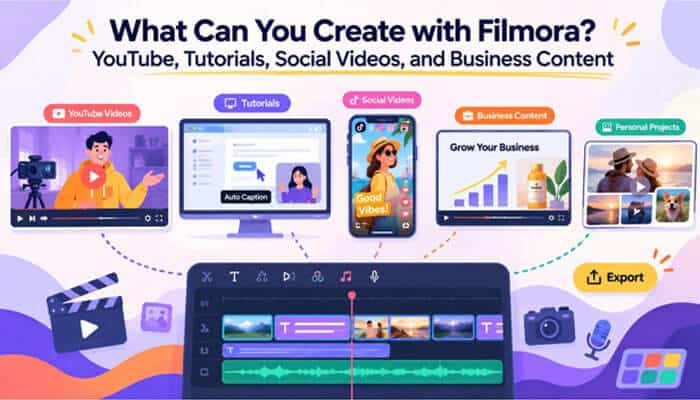

Most software questions have a feature answer, but this one does not. Asking what an editor can create is really asking whether it fits the kind of video you already make. The tools that matter differ sharply between a screen tutorial and a wedding montage. Filmora covers a wide span on the desktop, and the useful detail is which of its capabilities apply where.
This article works through 6 common content types and names the tools inside the Wondershare Filmora video editor that support each one. Everything referenced here is part of Filmora 15 on Windows and macOS.
Part 1. YouTube Videos
YouTube covers more formats than any other platform, and a review, a vlog, and a long interview each demand something different. What connects them is length, since a 15-minute upload needs structure that a short clip does not. Filmora supports that work in several ways:
- Layered B-roll: Supporting footage sits on tracks above the main take, so a cutaway covers a jump cut without disturbing the audio beneath.
- Multi-camera Interviews: Several angles can be synced by audio or timecode, which turns a two-camera conversation into one switchable sequence.
- Dialogue Tightening: Silence Detection finds the dead air between sentences and removes it, which is where most of a rambling take disappears.
- Titles and Lower Thirds: Names, chapter markers, and on-screen points sit on their own track and can be restyled across the video at once.
- Music Beneath Speech: A background track occupies a separate audio layer, so its level drops under narration without touching the voice.
Part 2. Tutorials and Screen-Recorded Videos
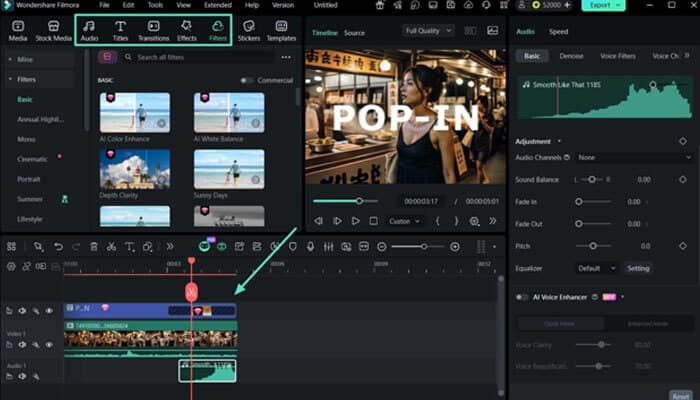
Tutorials begin before the editing does, because the recording itself decides how much repair work follows. Wondershare Filmora captures the screen, the webcam, and audio inside the same application, taking system sound and microphone either together or separately. Webcam frames and layouts are adjustable, which matters when a face overlay must not cover the interface being demonstrated.
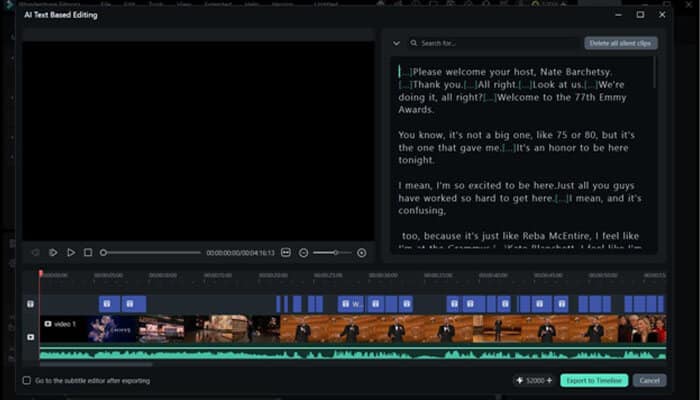
Editing a screen recording is mostly subtraction, and AI Text-Based Editing works from the transcript, so a fluffed sentence goes by deleting the words. Long waits, such as a page loading, are trimmed the same way. Auto Caption adds subtitles for viewers watching without sound, while zooming into the frame keeps a small cursor and fine interface detail readable.
Note: The built-in teleprompter that helps with scripted narration is currently a Windows-only feature. Use the Filmora Auto Synchronization feature to merge both video and audio properly if added separately.
Part 3. Short Social Videos
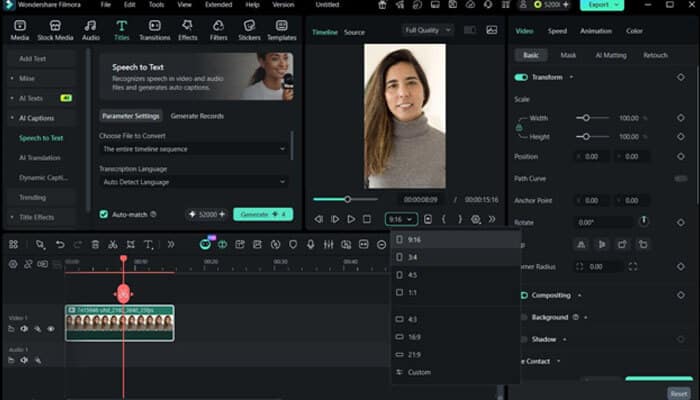
Vertical video rewards a different discipline entirely, since a viewer decides within 2 seconds whether to keep watching. Most creators also want the same footage on more than one platform, which is where reframing becomes the bottleneck. The table matches each demand to Wondershare video editor that meets it:
| What Short Video Demands | How Filmora Answers It |
| A Strong Opening | Trimming the first frames back to the moment that earns attention |
| Vertical Framing | Auto Reframe uses AI motion tracking to hold the subject as the ratio changes |
| Multiple Platform Sizes | Ratio templates cover 9:16, 1:1, 4:3, 16:9, and 21:9 from one source file |
| Fast Pacing | Splitting and closing gaps removes every pause that slows the cut down |
| Readable Captions | Automatic subtitles that can be restyled to survive a muted feed |
Pulling a vertical cut out of horizontal footage is the step most editors dread, and automating the reframe is what makes publishing to several platforms practical.
Part 4. Product and Marketing Videos
Marketing video carries a requirement the others do not, because the finished clip has to look like the same company made it. Consistency and clarity matter more than variety here, and 5 capabilities carry most of that weight:
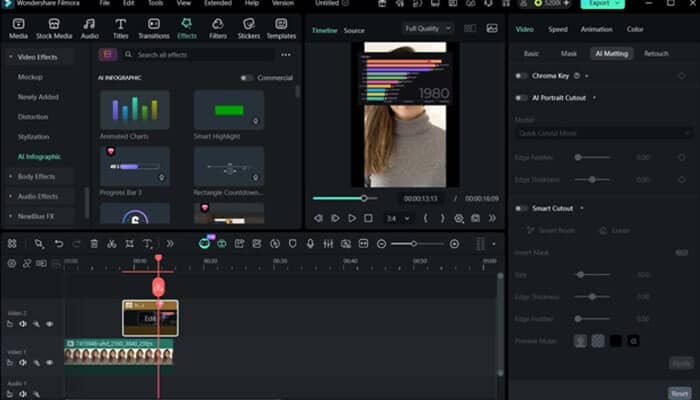
- Clean Product Backgrounds: Chroma key replaces a green screen, while AI Smart Cutout isolates a subject from a busy background without one.
- Narrated Promos: AI Text to Speech generates a voiceover from a script when no recorded voice is available for a fast turnaround.
- Data and Results: Animated charts turn figures from a case study or a testimonial into something a viewer will actually follow.
- Branded Titles and End Cards: A styled title holding a logo and a call to action can be reused across a whole campaign.
- Product Demonstrations: Slowing a clip down or ramping its speed lets a mechanism or a fine detail register before the shot moves on.
Part 5. Training and Internal Business Videos
Internal video is judged on different criteria, because nobody is competing for the viewer’s attention. What matters is that a module stays accurate, updates easily, and reaches everyone required to watch it. Screen recordings and slide walkthroughs form most of the material, and 4 formats cover the bulk of what companies produce:
| Video Type | What It Has to Do | The Capability That Fits |
| Onboarding Videos | Say the same thing to every hire in every region | AI Video Translation turns one narrated module into several languages |
| Internal Presentations | Stand in for a meeting that could not gather everyone | A voiceover recorded over the slides explains at the viewer’s own pace |
| Process Explanations | Let each stage register before the next one begins | Speed control and held frames slow a workflow where it matters most |
| Reusable Content | Absorb a policy change without a full rebuild | One master project, edited in a single section and exported again within Filmora 15. |
Part 6. Personal, Travel, and Event Videos
Personal projects invert the usual problem, since the footage already exists and the difficulty is choosing what to keep. A holiday folder holds hundreds of clips and photographs in no obvious order. Before refining your videos, you can look into this Filmora synchronization tutorial to align your video and audio for further edits. Two structures usually rescue that material, and the occasion decides which one to reach for.
A Chronological Cut
Travel footage suits the order it was shot in, because the journey itself supplies the narrative. Titles carrying dates and place names mark each stage, while transitions signal a jump between locations rather than a cut within one. Photographs sit alongside video on the timeline, and a slow zoom keeps a still from feeling static.
A Cut Built Around Moments
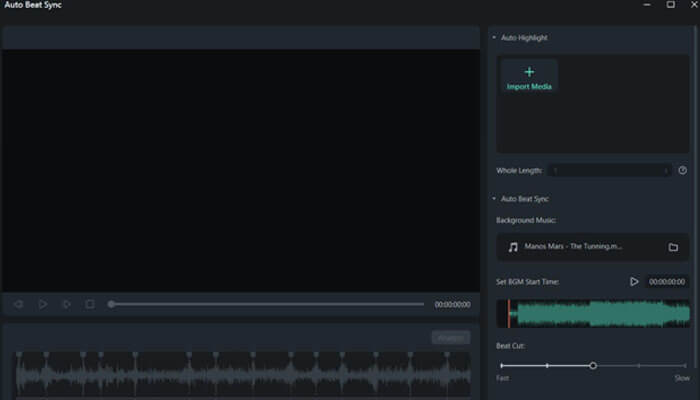
A wedding, a birthday, or a graduation reads better arranged around its high points than by the clock. Music tends to drive that version, and Auto Beat Sync analyzes the track to place cuts and effects on the beat. The same tool can drop segments it detects as too dark, overexposed, or shaky.
Note: Instant Mode, which builds a first cut from a template and your media, is available on Windows only.
Conclusion
The honest answer to what Filmora 15 can create is that it depends on who is watching. A YouTube upload, a vertical clip, and an onboarding module draw on almost entirely different parts of the same application. Choosing tools by audience, publishing format, and purpose is what separates a finished video from a collection of effects.
