


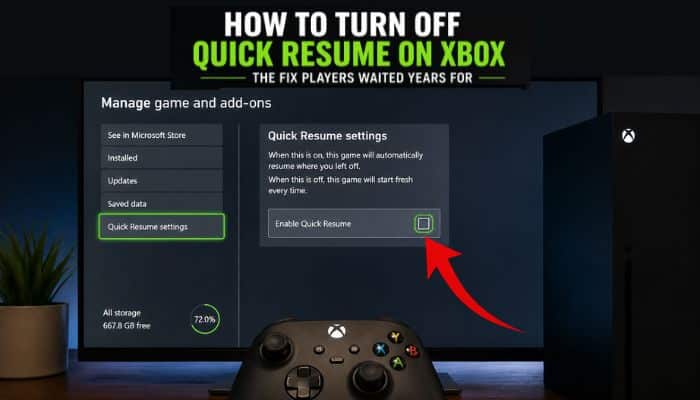

For years, how to turn off Quick Resume on Xbox had no satisfying solution. You could manually quit a game or remove its suspended state, but Xbox Series X|S could simply place the title back into Quick Resume the next time it qualified.
That changed in 2026.
Microsoft’s April 2026 Xbox update introduced the option to disable Quick Resume for individual games. Instead of repeatedly closing a multiplayer or always-online title that resumes poorly, you can now make that game launch fresh every time.
The change followed player feedback involving games resumed after long periods of inactivity and titles that depend heavily on online connections. It finally gives players a practical way to control Quick Resume without giving up the feature everywhere.
There is one catch. How to turn off Quick Resume on Xbox now has a permanent per-game solution, but Microsoft has not documented a master switch for disabling it across the entire Xbox Series X|S console.
Below, you’ll see exactly where the new setting is, how to confirm it worked, and which games may actually perform better with Quick Resume switched off.
Quick Answer: How to Turn Off Quick Resume on Xbox
If you’re looking for how to turn off Quick Resume on Xbox after the 2026 update, you can now disable the feature for individual games directly from their management settings.
Follow these steps:
- Highlight the game on your Xbox Series X|S.
- Press the Menu button on your controller.
- Select Manage game and add-ons.
- Open Quick Resume settings.
- Choose the option to disable Quick Resume for that game.
The full path is:
Game tile → Menu → Manage game and add-ons → Quick Resume settings → Disable Quick Resume
You can also open the Quick Resume group, highlight a game, open More options, and select Manage Quick Resume.
Once disabled, Xbox will launch that game fresh instead of restoring its previous suspended Quick Resume state.
What Changed With Xbox Quick Resume in 2026?
The new setting solves one of the longest-running complaints about Quick Resume. It also changes the answer for players searching how to turn off Quick Resume on Xbox, because disabling the feature no longer requires repeatedly quitting the same game.
When Xbox Series X and Xbox Series S launched, Quick Resume was designed as a core part of the Xbox Velocity Architecture. It saves game states to the console’s SSD, allowing multiple supported games to remain suspended and resume almost instantly.
Microsoft has demonstrated that Quick Resume states can survive restarting the console, installing system updates, and even completely unplugging the Xbox.
That persistence is useful when everything works properly.
It can be less useful when a game expects a fresh online connection.
Microsoft acknowledged this issue in 2026, noting player feedback about games that rely heavily on online connectivity and games resumed after long periods of inactivity.
The company responded by introducing permanent per-game Quick Resume controls. As a result, how to turn off Quick Resume on Xbox now has a much simpler answer: disable it for the individual game you want to launch fresh.
| Before the 2026 Update | After the 2026 Update |
|---|---|
| Quick Resume was largely automatic | Quick Resume can be disabled per game |
| Players often had to manually quit games | Selected games can launch fresh |
| Removing a Quick Resume state was temporary | Disabling changes future launch behavior |
| No practical per-game opt-out | Dedicated Quick Resume settings are available |
| Online games could require repeated restarts | Problematic titles can bypass Quick Resume |
The setting was first tested with Xbox Insiders in March 2026 before becoming broadly available through the April Xbox update.
How to Know If a Game Supports Quick Resume
Before deciding how to turn off Quick Resume on Xbox for a particular game, it helps to confirm whether that title is actually using the feature.
Xbox Series X|S can show a Quick Resume indicator for supported games. You can also open the dedicated Quick Resume group to see games whose current sessions are being stored for fast resuming.
If a game appears in the Quick Resume group, Xbox currently has a suspended Quick Resume state available for that title.
Quick Resume support can vary from game to game. Some titles work almost perfectly with it, while others—especially games that depend heavily on online connections—may need to reconnect or restart after being suspended for a long time.
This distinction matters when troubleshooting. If you’re researching how to turn off Quick Resume on Xbox because a particular game keeps freezing, disconnecting, or launching incorrectly, first confirm that Quick Resume is actually active for that title.
If the game is not using Quick Resume in the first place, disabling the feature will not fix an unrelated crash, server problem, loading error, or network issue.
How to Turn Off Quick Resume on Xbox Series X
If you’re looking for how to turn off Quick Resume on Xbox Series X, you can now manage the feature for individual games without changing your console’s general power settings.
Find the game you want to change from Home or My games & apps. Highlight its tile and press the Menu button on your controller.
Choose:
Manage game and add-ons > Quick Resume settings
From there, disable Quick Resume for that title.
The next time the game starts, Xbox should launch it normally instead of attempting to restore the previous suspended session.
This approach is particularly useful because you do not have to sacrifice Quick Resume everywhere. You can keep it enabled for games where instant resuming works well while disabling it only for titles that repeatedly cause problems.
For Xbox Series X owners researching how to turn off Quick Resume on Xbox, the key is to use the game’s dedicated Quick Resume settings rather than changing sleep mode, power settings, or repeatedly quitting the game manually.
How to Turn Off Quick Resume on Xbox Series S
If you’re searching for how to turn off Quick Resume on Xbox Series S, the process is essentially the same as it is on Xbox Series X.
Xbox Series X and Series S both use Quick Resume through the Xbox Velocity Architecture, so the new per-game control applies to both consoles.
Use this path:
Game tile > Menu > Manage game and add-ons > Quick Resume settings
Then disable Quick Resume for that title. The next time you open the game, Xbox should launch it fresh instead of restoring the previous suspended session.
For Series S owners wondering how to turn off Quick Resume on Xbox, there is no need to change sleep mode, energy settings, or storage settings. Simply use the dedicated Quick Resume setting for the individual game you want to launch fresh.
How to Check If Quick Resume Is Really Disabled
After learning how to turn off Quick Resume on Xbox, you may want to confirm that the setting actually worked.
You can test it in a few steps:
- Disable Quick Resume for the game.
- Launch the game normally.
- Play for a short period.
- Switch to another game or return to the Xbox dashboard.
- Open the Quick Resume group.
- Check whether the disabled game appears there.
- Launch the game again.
When Quick Resume is disabled for that title, Xbox should launch the game fresh instead of restoring its previous suspended session.
If the behavior does not appear to change, return to:
Manage game and add-ons > Quick Resume settings
Make sure Quick Resume is disabled for that specific game.
You should also check for Xbox system updates if the Quick Resume management option is missing, since permanent per-game control was introduced as part of the 2026 Xbox console update.
Can You Turn Off Quick Resume for Every Xbox Game at Once?
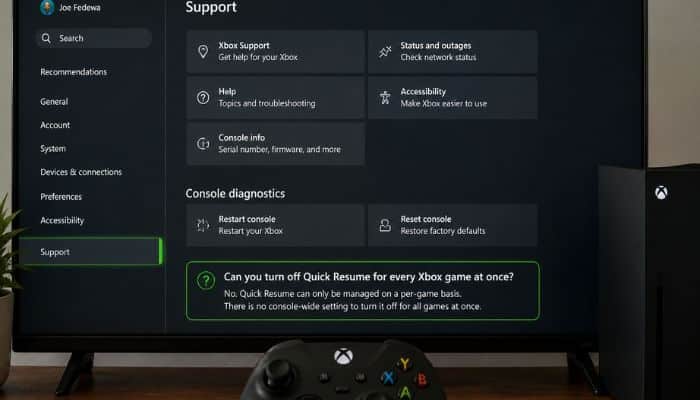
No. As of August 2026, Xbox does not provide a documented global switch for disabling Quick Resume across every game at once. This is an important limitation for anyone searching how to turn off Quick Resume on Xbox.
Instead, Microsoft uses a per-game control, which means you choose exactly which titles should use Quick Resume.
Here is what that means in practice:
- No master switch: You cannot disable Quick Resume for every supported game with one setting.
- Per-game control: Quick Resume must be turned off separately for each game you want to launch fresh.
- More flexibility: You can disable it for multiplayer or always-online games while keeping it active for single-player titles.
- Easy to change later: If a game works well with Quick Resume, you can leave the feature enabled instead of disabling it unnecessarily.
- Better troubleshooting: Games that repeatedly freeze, disconnect, or resume incorrectly can be configured to start fresh.
For players wondering how to turn off Quick Resume on Xbox across multiple games, the best approach is to disable it individually for each problematic title while leaving it enabled for games that benefit from faster resuming.
Disable Quick Resume vs Remove From Quick Resume
If you’re researching how to turn off Quick Resume on Xbox, it is important to understand that disabling Quick Resume and removing a game from Quick Resume are not the same thing.
The difference comes down to whether you want to clear one suspended session or stop a game from using Quick Resume in future sessions.
| Action | What It Does | Permanent? | Best Use |
|---|---|---|---|
| Disable Quick Resume | Stops a selected game from using Quick Resume | Yes, until changed | Games that regularly have resume problems |
| Remove from Quick Resume | Clears the game’s current suspended state | No | Fixing one problematic session |
| Quit | Fully closes the currently running game | No | Restarting a game immediately |
| Restart Xbox | Restarts the console | No | General troubleshooting |
Xbox has allowed players to remove suspended games from Quick Resume for years. However, removing a game only clears its current saved state. If you play the title again later, it can return to Quick Resume.
The 2026 per-game setting changes that behavior. You can now disable Quick Resume for a particular title so it launches fresh instead of repeatedly creating another suspended session.
For anyone learning how to turn off Quick Resume on Xbox, remember this simple rule: remove a game when you want to clear its current Quick Resume session; disable Quick Resume when you want that game to launch fresh in future sessions.
Why Would You Want to Disable Quick Resume?
Quick Resume is one of the most useful features of Xbox Series X|S, but it does not work equally well with every game. For players researching how to turn off Quick Resume on Xbox, recurring connection or resume problems are often the main reason to consider disabling it.
Microsoft specifically highlighted situations involving games resumed after long periods of inactivity and titles that rely heavily on online connections.
You may want to disable Quick Resume for a particular game if you repeatedly experience:
- Connection errors after returning to a game
- Stale multiplayer sessions that no longer connect properly
- Login problems after resuming
- Missing or unavailable online services
- Audio glitches after a suspended session
- Frozen menus or interface problems
- Reconnection failures in online games
- Repeated manual restarts just to get the game working normally
A fresh launch allows the game to initialize its systems again and establish a new online connection instead of trying to continue an old suspended session.
However, Quick Resume should not automatically be blamed for every crash, freeze, or connection problem. Game servers, network conditions, console software, and bugs within the game itself can cause similar issues.
If these problems consistently appear after resuming a game, learning how to turn off Quick Resume on Xbox can be a useful troubleshooting step. Disable it for the affected title and compare how the game behaves when it launches fresh.
Which Games Should Keep Quick Resume Enabled?
There is no reason to disable Quick Resume everywhere simply because the option now exists. For players researching how to turn off Quick Resume on Xbox, it is equally important to know which games may actually benefit from keeping the feature enabled.
For many offline and single-player games, Quick Resume can significantly reduce the time between turning on the console and getting back into gameplay. Online and live-service titles, however, may be worth testing if they regularly have trouble reconnecting after a suspended session.
A sensible setup could look like this:
| Type of Game | Suggested Quick Resume Setting |
|---|---|
| Offline single-player game | Usually keep enabled |
| Story-driven RPG | Usually keep enabled |
| Platformer or adventure game | Usually keep enabled |
| Multiplayer-focused game | Test both settings |
| Always-online game | Consider disabling if reconnecting causes problems |
| Live-service game | Consider disabling if sessions frequently expire |
| Game that consistently resumes incorrectly | Disable |
| Game that resumes without problems | Keep enabled |
The best setting is ultimately game-specific. If you’re learning how to turn off Quick Resume on Xbox, avoid disabling it automatically for every title. Keep it enabled where it saves time and works reliably, and turn it off only for games that repeatedly experience resume or connection problems.
Does Turning Off Quick Resume Delete Your Game Saves?
No. Disabling Quick Resume does not mean deleting your normal game save. For players researching how to turn off Quick Resume on Xbox, this is an important distinction to understand before changing the setting.
Quick Resume preserves a suspended running state so Xbox can restore a supported game quickly. Your regular game save, on the other hand, stores your actual progress through the game’s normal save system.
Turning Quick Resume off simply means Xbox launches the game normally instead of restoring its previous suspended session.
Keep these points in mind:
- Quick Resume is not your game save: It stores a suspended session rather than replacing the game’s normal save system.
- Disabling it changes how the game launches: The title starts fresh instead of returning to its suspended Quick Resume state.
- Continue saving normally: Use manual save points whenever a game requires them.
- Don’t rely on Quick Resume as a save method: Always protect important progress through the game’s intended save system.
So, if you’re learning how to turn off Quick Resume on Xbox, you can disable the feature for a problematic game without treating that action as deleting your normal saved progress. You should still save properly before exiting whenever a game requires manual saving.
Does Turning Off the Xbox Disable Quick Resume?
No. Turning off your Xbox does not automatically disable Quick Resume.
Quick Resume states are stored using the console’s SSD architecture, allowing supported suspended sessions to persist even after the console has been turned off or unplugged.
Because of this, changing sleep or power settings is not a reliable way to permanently stop a game from using Quick Resume.
If you’re looking for how to turn off Quick Resume on Xbox, use the game’s dedicated Quick Resume settings instead of relying on shutting down or changing the console’s power mode.
Does Restarting Xbox Clear Quick Resume?
No. Restarting your Xbox is not a reliable way to permanently clear or disable Quick Resume. For anyone searching how to turn off Quick Resume on Xbox, it is important to understand that restarting the console and disabling Quick Resume are different actions.
Quick Resume is designed to preserve supported game states across situations that would normally end a traditional suspended session.
Here is what you should know:
- Restarting is not permanent: A normal Xbox restart does not function as a master Quick Resume off switch.
- Quit for a fresh session: If one game freezes or resumes incorrectly, fully quitting it can force a fresh launch.
- Remove a suspended state: Removing a game from the Quick Resume group can clear its current session without permanently disabling the feature.
- Disable problematic games: If the same title repeatedly causes connection, login, or resume issues, use its dedicated Quick Resume setting.
- Manage games individually: The 2026 control lets you decide which games should launch fresh instead of trying to disable Quick Resume across the entire console.
So, if you’re researching how to turn off Quick Resume on Xbox, don’t rely on restarting the console. Use Manage game and add-ons > Quick Resume settings to disable the feature for the individual game instead.
How to Remove a Game From Quick Resume Without Disabling It
You don’t always need to disable Quick Resume permanently. If you’re researching how to turn off Quick Resume on Xbox because one game froze, disconnected, or resumed incorrectly, removing its current Quick Resume state may be enough.
To remove a game from Quick Resume:
- Open My games & apps on your Xbox Series X|S.
- Go to the Quick Resume group.
- Highlight the game you want to remove.
- Press the Menu button on your Xbox controller.
- Select Remove from Quick Resume.
- Launch the game again to start a fresh session.
Removing a game and disabling Quick Resume serve different purposes:
- Remove the game when you only want to clear its current suspended session.
- Disable Quick Resume when the same game repeatedly freezes, disconnects, or resumes incorrectly.
- Use Remove for one-time problems because the game can enter Quick Resume again after you play it.
- Use Disable for recurring problems when you want that particular title to launch fresh in future sessions.
For players learning how to turn off Quick Resume on Xbox, this distinction is important: removing a game fixes the current suspended state, while disabling Quick Resume changes how that game behaves going forward.
How to Pin Games to Quick Resume
If you’re researching how to turn off Quick Resume on Xbox, it is also useful to know that Xbox Series X|S lets you do the opposite: pin games you want to keep available for fast resuming.
You can pin up to two games to Quick Resume, making it easier to keep frequently played titles available.
To pin a game:
- Open the Quick Resume group on your Xbox Series X|S.
- Highlight the game you want to keep available.
- Press the Menu button on your Xbox controller.
- Select Pin to Quick Resume.
- If two games are already pinned, choose which existing pinned game you want to replace.
Pinning can help you create a more personalized Quick Resume setup. For example, you might disable the feature for an online multiplayer game that regularly has connection problems while pinning a single-player RPG you return to frequently.
For players learning how to turn off Quick Resume on Xbox, this flexibility is worth understanding: you don’t have to treat Quick Resume as completely on or off. You can disable it for problematic titles while keeping your favorite compatible games ready for faster resuming.
What Happens to Quick Resume When a Game Updates?
A mandatory game update can remove a title from Quick Resume—even if you previously pinned it. This is useful to understand when researching how to turn off Quick Resume on Xbox, because a game disappearing after an update does not necessarily mean Quick Resume was manually disabled.
Pinned games normally remain available in Quick Resume until you remove them, but a required update can interrupt the saved Quick Resume state. The suspended session may belong to an older version of the game and may no longer be compatible with the newly installed update.
If a game disappears from Quick Resume after receiving a patch, it does not necessarily mean anything is wrong with your Xbox. Launch the updated game normally and allow Xbox to create a new eligible Quick Resume state afterward.
Keep these differences in mind:
- Removing a game: Clears its current suspended Quick Resume state.
- Disabling Quick Resume: Stops that particular game from using the feature going forward.
- Updating a game: May invalidate an existing Quick Resume state automatically.
- Launching after an update: Gives the game an opportunity to create a new eligible Quick Resume state.
For anyone learning how to turn off Quick Resume on Xbox, the key distinction is that an update can clear an existing state without permanently disabling the feature. If you want a game to stop using Quick Resume in future sessions, change its dedicated Quick Resume setting instead.
What If Quick Resume Settings Are Missing?
If you’re following a guide on how to turn off Quick Resume on Xbox but cannot find the Quick Resume settings, don’t assume something is wrong with your console. The option may be missing because of your Xbox model, system software, or the individual game’s Quick Resume support.
Check these possibilities first:
- Confirm your Xbox model: The Quick Resume feature discussed here is designed for Xbox Series X and Xbox Series S, not the Xbox One generation.
- Check for console updates: Make sure your Xbox Series X|S is running current system software, especially because the per-game Quick Resume control arrived in 2026.
- Check the individual game: Quick Resume support varies by title, so a game that does not support the feature may not provide the same management options.
- Look in the correct menu: Highlight the game, press the Menu button, and check Manage game and add-ons > Quick Resume settings.
- Check the Quick Resume group: Games currently using Quick Resume can also appear in the dedicated Quick Resume group, where supported management options may be available.
For players researching how to turn off Quick Resume on Xbox, the most important point is that the setting is managed per game. If the option is missing for one title, check its Quick Resume support and your console software before assuming the feature is unavailable everywhere.
Is Quick Resume the Same as Sleep Mode?
No. Quick Resume and Xbox sleep mode are different features that control different parts of the console experience.
Quick Resume preserves supported game sessions so you can return to them quickly, while sleep and power settings determine how the Xbox behaves when the console is not actively being used.
| Feature | Purpose |
|---|---|
| Quick Resume | Stores supported game states for faster resuming |
| Console sleep/power mode | Controls how Xbox behaves when powered down |
| Game save | Stores your actual in-game progress |
| Cloud save | Synchronizes supported saved-game data |
| Quit game | Fully closes the currently running game |
Changing your Xbox sleep or power mode is therefore not the same as disabling Quick Resume for an individual game.
If you’re researching how to turn off Quick Resume on Xbox, use the game’s dedicated Quick Resume settings rather than changing the console’s sleep or power mode.
Does Quick Resume Use Xbox Storage?
Yes. Quick Resume uses the storage architecture of Xbox Series X|S to preserve supported game states for fast resuming.
Instead of simply keeping several games running in RAM, Xbox stores Quick Resume states on its internal SSD. This helps those suspended sessions persist through situations such as restarting or completely powering down the console.
Quick Resume is part of Microsoft’s broader Xbox Velocity Architecture, which is why it behaves differently from ordinary app suspension.
Here are the key points:
- Quick Resume uses SSD storage to preserve supported game states.
- Multiple games can have suspended states available for fast resuming.
- Restarting the console does not necessarily remove those states.
- Quick Resume is different from a normal game save and should not be treated as a replacement for saving your progress.
If you’re researching how to turn off Quick Resume on Xbox, changing or freeing storage is not the solution. Use the individual game’s Quick Resume settings to disable the feature instead.
Does Quick Resume Work With Games on External Storage?
Yes. A game’s installation location and its Quick Resume state are two different things. This is useful to understand when researching how to turn off Quick Resume on Xbox, because moving a game to another storage device does not automatically disable the feature.
Quick Resume uses the internal SSD architecture of Xbox Series X|S to preserve supported game states. Depending on the title and its storage requirements, Quick Resume can still work when games are associated with different compatible storage options, including:
- Xbox Series X|S internal SSD
- Xbox Storage Expansion Card
- Supported external USB storage
However, Quick Resume compatibility does not change the normal storage requirements for Xbox Series X|S optimized games.
Some optimized titles must be played from the console’s internal SSD or a compatible Storage Expansion Card because they require high-speed storage. Older and compatible games may be playable directly from supported external USB storage.
The key distinction is simple:
- Moving a game changes where its installation files are stored.
- Disabling Quick Resume changes whether the game can use a suspended Quick Resume state.
- Changing storage devices is not a substitute for turning Quick Resume off.
If you’re learning how to turn off Quick Resume on Xbox, use Manage game and add-ons > Quick Resume settings for the individual title rather than moving the game between storage devices.
Does Quick Resume Work With Backward-Compatible Xbox Games?
Yes. Quick Resume is not limited to games originally developed for Xbox Series X and Xbox Series S. This is useful to know when researching how to turn off Quick Resume on Xbox, especially if the game you’re troubleshooting comes from an earlier Xbox generation.
Supported backward-compatible games can also take advantage of Quick Resume when played on Xbox Series X|S. Depending on compatibility, this may include titles originally released for:
- Xbox One
- Xbox 360
- Original Xbox
However, Quick Resume support and behavior can vary between individual games. You should not assume that every backward-compatible title supports the feature or handles suspended sessions in exactly the same way.
To check a backward-compatible game:
- Launch the game on your Xbox Series X|S.
- Play long enough for a normal game session to begin.
- Switch away from the game.
- Open the Quick Resume group.
- Check whether the title appears among your suspended games.
For players learning how to turn off Quick Resume on Xbox, this check is important because you should first confirm that the backward-compatible title is actually using Quick Resume. If supported, older games can benefit from faster resuming, while problematic titles can be managed individually when necessary.
Can You Turn Quick Resume Back On?
Yes. Disabling Quick Resume for a game is not permanent. You can turn the feature back on whenever you want.
The 2026 control works as a game-by-game preference, so changing the setting for one title does not affect your other games.
To turn Quick Resume back on:
- Highlight the game on your Xbox Series X|S.
- Press the Menu button on your controller.
- Select Manage game and add-ons.
- Open Quick Resume settings.
- Change the setting to allow Quick Resume for that game again.
If you disabled Quick Resume because a game was freezing, disconnecting, or reconnecting poorly, test several fresh launches before deciding whether to re-enable it.
If the problem continues regardless of Quick Resume—or you simply miss the faster startup—you can turn the feature back on. For players learning how to turn off Quick Resume on Xbox, knowing that the setting can be reversed makes it easier to test whether Quick Resume is actually causing the problem.
Is Disabling Quick Resume Better for Online Games?
Sometimes, but not always. For players researching how to turn off Quick Resume on Xbox, online and multiplayer games are often the first titles worth testing because their server connections may not always recover cleanly after a long suspended session.
A Quick Resume state can preserve the game locally, while the remote multiplayer server may no longer recognize the previous network session when you return. Launching the game fresh gives it an opportunity to establish a new connection normally.
Consider disabling Quick Resume for an online game if you repeatedly experience:
- Server connection errors after resuming
- Expired multiplayer sessions that require reconnecting
- Login or authentication problems
- Missing online features after returning to the game
- Frozen multiplayer menus or lobbies
- Repeated manual restarts before online play works correctly
However, you do not need to disable Quick Resume simply because a game is online. If the title reconnects reliably and resumes without problems, keeping Quick Resume enabled may provide the faster and more convenient experience.
For anyone learning how to turn off Quick Resume on Xbox, the best approach is to judge each online game individually. Disable the feature when resume-related connection problems repeatedly occur, but leave it enabled when the game resumes and reconnects normally.
The Best Way to Manage Quick Resume in 2026
The best approach to Quick Resume in 2026 is to manage it selectively rather than disabling it for every game.
Keep Quick Resume enabled for games where it saves meaningful loading time and resumes without problems. Disable it only for titles that regularly produce connection errors, stale online sessions, freezes, or repeated restarts after resuming.
A simple strategy is:
- Keep it enabled for single-player and offline games that resume reliably.
- Test both settings for multiplayer and live-service games.
- Disable it for titles that repeatedly freeze, disconnect, or fail to reconnect after resuming.
- Remove a Quick Resume state when you only need to fix a one-time problem.
- Re-enable it later if disabling the feature does not improve the game’s behavior.
This selective approach preserves the speed and convenience of Quick Resume without forcing you to tolerate it in games where it causes problems. If you’re researching how to turn off Quick Resume on Xbox, the best strategy is not to disable it everywhere—use the per-game control only where launching fresh provides a better experience.
Why This Xbox Change Took So Long
For years, players searching how to turn off Quick Resume on Xbox had limited control over which games used the feature. Quick Resume was built as a major part of the Xbox Series X|S experience, but Microsoft’s management options expanded gradually over time.
The evolution of Quick Resume looked like this:
- 2020: Quick Resume launched as one of the headline features of Xbox Series X|S, allowing multiple supported game states to remain available even across console restarts and power interruptions.
- 2021: Microsoft added the Quick Resume group, making it easier to identify and remove suspended games.
- 2022: Xbox introduced the ability to pin up to two games to Quick Resume.
- 2026: Microsoft finally added per-game Quick Resume controls, giving players the option to prevent individual titles from using the feature.
The missing piece had been straightforward control over which games should participate. Microsoft first introduced the per-game disabling option to Xbox Insiders in March 2026 before rolling it out more broadly through the April update.
That change finally gave a practical answer to players wondering how to turn off Quick Resume on Xbox without repeatedly quitting the same game. You can now keep Quick Resume for titles that handle it well while disabling it for games that work better with a fresh launch.
Conclusion
Xbox players spent years relying on manual quits and temporary workarounds, but the 2026 update finally changed that. How to turn off Quick Resume on Xbox now comes down to a simple per-game setting, giving you control over troublesome titles without sacrificing Quick Resume everywhere else.
Go to:
Manage game and add-ons > Quick Resume settings
From there, disable Quick Resume for any game that repeatedly freezes, loses its online connection, or works better after a fresh launch. Games that resume smoothly can stay exactly as they are.
There is still no documented master switch for every game, but that may actually work in your favor. Instead of treating Quick Resume as all-or-nothing, you can decide which titles deserve the faster resume and which should start fresh.
Ultimately, how to turn off Quick Resume on Xbox is no longer about finding another workaround. Xbox Series X|S finally gives players the choice that was missing from Quick Resume for years.
FAQs
1. Does turning off Quick Resume make Xbox games load slower?
Yes, potentially. When following how to turn off Quick Resume on Xbox, remember that disabled games must launch normally instead of restoring a suspended state, so startup may take longer.
2. Does disabling Quick Resume improve Xbox FPS?
No. How to turn off Quick Resume on Xbox changes how a game launches; it does not directly increase frame rate, GPU power, or overall console performance.
3. Do I need to turn off Quick Resume after every gaming session?
No. With the 2026 per-game setting, how to turn off Quick Resume on Xbox is no longer a process you need to repeat after every session for a game you’ve disabled.
4. Can I turn off Quick Resume for just one problematic game?
Yes. The new control is game-specific. Following how to turn off Quick Resume on Xbox for one troublesome title does not require disabling the feature for games where it works well.
5. Does disabling Quick Resume uninstall the game?
No. Using how to turn off Quick Resume on Xbox only changes whether Xbox restores that game’s suspended state. It does not uninstall the title or remove its installation files.
6. Does Quick Resume turn itself back on after restarting Xbox?
A console restart is separate from the game’s Quick Resume preference. If you used the per-game how to turn off Quick Resume on Xbox setting, restarting the console is not the same as manually changing that preference.
7. Should I disable Quick Resume if a game keeps crashing after launch?
It is worth testing if crashes consistently happen after resuming. Use how to turn off Quick Resume on Xbox to force a fresh launch, but remember that crashes can also come from game bugs, updates, or other issues.
8. Is turning off Quick Resume worth it in 2026?
It can be for games that repeatedly freeze, disconnect, or resume poorly. How to turn off Quick Resume on Xbox is most useful as a per-game fix rather than something you need to apply to every title.
