


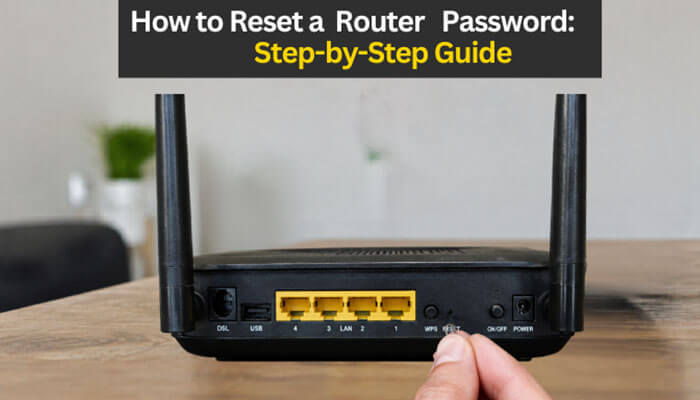

Knowing how to reset a router password is important when you forget your router admin login, lose your Wi-Fi password, buy a used router, or want to protect your home network. Many users think the router password and Wi-Fi password are the same, but they are different. The router admin password opens the settings page, while the Wi-Fi password lets phones, laptops, smart TVs, printers, and gaming consoles connect to the wireless network.
This guide explains how to reset a router password without confusion. You will learn how to change the admin password when you still have access, how to recover access when you forgot the login, how to use a factory reset safely, and what to do after the reset is complete. The goal is not only to regain access but also to make your router more secure.
A factory reset should never be your first step unless you are locked out. If you still remember the admin password, you can usually update it from the router dashboard or mobile app. If you forgot it completely, password recovery or factory reset may be required. That is why understanding how to reset a router password the right way can prevent internet setup problems later.
Quick Answer: How to Reset a Router Password
The easiest way to understand how to reset a router password is to start with your access level. If you can log in to the router dashboard, go to the admin, system, management, or security section and create a new router login password. If you cannot log in, check password recovery first. If recovery is unavailable, press and hold the router’s physical reset button for the recommended time, then set up the router again using the default details printed on the label or listed in the manual.
In simple words, how to reset a router password depends on whether you are changing a password you know or recovering from a forgotten one. Changing it from settings keeps your custom network setup. A factory reset erases many saved settings and returns the router to its default state.
How to Reset a Router Password: 2026 Quick Checklist
Use this checklist when you need a fast, safe reminder of how to reset a router password without missing important steps.
- The first step in how to reset a router password is to confirm whether you mean the admin password or the Wi-Fi password.
- The second step in how to reset a router password is to connect your device to the router network.
- The third step in how to reset a router password is to find the correct router IP address or app.
- The fourth step in how to reset a router password is to try logging in with your current admin details.
- The fifth step in how to reset a router password is to check the label, manual, or official support page for default details.
- The sixth step in how to reset a router password is to try password recovery before using the reset button.
- The seventh step in how to reset a router password is to save ISP settings before factory reset.
- The eighth step in how to reset a router password is to hold the reset button only for the recommended time.
- The ninth step in how to reset a router password is to wait for the router to reboot fully.
- The tenth step in how to reset a router password is to create a new admin password during setup.
- The eleventh step in how to reset a router password is to create a new Wi-Fi name and password.
- The final step in how to reset a router password is to update security settings and reconnect your devices.
This checklist makes how to reset a router password easier for beginners because it separates safe password changes from full factory reset steps.
Reset vs Restart vs Change Password
Many people searching for how to reset a router password actually need a different action. Restarting, changing a password, and factory resetting are not the same.
| Action | What It Means | Does It Erase Settings? | When to Use It |
| Restart router | Turns the router off and on again | No | Internet is slow or unstable |
| Change Wi-Fi password | Change the password used to connect devices | No | You want to remove unknown users |
| Change admin password | Change the router login password | No | You can still access settings |
| Factory reset router | Restores factory default settings | Yes | You forgot the admin password, and the recovery fails |
If your internet is slow, restart the router. If unknown devices are connected, change the Wi-Fi password. If you are locked out of the router dashboard, learn how to reset a router password using recovery or factory reset.
Router Password vs Wi-Fi Password
Before you follow any steps, identify which password you need to change. This is one of the most important parts of how to reset a router password correctly.
| Password Type | What It Does | Where You Use It | If You Forget It |
| Router admin password | Opens the router settings page | Browser login page or router app | Use recovery or factory reset |
| Wi-Fi password | Let’s devices join the network | Phone, laptop, TV, console, printer | Change it from the router settings |
| ISP account password | Used for some internet connections | ISP portal or WAN settings | Contact your internet provider |
| Router app password | Opens cloud/app account | Google Home, Deco, Nighthawk, Linksys app | Use email or app recovery |
The admin password protects the router settings. The Wi-Fi password protects network access. A complete guide on how to reset a router password should explain both because many users search for one term but need help with the other.
When Should You Reset a Router Password?
You may need to reset or change your router password when:
- You forgot the router admin password.
- You cannot open the router settings page.
- You bought a used router.
- Your Wi-Fi password was shared with too many people.
- You suspect unknown devices are using your internet.
- Your router still uses a default admin password.
- Someone changed the router settings without permission.
- You changed internet providers and need a fresh setup.
- You want better home network security.
If your main goal is security, how to reset a router password is only one part of the process. You should also update the Wi-Fi password, check connected devices, update firmware, and disable risky settings you do not use.
When You Should Not Factory Reset a Router
A factory reset is not necessary when:
- The internet is temporarily slow.
- A website is not loading properly.
- One device cannot connect to Wi-Fi.
- You only want to change the Wi-Fi password.
- The router app still allows access.
In these situations, restarting the router or updating settings is usually a better solution than erasing the entire configuration.
Before You Reset: Important Checks
A factory reset can remove custom settings, so check these items first.
1. Check the Router Label
Most routers have a label on the back or bottom. It may show the default Wi-Fi name, default Wi-Fi password, default admin username, default admin password, router login address, serial number, QR code, or recovery key. If you are learning how to reset a router password on a newly purchased or recently reset device, the label is often the best starting point.
2. Check the Manual or Official Support Page
The router manual may explain the correct reset button timing, default login page, and password recovery options. Router brands and models are different, so instructions for one model may not work for another. Always use your exact model number when searching for help.
3. Try the Router App
Many modern routers are managed through mobile apps. Examples include TP-Link Tether, TP-Link Deco, NETGEAR Nighthawk, Linksys app, Google Home, ASUS Router, and D-Link Wi-Fi. If your phone is already connected, the app may let you change passwords without a factory reset.
4. Try Password Recovery
Some routers support admin password recovery. This may use security questions, a recovery key, email login, or app-based account recovery. Password recovery is better than a factory reset because it may preserve your custom settings.
5. Save Your Internet Settings
Before a factory reset, save details such as PPPoE username, static IP, DNS, VLAN ID, IPTV settings, port forwarding rules, guest network settings, parental controls, VPN settings, and device access rules. This step matters because how to reset a router password safely also means knowing what information may be lost.
A Common Mistake Many Home Users Make
One of the most common mistakes people make is pressing the reset button immediately without checking whether password recovery is available. In many cases, the router could have been recovered through the mobile app or saved login credentials. A factory reset often creates more work because Wi-Fi names, passwords, smart home devices, parental controls, and ISP settings may need to be configured again.
Important Warning for ISP-Provided Routers
If your router came from your internet service provider, contact your ISP before doing a factory reset. Some ISP routers use custom settings for broadband access, fiber service, DSL, IPTV, VoIP phone service, VLAN ID, PPPoE username, static IP, or MAC address configuration.
If those settings are erased, your Wi-Fi may turn on, but the internet may not work. For ISP-provided routers, how to reset a router password may involve the provider’s app, customer support, or special setup details that are not printed on the router label.
How to Reset a Router Password Without a Factory Reset
Use this method if you can still access the router dashboard.
Step 1: Connect to the Router Network
Connect your phone, laptop, or desktop to the router using Wi-Fi or Ethernet. Ethernet is better during setup because changing Wi-Fi settings can temporarily disconnect wireless devices.
Step 2: Find Your Router IP Address
If common addresses such as 192.168.1.1 or 192.168.0.1 do not open, find your default gateway.
| Device | How to Find Router IP Address |
| Windows | Open Command Prompt, type ipconfig, and check the Default Gateway |
| Mac | Go to System Settings > Wi-Fi > Details > TCP/IP and check the Router |
| Android | Open Wi-Fi settings, tap your network, and check the Gateway or Router |
| iPhone | Go to Settings > Wi-Fi, tap the information icon, and check the router |
Finding the correct IP address is a key step in how to reset a router password because many users are locked out simply because they are visiting the wrong login page.
Step 3: Open the Router Login Page
Open a browser and enter the router address.
| Router Brand | Common Login Address |
| TP-Link | 192.168.0.1 or 192.168.1.1 |
| NETGEAR | routerlogin.net or 192.168.1.1 |
| D-Link | 192.168.0.1 or dlinkrouter.local |
| Linksys | 192.168.1.1 or myrouter.local |
| ASUS | router.asus.com or 192.168.1.1 |
| Huawei | 192.168.3.1 or 192.168.8.1 |
| Google Nest WiFi | Google Home app |
Step 4: Log In as Admin
Enter your admin username and password. If the router is new, recently reset, or ISP-provided, check the label or manual. If you changed the login earlier, use your custom password.
Step 5: Open Admin Password Settings
The setting name depends on the router brand. Look for Administration, System Tools, Management, Advanced Settings, Security, Account Settings, Router Password, Login Password, or Set Password.
Step 6: Create a Strong New Password
A strong admin password should be at least 12 to 16 characters, hard to guess, different from your Wi-Fi password, and stored safely. Avoid using your name, phone number, address, birthday, router brand, or simple words.
Step 7: Save and Test the New Login
Click Save, Apply, or Update. The router may log you out. Log in again with the new password to confirm the change worked. This is the safest way to handle how to reset a router password because it does not erase your network configuration.
Check Password Recovery Before Factory Reset
Before doing a full reset, check whether your router offers admin password recovery. Some routers show a recovery option after several wrong login attempts. Others use a recovery key, app account, or email login.
Recovery is useful because it may let you regain access without losing Wi-Fi settings, internet setup, parental controls, guest networks, or port forwarding rules. When recovery is available, how to reset a router password becomes easier and less risky.
If recovery does not work, a factory reset may be the only remaining option.
How to Reset a Router Password If You Forgot It
If you cannot log in and password recovery is not available, follow these factory reset steps.
Step 1: Keep the Router Powered On
Most routers must stay powered on during reset. Do not unplug the router unless your model’s manual says to do so.
Step 2: Find the Reset Button
The reset button is usually a small hole on the back, side, or bottom of the router. You may need a paperclip, SIM ejector pin, or toothpick to press it.
Step 3: Press and Hold the Reset Button
Hold the reset button for the time recommended by your router model.
| Brand | Common Reset Time | What Usually Happens |
| TP-Link | About 10 seconds | Restores factory defaults |
| NETGEAR | About 15 seconds on many models | Restores default settings |
| D-Link | Varies by model | Restores factory settings |
| Linksys | About 10 seconds on many models | Erases custom configuration |
| Google Nest WiFi | App or device reset | Erases current settings and requires setup |
This is the part most users expect when they search for how to reset a router password, but it should be used carefully because it can erase important settings.
Step 4: Wait for the Router to Reboot
The lights may blink while the router resets. Wait until the power, internet, and Wi-Fi lights become stable. This can take a few minutes.
Step 5: Connect to the Default Network
After a factory reset, your old Wi-Fi name and password may disappear. Use the default network details printed on the label, or connect by Ethernet.
Step 6: Open the Setup Page or App
Open the browser setup page or router app. Some routers launch setup automatically, while others require a login address such as 192.168.1.1 or a brand-specific app.
Step 7: Create a New Admin Password
Create a new router admin password during setup. Do not reuse the old password or the default password.
Step 8: Create a New Wi-Fi Name and Password
Set a new Wi-Fi name and a strong Wi-Fi password. Choose WPA2 or WPA3 security if available. Avoid using personal details in the network name.
Step 9: Reconnect Your Devices
Reconnect phones, laptops, smart TVs, printers, security cameras, smart speakers, gaming consoles, and home security devices. After finishing how to reset a router password, every device must use the updated Wi-Fi details.
How to Reset a Wi-Fi Password Without Resetting the Whole Router
Sometimes users search for how to reset a router password when they only want to change the Wi-Fi password. If you can access the dashboard, you do not need a factory reset.
Steps to Change Wi-Fi Password
- Connect to your router network.
- Open the router login page or router app.
- Log in with the admin password.
- Go to Wireless, Wi-Fi, or Network Settings.
- Find Password, Passphrase, Pre-shared Key, or Security Key.
- Enter a new Wi-Fi password.
- Select WPA2 or WPA3 security if available.
- Save the settings.
- Reconnect devices using the new password.
This method keeps your internet settings, guest networks, parental controls, and port forwarding rules intact.
WPA2 vs WPA3 After Reset
After you change or reset a router password, review the Wi-Fi security mode.
| Security Mode | Should You Use It? | Notes |
| WEP | No | Very outdated and insecure |
| WPA | No | Older security mode |
| WPA2-Personal | Yes | Good for most home routers |
| WPA3-Personal | Best if available | Stronger modern option |
| WPA2/WPA3 mixed mode | Good for compatibility | Useful when older devices do not support WPA3 |
A strong password is important, but security mode also matters. A complete article on how to reset a router password should remind users to avoid outdated security options such as WEP.
What Settings You Lose After Factory Reset
A factory reset can remove many custom settings.
| Setting | What Happens After a Factory Reset |
| Admin password | Returns to default or setup mode |
| Wi-Fi name | Returns to the default network name |
| Wi-Fi password | Returns to default or setup mode |
| Internet settings | May be erased |
| PPPoE settings | May be erased |
| VLAN or IPTV settings | May be erased |
| Guest network | Removed |
| Parental controls | Removed |
| Port forwarding | Removed |
| VPN settings | Removed |
| Custom DNS | Removed |
| Device names | May be lost |
| Access rules | May be removed |
| Firmware updates | Usually remain, but settings reset |
This table is useful because how to reset a router password is not only about the password. It is also about avoiding unnecessary internet downtime after a factory reset.
How to Check Unknown Devices After Reset
After you reset your router and create a new Wi-Fi password, check connected devices.
Steps to Check Connected Devices
- Log in to your router dashboard or app.
- Open Connected Devices, Client List, Device List, Attached Devices, or Network Map.
- Review device names, IP addresses, and MAC addresses.
- Rename trusted devices if your router allows it.
- Block or remove unknown devices.
- Change the Wi-Fi password again if suspicious devices return.
Unknown devices may appear as “Android,” “iPhone,” “Unknown,” or a manufacturer name. Check carefully before blocking because printers, TVs, cameras, and smart speakers may use unclear names.
Router Password Reset for Mobile App Users
Many routers are easier to manage through apps than browser dashboards.
| Router System | App Method |
| Google Nest WiFi | Use the Google Home app to change the Wi-Fi password or reset the network |
| Linksys Mesh or Smart WiFi | Use the Linksys app or the web interface |
| NETGEAR Nighthawk | Use the Nighthawk app or routerlogin.net |
| TP-Link Deco | Use the Deco app for Wi-Fi and network settings |
| ASUS Router | Use the ASUS Router app or router.asus.com |
| D-Link | Use the D-Link Wi-Fi app or the browser dashboard |
For app-based systems, how to reset a router password may mean resetting the app account, changing the Wi-Fi password inside the app, or using a device reset option.
Brand-Specific Router Password Reset Guide
1. TP-Link Router Password Reset
For TP-Link routers, log in to the web interface or app if you still know the admin password. If you forgot the login and recovery is unavailable, use the reset button while the router is powered on. After reset, create a new admin password and Wi-Fi password.
2. NETGEAR Router Password Reset
For NETGEAR routers, try admin password recovery first if your model supports it. If you can log in, change the password under the administration settings. If recovery fails, reset the router and complete the setup again.
3. D-Link Router Password Reset
For D-Link routers, change the Wi-Fi password from the wireless settings if you can access the dashboard. If you forgot the admin password, you may need to restore factory settings and configure the router again.
4. Linksys Router Password Reset
Some Linksys routers support password recovery using a recovery key. If recovery is not available, use the reset button. Remember that a factory reset can erase custom configuration.
5. ASUS Router Password Reset
For ASUS routers, use the ASUS Router app or web interface if you can still log in. If you forgot the admin password, a reset may be required. After setup, create a strong admin password and update Wi-Fi security settings.
6. Huawei Router Password Reset
Huawei routers may use different login addresses depending on the model, such as 192.168.3.1 or 192.168.8.1. If the admin password is forgotten, check the label, manual, or ISP instructions before resetting.
7. Google Nest WiFi Password Reset
Google Nest WiFi is usually managed through the Google Home app. You can change the Wi-Fi password in the app. A factory reset erases current settings and requires setup again.
Brand instructions vary, so how to reset a router password should always be matched with your exact router model.
What to Do After You Reset a Router Password
After learning how to reset a router password, do not stop at creating a new login. Complete these steps:
- Change the default router admin password.
- Set a new Wi-Fi name and Wi-Fi password.
- Use WPA2 or WPA3 security if available.
- Disable remote administration unless needed.
- Turn off WPS if you do not use it.
- Update router firmware.
- Create a guest network for visitors.
- Check connected devices and remove unknown ones.
- Save your new password in a secure place.
These steps help turn a password reset into a complete home network security update.
Router Security Expert Tip
The strongest Wi-Fi password is not necessarily the most complicated one. A long passphrase such as “BlueRiverCoffeeMorning2026” is often easier to remember and harder to crack than a short password filled with symbols. Length usually matters more than complexity alone.
Best Router Password Practices After Reset
- Change the Default Admin Password
Never keep the default admin password. Default credentials are easier to guess and may be available online.
- Use a Strong Wi-Fi Password
Create a long Wi-Fi password that is difficult to guess. Avoid passwords like password123, admin123, your phone number, your name, your house number, or the router brand.
- Use WPA2 or WPA3 Security
Use WPA2-Personal or WPA3-Personal if your router supports it. Avoid WEP and old WPA modes.
- Update Router Firmware
Firmware updates can fix bugs and security issues. Check your router dashboard or official support page for updates after setup.
- Turn Off Remote Administration
Remote administration allows router settings to be accessed from outside your home network. Keep it disabled unless you truly need it.
- Disable WPS If Not Needed
WPS can make device connection easier, but it is not always necessary. Disable it if you do not use it.
- Create a Guest Network
A guest network helps visitors connect without sharing your main Wi-Fi password. It can also separate smart devices from your main devices.
- Store Passwords Safely
Save your router admin password and Wi-Fi password in a password manager or secure offline record. This prevents future lockouts and makes how to reset a router password less stressful next time.
Troubleshooting Table: Router Password Reset Problems
| Problem | Possible Reason | Quick Fix |
| The router login page will not open | Wrong IP address | Find the default gateway |
| The default password does not work | The router was not fully reset | Hold the reset button for the full timeThe |
| Internet is not working after a reset | ISP settings erased | Contact ISP or re-enter WAN details |
| Devices cannot connect | Old Wi-Fi password saved | Forget the network and reconnect |
| Admin page keeps asking for setup | Router returned to first-time setup mode | Complete setup in app or browser |
| Wi-Fi name disappeared | Factory reset restored the default SSID | Create a new network name |
| The router app cannot find the device | The router is rebooting or not connected | Wait and connect to the default Wi-Fi |
| Smart devices stopped working | They still use the old Wi-Fi password | Update Wi-Fi settings on each device |
Common Problems After Resetting a Router Password
1. Router Login Page Not Opening
Confirm your device is connected to the router, try Ethernet, use another browser, enter the router IP instead of a web address, restart the router, and check the default gateway. This is a common issue for users learning how to reset a router password for the first time.
2. Default Password Not Working
The router may not have fully reset, you may be using the wrong model’s default login, the password may be case-sensitive, or your ISP may have customized the firmware. Try the reset process again and check the exact model label.
3. Internet Not Working After Reset
A factory reset may erase PPPoE, static IP, VLAN, DNS, or ISP-specific settings. Contact your internet service provider if the router connects locally, but the internet does not work.
4. Devices Will Not Connect to Wi-Fi
Your devices may still be trying to use the old password. Forget the network on each device and reconnect with the new Wi-Fi password.
5. Router Keeps Asking for Setup
This usually means the router returned to first-time setup mode. Complete setup through the router app or browser dashboard.
Security Checklist for 2026
| Security Task | Why It Matters |
| Change the default admin password | Protects router settings |
| Change Wi-Fi password | Blocks unwanted users |
| Use WPA2 or WPA3 | Improves wireless protection |
| Update firmware | Helps fix bugs and security issues |
| Disable remote administration | Reduces outside access risk |
| Disable WPS if unused | Reduces unnecessary connection risk |
| Create a guest network | Keeps visitors separate |
| Check connected devices | Helps spot unknown users |
| Save passwords securely | Prevents future lockouts |
| Review settings regularly | Keeps your network safer over time |
This checklist supports users who want more than basic steps on how to reset a router password. It also helps improve trust, readability, and practical value.
Common Mistakes to Avoid
Mistake 1: Confusing Router Password With Wi-Fi Password
Changing the Wi-Fi password does not change the router admin password. Secure both.
Mistake 2: Pressing Reset Too Quickly
A quick press may only restart the router. Factory reset usually requires holding the button for several seconds.
Mistake 3: Forgetting ISP Settings
Some connections need PPPoE, VLAN, static IP, or ISP login details. Resetting without saving these settings can disconnect your internet.
Mistake 4: Reusing the Same Password
Do not use the same password for router login and Wi-Fi access.
Mistake 5: Keeping the Default Network Name
A default network name can reveal your router brand. Change the SSID to something simple but not too personal.
Mistake 6: Not Updating Firmware
After setup, check for firmware updates to improve security and performance.
Mistake 7: Forgetting Smart Home Devices
Smart TVs, printers, cameras, smart speakers, and security devices may stop working after a Wi-Fi password change. Reconnect them with the new password.
How Often Should You Reset or Change a Router Password?
You do not need to factory reset your router regularly. However, change your Wi-Fi password when:
- You shared it with many guests.
- A roommate or tenant moved out.
- You suspect unknown devices are connected.
- You bought a used router.
- Your router still uses default credentials.
- Your password is weak or reused.
- You recently had a security issue.
Knowing how to reset a router password is useful, but regular security checks are better than unnecessary factory resets.
Final Thoughts
Learning how to reset a router password helps you recover admin access, protect Wi-Fi, and secure your home network. If you still remember the admin password, change it from the router dashboard or app. If you forgot the admin password, check password recovery first. If recovery fails, use a factory reset and set up the router again carefully.
Before a factory reset, remember that it may erase Wi-Fi names, passwords, internet settings, guest networks, parental controls, port forwarding rules, VPN settings, and other custom configurations. After resetting, create a strong admin password, set a secure Wi-Fi password, update firmware, disable unnecessary remote access, check connected devices, and save your new login details safely.
Recovering access to a router is only the first step. Once you regain control, take time to create strong passwords, update firmware, review connected devices, and remove outdated settings. A properly secured router protects every device in your home, making password management an important part of long-term network security.
Related Router Security Questions
- How often should I change my Wi-Fi password?
Most home users should change Wi-Fi passwords when they suspect unauthorized access, after sharing credentials with many guests, or after a security incident.
2. Is WPA3 better than WPA2?
Yes. WPA3 provides stronger protection against password guessing attacks and improves wireless security for modern devices.
3. Can someone hack a default router password?
Default passwords are easier to guess because they may be publicly available. Changing default credentials is one of the most important router security steps.
4. Should I disable WPS?
If you do not actively use WPS, disabling it can reduce unnecessary security risks.
5. How do I secure smart home devices?
Use strong passwords, update firmware regularly, connect devices only to trusted networks, and consider placing IoT devices on a separate guest network.
How to Reset a Router Password FAQs
1. How to reset a router password if I forgot it?
If you forgot the admin password, first check whether password recovery is available. If recovery does not work, press and hold the router’s reset button for the recommended time, then set up the router again.
2. Will how to reset a router password also change my Wi-Fi password?
Yes, a factory reset usually removes your custom Wi-Fi name and password. The router may return to default details or ask you to create a new network during setup.
3. Can I learn how to reset a router password without factory reset?
Yes. Log in to the router dashboard or app, open wireless settings, and change only the Wi-Fi password. This keeps your custom router settings.
4. What default details do I need for how to reset a router password?
The default password depends on the brand and model. Check the router label, manual, or official support page. Some routers ask you to create a password during first-time setup.
5. Why is my router password not working after I follow how to reset a router password?
The router may not have fully reset, the password may be case-sensitive, or you may be using the wrong default details. Try resetting again and check the model label.
6. Does unplugging the router work for how to reset a router password?
No. Unplugging usually restarts the router. It does not erase passwords or settings. Password reset usually requires the dashboard, app, recovery option, or reset button.
7. Can I learn how to reset a router password from my phone?
Yes. If your router supports a mobile app, you can often change the Wi-Fi password, update settings, or start a factory reset from your phone. For some routers, you may still need the physical reset button.
