


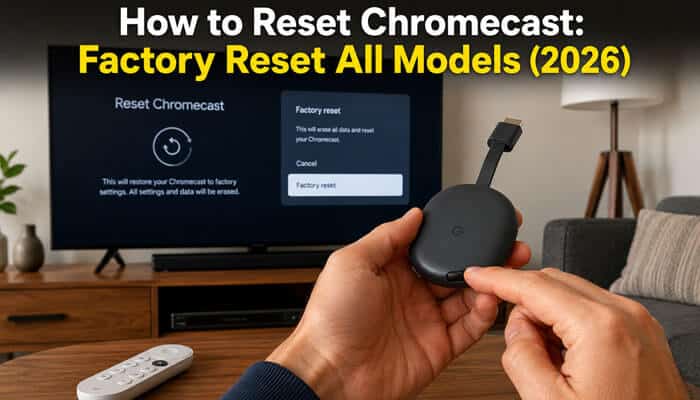

Knowing how to reset Chromecast can help when the device is frozen, disconnected from Wi-Fi, missing from the Google Home app or stuck on a startup or recovery screen. A factory reset is also important before selling, returning, donating or giving the device to another person.
However, the correct reset procedure depends on the model. Chromecast with Google TV uses a yellow-to-white LED sequence, while Chromecast 2nd generation, Chromecast 3rd generation, and Chromecast Ultra use an orange-to-white sequence. First-generation Chromecast requires a longer button hold and a different light pattern.
This guide covers:
- Chromecast with Google TV HD
- Chromecast with Google TV 4K
- Google TV Streamer 4K
- Chromecast 1st generation
- Chromecast 2nd generation
- Chromecast 3rd generation
- Chromecast Ultra
- Chromecast Audio
- Chromecast Voice Remote
- Google TV Streamer Voice Remote
- TVs with Google Cast built in
A factory reset restores the device to its original settings and removes locally stored information. It cannot be undone. Try restarting the device and checking its power and network connection before erasing it.
Quick Answer: How Do You Reset a Chromecast?
Keep Chromecast connected to power. For TV-based models, leave it connected to the television as well.
Use the physical button and follow the light sequence for your model:
- Chromecast with Google TV HD or 4K: Hold the rear button while the LED blinks yellow. Release it when the LED becomes solid white.
- Google TV Streamer 4K: Hold the rear button for approximately 10 to 12 seconds. Release it when the blinking yellow LED becomes solid white.
- Chromecast 2nd generation: Hold the side button while the LED blinks orange. Release it when the LED becomes solid white.
- Chromecast 3rd generation: Hold the side button while the LED blinks orange. Release it when the LED becomes solid white.
- Chromecast Ultra: Hold the side button while the LED blinks orange. Release it when the LED becomes solid white.
- Chromecast 1st generation: Hold the button for at least 25 seconds until the LED flashes red. Release it after the LED blinks white and the TV screen goes blank.
- Chromecast Audio: Hold the side button while the LED blinks orange. Release it when the LED becomes white.
Key Takeaways
- Restart Chromecast before performing a factory reset.
- Restarting does not erase Wi-Fi details, accounts, apps, or preferences.
- A factory reset removes locally stored information.
- Chromecast with Google TV can be reset through its settings or physical button.
- Older Chromecast models may be reset through Google Home when they are still accessible.
- A physical reset works when Chromecast is offline or unavailable in Google Home.
- First-generation Chromecast uses a unique 25-second reset process.
- Google TV Streamer uses a separate 10-to-12-second process.
- Low-power warnings should be investigated before resetting.
- Resetting a Voice Remote does not reset the Chromecast device.
Restart vs. Factory Reset: What Is the Difference?
Restarting and factory resetting are not the same action. A restart turns the device off and starts it again without deleting information. A factory reset restores the device to its original settings and removes locally stored data.
| Action | What it does | Data erased | Best used for |
| Restart or reboot | Turns the device off and starts it again | None | Temporary freezing, slow menus or minor casting problems |
| Factory reset | Restores the device to factory settings | Accounts, settings, apps and other local data, depending on the model | Persistent failures, inaccessible Wi-Fi or ownership changes |
| Forget Wi-Fi network | Disconnects the device from its current network | Current Wi-Fi connection | Moving an accessible device to another network |
| Reset Voice Remote | Restores the remote to its default state | Remote settings and pairing | Remote connection or button problems |
| Remove Google Account | Disconnects an account from the streaming device | Account information on that device | Removing an account without manually erasing everything |
A factory reset should generally be the final troubleshooting step because the device must be configured again afterward.
Do You Actually Need to Factory Reset Chromecast?
Use this table to choose the least disruptive solution.
| Problem | Best first action | Is a factory reset usually necessary? |
| Chromecast is temporarily frozen | Restart the device | No |
| One streaming app will not cast | Restart the app and check Wi-Fi | No |
| The Cast icon is missing | Confirm both devices use the same network | No |
| Chromecast feels slow | Restart it and check for updates | Usually no |
| The Wi-Fi password changed | Forget and reconnect to the network | Sometimes |
| The previous Wi-Fi network no longer exists | Use the hardware reset button | Usually |
| Chromecast displays a low-power warning | Fix the cable, adapter or outlet | No |
| Chromecast repeatedly reboots | Check the power supply first | Possibly |
| Chromecast displays the Android recovery screen | Select Try again first | Only if recovery fails |
| The Voice Remote is not working | Reset or re-pair the remote | No |
| You are selling or donating the device | Factory reset it | Yes |
| A used Chromecast contains another person’s setup | Factory reset it | Yes |
Google’s troubleshooting guidance generally places factory reset after restarting the device, checking the router, confirming power and attempting setup again.
What Happens During a Factory Reset?
A factory reset clears information stored on the streaming device and restores default settings.
Depending on the model, it may remove:
- Saved Wi-Fi information
- Device name
- Room assignment
- Google Accounts stored on the device
- Installed applications
- App data and preferences
- Display and sound settings
- Accessibility preferences
- Bluetooth accessory connections
- User profiles
- Personalized recommendations
Chromecast with Google TV and Google TV Streamer users may need to pair the remote again, reinstall apps and sign back into streaming services.
A factory reset does not delete the Google Account itself. It only removes the account information stored on the streaming device.
How to Identify Your Chromecast Model
Before following instructions on how to reset Chromecast, identify the model. Using the wrong button timing or LED sequence may prevent the reset from starting.
| Device | Common identifying feature | Reset-light sequence |
| Chromecast with Google TV HD or 4K | Oval dongle supplied with a Voice Remote | Blinking yellow to solid white |
| Chromecast 2nd generation | Round device with an attached flexible HDMI cable | Blinking orange to solid white |
| Chromecast 3rd generation | Round device with an attached HDMI cable | Blinking orange to solid white |
| Chromecast Ultra | Round 4K-capable Chromecast, commonly supplied with an Ethernet-capable power adapter | Blinking orange to solid white |
| Chromecast 1st generation | Straight, stick-shaped device | Flashing red, followed by blinking white |
| Chromecast Audio | Small round audio device with a 3.5 mm connection | Blinking orange to white |
| Google TV Streamer 4K | Larger set-top device designed to sit near the TV | Blinking yellow to solid white |
Google separates these models into different reset groups because their hardware procedures differ.
Chromecast with Google TV and Google TV Streamer users can also open:
Settings → System → About
The About screen displays system and device information that may help confirm the model.
When Should You Reset Chromecast?
A factory reset may be appropriate when:
- Chromecast cannot connect after the Wi-Fi name or password changes.
- The previous wireless network is no longer available.
- Google Home cannot find the device after normal troubleshooting.
- Chromecast remains frozen on its startup screen.
- The device repeatedly displays a “Reconnect me” message.
- Chromecast with Google TV has persistent system errors.
- The device repeatedly returns to the Android recovery screen.
- You purchased a used Chromecast that contains another person’s setup.
- You are moving the device to another home.
- You plan to sell, return, donate or give away the device.
- Restarting the router and Chromecast did not solve the problem.
Do not factory reset Chromecast simply because one app is temporarily unavailable. Restarting the app, router or Chromecast is usually a better first step.
What to Do Before Resetting Chromecast
Complete these checks before erasing the device.
- Confirm the model
Make sure you know whether you have Chromecast with Google TV, an older round Chromecast, Chromecast Audio, first-generation Chromecast or Google TV Streamer.
- Restart Chromecast
A normal restart may solve the problem without deleting information.
- Check the power source
Use a compatible adapter and a reliable wall outlet. Avoid unstable USB connections.
- Save your Wi-Fi password
You will need the network name and password during setup.
- Check your app login details
Users of Chromecast with Google TV and Google TV Streamer may need to sign back into streaming services.
- Keep Chromecast powered
Do not disconnect the power cable while the factory reset is in progress.
How to Restart Chromecast Without Erasing Data
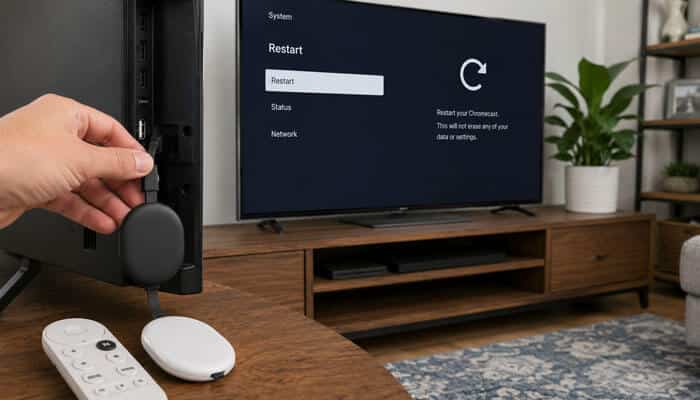
Restarting should be the first step for temporary freezing, slow menus, and minor connection problems.
Restart an older Chromecast through Google Home
- Open Google Home.
- Open the Home section.
- Open All devices.
- Touch and hold the Chromecast tile.
- Open Settings.
- Open the additional options menu.
- Tap Reboot.
Restart Chromecast from the power source
- Disconnect the Chromecast power cable.
- Leave it disconnected for one minute.
- Reconnect the cable.
- Wait for the device to restart.
Removing Chromecast only from the HDMI port does not reboot it. You must disconnect the power cable.
Restart Chromecast with Google TV
- Open Settings.
- Open System.
- Tap Restart.
- Confirm the restart.
You may also disconnect the power cable for one minute and reconnect it.
Restart Google TV Streamer
- Open All settings.
- Open System.
- Tap Restart.
You can also unplug the power cable for one minute.
How to Reset Chromecast With Google TV
These instructions apply to Chromecast with Google TV HD and Chromecast with Google TV 4K.
You can reset the device through the television interface or with the button on the back.
Method 1: Reset through Google TV settings
Use this method when the screen and Voice Remote are working.
- Turn on the television.
- Switch to the HDMI input used by Chromecast.
- Open the profile menu in the upper-right corner.
- Open All settings.
- Open System.
- Open About.
- Tap Factory Reset.
- Confirm the action.
The device will remove its stored information, restart, and return to the setup screen.
Method 2: Reset with the physical button
Use the button when:
- The Voice Remote is not working
- Google TV is frozen
- The settings menu will not open
- Chromecast cannot connect to Wi-Fi
- The device is stuck on its logo
- Another person’s account remains on the device
Follow these steps:
- Keep Chromecast connected to the television.
- Make sure the power cable is connected.
- Find the small button on the back.
- Press and continue holding it.
- Wait for the LED to blink yellow.
- Keep holding the button.
- Release it when the LED becomes solid white.
- Wait for Chromecast to restart.
Do not release the button when the light first begins blinking.
How to Reset Google TV Streamer 4K
Google TV Streamer is a set-top streaming device rather than a Chromecast dongle.
Reset through settings
- Turn on the television.
- Open the Google TV home screen.
- Open the profile menu.
- Open All settings.
- Open System.
- Open About.
- Tap Factory Reset.
- Confirm the action.
Reset with the physical button
- Keep Google TV Streamer connected to power and the television.
- Find the button on the back.
- Press and hold it for approximately 10 to 12 seconds.
- Wait for the LED to blink yellow.
- Continue holding until it becomes solid white.
- Release the button.
- Wait for the reset to finish.
How to Reset Older Chromecast Models Through Google Home
Google Home may be used to reset:
- Chromecast 1st generation
- Chromecast 2nd generation
- Chromecast 3rd generation
- Chromecast Ultra
- Chromecast Audio
Use this general route:
Google Home, Home, All devices, Chromecast tile, Settings, More options, Factory reset
The phone or tablet normally needs to be connected to the network on which Chromecast was originally configured.
When Chromecast is offline, or the original network no longer exists, use the physical button instead.
How to Reset Chromecast 2nd Generation
- Keep Chromecast connected to the television and power.
- Press and hold the button on the side.
- Continue holding while the LED blinks orange.
- Release the button when the LED becomes solid white.
- Wait for Chromecast to restart.
How to Reset Chromecast 3rd Generation
- Keep Chromecast connected to power and the television.
- Press and hold the side button.
- Wait for the LED to blink orange.
- Continue holding until the light becomes solid white.
- Release the button.
- Wait for the device to restart.
Google Home may also be used when the device remains accessible on its configured network.
How to Reset Chromecast Ultra
- Keep Chromecast Ultra powered and connected to the television.
- Press and hold the button on the side.
- Wait for the LED to blink orange.
- Release the button when the LED becomes solid white.
- Allow the device to restart.
This method is useful when Chromecast Ultra can no longer connect to its saved Wi-Fi network.
How to Reset First-Generation Chromecast
First-generation Chromecast uses a different reset process.
- Keep Chromecast connected to the television and power.
- Press and hold the button on the device.
- Keep holding it for at least 25 seconds or until the LED flashes red.
- Wait for the LED to begin blinking white.
- Release the button when the television screen goes blank.
- Allow Chromecast to restart.
Do not follow the orange-to-white instructions used for later Chromecast models.
First-generation Chromecast no longer receives software or security updates. Performance problems may continue even after a successful reset.
How to Reset Chromecast Audio
Chromecast Audio can be reset through Google Home or its physical button.
Reset through Google Home
Open Google Home, find the Chromecast Audio device, open Settings, and use the factory-reset option.
Reset with the physical button
- Keep Chromecast Audio connected to power.
- Press and hold the button on the side.
- Wait for the LED to blink orange.
- Continue holding until the LED becomes white.
- Release the button.
- Allow the device to restart.
Chromecast Audio does not need to be connected to a television.
How to Reset Chromecast Without Wi-Fi
A physical factory reset does not require Wi-Fi.
Use the correct process for your device:
- Chromecast with Google TV: Hold the rear button until the yellow blinking light becomes solid white.
- Google TV Streamer: Hold the rear button for approximately 10 to 12 seconds until the yellow blinking light becomes solid white.
- Chromecast 2nd or 3rd generation: Hold the side button until the orange blinking light becomes solid white.
- Chromecast Ultra: Hold the side button until the orange blinking light becomes solid white.
- Chromecast 1st generation: Hold the button for at least 25 seconds until the red-and-white light sequence finishes.
- Chromecast Audio: Hold the side button until the orange blinking light becomes white.
The device must remain connected to power. Wi-Fi will be needed afterward to complete setup.
How to Connect Chromecast to New Wi-Fi
A factory reset is not always required when changing networks.
Chromecast with Google TV or Google TV Streamer
When the current network still works:
- Open Settings.
- Open the Wi-Fi section.
- Open the current network.
- Tap Forget network.
- Connect to the replacement network.
Older Chromecast models
- Connect your phone to the same network as the Chromecast.
- Open Google Home.
- Open All devices.
- Touch and hold the Chromecast tile.
- Open Settings.
- Open Device information.
- Open Wi-Fi.
- Tap Forget this network.
- Set up Chromecast again.
When the original Wi-Fi network is no longer available, use the physical factory-reset button.
How to Reset Chromecast Without a Remote
A Voice Remote is not required to reset Chromecast with Google TV.
- Keep Chromecast connected to power and the television.
- Press and hold the button on the back.
- Continue holding while the LED blinks yellow.
- Release the button when the light becomes solid white.
- Wait for the reset to finish.
A phone may also be used as a temporary Google TV remote when the device remains connected.
How to Reset the Chromecast Voice Remote
Resetting the remote does not erase Chromecast.
- Remove both batteries.
- Wait five minutes.
- Press and hold the Home button.
- Reinsert both batteries while holding Home.
- Continue holding while the LED remains solid.
- Release Home when the LED begins pulsing.
- Wait for the remote to pair.
When it does not pair automatically, hold the Back and Home buttons together for approximately three seconds.
How to Reset the Google TV Streamer Voice Remote
- Hold the Mute and Center buttons at the same time.
- Keep holding while the remote LED blinks white.
- Wait for the countdown sound.
- Continue holding until the light becomes solid white.
- Release both buttons.
The reset should usually begin within approximately 12 seconds.
How to Use the Android Recovery Screen
Chromecast with Google TV or Google TV Streamer may display a recovery screen when the system cannot start normally.
Try restarting before erasing the device.
- Use short presses of the physical device button to move through the recovery options.
- Highlight Try again.
- Hold the button for approximately three seconds.
- Wait for the device to restart.
- When it returns to recovery, highlight Factory Data Reset.
- Hold the button again to open that option.
- Confirm the action when requested.
Use Factory Data Reset only when Try again does not solve the problem.
Chromecast Keeps Restarting or Shows Low Power
Repeated restarting may be caused by inadequate power rather than damaged software.
Before resetting:
- Use the cable supplied with the device.
- Connect the adapter to a reliable wall outlet.
- Avoid powering Chromecast with Google TV through the television’s USB port.
- Make sure each cable connection is secure.
- Disconnect the cable, wait five seconds, and reconnect it.
- Remove USB hubs or switches.
- Test another compatible cable or adapter.
Correct the power problem before performing another factory reset.
What to Do When the Reset Button Does Not Work
- Check the power
A factory reset cannot start without stable power. Inspect the cable, adapter, outlet, and LED.
- Hold the button longer
Do not release the button when the LED first begins blinking. Wait for the final light required for your model.
Restart before trying again
- Disconnect the power cable.
- Wait one minute.
- Reconnect it.
- Allow Chromecast to start.
- Repeat the reset process.
- Allow the device to cool
When Chromecast feels unusually hot, disconnect it and allow it to cool before reconnecting it.
- Consider hardware failure
A device with no LED, no video, and no response after testing a working power source may have a hardware fault.
Chromecast Has No Signal or a Black Screen
A black screen does not always require a factory reset.
Try these steps:
- Confirm that the television is using the correct HDMI input.
- Check the Chromecast power connection.
- Disconnect the power cable for one minute.
- Reconnect the cable.
- Check the HDMI connection.
- Try another HDMI port.
- Remove any HDMI switch, receiver, or soundbar temporarily.
- Connect Chromecast directly to the television.
- Restart the television.
- Test Chromecast on another television when possible.
Use a factory reset only after checking the HDMI connection and power supply.
How to Set Up Chromecast After a Factory Reset
- Turn on the television.
- Open the HDMI input connected to Chromecast.
- Wait for the setup screen.
- Connect your phone or tablet to the intended Wi-Fi network.
- Turn on Bluetooth.
- Open Google Home.
- Tap Add.
- Open the device setup option.
- Scan the QR code shown on the screen.
- Use the setup code when scanning does not work.
- Follow the instructions in Google Home.
- Connect Chromecast to Wi-Fi.
- Sign into the necessary accounts.
- Reinstall applications when required.
Chromecast Is Not Found After Resetting
Try these steps:
- Turn the phone’s Wi-Fi off and back on.
- Close and reopen Google Home.
- Confirm that Bluetooth is active.
- Allow Local Network access for Google Home on an iPhone or iPad.
- Move the phone closer to Chromecast.
- Open the phone’s Wi-Fi settings.
- Look for the temporary Chromecast network.
- Connect to it manually.
- Return to Google Home.
- Try setup with another compatible phone when necessary.
Also check:
- Wi-Fi signal strength
- The correct Wi-Fi password
- Guest-network restrictions
- Router isolation settings
- Hidden network names
- VPN interference
- Whether other devices can access the router
Repeatedly resetting Chromecast will not repair a router or internet problem.
Can You Reset Chromecast Built Into a TV?
Chromecast built-in, also called Google Cast, is part of a television, soundbar, or another device. It is not a separate Chromecast dongle.
The button and LED instructions in this guide do not apply to:
- Google TV televisions
- Android TV televisions
- TVs with Google Cast built in
- Third-party Google TV boxes
- Cast-enabled soundbars
- Cast-enabled speakers
Many Google TV devices include a factory-reset option under:
Settings, System, About, Factory reset
Hardware-reset instructions differ by manufacturer. Follow the television or device manufacturer’s guidance.
Should You Reset Chromecast Before Selling It?
Yes. Factory reset Chromecast before selling, returning, donating or giving it away.
After resetting:
- Confirm that the setup screen appears.
- Do not sign into the device again.
- Remove the device from Google Home when appropriate.
- Disconnect the power and HDMI cables.
- Include the remote and power adapter when they belong with the device.
Removing Chromecast from Google Home is helpful, but it does not replace a factory reset.
Common Chromecast Reset Mistakes
- Disconnecting only the HDMI cable
Removing Chromecast from HDMI does not reboot it. Disconnect the power cable.
- Resetting before restarting
A restart is faster and does not erase information.
- Releasing the button too early
Wait for the final LED color required for the model.
- Using instructions for the wrong model
First-generation Chromecast, later round Chromecast models, and Chromecast with Google TV use different procedures.
- Resetting the remote instead of the Chromecast
A remote reset only affects the remote.
- Resetting to repair low power
A factory reset cannot repair a weak adapter, damaged cable or unreliable outlet.
- Disconnecting power during the reset
Keep Chromecast powered until it restarts and displays the setup screen.
- Resetting only to change Wi-Fi
When the existing network remains available, forget it and connect to the new network instead.
Final Verdict
Learning how to reset Chromecast begins with identifying the exact model and deciding whether a factory reset is genuinely necessary. Chromecast with Google TV uses a yellow-to-white LED sequence. Chromecast 2nd generation, Chromecast 3rd generation, and Chromecast Ultra use an orange-to-white sequence. First-generation Chromecast requires a minimum 25-second button hold, while Google TV Streamer uses a separate 10–12-second procedure.
Before erasing the device, restart Chromecast, check its power supply, confirm the Wi-Fi connection, and reopen Google Home. Factory resetting should generally be reserved for persistent setup failures, an unavailable previous network, repeating recovery-screen problems or a change of ownership. When a full reset is necessary, keep the device powered, follow the correct model-specific sequence and allow it to return to the initial setup screen without interruption.
How to Reset Chromecast FAQs
1. How to reset Chromecast when it is not showing in Google Home?
Keep Chromecast connected to power and use the physical reset button. Hold it until the LED completes the correct color sequence for your model, then wait for the setup screen.
2. Can I reset Chromecast without the Google Home app?
Yes. You can reset Chromecast using the physical button on the device. The required button timing and LED sequence depend on the Chromecast model.
3. Can I reset Chromecast without Wi-Fi?
Yes. A hardware factory reset does not require Wi-Fi. You will need an internet connection afterward to complete setup and use streaming services.
4. Does factory resetting Chromecast delete my Google Account?
No. A factory reset removes account information, apps, Wi-Fi details, and preferences from Chromecast, but it does not delete your Google Account.
5. Why is my Chromecast reset button not working?
The device may not have stable power, the button may not have been held long enough or you may be using instructions for the wrong model. Check the cable, adapter, and correct LED sequence before trying again.
