


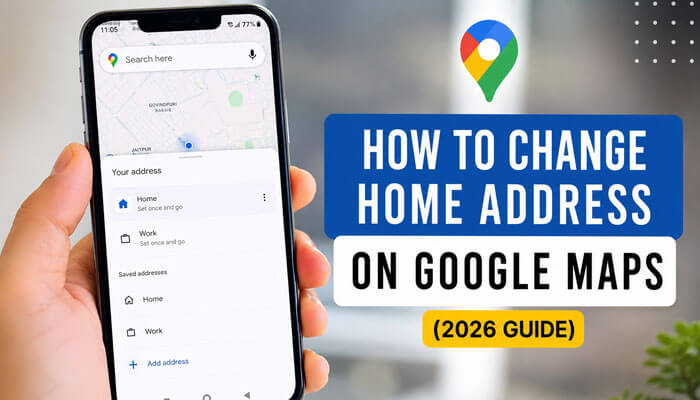

If you recently moved, changed apartments, shifted to a new city, or noticed that Google Maps still shows your old location, learning how to change home address on Google Maps can save time and prevent navigation mistakes. Your saved Home address helps Google Maps provide faster directions, commute estimates, nearby search results, and location-based suggestions.
Many users search for how to change home address on Google Maps because the old address keeps appearing even after they move. The main reason is that Google can store different address details in different places, including your Google Account, Google Maps labels, Chrome autofill, Google Maps Timeline, Google Home, and public map data.
This complete 2026 guide explains how to change home address on Google Maps step by step, how to remove an old Home address, how to fix a wrong pin location, how to handle missing addresses, why Google Maps may still show your old address, and what privacy settings to check after updating it.
Quick Answer: How to Change Home Address on Google Maps
To change your Home address on Google Maps, open your Google Account, go to Personal info, select Home address, enter your new address, and save it. On Android, you can usually do this through your phone’s Google settings. On iPhone, iPad, or desktop, you can update it through your Google Account in a browser.
For the simplest update, edit the Home address in the Google Account that you use inside Google Maps. If your written address is correct but the map pin is wrong, use Suggest an edit in Google Maps to fix the public address or pin location.
The fastest way to learn how to change home address on Google Maps is to open your Google Account, select Personal info, choose Home address, enter the new address, and save it. Then open Google Maps, search for “Home,” and confirm that the new address and pin location are correct.
Key Takeaways
- Your Google Maps Home address is connected to your Google Account.
- Your Home address is private and different from public Google Maps address data.
- Android, iPhone, iPad, and desktop steps may look slightly different.
- Changing your Home address does not automatically fix a wrong public map pin.
- If the pin or street entrance is wrong, use Suggest an edit in Google Maps.
- If Google Maps still shows your old address, check the active account, cache, saved labels, Timeline, autofill, and Google Home settings.
- You can remove your Home address if you do not want Google to store it.
- Always update the correct Google Account if you use multiple accounts.
People searching for How to Change Home Address on Google Maps
People searching for how to change home address on Google Maps usually want a quick and practical answer. Most users are not looking for a long technical explanation first. They want to know where to tap, how to save the new address, and why Google Maps may still show the old one.
The main search intent includes:
- Changing an old Home address after moving
- Updating Home address on Android
- Changing Home address on iPhone or iPad
- Editing the home address on the desktop
- Removing an old Home address for privacy
- Fixing a wrong home pin location
- Fixing a wrong street entrance or delivery point
- Solving the issue when Google Maps still shows the old address
- Understanding the difference between a private Home label and a public map edit
This guide covers each situation clearly so users can update their address without confusion.
What Is a Home Address on Google Maps?
A Home address on Google Maps is a saved private location linked to your Google Account. It helps Google Maps understand where you live so it can offer faster directions, route suggestions, commute estimates, and location shortcuts.
For example, after setting your Home address, you can type “Home” in Google Maps instead of entering your full street address every time. This is helpful when returning from work, traveling, booking a ride, checking traffic, or planning a route.
Your Home address may help with:
- Fast navigation back home
- Travel time estimates
- Commute suggestions
- Nearby search results
- Google Assistant location shortcuts
- Google Account address features
- Autofill-related personalization
- Better location-based suggestions across some Google services
The important point is that your saved Home address is private to your Google Account. It is not the same as adding your house publicly to Google Maps.
Why You May Need to Change Your Home Address on Google Maps
There are many reasons you may need to update your Home address. The most common reason is moving to a new home, but that is not the only case. People often search for how to change home address on Google Maps when their phone still routes them to an old apartment, old house, or the wrong building entrance.
You may need to change your Home address if:
- You moved to a new house or apartment.
- Your old address still appears in Google Maps.
- Google Maps gives directions to the wrong place.
- Your apartment block, road, or street entrance has changed.
- You accidentally saved the wrong address.
- You are using a new Google Account.
- Your Home label points to the wrong map pin.
- You want better commute and traffic estimates.
- You want to remove an old saved address for privacy.
- Google Assistant or Google Home still uses your old location.
Keeping your Home address updated helps Google Maps give more accurate directions and avoids confusion when you search for “Home.”
Common Problems People Face After Moving
One issue many people encounter after moving is that Google Maps continues showing an old address even after they update their Home location. In most cases, the problem is not the Home address itself but another setting connected to the Google Account.
For example, some users update their Home address in one Google Account while Google Maps is signed into another account. Others successfully change the address but still see directions leading to the wrong entrance because the public map pin has not been updated.
In practice, checking the active Google Account, Home label, map pin location, Google Home settings, and saved addresses usually solves most address-related issues.
Home Address vs Wrong Pin Location: Important Difference
Before you update anything, understand the difference between changing your private Home address and fixing a public map issue. This is important because many users mix up private labels and public map corrections.
| Issue | What It Means | What You Should Do |
| Saved Home address is old | Your private Google Account Home label is outdated | Update your home address in your Google AccountThe |
| Google Maps pin is in the wrong place | The public map location is incorrect | Use Suggest an edit in Google Maps |
| The street entrance is wrong | Maps route people to the wrong gate or road | Suggest an edit if available |
| The business address is wrong | A business profile or place has incorrect details | Edit the business/place information |
| The timeline shows the wrong place | Location history guessed the wrong visit | Edit or delete Timeline data |
| Chrome autofill shows the old address | The saved autofill address is outdated | Edit Other addresses in Google Account |
| Google Assistant gives the wrong location | Smart home settings may still use an old address | Check Google Home or Assistant settings |
This distinction matters because one update does not always fix every address problem. If you only change your private Home address, it may not fix a wrong public map pin. If you only submit a map edit, it may not update your private Home label.
Before You Start: Check These Things First
Before changing your Home address, make sure you are using the correct account, device, and address format. Many Google Maps address problems happen because users edit one Google Account but use another account inside the Google Maps app.
Check these points first:
- Make sure you are signed in to the correct Google Account.
- Update the Google Maps app if it is outdated.
- Check your internet connection.
- Keep your full address ready, including house number, street, city, state, and postal code.
- If you live in an apartment, note the building name, block number, gate, or entrance.
- Decide whether you want to change your private Home address or fix a public map pin.
- Avoid updating your Home address on a shared or public device.
Doing this first can save time and prevent the old address from appearing again.
Which Method Should You Use to Change Your Home Address on Google Maps?
There are different ways to update your Home address depending on your device and problem. For most users, the Google Account method is best because it works across Android, iPhone, desktop, and many Google services.
| Situation | Best Method | Recommended For |
| You moved to a new home | Edit Home address in Google Account | Most users |
| You use Android | Settings > Google > Manage Google Account | Android phone users |
| You use an iPhone or iPad | Google Account in browser | iOS users |
| You use a laptop or a desktop | Google Account > Personal info | Desktop users |
| Your address is right, but the PIN is wrong | Suggest an edit in Google Maps | Wrong map pin issues |
| Your building is missing | Add or suggest a missing address | New buildings or new roads |
| Google Assistant still uses the old address | Check Google Home and Google Account settings | Smart speaker users |
| You want privacy | Remove Home address | Users who do not want saved Home location |
For most users, the best method is to update the Home address directly in the Google Account because it works across Google services.
How to Change Home Address on Google Maps on Android
If you use an Android phone or tablet, how to change home address on Google Maps is usually handled through your Google Account settings. This is one of the most reliable methods because the Home address is connected to your account, not only the Google Maps app.
Steps for Android
- Open the Settings app on your Android phone.
- Tap Google.
- Tap your profile or choose Manage your Google Account.
- Go to Personal info.
- Find the Addresses section.
- Tap Home address.
- Enter your new home address.
- Check the spelling, house number, apartment number, street, city, state, and postal code.
- Tap Save.
After saving, open Google Maps and search for “Home” to check whether the new address appears.
Android Tip
If you use more than one Google Account on your phone, make sure you update the correct account. Many users change the Home address in one account but use Google Maps with another account. This can make it seem like the update did not work.
How to Change Home Address on Google Maps on iPhone or iPad
On iPhone and iPad, how to change home address on Google Maps is usually done through your Google Account page in a browser. The steps are slightly different from Android because iOS does not have the same Google settings menu built into the phone system.
Steps for iPhone and iPad
- Open a browser on your iPhone or iPad.
- Go to your Google Account.
- Sign in with the Google Account you use for Google Maps.
- Tap your profile picture or initial.
- Select Manage your Google Account.
- Tap Personal info.
- Tap Home address.
- Enter your new address.
- Tap Save.
Once the address is updated, open the Google Maps app on your iPhone. Search for “Home” and confirm that the new address appears.
iPhone Tip
If Google Maps still shows your old Home address, close and reopen the app. Also check whether the Google Maps app is signed into the same Google Account you updated.
How to Change Home Address on Google Maps on Computer
For desktop users, how to change home address on Google Maps is simple because you can update it directly from your Google Account in a browser.
Steps for Computer
- Open your browser.
- Sign in to your Google Account.
- Click Personal info.
- Find the address section.
- Click Home address.
- Enter your new address.
- Click Save.
After saving, open Google Maps in your browser and search for “Home.” If the update does not appear immediately, refresh the page or sign out and sign back in.
How to Remove Your Home Address from Google Maps
Some users do not want Google to store their Home address. In that case, you can remove it from your Google Account.
Steps to Remove Home Address
- Open your Google Account.
- Go to Personal info.
- Select Home address.
- Choose Remove.
- Confirm the removal if asked.
Removing your Home address means Google Maps may no longer show quick directions to Home. You may also lose some personalization related to your home location.
How to Change Home Address on Google Maps Directly in the App
In some versions of Google Maps, you may see options to edit Home directly from the app. App-based editing may start from Saved places, Labeled places, or Settings, depending on your app version and region.
Try this method:
- Open the Google Maps app.
- Tap your profile picture or initial.
- Look for Settings, Saved, Your places, or Labeled.
- Select Home.
- Tap the edit option.
- Enter the new address.
- Save your changes.
If this option is not visible, use the Google Account method instead. The Google Account method is more consistent across devices.
How to Change Home Address on Google Maps If the Pin Is Wrong
Sometimes your Home address is correct, but the map pin is slightly wrong. For example, the pin may appear on the next street, behind the building, in the wrong apartment block, or at the entrance of a different road.
In this case, learning how to change home address on Google Maps is only part of the solution. You may also need to report a wrong pin location through Google Maps.
Steps to Fix a Wrong Pin Location
- Open Google Maps.
- Search for the address.
- Select the address result.
- Choose Suggest an edit.
- Choose the option for wrong pin location, wrong address, or fixing an address.
- Move the pin to the correct place if the option appears.
- Add correct address details.
- Submit the edit.
Google may review the correction before making it live. Public map edits are not always instant.
How to Fix the Street Entrance or Delivery Point
Sometimes your address and pin are correct, but Google Maps still sends drivers, guests, or delivery workers to the wrong entrance. This can happen with apartments, gated communities, large buildings, hospitals, offices, schools, and houses located near multiple roads.
In this case, you may need to fix the street entrance or delivery point instead of only changing your Home address.
You may need this if:
- Google Maps sends people to the back gate.
- Delivery drivers stop on the wrong street.
- The building has multiple entrances.
- Your apartment entrance is not near the main pin.
- The route ends behind the building.
- Ride-share drivers wait at the wrong pickup point.
To fix this, search your address in Google Maps, choose the address result, tap or click Suggest an edit, and look for the option to fix the address, pin, or entrance if available. If the street entrance option is available in your area, choose the correct entrance from the road and submit the edit.
This is useful because changing your private Home label only helps your account. Fixing the street entrance can help visitors, delivery drivers, and other map users find the correct arrival point.
How to Add a Missing Home Address to Google Maps
If your address does not appear on Google Maps at all, you may need to add or suggest the missing address. This is different from saving a private Home label.
You may need this if:
- Your building is new.
- Your street was recently renamed.
- Your house number is missing.
- Your apartment complex is not listed.
- The address exists physically but does not appear in search.
- Delivery drivers often go to the wrong location.
To add a missing address, open Google Maps, go to the edit map option, and submit the missing address information. Make sure the details are accurate because public address edits can affect other users.
What Happens After You Submit a Public Address Edit?
When you submit a wrong pin, missing address, or entrance correction, it may not update instantly. Google may review the edit before showing it publicly on Google Maps.
After submitting an edit:
- The change may take time to appear.
- Google may accept, reject, or verify the edit.
- Other users may not see the change immediately.
- You may need to provide accurate address details.
- Public map edits can affect other people, not only your account.
This is why you should only submit correct information. If you only want to update your private Home address, change your Google Account Home address instead of submitting a public map edit.
Why Google Maps Still Shows Your Old Home Address
Sometimes users update their Home address, but Google Maps still shows the old one. This can happen for several reasons. If you have already followed the steps to change your home address on Google Maps steps but still see the old location, use the table below.
| Problem | Why It Happens | How to Fix It |
| Wrong Google Account | You updated one account but Maps uses another | Switch to the correct account |
| App cache issue | Google Maps stored old information temporarily | Restart the app or clear the cache |
| Old saved label | A previous Home label still exists | Check Saved or Labeled places |
| Timeline data | Past visits still show old location | Edit or delete Timeline history |
| Browser session issue | Desktop Maps has not refreshed | Refresh, sign out, sign back in |
| Public pin issue | Address label changed but map data is wrong | Use Suggest an edit |
| Autofill address issue | Chrome or Google Account has old address | Edit Other addresses |
| Google Home issue | Smart devices may use a different home setting | Check the Google Home app |
Most of the time, the issue is caused by using the wrong Google Account or expecting a private Home address update to fix a public map pin.
Check If You Are Using the Correct Google Account
This is one of the most common mistakes. Many people use one Google Account for Gmail, another for YouTube, and another for work or business. Google Maps will only show the Home address saved in the account currently active in the app.
How to Check Your Account in Google Maps
- Open Google Maps.
- Tap your profile picture or initial.
- Look at the email address shown.
- Switch accounts if needed.
- Search for “Home” again.
If you changed your Home address in another account, Google Maps may still show the old address.
How to Clear Google Maps Cache After Changing Home Address
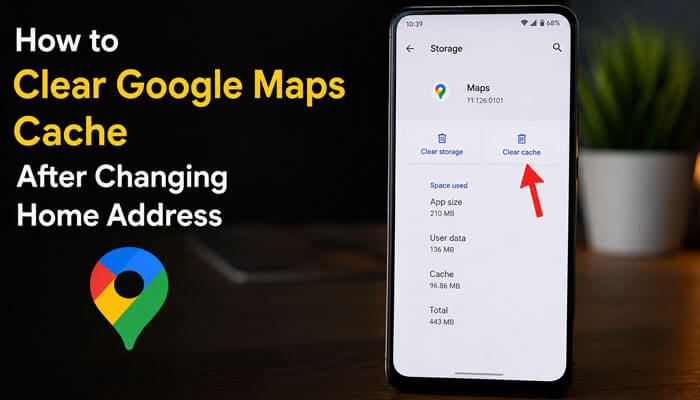
If your new Home address is saved but the app still behaves strangely, clearing cache may help on Android.
Android Cache Steps
- Open your phone’s Settings.
- Go to Apps.
- Select Google Maps.
- Tap Storage.
- Tap Clear cache.
- Reopen Google Maps.
Do not clear all app data unless needed, because it may sign you out or reset some app preferences.
On iPhone, there is no simple cache-clear button like Android. You can close the app, update it, restart the phone, or reinstall Google Maps if the issue continues.
Home Address and Google Maps Timeline
Google Maps Timeline is different from your Home address. Timeline is a feature that may save places you visited and routes you traveled, depending on your settings.
Changing your Home address does not automatically rewrite your past Timeline history. If your Timeline shows your old house or a wrong visit, you may need to edit or delete that Timeline entry separately.
When to Check Timeline
Check Timeline if:
- Google Maps says you visited the wrong place.
- Your old home appears in past location history.
- You want to remove old location data.
- You are concerned about privacy.
- You changed your Home address but past data still appears.
Timeline and Home address are connected to location personalization, but they are not the same thing.
Privacy Tips Before Updating Your Home Address
Your Home address is personal information, so it is smart to check privacy settings when updating it. Your home location is sensitive information, so avoid making it public by mistake.
Important Privacy Tips
- Make sure you are using your own device.
- Do not update your Home address on a public computer.
- Check that you are signed into the right Google Account.
- Do not make your home address a public profile address unless you truly want it visible.
- Review Location History or Timeline settings.
- Remove old addresses you no longer use.
- Check saved addresses in Chrome autofill if needed.
- Use a strong Google Account password.
- Turn on two-step verification for better account security.
Your Home address should remain private, but profile addresses, business addresses, and public map edits may be visible in different ways.
Home Address vs Work Address vs Other Addresses
Google Account can store different types of addresses. Understanding them can prevent confusion.
| Address Type | Purpose | Visibility |
| Home address | Personal navigation and location personalization | Private |
| Work address | Commute and work-related directions | Private |
| Other addresses | Autofill, payments, subscriptions, shopping | Usually account-based |
| Billing address | Payment method and purchases | Used for payments |
| Legal address | Payment profile/legal records | Account/payment related |
| Profile address | Public-facing profile information in some Google services | May be visible |
| Google Home device address | Smart home location, weather, routines, device area | Connected to Google Home settings |
If your goal is only to change Google Maps navigation to your house, edit the Home address. Do not edit billing or legal addresses unless those also need updating.
Google Home, Google Assistant, and Nest Devices May Need a Separate Check
If you use Google Home, Google Assistant, Nest speakers, smart displays, or other connected devices, your old address may still appear in some smart home settings. This can happen because your Google Account Home address and your Google Home device address are related, but they are not always the same setting.
Check this section if:
- Google Assistant gives directions from your old home.
- Your smart speaker gives weather for the wrong city.
- Google Home routines use your old location.
- Your Nest device or smart display shows the wrong home area.
- Your phone Google Maps is correct, but your smart device is not.
To fix this, open the Google Home app, check the active Google Account, and review your Home settings. Also check your Google Account Home address under Personal info. If your smart device has a separate home location, update that too.
This section is important because many users change Home address on Google Maps but forget connected Google Home or Assistant settings.
Common Mistakes to Avoid
Many users make simple mistakes when trying to update their Home address. Avoid these common problems.
1. Editing the Wrong Address Type
Some users edit a billing address, payment address, or autofill address instead of the Home address. This may not update Google Maps navigation.
2. Using the Wrong Google Account
If you have multiple accounts, make sure Google Maps is using the same account you updated.
3. Expecting Instant Public Map Changes
A private Home address change is usually quick, but public map corrections may require review.
4. Confusing Timeline With Home Address
The timeline shows past location activity. Your home address is your saved private label. Updating one does not automatically change the other.
5. Forgetting Apartment or Building Details
If you live in an apartment, include important details like building name, apartment number, gate number, or correct street entrance when needed.
6. Not Checking the Pin Location
The written address may be correct, but the pin may still point to the wrong place. Always test it in Google Maps after saving.
7. Forgetting Google Home or Assistant Settings
If your phone shows the correct Home address but Google Assistant still gives wrong directions, check the Google Home app and smart device settings.
Best Practices for Entering Your Home Address
Use a complete and accurate address format. This helps Google Maps recognize the location better.
Include:
- House number or flat number
- Building or apartment name
- Street name
- Area or locality
- City
- State or region
- Postal code
- Country
Avoid unclear shortcuts such as “near main road” or “behind market” as your main address. Use the official address first, then check whether the map pin points to the right building or entrance.
What to Do If Your New Address Is Not Recognized
If Google Maps does not recognize your new Home address, try these fixes:
- Search for the building name instead of the house number.
- Search for the nearest known landmark.
- Drop a pin manually near your correct location.
- Use a plus code if available.
- Check spelling and postal code.
- Try entering the address in a different format.
- Suggest a missing address if it is not listed.
- Check whether the road exists on Google Maps.
For new buildings and developing areas, Google Maps may need time to update public map data.
How to Test If Your New Home Address Works
After updating your Home address, test it properly. Saving the address is not enough if the pin, route, or active device account is still wrong.
Testing Checklist
- Open Google Maps.
- Type “Home” in the search bar.
- Check whether the correct address appears.
- Tap Directions.
- Confirm the route goes to the right place.
- Check whether the pin is placed correctly.
- Test from another location if possible.
- Check the same account on another device.
- Ask Google Assistant for directions home if you use smart devices.
Testing helps you catch problems before you need navigation.
How Long Does It Take to Update Home Address on Google Maps?
A private Home address update usually appears quickly after saving. In some cases, it may take a few minutes or require closing and reopening the Google Maps app.
Public map corrections can take longer because they may need review. If you submit a wrong pin, missing address, or entrance correction, Google may review the information before applying it.
Real Example of a Home Address Update
Imagine a user who moves from an apartment to a newly built house. After updating the Home address in their Google Account, Google Maps correctly displays the new written address. However, navigation still sends visitors to a nearby street because the public map pin is slightly misplaced.
In this situation, updating the Home address solves the private account issue, while submitting a pin correction through Google Maps resolves the public navigation issue. This example shows why changing a Home address and correcting a map pin are often two separate tasks.
Can Other People See My Home Address on Google Maps?
Your private Home and Work addresses are meant for your Google Account and are not publicly visible as your Home label. However, you should be careful not to add your home as a public profile address, business address, or public place unless that is your intention.
If you submit a public map edit to fix an address or pin, the correction may affect map data that other people see.
Can AI Search Use Your Updated Home Address?
As AI-powered search becomes more common, some users worry that updating their Home address on Google Maps could make their personal location visible online. Fortunately, your saved Home address remains private and is tied to your Google Account.
AI-generated search results, Google Search features, and public Google Maps listings do not publicly display your private Home label. Updating your Home address helps Google services provide personalized navigation, commute information, and location-based suggestions, but it does not publish your address for others to see.
It is also important to understand that private Home addresses and public map edits are separate. Changing your Home address only updates your personal Google Account settings. If you submit a public address correction, wrong pin edit, or missing location update, that information may affect what other users see on Google Maps after Google’s review process.
For privacy, always review your Google Account settings, Location History preferences, and any public profile information if you are concerned about how your location data is used.
Should You Change Home Address or Drop a Pin?
If Google recognizes your exact address, use the address. If your address is not recognized or the pin is inaccurate, dropping or adjusting a pin may help identify the correct location.
| Situation | Best Option |
| Address appears correctly | Save it as Home |
| The address appears, but the pin is wrong | Suggest the wrong PIN correction |
| The address does not appear | Add or suggest a missing address |
| You live in a large apartment complex | Use the building name and the correct entrance |
| You only need personal navigation | Save private Home label |
| You need a public map correction | Submit a map edit |
| Smart speaker gives the old location | Update Google Home settings |
Troubleshooting: Home Address Not Updating
If you followed the steps, but your Home address is not updating, try this checklist.
- Confirm you saved the address.
- Restart Google Maps.
- Check your active Google Account.
- Update the Google Maps app.
- Clear cache on Android.
- Try updating from a desktop browser.
- Remove the old Home address and add the new one again.
- Check Saved or Labeled places.
- Check if the public PIN is wrong.
- Check Google Home settings if smart devices still use the old address.
- Wait a short time and test again.
If none of these steps work, use Google Maps feedback options to report the issue.
Example: Moving From an Old Apartment to a New House
Suppose you moved from your old apartment to a new house. When you type “Home” in Google Maps, it still gives directions to the old apartment. In this case, open your Google Account, go to Personal info, edit Home address, enter your new house address, and save it.
Then open Google Maps and search “Home” to confirm the new location. If the new house appears but the pin points to the wrong building, use Suggest an edit to report the wrong pin location. If Google Assistant still gives the old address, check your Google Home app settings too.
Related Google Maps Address Problems Users Search For
People may search for the same issue in different ways. These related terms can help users understand which problem they are facing.
Common related searches include:
- How to change home address on Google Maps
- change home address in Google Maps
- Update home address on Google Maps
- Google Maps’ home address is wrong
- Google Maps is showing the old home address
- How to remove home address from Google Maps
- change home address on Google Maps iPhone
- change home address on Google Maps Android
- Google Maps wrong home pin
- Fix the wrong address on Google Maps
- Add the missing home address to Google Maps
- Google Maps home address not updating
Use these terms naturally in your article, headings, image alt text, and FAQs. Do not repeat them too many times in the same paragraph.
Final Checklist
Before you finish, check these points:
- Your Home address is updated in the correct Google Account.
- Google Maps shows the new address when you search “Home.”
- The map points to the correct building or entrance.
- Your old Home address is removed if you no longer need it.
- Your Timeline settings are reviewed if privacy matters to you.
- Public address corrections are submitted separately if needed.
- Google Maps is updated to the latest version.
- Google Home or Assistant settings are checked if smart devices still show the old location.
- You tested directions to the new address.
Best Practices After Updating Your Home Address
After changing your Home address, take a few minutes to verify that everything works correctly.
- Search for “Home” in Google Maps.
- Test navigation from another location.
- Check whether the route ends at the correct entrance.
- Confirm that Google Assistant uses the updated address.
- Review saved addresses and autofill settings.
- Remove outdated addresses you no longer use.
- Verify smart home settings if you use Google Home or Nest devices.
These quick checks can help prevent navigation mistakes and ensure all connected Google services use your current address.
Conclusion
Knowing how to change home address on Google Maps is useful when you move, update your living location, or want more accurate navigation. The easiest method is to update your Home address through your Google Account under Personal info. Android users can usually do this through phone settings, while iPhone, iPad, and desktop users can update it through their Google Account page.
The most important thing to remember is that your private Home address is different from public Google Maps address data. If your saved Home label is wrong, edit your Google Account Home address. If the public address, pin location, or entrance is wrong, use Google Maps to suggest an edit. If your smart devices still use the old location, check Google Home or Assistant settings separately.
By checking each of these areas, you can make sure Google Maps takes you to the right place and keeps your address information accurate.
How to Change Home Address on Google Maps FAQs
1. How do I change my Home address on Google Maps?
You can change your Home address by opening your Google Account, going to Personal info, selecting Home address, entering your new address, and saving it.
2. What is the easiest way to learn how to change home address on Google Maps?
The easiest way to learn how to change your home address on Google Maps is to start from your Google Account, open Personal info, edit Home address, save the new address, and then test the “Home” label inside Google Maps.
3. Why is Google Maps still showing my old Home address?
Google Maps may show your old Home address if you updated the wrong Google Account, the app cache is outdated, an old saved label still exists, or Google Home settings still use the old location.
4. Can I remove my Home address from Google Maps?
Yes. You can remove your Home address from your Google Account by going to Personal info, selecting Home address, and choosing Remove.
5. Is my Google Maps Home address public?
Your Home address label is private to your Google Account. However, public map edits, business addresses, and profile addresses can be visible in different ways.
