


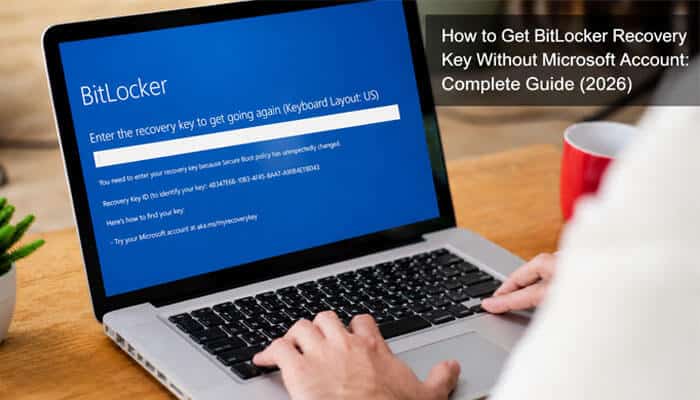

A BitLocker recovery screen can appear without warning, leaving you locked out of your PC when you need it most. Before assuming your files are permanently lost, remember that the recovery key may have been saved in more than one place—even if you no longer have access to your Microsoft account. How to Get BitLocker Recovery Key Without Microsoft Account often comes down to checking the right backup locations instead of relying on unreliable “bypass” tools or misleading online claims.
Many users don’t realize that BitLocker recovery keys can be stored on a USB drive, as a printed copy, in a work or school account, within Microsoft Entra ID, Active Directory, or other approved backup locations. This guide explains How to Get BitLocker Recovery Key Without Microsoft Account using Microsoft’s supported recovery methods, what to do if the key cannot be found, and why no legitimate tool can generate or bypass a missing recovery key.
Key Takeaways
- How to Get BitLocker Recovery Key Without Microsoft Account is possible if the recovery key was backed up before the device was locked.
- Check printed copies, USB drives, local files, cloud storage, email attachments and password managers.
- Work or school devices may store the recovery key in Microsoft Entra ID, Active Directory or Microsoft Intune.
- The Recovery Key ID helps identify the correct key but cannot unlock the drive.
- Your Windows password, Microsoft account password and PIN cannot replace the 48-digit BitLocker recovery key.
- Microsoft cannot recover a BitLocker key that was never backed up.
- How to Get BitLocker Recovery Key Without Microsoft Account also includes checking work accounts, previous owners and accessible Windows sessions.
- Reinstalling Windows restores the PC but permanently removes encrypted files if the recovery key is unavailable.
What Is a BitLocker Recovery Key?
A BitLocker recovery key is the 48-digit numerical password that unlocks an encrypted drive when Windows cannot verify your device during startup. Without this key, you may be unable to access your files unless another approved recovery method is available.
A BitLocker recovery password looks like this:
123456-123456-123456-123456-123456-123456-123456-123456
The recovery screen also displays a Recovery Key ID. This is not the recovery key—it simply helps you identify the correct 48-digit key for the locked drive.
| Item | Purpose |
|---|---|
| Recovery key | Unlocks the encrypted drive. |
| Recovery Key ID | Identifies the correct recovery key. |
| Windows PIN | Signs you into Windows. |
| Account password | Verifies your user account. |
| BitLocker startup PIN | Optional security PIN before startup. |
| USB startup key | Key file used in some BitLocker setups. |
Can You Get a BitLocker Recovery Key Without a Microsoft Account?
Yes—but only if the recovery key was backed up to another approved location before the device was locked. How to Get BitLocker Recovery Key Without Microsoft Account depends on where the recovery information was originally saved.
Possible backup locations include:
- Printed copy
- Text file
- USB flash drive
- Microsoft Entra ID
- Active Directory
- Microsoft Intune
- Work or school account
- Previous owner or IT administrator
- Screenshot, PDF or secure note
Before Searching: Record the Recovery Key ID
Before checking any recovery location, note the Recovery Key ID shown on the BitLocker recovery screen.
Recovery Key ID:
XXXXXXXX-XXXX-XXXX-XXXX-XXXXXXXXXXXX
Use this ID to match the correct 48-digit recovery key. The Recovery Key ID cannot unlock the drive, and entering a different BitLocker recovery key—even another 48-digit one—will not work.
How to Get BitLocker Recovery Key Without Microsoft Account

Start with the simplest recovery options first. Check personal backups before moving to work, school or organization-managed recovery methods.
Method 1: Look for a Printed Recovery Key
One of the easiest ways to How to Get BitLocker Recovery Key Without Microsoft Account is to check whether you printed the recovery key when BitLocker was first enabled.
Look in places where you keep important documents, including:
- Computer or laptop packaging
- Filing cabinets or desk drawers
- Home-office folders
- Installation or purchase documents
- IT handover paperwork
Search for a page labeled “BitLocker Recovery Key” or a 48-digit recovery password.
Before You Use the Key
- Match the Recovery Key ID with the one shown on the BitLocker screen.
- Confirm the recovery password contains 48 digits.
- Enter the recovery password—not the Recovery Key ID.
Method 2: Check USB Flash Drives
Windows may have saved the BitLocker recovery information to a USB flash drive when encryption was first enabled. How to Get BitLocker Recovery Key Without Microsoft Account may be as simple as checking the USB device used during the original setup.
Connect each USB drive to another computer and look for:
- A file named “BitLocker Recovery Key”
- A text file containing the 48-digit recovery password
- A file with the Recovery Key ID
- A hidden .BEK startup key file
Saved Recovery Password vs. USB Startup Key
- Recovery password: A text file containing the 48-digit BitLocker recovery key.
- USB startup key (.BEK): A special key file used by some BitLocker configurations during startup.
Method 3: Search Other Computers and Storage Devices
How to Get BitLocker Recovery Key Without Microsoft Account may be easier if the recovery key was saved on another computer or storage device during setup.
Check:
- Desktop, Documents and Downloads
- OneDrive, Google Drive or Dropbox
- External hard drives and backup drives
- Windows Backup or File History folders
Search for “BitLocker,” “BitLocker Recovery Key,” “Recovery Key,” or the Recovery Key ID shown on the locked computer.
Method 4: Search Email and Messaging Accounts
A recovery key is sometimes emailed or shared for backup purposes. How to Get BitLocker Recovery Key Without Microsoft Account may simply require checking older emails, attachments or messaging apps.
Look through:
- Email attachments
- Telegram
- Microsoft Teams
- Slack
- Discord
- Notes apps
Search using terms like “BitLocker” or “Recovery Key.”
Method 5: Check Photos, Screenshots and Scanned Documents
Some users save a photo or screenshot of the recovery key during setup. How to Get BitLocker Recovery Key Without Microsoft Account can also involve checking your phone or cloud photo library.
Look in:
- Screenshots
- Camera Roll
- Scanned documents
- Google Photos
- iCloud Photos
- OneDrive Photos
Make sure the image shows the complete 48-digit BitLocker recovery password, not just the Recovery Key ID.
Method 6: Check a Password Manager or Secure Notes App
How to Get BitLocker Recovery Key Without Microsoft Account may be as simple as checking the password manager or secure notes app you normally use.
Look for entries in:
- Bitwarden
- 1Password
- Dashlane
- Keeper
- LastPass
- Apple Passwords
- Google Password Manager
- Samsung Pass
- Secure notes or private vault apps
Search using the computer name, Recovery Key ID, or “BitLocker Recovery Key.”
Method 7: Use a Work or School Account
If the computer belongs to your workplace or school, How to Get BitLocker Recovery Key Without Microsoft Account may involve your organizational account instead of a personal Microsoft account.
From another device:
- Sign in to your work or school account.
- Open the Devices section.
- Select the affected computer.
- View the available BitLocker recovery key.
- Match the Recovery Key ID before entering the 48-digit password.
Method 8: Contact Your Company or School IT Department
For work or school-owned devices, How to Get BitLocker Recovery Key Without Microsoft Account may require assistance from your IT department.
Provide the following details:
- Device name
- Asset tag or serial number
- Recovery Key ID
- Screenshot of the BitLocker recovery screen
- Details of any recent BIOS, firmware or hardware changes
An authorized administrator can check Microsoft Entra ID, Active Directory or the organization’s device management system for the recovery key.
Method 9: Retrieve the Key from Microsoft Entra ID
For organization-managed devices, How to Get BitLocker Recovery Key Without Microsoft Account may involve Microsoft Entra ID, where BitLocker recovery keys are often backed up automatically.
An authorized administrator can:
- Sign in to the Microsoft Entra admin center.
- Open the affected device.
- View the BitLocker recovery information.
- Match the Recovery Key ID.
- Provide the correct 48-digit recovery password.
Only users with the required administrative permissions can access the recovery key.
Method 10: Check Microsoft Intune Company Portal
If your organization uses Microsoft Intune, How to Get BitLocker Recovery Key Without Microsoft Account may be possible through the Company Portal.
From another device:
- Sign in to the Microsoft Intune Company Portal with your work or school account.
- Open Devices and select the affected computer.
- Choose Get recovery key, if available.
- Verify the Recovery Key ID before entering the 48-digit password.
If the recovery key is unavailable, contact your organization’s IT department. Self-service recovery depends on your organization’s Intune and security settings.
Method 11: Retrieve the Key from Active Directory
Organizations using on-premises Active Directory may store BitLocker recovery information for domain-joined computers. How to Get BitLocker Recovery Key Without Microsoft Account may require help from a domain administrator.
An authorized administrator can retrieve the recovery key using:
- The computer name
- The Recovery Key ID
- Active Directory Users and Computers
- BitLocker Recovery Password Viewer
- Administrative PowerShell tools
This method applies only to domain-managed devices and is not available for most personal computers.
Method 12: Ask the Previous Owner or Person Who Set Up the PC
If someone else originally configured the computer, How to Get BitLocker Recovery Key Without Microsoft Account may simply involve asking that person for the recovery key.
Request that they check their:
- Microsoft account
- Printed records
- USB drives
- Cloud storage
- Password manager
Ask them to share only the 48-digit BitLocker recovery password, not their account credentials. If the recovery key cannot be found on a second-hand computer, you may need to erase the encrypted drive before using the device.
Method 13: Retrieve the Key from an Accessible Windows Session
If Windows still starts through another administrator account or an unlocked drive, How to Get BitLocker Recovery Key Without Microsoft Account may be possible by backing up or viewing the existing recovery information.
Using Control Panel
- Open Control Panel.
- Go to System and Security > BitLocker Drive Encryption.
- Select the encrypted drive.
- Click Back up your recovery key.
- Save or print the recovery key in a secure location.
Using Command Prompt
Open Command Prompt as an administrator and run:
manage-bde -protectors -get C:
Replace C: with the encrypted drive letter. If permitted, Windows will display the available BitLocker key protectors, including the numerical recovery password.
Using PowerShell
Open PowerShell as an administrator and run:
Get-BitLockerVolume
To view the key protectors for a specific drive:
(Get-BitLockerVolume -MountPoint "C:").KeyProtector
These commands work only when Windows can already access the encrypted drive. They cannot unlock a BitLocker-protected drive before startup.
How to Enter the 48-Digit BitLocker Recovery Key
After locating the correct recovery key:
- Return to the BitLocker recovery screen.
- Verify that the Recovery Key ID matches your saved record.
- Enter the 48-digit recovery password exactly as shown.
- Follow the on-screen instructions to continue starting Windows.
The recovery password is typically displayed as eight groups of six digits, and Windows usually inserts the hyphens automatically.
If the Recovery Key Doesn’t Work
Check the following:
- The Recovery Key ID matches the locked device.
- All 48 digits were entered correctly.
- The recovery key belongs to the correct computer.
- The BitLocker recovery key has not been replaced or rotated.
- You are unlocking the correct encrypted drive.
What If the Correct BitLocker Recovery Key Is Not Working?
Even the correct BitLocker recovery key may not unlock the drive or start Windows if another issue is affecting the system.
The Recovery Key Is Rejected
Before trying again, How to Get BitLocker Recovery Key Without Microsoft Account should include these checks:
- Confirm all 48 digits were entered correctly.
- Match the Recovery Key ID with the one on the recovery screen.
- Make sure the recovery key belongs to the correct device.
- Do not enter the Recovery Key ID instead of the recovery password.
The Recovery Key Is Accepted but Windows Still Won’t Start
If the recovery key is accepted but the computer returns to the BitLocker screen, How to Get BitLocker Recovery Key Without Microsoft Account may no longer be the problem. Check for:
- Recent BIOS or UEFI changes
- Secure Boot or TPM issues
- Corrupted Windows startup files
- Drive errors or hardware failure
If the drive unlocks but Windows still doesn’t boot, use the Windows Recovery Environment to run Startup Repair, System Restore, or other recovery tools before considering a Windows reinstallation.
Can the BitLocker Repair Tool Recover a Damaged Drive?
The BitLocker Repair Tool (repair-bde.exe) may help recover data from a damaged BitLocker-protected drive when the normal unlock process fails. How to Get BitLocker Recovery Key Without Microsoft Account still requires a valid recovery password or key because the tool cannot bypass BitLocker encryption.
A basic command looks like this:
repair-bde E: F: -rp YOUR-48-DIGIT-RECOVERY-PASSWORD
- E: = Damaged encrypted drive
- F: = Destination drive
- -rp = 48-digit BitLocker recovery password
Use repair-bde only if:
- You have the correct BitLocker recovery key.
- The encrypted drive appears damaged.
- You have another drive available for the recovered data.
How to Unlock an External BitLocker Drive with a Recovery Password
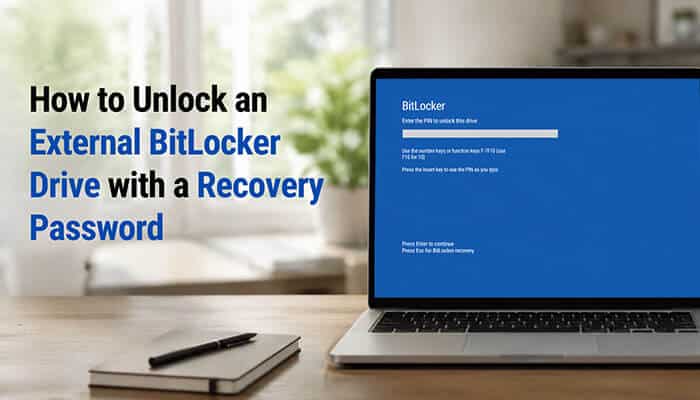
A BitLocker-protected external drive can be unlocked with its 48-digit recovery password if the usual unlock method is unavailable. How to Get BitLocker Recovery Key Without Microsoft Account still requires the correct recovery password before the drive can be accessed.
Using File Explorer
- Connect the encrypted drive to a Windows computer.
- Open File Explorer.
- Select the locked drive.
- Choose Unlock Drive.
- Select Enter recovery key.
- Enter the matching 48-digit recovery password.
Using Command Prompt
Open Command Prompt as an administrator and run:
manage-bde -unlock E: -RecoveryPassword YOUR-48-DIGIT-RECOVERY-PASSWORD
Replace E: with the correct drive letter.
To check the BitLocker status, run:
manage-bde -status E:
Why Is BitLocker Asking for a Recovery Key?
How to Get BitLocker Recovery Key Without Microsoft Account often becomes necessary when BitLocker cannot verify the computer’s security configuration. This recovery prompt does not automatically mean your files are damaged or your device has been hacked.
Common causes include:
- BIOS or UEFI changes
- TPM reset or replacement
- Secure Boot configuration changes
- Firmware updates
- Motherboard replacement
- Boot order changes
- Moving the drive to another computer
- Startup file or boot component changes
Why Is BitLocker Enabled If You Never Turned It On?
Many users discover How to Get BitLocker Recovery Key Without Microsoft Account after seeing a recovery screen on a computer they never encrypted manually.
On supported Windows devices, Device Encryption may be enabled automatically during setup after signing in with a:
- Personal Microsoft account
- Work or school account
- Administrator account used by an employer, technician or previous owner
If someone else originally set up the computer, the BitLocker recovery key may be associated with the account they used instead of your current account.
What Happens If You Cannot Find the Key?
If the BitLocker recovery key cannot be found, the encrypted data cannot normally be unlocked or recovered. There is no supported method to generate a replacement recovery key or bypass BitLocker encryption.
Your Main Options
| Situation | Best Next Step |
|---|---|
| Personal computer with important files | Continue checking printed records, USB drives, cloud storage and other backup locations. |
| Work or school computer | Contact your organization’s IT department. |
| Used computer | Ask the previous owner for the recovery key before erasing the drive. |
| External BitLocker drive | Look for the matching recovery key before formatting the drive. |
| Recovery key is rejected | Verify the Recovery Key ID and confirm the key belongs to the correct drive. |
| Suspected hardware failure | Contact a reputable data recovery specialist. |
How to Reinstall Windows When the Key Is Permanently Lost
A clean Windows installation may be the only remaining option when the BitLocker recovery key cannot be found. This removes the encrypted Windows installation and does not recover existing files.
Basic Steps
- Create a Windows installation USB on another computer.
- Boot the locked computer from the USB drive.
- Start Windows Setup.
- Select Custom: Install Windows only.
- Delete the encrypted Windows partitions.
- Install a fresh copy of Windows.
Before Reinstalling
Before reinstalling, make one final attempt to get a BitLocker recovery key without a Microsoft account by checking every backup location, USB drive, printed record and work or school account. If the device is managed by an organization, contact the IT department before erasing the drive.
BitLocker Recovery Mistakes to Avoid
Avoid these common mistakes while trying to get a BitLocker recovery key without a Microsoft account:
- Clearing the TPM too soon: This does not reveal the recovery key and may prevent normal startup.
- Changing BIOS or UEFI settings repeatedly: Record the current settings before making any firmware changes.
- Formatting the drive too early: Formatting permanently removes access to encrypted data.
- Using the wrong recovery key: Always match the Recovery Key ID before entering a 48-digit recovery password.
- Paying for fake recovery services: No legitimate service can generate or bypass a BitLocker recovery key.
- Sharing your recovery key publicly: Never post the full recovery password online or send it to untrusted people.
What to Do Immediately After BitLocker Recovery
After regaining access to Windows, take a few minutes to secure your device and reduce the chance of another recovery prompt. How to Get BitLocker Recovery Key Without Microsoft Account is only useful if the recovery information is safely backed up for future use.
- Back up important files to an external drive or trusted cloud storage.
- Back up the BitLocker recovery key from Control Panel > System and Security > BitLocker Drive Encryption.
- Store the recovery key in more than one location, such as a printed copy, USB drive or password manager.
- Review recent hardware or BIOS changes that may have triggered BitLocker recovery.
- Verify BitLocker protection by running:
manage-bde -status C:
After completing these checks, How to Get BitLocker Recovery Key Without Microsoft Account is less likely to become an urgent problem again because you’ll have a secure backup of your recovery key.
How to Prevent Future BitLocker Lockouts
After recovering your device, How to Get BitLocker Recovery Key Without Microsoft Account is much easier if the recovery key is backed up in more than one secure location.
Store the recovery key in:
- A Microsoft or work account
- A printed copy kept in a safe place
- An encrypted password manager
- A secure offline USB drive
Before BIOS or Hardware Changes
Before updating the BIOS, replacing hardware or changing boot settings:
- Confirm you have the correct BitLocker recovery key.
- Verify the Recovery Key ID matches the protected drive.
- Back up important files.
- Suspend BitLocker only when officially recommended, then enable protection again after the work is complete.
BitLocker Recovery Checklist
Before giving up, make sure you have:
- Recorded the Recovery Key ID.
- Checked all Microsoft, work and school accounts.
- Looked for printed or USB backups.
- Searched cloud storage, email and password managers.
- Checked other computers, external drives and screenshots.
- Contacted your organization’s IT department or the previous owner, if applicable.
- Confirmed the recovery key matches the correct device.
- Avoided formatting the drive before exhausting every recovery option.
Conclusion
A BitLocker recovery screen does not always mean your files are lost. How to Get BitLocker Recovery Key Without Microsoft Account often comes down to checking the right backup locations, such as printed copies, USB drives, password managers, work or school accounts, Microsoft Entra ID or Active Directory.
Before making BIOS changes, clearing the TPM or reinstalling Windows, record the Recovery Key ID and verify that the 48-digit recovery password belongs to the correct device. How to Get BitLocker Recovery Key Without Microsoft Account is most successful when you exhaust every legitimate recovery option before considering a clean installation, which permanently erases encrypted data.
FAQs About How to Get BitLocker Recovery Key Without Microsoft Account
1. How long does a BitLocker recovery key stay valid?
A BitLocker recovery key does not expire. It remains valid until the recovery protector is removed, replaced or rotated. If the recovery key changes, use the latest backup associated with the displayed Recovery Key ID.
2. Can I create a new BitLocker recovery key after unlocking my PC?
Yes. After unlocking the drive, you can back up the existing recovery key or create a new recovery protector through the BitLocker management tools. Save the new key in multiple secure locations.
3. Does reinstalling Windows remove BitLocker encryption?
Yes. Deleting the encrypted partitions during a clean Windows installation removes the existing BitLocker-protected installation. However, this permanently erases the encrypted files stored on that drive.
4. Can I use the same BitLocker recovery key on another computer?
No. Each BitLocker recovery key is created for a specific encrypted drive. A recovery key from another computer or drive cannot unlock your device.
5. Does changing my Microsoft account password affect the BitLocker recovery key?
No. Changing your Microsoft account password does not change or invalidate the BitLocker recovery key. The 48-digit recovery password remains separate from your account password.
6. Can Windows Update create a BitLocker recovery screen?
Yes. In some cases, firmware, TPM or security-related updates installed through Windows Update can trigger BitLocker recovery if the system detects unexpected startup changes.
7. Can I disable BitLocker after unlocking my computer?
Yes. After regaining access, you can turn off BitLocker if you no longer need drive encryption. Windows will decrypt the drive, which may take some time depending on its size.
8. Will replacing my SSD or hard drive change the BitLocker recovery key?
Replacing the storage drive or moving an encrypted drive to another computer can trigger BitLocker recovery. Always back up the recovery key before replacing storage hardware.
