



A phone screen that does not respond to touch can quickly become stressful. You may not be able to unlock your device, answer calls, reply to messages, use banking apps, open photos, or access important files. This issue can happen after a software update, after dropping the phone, while charging, after installing an app, or because of a dirty screen, faulty screen protector, overheating, or internal display damage. If you are searching for How to Fix Phone Screen Unresponsive Touch, the good news is that many touchscreen problems can be fixed at home with simple troubleshooting.
However, if the phone has a cracked display, water damage, ghost touch, dead touch zones, battery swelling, or a damaged digitizer, professional repair may be required. This complete guide explains How to Fix Phone Screen Unresponsive Touch using 12 easy methods for Android and iPhone. You will also learn the common causes, software vs hardware signs, brand-specific fixes, repair warnings, prevention tips, and when to visit a service center.
Official troubleshooting guidance from Google, Apple, and Samsung commonly recommends steps such as cleaning the screen, removing cases or screen protectors, restarting the phone, checking apps, using Safe Mode, disconnecting accessories, updating software, adjusting touch sensitivity, and using factory reset only after backup.
Quick Answer: How to Fix Phone Screen Unresponsive Touch
To fix a phone screen with unresponsive touch, clean and dry the screen, remove the case and screen protector, disconnect chargers and accessories, and restart the phone. If the problem continues, force restart the device, check for software updates, uninstall recently installed apps, use Safe Mode on Android, adjust touch sensitivity settings, free up storage, and back up your data before trying a factory reset.
If the screen is cracked, wet, black, flickering, swollen, or has the same dead area every time, visit an authorized repair center.
Key Takeaways
- Most touchscreen problems are caused by dirt, moisture, accessories, software glitches, apps, overheating, or screen protectors.
- If the same part of the screen never works, the digitizer or display may be damaged.
- If touch works in Android Safe Mode, a third-party app may be causing the issue.
- If touch fails while charging, the charger, cable, adapter, or socket may be the problem.
- A factory reset should be the last software step after backing up your data.
- Water damage, ghost touch, cracked glass, black screen, and battery swelling need professional inspection.
Why This Problem Feels So Stressful
A touchscreen problem can instantly disrupt daily life. Many people rely on their phones for banking, work, navigation, communication, photos, and authentication codes. When the screen stops responding, it is natural to worry about losing access to important information.
The good news is that many touchscreen problems are caused by temporary software glitches, accessories, moisture, or charging issues rather than permanent hardware damage.
Common Causes of Phone Screen Unresponsive Touch
Before learning how to Fix Phone Screen Unresponsive Touch, it helps to understand why the screen is not responding. A phone touchscreen can stop working because of physical, software, accessory-related, or environmental problems.
| Cause | What Happens | Best Fix |
| Dirty or oily screen | Touch becomes slow or inaccurate | Clean the screen |
| Wet hands or moisture | Screen misses taps or swipes | Dry the phone and hands |
| Thick screen protector | Touch feels weak or delayed | Remove or replace the protector |
| Tight phone case | Edges or corners stop responding | Remove case |
| Faulty charger or cable | Touch fails while charging | Disconnect the charger and test |
| Software glitch | The screen freezes suddenly | Restart or force restart |
| Faulty app | Touch problem appears after app install | Use Safe Mode or uninstall the app |
| System update bug | The touch issue starts after the update | Install the latest patch |
| Low storage or lag | Phone becomes slow and delayed | Free storage |
| Overheating | The screen becomes slow or frozen | Cool the phone |
| Physical damage | Dead spots or ghost touch | Repair needed |
| Water damage | Random touch, black screen, flicker | Professional inspection |
| Faulty digitizer | Display works, but touch does not | Screen replacement |
The Most Common Real-World Scenarios
Many touchscreen problems begin during everyday situations such as:
- Dropping the phone accidentally
- Installing a software update
- Using a damaged charging cable
- Applying a new screen protector
- Leaving the phone in direct sunlight
- Exposing the phone to moisture
- Running too many apps simultaneously
Understanding what happened before the issue started often provides the biggest clue to the correct solution.
How to Know If the Problem Is Software or Hardware
Before trying advanced fixes, identify whether the touchscreen issue is likely caused by software or hardware. This can help you avoid unnecessary factory resets or repair costs.
| Symptom | Likely Reason | What to Try First |
| The screen freezes suddenly | Software glitch | Restart or force restart |
| Touch works in some apps only | App issue | Update or uninstall the app |
| Touch works in Safe Mode | Third-party app issue | Remove recently installed apps |
| Same screen area never works | Hardware or digitizer issue | Visit the repair center |
| Touch stopped after water exposure | Liquid damage | Stop using it and get an inspection |
| Touch fails while charging | Cable, charger, or accessory issue | Disconnect the charger and test |
| Ghost touch opens apps automatically | Screen protector, moisture, or hardware damage | Clean screen, remove protector, repair if needed |
| The screen is black, but the phone vibrates | Display or system issue | Force restart, charge, then repair if needed |
| Touch stopped after a drop | Internal display damage | Repair inspection |
People searching for How to Fix Phone Screen Unresponsive Touch often do not know whether they are dealing with a small software bug or a serious screen problem. This table helps users choose the safest next step.
Signs Your Phone Touchscreen Has a Problem
Your phone may show one or more of these symptoms:
- The screen does not respond to taps.
- Only one part of the screen does not work.
- The phone opens apps by itself.
- Swiping feels delayed.
- The keyboard does not type properly.
- Touch works only after restarting.
- Touch stops while charging.
- The screen freezes on the lock screen.
- The display works, but the touch does not.
- The phone responds to buttons but not fingers.
- Touch works with a stylus but not with fingers.
- The phone becomes hot, and the touch becomes slow.
If the issue happens only inside one app, the app may be the problem. In that case, update the app, clear its cache on Android, or uninstall and reinstall it.
Unresponsive Touch vs Ghost Touch: What Is the Difference?
An unresponsive touch screen means your phone does not react when you tap, swipe, or type. Ghost touch is different because the phone acts as if someone is touching the screen even when you are not using it.
| Issue | Meaning | Common Cause |
| Unresponsive touch | The screen does not respond | Freeze, app bug, damaged screen |
| Delayed touch | The screen responds slowly | Low storage, overheating, and system lag |
| Ghost touch | Phone touches itself | Moisture, screen protector, damaged digitizer |
| Dead zone | One screen area does not work | Hardware damage |
If the phone opens apps by itself, types random letters, or swipes without your finger, do not ignore it. Remove the screen protector, clean the screen, restart the phone, and check for physical damage. If the problem continues, the display or digitizer may need repair.
Start With the Safest Fixes First
| Fix | Risk Level | Difficulty |
|---|---|---|
| Clean Screen | Very Low | Easy |
| Remove Screen Protector | Very Low | Easy |
| Restart Device | Very Low | Easy |
| Disconnect Charger | Very Low | Easy |
| Update Software | Low | Easy |
| Safe Mode Testing | Low | Moderate |
| Free Storage Space | Low | Easy |
| Factory Reset | High | Advanced |
| Screen Replacement | High | Professional Repair |
12 Easy Fixes for Phone Screen Unresponsive Touch
1. Clean and Dry Your Phone Screen
The simplest fix is to clean the screen. Dust, oil, sweat, water drops, makeup, lotion, or dirt on your fingers can affect touch response.
Use a soft microfiber cloth and gently wipe the screen. Make sure your hands are clean and dry before touching the display again.
Avoid using:
- Sharp objects
- Too much liquid
- Harsh chemicals
- Rough cloth
- Toothpaste or home cleaning powders
- Direct water spray on the phone
This is one of the easiest steps in How to Fix Phone Screen Unresponsive Touch, especially if the problem started suddenly without any drop or physical damage.
2. Remove the Screen Protector, Case, Gloves, or Stickers
A thick, cracked, cheap, or badly fitted screen protector can block proper touch response. A tight phone case can also press against the edges of the display and create touch issues.
Remove these items one by one:
- Screen protector
- Phone case
- Gloves
- Stickers near sensors
- Magnetic accessories
- Damaged tempered glass
- Clip-on accessories touching the screen edge
After removing each item, test the screen again. If touch starts working normally, the accessory was likely causing the issue.
3. Disconnect Chargers, Cables, and Accessories
Sometimes the touchscreen problem is not caused by the display itself. A damaged charger, poor-quality cable, power bank, USB-C accessory, Lightning accessory, or adapter can interfere with normal phone behavior.
To test this:
- Unplug the charger.
- Remove USB-C or Lightning accessories.
- Disconnect headphones or adapters.
- Try a different charging cable.
- Try a different wall socket.
- Use an original or certified charger.
- Restart the phone after disconnecting accessories.
If your phone screen stops responding only while charging, the charger, cable, adapter, or socket may be the problem.
4. Restart Your Phone
A normal restart can fix temporary software glitches, frozen apps, memory issues, and minor system errors.
For most Android phones, press and hold the power button and tap Restart. For iPhone, restart the device normally if the screen responds enough to power it off and turn it back on.
Restarting is a simple but useful step when you are trying to understand how to Fix Phone Screen Unresponsive Touch without losing data.
5. Force Restart Your iPhone or Android Phone
If your screen is fully frozen and you cannot tap anything, try a force restart. This does not erase your data.
| Device | Force Restart Method |
| iPhone with Face ID | Press Volume Up, press Volume Down, then hold the Side button until the Apple logo appears |
| iPhone 7 / 7 Plus | Hold the Side button and Volume Down until the Apple logo appears |
| iPhone 6s or earlier | Hold the Home button and Side/Top button until the Apple logo appears |
| Most Android phones | Hold the Power button for around 30 seconds |
| Samsung Galaxy | Hold Volume Down + Power/Side button for around 10 seconds |
A force restart is useful when the phone is frozen, the screen is stuck, or the device responds to buttons but not to touch.
6. Let the Phone Cool Down
If your phone is too hot, the screen may become slow, frozen, or unresponsive. This can happen while gaming, charging, using GPS, recording video, video calling, or keeping the phone under direct sunlight.
Do this:
- Stop using heavy apps.
- Remove the phone case.
- Unplug the charger.
- Keep the phone in a cool, dry place.
- Do not put the phone in a freezer.
- Wait 10–20 minutes before testing again.
Overheating can affect performance, battery health, and touch response. If the phone becomes hot often, check for battery, charger, or hardware issues.
7. Check If the Problem Happens in One App
Sometimes the phone screen is fine, but one app freezes or stops responding. This may happen with games, camera apps, launchers, social media apps, keyboard apps, or poorly updated apps.
Try this:
- Close the app.
- Reopen it.
- Update the app.
- Clear the app cache on Android.
- Uninstall and reinstall the app.
- Use another keyboard app if the keyboard is not appearing.
- Check whether the same issue happens in other apps.
If the touch issue happens only in one app, your phone hardware may not be damaged.
8. Update Your Phone Software
Software bugs can cause freezing, ghost touch, lag, poor screen response, or keyboard issues. Installing the latest system update can fix known bugs and improve device stability.
For Android:
Go to Settings > System > Software Update or Settings > Software Update, depending on your phone model.
For iPhone:
Go to Settings > General > Software Update.
For Samsung:
Go to Settings > Software Update > Download and Install.
For Google Pixel:
Go to Settings > System > Software Updates.
Keeping your phone updated is an important part of how to Fix Phone Screen Unresponsive Touch, especially if the problem started after a system update or app update.
9. Use Safe Mode on Android
Safe Mode helps you check whether a downloaded app is causing the touch problem. In Safe Mode, Android runs only essential system apps and disables third-party apps temporarily.
If the touchscreen works normally in Safe Mode, a recently installed or updated app may be causing the issue.
What to do:
- Enter Safe Mode.
- Test the touchscreen.
- Restart to exit Safe Mode.
- Uninstall recently installed apps one by one.
- Test the phone after each uninstall.
Safe Mode is especially useful if the touch problem started after installing a launcher, keyboard app, cleaner app, game, or screen overlay app.
10. Adjust Touch Sensitivity Settings
Some phones include touch sensitivity settings for screen protectors or gesture navigation. If you recently added a tempered glass protector, your phone may need extra touch sensitivity.
For Samsung Galaxy:
Go to Settings > Display > Touch Sensitivity.
For Google Pixel:
Go to Settings > Display & Touch > Touch Sensitivity.
Some phones may also include screen protector mode, glove mode, or adaptive touch settings. Turn these settings on or off and test the screen again.
11. Free Up Storage and Close Heavy Apps
A phone with very low storage or too many heavy background apps can become slow. The screen may not be broken, but the phone may respond late.
Try this:
- Delete unused apps.
- Remove large videos.
- Clear app cache.
- Restart the phone.
- Close heavy games or editing apps.
- Move photos and videos to cloud storage.
- Keep at least 10–15% storage free when possible.
This fix is helpful when the screen responds, but slowly.
12. Test the Affected Area of the Screen
If only one part of your phone screen is not responding, test whether the same area fails every time.
Try this method:
- Touch the top-left corner of the screen.
- Slowly drag your finger to the bottom-right corner.
- Check whether the touch line breaks in the same place.
- Repeat from different directions.
- Test typing on different keyboard areas.
- Rotate the phone and test again.
If the same area always fails, the screen digitizer may be damaged. In that case, software fixes may not solve the problem.
Why Data Protection Should Come Before Repair
Many users focus entirely on fixing the touchscreen and forget about protecting their information.
Photos, contacts, messages, authentication apps, banking access, and work files may be more valuable than the phone itself. If the touchscreen is still partially functional, backing up important data should become a priority before attempting advanced troubleshooting or repairs
Back Up Your Data Before Advanced Fixes
Before you try a factory reset or visit a repair shop, back up your important data. This is especially important if your phone screen is partly working because the problem may become worse later.
Back up these items first:
- Photos and videos
- Contacts
- WhatsApp or chat history
- Notes and documents
- Banking app recovery details
- Two-factor authentication codes
- Google, Apple, or Samsung account login details
- Important files stored in downloads
- App recovery keys or backup codes
This step adds safety because a factory reset, repair inspection, display replacement, or motherboard repair may lead to data loss. Do not wait until the screen becomes fully unusable.
Why Factory Reset Is Often Misunderstood
Many online forums recommend factory resets too quickly. While a reset can solve some software-related touchscreen issues, it should never be the first troubleshooting step.
A factory reset removes personal data and often fails to fix hardware-related problems such as cracked screens, damaged digitizers, water damage, or battery swelling.
Trying simpler solutions first usually saves time and reduces unnecessary risk.
Try Factory Reset as a Last Resort
A factory reset should be your last software fix because it deletes data from the phone. Try this only after cleaning the screen, removing accessories, restarting, updating software, using Safe Mode, removing apps, freeing storage, and adjusting touch sensitivity.
Before factory reset:
- Back up photos and videos.
- Back up contacts.
- Back up WhatsApp or important chats.
- Save passwords.
- Remove the memory card if needed.
- Make sure you know your Google, Apple, or Samsung account login.
- Charge the phone before resetting.
A factory reset can fix software-related problems, but it cannot fix cracked glass, water damage, battery swelling, or a broken digitizer.
Android-Specific Fixes for Unresponsive Touch
If you use an Android phone, try these extra steps:
| Problem | Android Fix |
| Touch is not working after installing the app | Boot into Safe Mode |
| The screen protector is causing a weak touch | Enable screen protector mode if available |
| Phone freezes often | Clear cache and free storage |
| Touch stops after update | Install the latest system patch |
| Lock screen keyboard not showing | Restart and test the default keyboard |
| Only one screen area fails | Test for dead zone |
| Screen works in Safe Mode | Remove recently installed apps |
| Touch fails while charging | Try another cable or charger |
| Phone overheats | Cool it before testing the touch again |
For Android users, the best first steps are restarting the phone, removing the screen protector, checking recently installed apps, using Safe Mode, and installing software updates.
iPhone-Specific Fixes for Unresponsive Touch
If your iPhone screen is not responding to touch, try these steps:
- Clean and dry the screen.
- Remove the case and screen protector.
- Disconnect Lightning or USB-C accessories.
- Try another charger, cable, or wall socket.
- Force restart the iPhone.
- Charge the phone if the screen is black.
- Update iOS if touch works partly.
- Delete recently installed apps if the issue appears inside one app.
- Back up the iPhone.
- Contact Apple Support if the issue continues.
For iPhone users, How to Fix Phone Screen Unresponsive Touch usually starts with cleaning the screen, removing accessories, restarting the device, and checking whether the issue continues after the phone is updated.
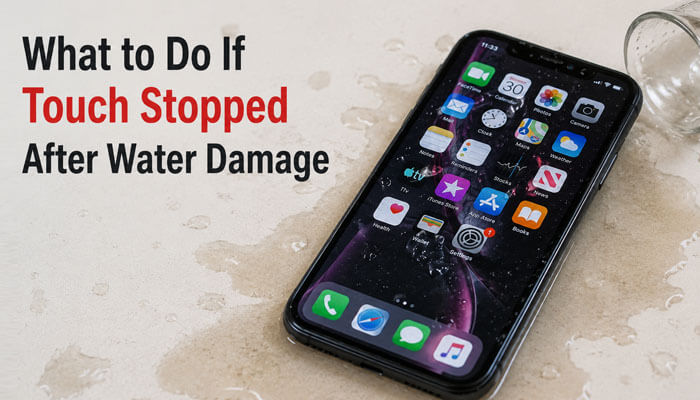
What to Do If Touch Stopped After Water Damage
If your phone screen became unresponsive after water exposure, treat it as a serious issue. Even if the display turns on, water can affect the touchscreen layer, charging port, battery, speaker, display connector, and internal board.
Do this immediately:
- Turn off the phone if possible.
- Remove the case.
- Disconnect the charger.
- Do not charge the phone.
- Do not use heat, a hair dryer, or sharp objects.
- Do not shake the phone aggressively.
- Keep the phone in a dry, ventilated place.
- Visit an authorized service center if the touch does not return.
Water damage can become worse over time because corrosion may continue even after the phone looks dry. If the screen flickers, shows lines, has ghost touch, or stops responding after water exposure, professional inspection is safer than repeated charging or restarting.
Warning Signs That Usually Indicate Hardware Damage
Some symptoms strongly suggest that the issue is no longer software-related.
These include:
- The same screen area never responds
- Visible screen cracks
- Display flickering or green lines
- Touch failure after a drop
- Touch failure after water exposure
- Battery swelling
- Screen lifting from the frame
- Persistent ghost touch
When these symptoms appear, professional inspection is often more effective than repeated troubleshooting.
When You Should Go to a Repair Shop
Not every touchscreen issue can be fixed at home. Visit an authorized service center if:
- The screen is cracked.
- The phone fell recently.
- The phone has water damage.
- Touch does not work after a factory reset.
- The display is black, but the phone vibrates.
- The screen flickers or shows green lines.
- The same area of the screen never responds.
- The phone has a ghost touch.
- The battery is swollen.
- The phone gets hot while charging.
- The touchscreen stopped after the screen replacement.
- The phone bends, lifts, or separates near the screen.
If your display works but touch does not, the digitizer may be damaged. In many modern phones, the display and digitizer are combined, so the repair may require a full screen replacement.
What Not to Do When Your Phone Touchscreen Stops Working
Avoid these mistakes:
- Do not press the screen too hard.
- Do not hit or shake the phone.
- Do not use sharp objects to tap the display.
- Do not use a hair dryer for water damage.
- Do not put the phone in rice as a guaranteed fix.
- Do not install unknown “touch repair” apps.
- Do not factory reset before backing up data.
- Do not ignore battery swelling.
- Do not use a cracked screen for too long.
- Do not visit an unknown repair shop without checking reviews.
- Do not continue using a damaged charger.
- Do not open the phone yourself unless you are trained.
Common Myths About Fixing an Unresponsive Phone Screen
| Myth | Truth |
| Pressing harder will fix the screen | It may damage the display more |
| Every touch problem needs a screen replacement | Some issues are caused by apps, software bugs, accessories, or screen protectors |
| A factory reset should be the first fix | It should be the last software step after backup |
| If the display works, the screen is fine | The display may work while the touch digitizer is damaged |
| Any charger is safe | Poor-quality chargers or cables can cause charging and performance issues |
| Rice can fully fix water damage | Water damage may still affect internal parts |
| Touch repair apps can fix hardware damage | Apps cannot repair cracked glass or damaged digitizers |
These myths are important because many users searching for How to Fix Phone Screen Unresponsive Touch may try risky tricks before safe troubleshooting.
Small Habits That Extend Screen Life
Many touchscreen failures are linked to long-term wear rather than sudden accidents.
Helpful habits include:
- Avoid charging with damaged cables
- Remove cracked screen protectors quickly
- Keep software updated
- Avoid exposing the phone to extreme heat
- Use certified accessories
- Keep storage from becoming completely full
- Avoid placing heavy pressure on the screen
These habits can improve long-term device reliability.
Best Prevention Tips to Avoid Touchscreen Problems
You can reduce future touchscreen issues by following simple care habits:
- Use a high-quality screen protector.
- Avoid cheap or badly fitted tempered glass.
- Keep your phone away from water.
- Do not use the phone while it is overheating.
- Keep software updated.
- Avoid installing apps from unknown sources.
- Clean the screen regularly.
- Use a phone case that does not press the screen edges.
- Do not charge with damaged cables.
- Back up your phone regularly.
- Avoid keeping the phone in direct sunlight.
- Replace cracked tempered glass quickly.
- Use certified chargers and cables.
Troubleshooting Table: Problem and Best Solution
| Touchscreen Problem | Possible Cause | Best Solution |
| Entire screen frozen | Software crash | Force restart |
| Touch works slowly | Low storage or lag | Free storage and restart |
| The screen works only sometimes | Screen protector or moisture | Clean screen, remove protector |
| Touch fails in one area | Digitizer damage | Repair needed |
| Ghost touch | Cracked screen or moisture | Remove protector, repair if needed |
| Touch fails after app install | Bad third-party app | Use Safe Mode |
| Touch fails after update | Software bug | Install the latest patch |
| iPhone black screen | Frozen system or battery issue | Force restart or charge |
| Samsung keyboard not showing | Third-party keyboard issue | Restart or Safe Mode |
| Touch fails while charging | Bad charger or grounding issue | Use the original charger |
| Touch stopped after water exposure | Liquid damage | Turn off and get an inspection |
| Touch works after removing the charger | Cable or accessory issue | Replace the charger or cable |
Brand-Specific Quick Fixes
| Phone Brand | Best First Fix |
| Android | Restart, remove protector, test Safe Mode |
| iPhone | Force restart, clean screen, remove accessories |
| Samsung Galaxy | Hold Volume Down + Power/Side button for around 10 seconds |
| Google Pixel | Use Screen Protector Mode or Adaptive Touch if available |
| OnePlus | Restart, update software, remove recent apps |
| Xiaomi / Redmi / POCO | Restart, remove screen protector, check updates |
| Realme / Oppo / Vivo | Restart, clean screen, test without case or protector |
This section helps users who search for brand-specific issues, such as Android touchscreen not working, iPhone screen not responding, Samsung touchscreen not working, or Google Pixel touch sensitivity problems.
How Much Does It Cost to Fix an Unresponsive Phone Screen?
The repair cost depends on the phone model, warranty status, screen type, and whether the issue is caused by software, display damage, digitizer failure, water damage, battery swelling, or charging accessory problems.
| Repair Situation | Possible Cost Level |
| Software issue | Usually free |
| App-related issue | Usually free |
| Screen protector issue | Low cost |
| Charging cable issue | Low to medium cost |
| Digitizer damage | Medium to high cost |
| Full display replacement | High cost |
| Water damage | Varies by damage |
| Battery swelling | Professional repair needed |
| Motherboard connector issue | Medium to high cost |
Do not choose repair based only on the lowest price. A poor-quality replacement screen may cause weak touch response, display color issues, fingerprint problems, face unlock problems, or future ghost touch.
If your phone is under warranty or has an official protection plan, check authorized service options first.
Conclusion
Learning How to Fix Phone Screen Unresponsive Touch can help you solve many common touchscreen problems without immediately paying for repair. Start with simple steps like cleaning the screen, removing the case or screen protector, disconnecting accessories, restarting the phone, updating software, and checking for app issues.
If the screen works in Safe Mode, a third-party app is probably causing the problem. If touch fails while charging, the cable or charger may be the issue. If the same area of the screen never responds, or the phone has cracks, water damage, ghost touch, battery swelling, or a black display, the issue is likely hardware-related.
Try the safe fixes first, back up your data whenever possible, and choose an authorized repair center if the problem continues.
How to Fix Phone Screen Unresponsive Touch FAQs
1. How to Fix Phone Screen Unresponsive Touch Without Losing Data?
To fix phone screen unresponsive touch without losing data, start with safe troubleshooting methods such as cleaning the screen, removing the case and screen protector, disconnecting chargers, restarting the phone, updating software, and using Safe Mode on Android. These fixes do not erase personal files or settings.
2. Why Is My Phone Screen Not Responding to Touch?
A phone screen may stop responding because of dirt, moisture, a faulty screen protector, software glitches, app conflicts, overheating, low storage, physical damage, water exposure, or a damaged digitizer. Identifying the cause is the first step in learning how to fix phone screen unresponsive touch correctly.
3. How to Fix Phone Screen Unresponsive Touch After a Drop?
If your phone screen becomes unresponsive after a drop, restart the device and test different areas of the screen. If the same section consistently fails to respond, the display or digitizer may be damaged and professional repair may be required.
4. How to Fix Phone Screen Unresponsive Touch While Charging?
If the touchscreen stops working while charging, disconnect the charger and test the phone again. A damaged cable, low-quality charger, faulty adapter, or grounding issue can interfere with touch response. Using an original or certified charger often solves the problem.
5. How to Fix Phone Screen Unresponsive Touch on Android Phones?
To fix phone screen unresponsive touch on Android devices, restart the phone, remove the screen protector, update the operating system, free storage space, adjust touch sensitivity settings, and test the device in Safe Mode. If the issue disappears in Safe Mode, a third-party app is likely causing the problem.
6. How to Fix Phone Screen Unresponsive Touch on iPhone?
To fix phone screen unresponsive touch on an iPhone, clean the display, remove accessories, disconnect charging cables, force restart the device, update iOS, and check whether the issue occurs in all apps. If the touchscreen remains unresponsive, contact Apple Support or visit an authorized repair center.
7. Can an unresponsive phone screen fix itself?
Sometimes. If the problem is caused by a temporary software glitch, overheating, or a charging-related issue, normal operation may return after restarting the device or allowing it to cool down.
8. Does a cracked screen always require replacement?
Not always. Minor cracks may still allow normal touch functionality, but cracks often increase the risk of touch failure, ghost touch, moisture intrusion, and additional damage over time.
9. Why does my phone screen stop responding only occasionally?
Intermittent touch problems are often caused by software bugs, overheating, faulty accessories, low storage, moisture, or aging screen components.
