


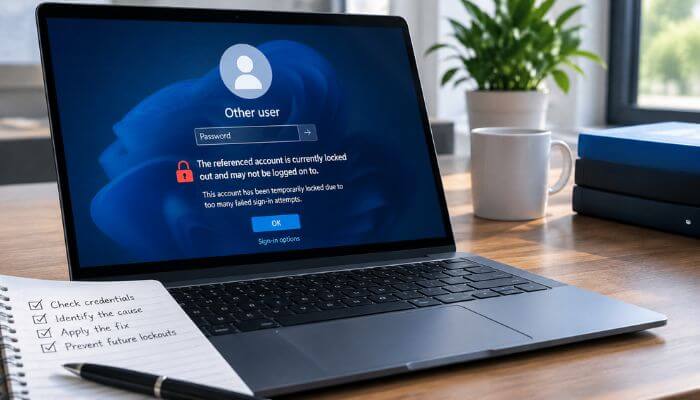

The referenced account is currently locked error means Windows or another Microsoft authentication system has temporarily blocked an account, usually after too many failed sign-in attempts.
The full message often appears as:
“The referenced account is currently locked out and may not be logged on to.”
You may see it while signing in to Windows 11 or Windows 10, opening a shared folder, reconnecting a mapped drive, using Remote Desktop, or signing in with an Active Directory account.
For a simple lockout, waiting for the configured lockout period may solve the problem. However, if the account keeps getting locked even when you enter the correct password, an old password may still be stored in Credential Manager, a mapped drive, Remote Desktop, a scheduled task, a Windows service, VPN software, or another computer.
This guide explains what causes the referenced account is currently locked error, which fix to try first, and how to prevent recurring account lockouts.
Quick Answer
If the referenced account is currently locked, stop entering passwords repeatedly.
New Windows 11 devices use a default account lockout threshold of 10 failed sign-in attempts and a 10-minute lockout duration. Microsoft introduced these secure-by-default settings to help reduce brute-force attacks, including attempts through Remote Desktop Protocol.
However, not every account follows those settings. Work accounts, Active Directory domains, Microsoft Entra ID, and Microsoft Entra Domain Services can use different policies.
Try these steps first:
- Stop attempting passwords for several minutes.
- Check whether Windows expects your PIN or password.
- Verify Caps Lock, Num Lock, and keyboard layout.
- After signing in, check Windows Credential Manager.
- Reconnect mapped drives using your current password.
- Remove outdated Remote Desktop or network credentials.
- If it is a work account, ask IT to investigate the source of the failed authentication.
If the account becomes locked again soon after being unlocked, another device or application is probably still submitting an incorrect password.
Which Fix Should You Try First?
Use this table to identify the best starting point.
| Situation | Best First Step |
|---|---|
| You typed the wrong password several times | Stop trying and wait for the lockout period |
| You recently changed your password | Check stored credentials and mapped drives |
| Your PIN works differently from your password | Use Sign-in options |
| A shared folder gives the error | Check network credentials |
| Remote Desktop stopped working | Remove outdated saved RDP credentials |
| The account locks every few minutes | Check services, tasks and other devices |
| Windows opens but company resources fail | Check your domain account |
| Work/domain account keeps locking | Ask IT to review Event ID 4740 |
| You forgot the password completely | Use Microsoft’s official password recovery |
| Lockouts appear suspicious | Contact IT or your security team |
Key Takeaways
- Account lockout usually occurs after repeated failed authentication attempts.
- New Windows 11 devices use a default threshold of 10 unsuccessful attempts and a 10-minute lockout.
- A Windows Hello PIN and an account password are different credentials.
- Password changes can cause recurring lockouts when old credentials remain stored elsewhere.
- Mapped drives, Remote Desktop, scheduled tasks, Windows services, VPNs, and other devices can generate failed logins automatically.
- Active Directory administrators can use Event ID 4740 and its Caller Computer Name field to help investigate a lockout.
- Microsoft Entra ID and Microsoft Entra Domain Services use different lockout behavior from a standard Windows device.
- Repeated unexplained lockouts can indicate either a configuration problem or suspicious authentication activity.
What Does “The Referenced Account Is Currently Locked” Mean?
The message means an account has reached the failed sign-in limit defined by its applicable security policy.
Account lockout is designed to make automated password guessing more difficult. Instead of allowing unlimited login attempts, Windows or the relevant identity system can temporarily prevent additional authentication.
Three settings normally control a traditional Windows account lockout:
| Policy | What It Controls |
|---|---|
| Account lockout threshold | Number of failed attempts before lockout |
| Account lockout duration | How long the account remains unavailable |
| Reset lockout counter | When previous failed attempts stop counting |
The exact values depend on the device and account environment.
Where Can the Error Appear?
The error is not limited to the Windows login screen. It can appear whenever Windows or another system tries to authenticate the affected account.
You may encounter it while:
- Signing in to Windows 11
- Signing in to Windows 10
- Switching Windows users
- Opening a shared network folder
- Connecting to a file server
- Reconnecting a mapped drive
- Using Remote Desktop
- Accessing a company application
- Connecting through a VPN
- Running a scheduled task
- Starting a Windows service
- Connecting to another Windows computer
Where the message appears can provide an important clue about which account or credential is causing the problem.
For example, if Windows opens normally but you see the referenced account is currently locked message when accessing a shared folder, the locked credentials may belong to the remote server or network resource rather than your local Windows account.
Why Is The Referenced Account Currently Locked?
Several issues can trigger the referenced account is currently locked error. In most cases, the problem involves repeated failed sign-in attempts or an old password that Windows or another device continues to use.
1. Too Many Incorrect Password Attempts
Repeatedly entering the wrong password can trigger the account-lockout policy.
Common reasons include:
- Caps Lock or Num Lock
- Wrong keyboard layout
- Typing mistakes
- Using an old password
- Selecting the wrong account
- Confusing a Windows PIN with a password
If several attempts have already failed, stop guessing and wait for the configured lockout period.
2. You Recently Changed Your Password
A password change is a common cause of recurring lockouts.
Your new password may work on your current computer while another device, application, or connection continues using the old one.
This can include:
- Mapped drives
- Remote Desktop
- VPN software
- Business applications
- Other computers
- Virtual machines
3. Windows Has Saved Old Credentials
Credential Manager can store usernames and passwords for network resources and applications.
After changing your password, outdated saved credentials may continue causing failed authentication attempts.
You can review them under:
Control Panel > Credential Manager > Windows Credentials
Only remove credentials you recognize.
4. A Mapped Drive or Remote Connection Uses an Old Password
Mapped drives and Remote Desktop connections may automatically reuse previously saved credentials.
If those credentials are outdated, Windows can repeatedly attempt authentication in the background.
This is especially common when the problem starts immediately after a password change.
5. A Scheduled Task or Windows Service Uses Old Credentials
Scheduled tasks and Windows services can run under a specific user or domain account.
If the account password changes but the stored credentials are not updated, the task or service may repeatedly attempt to authenticate with the previous password.
This can cause the account to become locked again soon after it is unlocked.
6. Another Computer Is Using the Account
The computer displaying the error may not be causing it.
An old laptop, workstation, server, virtual machine, or Remote Desktop session may still be using outdated credentials in the background.
If the account repeatedly locks, check other devices where it has been used.
7. Security Policy or Suspicious Login Attempts
Company and domain accounts may use stricter lockout policies than the standard Windows configuration.
Repeated lockouts can also result from:
- Password guessing
- Password spraying
- Unauthorized Remote Desktop attempts
- Compromised devices
- Stolen credentials
If a work or administrator account repeatedly locks without an obvious reason, contact your IT or security team.
How to Fix The Referenced Account Is Currently Locked
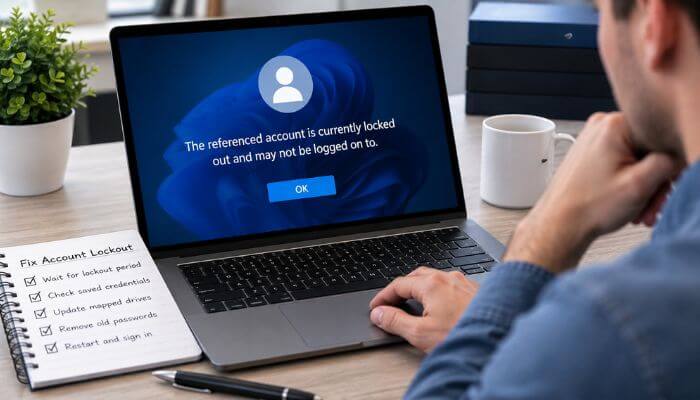
If you see the referenced account is currently locked error, try the following fixes in order. Start with the basic sign-in checks before moving to saved credentials and account-policy troubleshooting.
Fix 1. Wait for the Account to Unlock
Stop entering passwords if several attempts have already failed. New Windows 11 devices generally use a 10-minute default lockout period, although an organization can configure a different duration. Once the waiting period ends, carefully enter the correct credential once.
Fix 2. Verify Your Keyboard
Check Caps Lock, Num Lock, keyboard language, layout, and special characters before entering the password again. A simple keyboard setting or typing mistake can cause repeated failed sign-ins and another lockout.
Fix 3. Check Whether You Need a PIN or Password
Select Sign-in options on the Windows login screen and choose the correct authentication method. A Windows Hello PIN is different from your local, Microsoft, or domain account password, so make sure Windows is asking for the credential you intend to use.
Fix 4. Remove Outdated Saved Credentials
If the problem started after changing your password, go to Control Panel > Credential Manager > Windows Credentials. Find outdated credentials for the affected computer, server, network share, or application, remove only the entries you recognize, and reconnect with your current password.
Fix 5. Reconnect Mapped Network Drives
A mapped drive may continue trying an old password automatically. Open File Explorer > This PC, disconnect the affected drive, and reconnect it with your current credentials. You can also run net use in Command Prompt to view active network connections.
Fix 6. Update Remote Desktop Credentials
Remote Desktop may also retain an old password. Open Credential Manager > Windows Credentials, remove the outdated credential associated with the remote computer, and enter your current password the next time you connect.
Fix 7. Review the Account Lockout Policy
Administrators can run net accounts in Command Prompt to review local account-policy information. On supported Windows editions, the settings can also be found under Local Security Policy > Security Settings > Account Policies > Account Lockout Policy. Avoid changing organization-managed policies without authorization.
Fix 8. Reset a Forgotten Local Password
If the lockout period has ended but you cannot remember your local Windows password, use Reset password on the sign-in screen and follow the available recovery steps. Avoid repeatedly guessing the password because this can trigger another lockout.
Fix 9. Recover Your Microsoft Account
If you sign in with a Microsoft account and have forgotten the password, use Microsoft’s official password-reset process or I forgot my password option. After changing the password, update any computers, applications, mapped drives, or services that may still have the old credential saved.
The Referenced Account Is Currently Locked on a Network Share
You may see the referenced account is currently locked error when accessing a network resource even though Windows itself opens normally.
This commonly affects:
- Shared folders
- SMB file shares
- File servers
- NAS devices
- Mapped network drives
In this case, check Credential Manager > Windows Credentials for outdated saved passwords. You can also run net use in Command Prompt to review active network connections.
If Windows is repeatedly sending an old password to the network resource, update or remove that saved credential and reconnect using the correct password.
What Is System Error 1909?
System Error 1909 can appear during network authentication when a user account is locked. It may appear together with the referenced account is currently locked message when accessing a shared folder, mapped drive, or other network resource.
If you encounter System Error 1909:
- Check which account is being used for the connection.
- Confirm whether the password was recently changed.
- Review saved credentials in Credential Manager.
- Disconnect outdated network connections.
- Ask your administrator to verify the account’s lockout status.
The key is to resolve the account lockout or outdated credential rather than treating Error 1909 as a normal file-permission problem.
Why Can Windows Open if My Domain Account Is Locked?
Windows can cache previous domain sign-in information, allowing you to access the computer even when live authentication with a domain controller is unavailable.
Because of this, Windows may open normally while the referenced account is currently locked for company network resources.
You may still be unable to access:
- File servers
- Company applications
- Network printers
- Internal websites
- Other domain resources
So, successfully reaching the Windows desktop does not always mean your domain account can currently authenticate with company systems.
How to Fix a Locked Active Directory Account
If the referenced account is currently locked on a business or domain-joined PC, an Active Directory administrator should investigate the cause rather than repeatedly unlocking the account.
Unlock the Account
Authorized administrators can unlock an Active Directory account through standard AD management tools or PowerShell:
Unlock-ADAccount -Identity username
Unlocking restores access, but it may not prevent another lockout if a device or application continues using incorrect credentials.
Investigate Event ID 4740
Windows Security Event ID 4740 records an account lockout. Administrators can check:
Event Viewer > Windows Logs > Security
Look for Event ID 4740 and review details such as:
- Account Name
- Account Domain
- Caller Computer Name
- Time of lockout
The Caller Computer Name can help identify the computer associated with the authentication attempt that occurred immediately before the lockout. Check that device for outdated saved credentials, mapped drives, scheduled tasks, services, or applications using the account.
Check the User’s Effective Password Policy
Active Directory can apply fine-grained password policies to specific users or groups, so not every account necessarily follows the Default Domain Policy.
If the referenced account is currently locked more often for one user than others, administrators can check the policy that actually applies with:
Get-ADUserResultantPasswordPolicy -Identity username
This can help determine whether that user has a different account-lockout threshold or related password-policy settings.
Use LockoutStatus.exe for Persistent Domain Lockouts
For difficult Active Directory account-lockout problems, Microsoft provides its Account Lockout and Management Tools.
Microsoft’s documentation, updated February 12, 2026, includes LockoutStatus.exe, which helps identify domain controllers involved in a user’s lockout and collect useful troubleshooting information.
The package also includes tools for examining processes, events, password information, and Netlogon activity.
These utilities are intended primarily for IT administrators.
Windows 11, Active Directory and Microsoft Entra Lockouts Are Different
If the referenced account is currently locked, the lockout duration and number of allowed attempts depend on the type of account. Windows 11, traditional Active Directory, and Microsoft Entra ID do not use one universal lockout policy.
| Environment | Default or Policy Behavior |
|---|---|
| New Windows 11 devices | 10 failed attempts with a 10-minute lockout by default |
| Traditional Active Directory | Threshold and duration are determined by the organization’s policies |
| Microsoft Entra ID | Smart Lockout uses a default threshold of 10 failed attempts and an initial one-minute lockout for Azure Public tenants |
Microsoft Entra Smart Lockout can increase the lockout duration after additional failed attempts and uses additional logic, including tracking recent bad-password hashes. Active Directory administrators can also configure different policies for particular users or groups.
For this reason, do not assume every locked Microsoft or Windows account will automatically become available after the same amount of time.
Windows 11, Active Directory and Microsoft Entra Lockouts Are Different
If the referenced account is currently locked, the number of failed attempts and lockout duration depend on the account environment.
- New Windows 11 devices: 10 failed attempts with a 10-minute default lockout.
- Traditional Active Directory: Lockout thresholds and durations are defined by the organization’s policies.
- Microsoft Entra ID: Smart Lockout uses a default threshold of 10 failed attempts and an initial one-minute lockout for Azure Public tenants.
- Microsoft Entra Domain Services: 5 bad password attempts within 2 minutes can trigger a 30-minute lockout.
Always identify the account type before assuming how long the lockout will last.
Why Does the Account Lock Again Immediately?
If the referenced account is currently locked again soon after being unlocked, another device, service, or application may still be sending an outdated password.
Common sources include:
- Mapped network drives
- Scheduled tasks
- Windows services
- Remote Desktop
- VPN or backup software
- Old computers or virtual machines
For example, a mapped drive may automatically reconnect using an old password and trigger repeated authentication failures.
Instead of repeatedly unlocking the account, identify and update the device, application, or saved credential causing the failed sign-in attempts.
Does Restarting Windows Fix the Problem?
Usually not.
Restarting does not directly correct:
- A locked Active Directory account
- Incorrect stored credentials
- Mapped-drive passwords
- Scheduled tasks
- Service credentials
- Domain policy
A restart may appear to work if the lockout timer expires during the restart.
That does not mean rebooting actually unlocked the account.
Does Changing the Password Unlock the Account?
Not necessarily. If the referenced account is currently locked, resetting the password and unlocking the account may be separate actions, especially in managed or domain environments.
Changing the password can also lead to another lockout if mapped drives, applications, services, or other devices continue using the old credential. After changing a work password, update every system where that account is saved.
How to Prevent The Referenced Account Is Currently Locked Error
Once access is restored, a few simple steps can help prevent the referenced account is currently locked error from returning.
- Update saved credentials: After changing your password, update Credential Manager, mapped drives, Remote Desktop, VPNs, scheduled tasks, services, applications, and other computers that use the account.
- Avoid repeated password guessing: If you cannot remember the password, use the official recovery process instead of making repeated attempts.
- Check recurring lockouts: If the account locks frequently, investigate mapped drives, services, scheduled tasks, old computers, and suspicious sign-in activity.
- Use appropriate service accounts: Organizations should avoid using normal employee accounts for automated services when a properly managed service identity is more appropriate.
If the referenced account is currently locked repeatedly, focus on finding the device, application, or saved credential causing the failed authentication rather than simply unlocking the account each time.
Do Not Disable Lockout Protection
Account lockout helps protect against repeated password-guessing attempts. Disabling it simply to stop the error can weaken security. Instead, identify the device, application, or saved credential causing the failed authentication.
When Should You Contact IT?
Contact your administrator or security team if the referenced account is currently locked and:
- You are using a work, school, or domain account.
- The account repeatedly becomes locked.
- Multiple users are experiencing the same problem.
- An administrator or critical service account is affected.
- You cannot identify what is causing the lockout.
- Sign-in attempts appear suspicious.
- You do not have permission to change the required settings.
Repeated unexplained lockouts may indicate a configuration problem or suspicious authentication activity, so they should not be ignored.
Conclusion
The referenced account is currently locked error usually occurs after repeated failed authentication attempts cause Windows or another Microsoft identity system to temporarily block an account.
If the problem follows several incorrect password attempts, stop retrying, wait for the configured lockout period, and verify whether Windows expects a PIN or password. If the account keeps locking, check Credential Manager, mapped drives, Remote Desktop, VPNs, scheduled tasks, Windows services, and other devices that may still be using outdated credentials.
For Active Directory accounts, administrators should investigate Event ID 4740 and identify the computer or service responsible for the failed authentication. Remember that Windows 11, Active Directory, and Microsoft Entra environments can use different lockout rules.
The best way to permanently fix the referenced account is currently locked error is to identify what is repeatedly sending the incorrect credential rather than simply unlocking the account each time.
FAQs About The Referenced Account Is Currently Locked
1. Can Safe Mode Fix “The Referenced Account Is Currently Locked”?
Safe Mode does not normally remove an account lockout. It may help diagnose software problems, but the account must still satisfy the applicable authentication and lockout policy.
2. Can Windows Hello Fingerprint Work When The Referenced Account Is Currently Locked?
It depends on the account and authentication environment. A fingerprint may unlock a device in some situations, but it does not necessarily remove a domain or network account lockout.
3. Can an Expired Password Cause The Referenced Account Is Currently Locked Error?
An expired password and an account lockout are different conditions. However, repeated attempts using an expired or outdated credential can contribute to authentication problems.
4. Can Multiple Windows User Accounts Cause Account Lockout Problems?
Yes. If another Windows profile, application, or background process continues using outdated credentials, it may generate failed authentication attempts even when you are using another account.
5. Can a Disconnected VPN Affect The Referenced Account Is Currently Locked Error?
Yes, especially on company-managed computers. A VPN connection can affect access to domain controllers and other company authentication resources, which may make diagnosing a domain lockout more complicated.
6. Can a Password Manager Cause The Referenced Account Is Currently Locked?
A password manager itself does not normally lock Windows accounts, but autofilling an outdated password into a company application or login repeatedly can contribute to failed authentication attempts.
7. Can The Referenced Account Is Currently Locked Error Affect Only One Application?
Yes. An application may use separate saved network or domain credentials, so it can display an account-lockout error even while other Windows features continue working.
8. Should I Keep Trying My Password After The Referenced Account Is Currently Locked Appears?
No. Repeated attempts may extend troubleshooting and can trigger additional failed authentication events. Wait for the applicable lockout period or use the appropriate recovery or administrator process.
Disclaimer: This article provides general Windows and Microsoft identity troubleshooting information. Account-lockout policies are important security controls. Do not modify Group Policy, Active Directory, Microsoft Entra settings, service credentials, or organization-managed security policies unless you are authorized to do so.
