

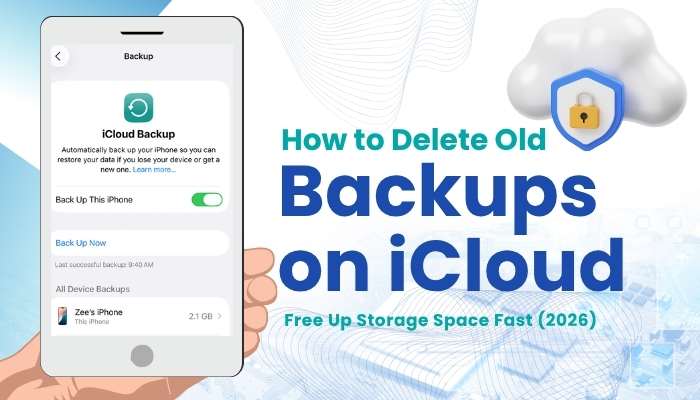
HomeTipsHow to Delete Old Backups on iCloud: Free Up Storage Space Fast...

How to Delete Old Backups on iCloud: Free Up Storage Space Fast (2026)

- Advertisement -spot_img

Table of contents [show]

If you’ve received an “iCloud Storage Full” warning, old device backups may be one of the biggest reasons. Many Apple users upgrade to a new iPhone or iPad but forget that backups from older devices can remain stored in iCloud for months or even years, quietly using valuable storage space. Learning how to delete old backups on iCloud can free up storage quickly and help ensure your current device continues backing up properly. However, deleting the wrong backup can remove an important restore point, so it’s important to understand exactly what each backup contains before removing it.

In this guide, you’ll learn how to delete old backups on iCloud from iPhone, iPad, Mac, and Windows, how to identify backups that are safe to remove, what happens after deletion, and the best ways to reclaim iCloud storage without risking important data.

What Are Old iCloud Backups?

If your iCloud storage is running out faster than expected, old device backups could be one of the hidden reasons. Before learning How to Delete Old Backups on iCloud, it’s important to understand what these backups are and why they may still be using valuable storage space.

Old iCloud backups are saved copies of data from iPhones and iPads that were backed up to iCloud in the past. These backups can include app data, device settings, Home Screen layouts, messages, call history, and other information used to restore a device when needed.

You may find old backups in your iCloud account if:

  • You upgraded to a newer iPhone.
  • You replaced a damaged or lost device.
  • You sold, traded in, or stopped using an iPad.
  • You restored a new device from an older backup.
  • You use multiple Apple devices with the same Apple Account.

Many users are surprised to discover that backups from devices they no longer use are still stored in iCloud. Because these backups often contain years of accumulated data, they can consume several gigabytes of storage space. On Apple’s free 5GB iCloud plan, a single outdated backup can take up a significant portion of the available storage.

The challenge is that not every old backup should be deleted. Some may still contain important data or serve as a valuable restore point. Understanding which backups are safe to remove is the first step in How to Delete Old Backups on iCloud without accidentally losing information you may need later.

Is It Safe to Delete Old Backups on iCloud?

Yes, in most cases, it is safe to delete old iCloud backups from devices you no longer use. However, before removing any backup, it’s important to understand what could be lost and whether that backup still serves a purpose.

Once a backup is deleted, you can no longer use it to restore that specific version of the device. This is why many users accidentally remove backups only to realize later that they still needed certain settings, app data, messages, or other information stored within them.

Before deleting an old backup, make sure your important photos, contacts, documents, and other files have already been transferred to your current device or saved elsewhere.

You Can Usually Delete an Old Backup If:

  • Your new iPhone or iPad is fully set up and working properly.
  • Your important photos, contacts, and files are already synced or backed up.
  • The backup belongs to a device you no longer own or use.
  • You have created a recent backup of your current device.

Consider Keeping the Backup If:

  • You recently upgraded to a new device.
  • You are unsure whether all data transferred successfully.
  • The backup contains information you may need later.
  • You do not have another copy of important files or settings.

Knowing when it is safe to remove a backup is an important part of How to Delete Old Backups on iCloud, helping you free up storage space while avoiding the risk of losing valuable data.

What Happens When You Delete an iCloud Backup?

Understanding what happens after deletion is an important part of How to Delete Old Backups on iCloud, especially if you’re trying to free up storage without accidentally losing access to important data.

When you delete an iCloud backup, that backup is permanently removed from your iCloud storage. As a result, the storage space used by that backup becomes available almost immediately, which can help resolve “iCloud Storage Full” warnings and make room for new backups.
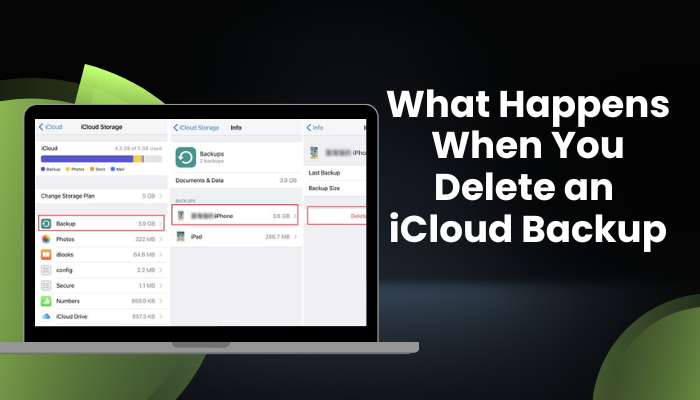
How to delete old backups on icloud while understanding what happens after removing an outdated backup
How to delete old backups on icloud safely by understanding the impact of deleting old device backups

However, there are two important things many users don’t realize:

  • Deleting an iCloud backup does not delete photos, contacts, notes, calendars, or files that are already syncing separately through iCloud.
  • Deleting a backup may disable iCloud Backup for the device associated with that backup. If the device is still in use, you should check that iCloud Backup is turned back on afterward.

This is where many people get confused. Removing a backup deletes the restore point for that device, but it does not automatically erase data that is actively synced across your Apple devices.

Important: Apple’s 180-Day iCloud Backup Rule

Apple states that some iCloud backups may remain available for up to 180 days after iCloud Backup is turned off or a device stops backing up. However, users should not rely on old backups remaining available indefinitely.

If a backup contains important information, consider restoring it or creating a new backup before deleting it. This helps ensure you always have access to the data you may need in the future.

Before You Delete: Create a Fresh Backup First

Before following How to Delete Old Backups on iCloud, it’s a good idea to create a fresh backup of your current iPhone or iPad. This gives you a recent restore point and adds an extra layer of protection in case you accidentally remove a backup that still contains important information.

Many users focus on freeing up storage space and overlook this simple step. Taking a few minutes to create a new backup can help prevent unnecessary data recovery problems later.

How to Create a Manual iCloud Backup

  1. Open Settings.
  2. Tap your name at the top of the screen.
  3. Select iCloud.
  4. Tap iCloud Backup.
  5. Tap Back Up Now.

Keep your device connected to Wi-Fi and power until the backup process is complete.

Once the new backup has finished, you can review older backups with more confidence and decide which ones are no longer needed. Creating a recent backup before making changes is one of the safest practices in How to Delete Old Backups on iCloud, helping you free up storage without risking valuable data.

How to Delete Old Backups on iCloud From iPhone or iPad

Now that you understand which backups are safe to remove, it’s time to learn How to Delete Old Backups on iCloud directly from your iPhone or iPad. The process only takes a few minutes and can instantly free up valuable iCloud storage space.

Follow These Steps:

  1. Open the Settings app.
  2. Tap your name at the top of the screen.
  3. Select iCloud.
  4. Tap iCloud Backup.
  5. Find and select the device backup you want to remove.
  6. Tap Turn Off and Delete from iCloud or Delete Backup.
  7. Confirm your choice when prompted.

Once the backup is deleted, the storage space it was using will become available in your iCloud account. Before leaving the settings menu, check that iCloud Backup is still enabled for your current device, especially if you plan to continue backing up important data automatically.

If you see multiple device backups, take a moment to review the device names and backup dates carefully. Deleting the wrong backup can remove a restore point you may still need later. Following these steps is the simplest way to How to Delete Old Backups on iCloud safely while keeping your current data protected.

How to Delete Old iCloud Backups on Mac

If you prefer using a larger screen, you can also manage and remove old iCloud backups directly from your Mac. This method is especially helpful when reviewing multiple device backups or when your iPhone’s storage settings are difficult to navigate.

Follow These Steps:

  1. Click the Apple menu in the top-left corner.
  2. Open System Settings.
  3. Click your name (Apple Account).
  4. Select iCloud.
  5. Click Manage.
  6. Choose Backups.
  7. Select the old device backup you want to remove.
  8. Click Delete or the remove option.
  9. Confirm the deletion when prompted.

After the backup is removed, the storage space it was using will be released from your iCloud account. Before deleting anything, review the device name and backup date carefully to make sure you’re removing the correct backup.

Using a Mac can make How to Delete Old Backups on iCloud easier, especially if you manage multiple Apple devices or want a clearer view of your iCloud storage. It’s also a convenient option when your iPhone settings feel slow, cluttered, or difficult to use on a smaller screen.

How to Delete Old iCloud Backups on Windows

Windows users can also manage iCloud storage and remove outdated device backups without needing an iPhone, iPad, or Mac. If you have iCloud for Windows installed, deleting old backups is a quick way to recover storage space and keep your account organized.

Follow These Steps:

  1. Open iCloud for Windows.
  2. Click Storage.
  3. Select Backups.
  4. Choose the old device backup you want to remove.
  5. Click Delete.
  6. Confirm your action when prompted.

Once the backup is deleted, the storage space it was using should become available in your iCloud account. It’s a good idea to check your available storage afterward to confirm that the backup was successfully removed.

Before deleting any backup, verify the device name and backup date to ensure you are removing an outdated backup rather than one associated with your current device. Taking a few extra seconds to double-check can help prevent accidental data loss.

For users who manage Apple devices from a PC, this is another simple way to How to Delete Old Backups on iCloud and free up valuable storage space without accessing iPhone or Mac settings.

How to Know Which iCloud Backup to Delete

One of the biggest mistakes people make when learning How to Delete Old Backups on iCloud is deleting the wrong backup. Before removing anything, take a moment to check the device name, backup date, and whether the device is still being used.

In most cases, the safest backup to delete is one that belongs to an old iPhone, an unused iPad, or a device you no longer own. However, if you’re unsure whether important data was transferred successfully, it’s better to keep the backup until you’ve verified everything.

Keep the Backup Delete the Backup
It belongs to your current iPhone or iPad It belongs to an old device you no longer use
You recently reset or replaced a device The device has already been replaced
Data transfer is not complete You no longer need to restore the device
You are unsure all files were transferred The backup is consuming valuable storage
It may contain important information All important data is already saved elsewhere

Does Deleting an iCloud Backup Delete Photos?

This is one of the most common concerns people have when learning How to Delete Old Backups on iCloud. The good news is that deleting an iCloud backup does not usually delete photos that are already syncing through iCloud Photos.

Although the names sound similar, iCloud Backup and iCloud Photos are separate features. Photos stored and synced through iCloud Photos continue to exist even if an old device backup is removed.

However, there is one important exception. If certain photos were never synced to iCloud Photos and existed only inside a device backup, deleting that backup could remove your ability to restore those photos later.

Before Deleting an Old Backup, Check That:

  • iCloud Photos is turned on.
  • Your important photos are visible in the Photos app.
  • Photos are available on your current device.
  • Important images are synced across your Apple devices.
  • You have another copy or backup if needed.

Taking a moment to verify your photos before deleting a backup can prevent unpleasant surprises later. Understanding the difference between backups and synced data is another important part of How to Delete Old Backups on iCloud without risking valuable memories or files.

iCloud Backup vs iCloud Sync: What Is the Difference?

Many Apple users assume iCloud Backup and iCloud Sync are the same thing, but they actually serve very different purposes. Understanding the difference is important before following How to Delete Old Backups on iCloud, because it helps you know what data will remain available after a backup is removed.

Feature iCloud Backup iCloud Sync
Purpose Device recovery Data synchronization
Photos Stored in backup if not synced Continuously synced
Contacts Stored in backup Continuously synced
Restore Device Yes No
Storage Usage Backup-based Sync-based
Needed for New Device Setup Yes No

What Is iCloud Backup?

iCloud Backup creates a restore copy of your iPhone or iPad. It stores device-related information that can be used to recover your data if you reset your device, replace it, or set up a new iPhone.

An iCloud backup may include:

  • Device settings
  • App data
  • Home Screen layout
  • Messages
  • Call history
  • Health data
  • Other device-specific information

Think of iCloud Backup as a safety net that helps restore your device to a previous state when needed.

What Is iCloud Sync?

iCloud Sync works differently. Instead of creating a restore point, it continuously keeps selected content updated across all your Apple devices that use the same Apple Account.

This includes:

  • Photos
  • Contacts
  • Notes
  • Calendars
  • Reminders
  • Messages
  • iCloud Drive files

Any changes you make on one device are automatically reflected on your other connected devices.

Why Does This Difference Matter?

This distinction is important because deleting an iCloud backup does not usually delete content that is actively syncing through iCloud. For example, photos stored in iCloud Photos or files saved in iCloud Drive typically remain available even after an old backup is removed.

However, not all data is synced. Some information may exist only within a backup, which is why it’s important to review your data before deleting anything.

Before removing an old backup, verify that your important photos, contacts, documents, and files are visible on your current device and syncing correctly. Understanding how backup and sync work together is another important part of How to Delete Old Backups on iCloud safely without losing valuable data.

How to Reduce iCloud Backup Size Without Deleting Everything

Not every storage problem requires deleting an entire backup. If you’re running low on iCloud storage but still want to keep your backups, reducing the size of your current backup can be a smarter solution.

Many apps automatically include their data in iCloud backups, even when that information isn’t essential. By removing unnecessary app data from future backups, you can free up storage space while still protecting your most important information.

Follow These Steps:

  1. Open Settings.
  2. Tap your name at the top of the screen.
  3. Select iCloud.
  4. Tap iCloud Backup.
  5. Choose your current device.
  6. Review the list of apps included in the backup.
  7. Turn off backup for apps you don’t need.

After making these changes, future backups will be smaller and use less iCloud storage.

Apps You May Not Need to Back Up

Depending on how you use your device, some apps may not need to be included in your backup:

  • Streaming apps
  • Social media apps
  • Shopping apps
  • News apps
  • Games that already save progress online

However, be careful when disabling backups for apps that contain important personal data, documents, or information that isn’t stored elsewhere.

Reducing backup size is often overlooked, but it can be an effective alternative to deleting backups entirely. Understanding how to manage backup storage is another useful part of How to Delete Old Backups on iCloud, especially if your goal is to free up space while keeping important data protected.

Check the Next Backup Size Before Deleting Anything

Before removing old backups, it’s worth checking how much space your next iCloud backup is expected to use. Sometimes the real problem isn’t an old backup at all—it’s a large app, photo library, or data category that keeps increasing the size of every new backup.

Reviewing the estimated backup size can help you identify storage-heavy apps and decide whether reducing backup size is a better option than deleting backups altogether.

How to Check the Estimated Backup Size

  1. Open Settings.
  2. Tap your name at the top of the screen.
  3. Select iCloud.
  4. Tap iCloud Backup.
  5. Review the estimated size of your next backup.

Why This Step Matters

Checking the next backup size can help you:

  • Identify apps that are consuming excessive storage.
  • Understand why iCloud storage keeps filling up.
  • Reduce unnecessary backup data.
  • Avoid deleting backups that you may still need.
  • Manage iCloud storage more efficiently.

In many cases, trimming large app data or disabling unnecessary backups can solve storage issues without removing existing backups. Taking a few moments to review backup size can save both storage space and future frustration.

Best Ways to Free Up iCloud Storage Fast
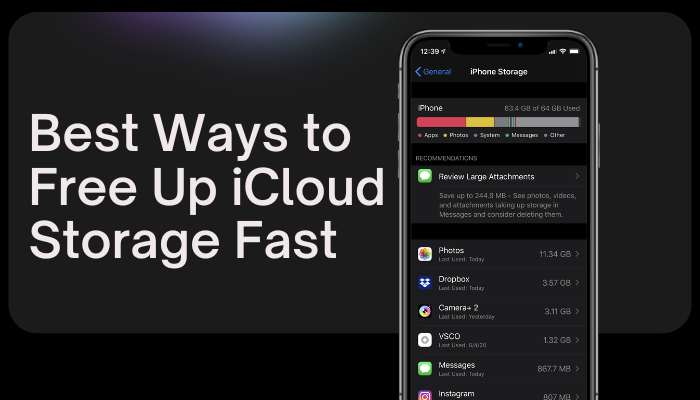
How to delete old backups on icloud and use storage management tools to free up icloud space faster
How to delete old backups on icloud for better storage management and a cleaner icloud account

If your iCloud storage is almost full, deleting old backups is often one of the quickest ways to recover space. However, backups are not the only files consuming storage. Photos, videos, messages, and documents can also take up a significant amount of your available space.

Before upgrading your storage plan, consider reviewing other areas of your iCloud account that may be using more storage than expected.

Effective Ways to Free Up iCloud Storage

Method Storage Savings Difficulty
Delete old iCloud backups High Easy
Remove large iCloud Drive files High Easy
Delete videos from Photos High Easy
Clear message attachments Medium Easy
Disable unused app backups Medium Easy
Move files to computer High Medium
Upgrade to iCloud+ Unlimited Easy

Common Mistakes to Avoid

While learning How to Delete Old Backups on iCloud, it’s easy to make small mistakes that can lead to unnecessary frustration or even data loss. Taking a few extra minutes to review your backups before deleting them can help you avoid common problems.

Avoid These Mistakes

  • Deleting your current iPhone or iPad backup before creating a fresh backup.
  • Assuming iCloud Backup and iCloud Photos are the same service.
  • Removing a backup before confirming that all data transferred successfully.
  • Forgetting to re-enable iCloud Backup after deleting a backup from an active device.
  • Deleting backups solely to free storage without considering future restore needs.
  • Removing a backup without checking the device name and backup date.

Being cautious now can save a lot of time and stress later, especially if you ever need to recover important information.

When Should You Keep an Old iCloud Backup?

Although deleting outdated backups can free up storage space, there are situations where keeping an old backup is the smarter choice. Not every backup is unnecessary, and some may still serve as an important safety net.

You should consider keeping an old backup if you recently upgraded to a new device, are still verifying that all data transferred correctly, or may need to restore information from an older iPhone or iPad.

Keep an Old Backup If:

  • You recently switched to a new iPhone or iPad.
  • You are still checking that all photos, messages, and files transferred correctly.
  • The backup contains information you may need in the future.
  • You are troubleshooting issues on a newly restored device.
  • You do not have another backup available.

In many cases, it makes sense to keep an old backup temporarily until you are completely confident that your new device contains everything you need. Once you’ve confirmed that your contacts, photos, apps, notes, and other important data are safe, you can remove the older backup and reclaim the storage space with confidence.

Temporary iCloud Storage for New iPhone Transfers

Many Apple users don’t realize that upgrading to a new iPhone may come with a helpful storage benefit. To make device transfers easier, Apple may provide temporary iCloud storage, allowing you to create a backup even when your regular iCloud plan is almost full.

This feature can be especially useful if you’re preparing to follow How to Delete Old Backups on iCloud but want to make sure your data is safely transferred first. Instead of worrying about limited storage space, you can create a temporary backup and restore it to your new device.

How Temporary iCloud Storage Helps

  • Creates a full backup of your old iPhone.
  • Makes transferring data to a new iPhone easier.
  • Reduces the risk of losing important information during migration.
  • Works even when your current iCloud storage is nearly full.
  • Eliminates the need to upgrade your storage plan just for the transfer process.

Once your new iPhone is set up and everything is working properly, review your iCloud storage and check whether older backups are still needed. Many users discover that outdated backups continue to occupy storage long after the migration is complete.

Before removing anything, confirm that your photos, contacts, messages, apps, and files have successfully transferred to the new device. Doing this ensures you can proceed with How to Delete Old Backups on iCloud confidently while keeping your important data protected.

Troubleshooting: iCloud Storage Still Full After Deleting Backup

Have you deleted an old backup but your iCloud storage still shows as full? Don’t worry—this is a common issue. In many cases, the storage information simply hasn’t updated yet, or another type of data is consuming more space than expected.

If you’re following How to Delete Old Backups on iCloud to free up storage, it’s important to understand that backups are only one part of your iCloud usage. Photos, videos, messages, and iCloud Drive files can sometimes take up much more space than device backups.

Try These Fixes

  • Wait a few minutes and check your storage again.
  • Restart your iPhone or iPad.
  • Return to iCloud storage settings and refresh the information.
  • Review storage used by iCloud Photos.
  • Check Messages for large attachments and media files.
  • Look for large files stored in iCloud Drive.
  • Confirm that the backup was successfully deleted.
  • Empty any recently deleted photos or files if applicable.

Why Storage May Still Be Full

Even after removing a backup, your storage may remain nearly full because of:

  • Large photo and video libraries.
  • Message attachments and shared media.
  • iCloud Drive documents.
  • Multiple device backups.
  • Apps that store significant amounts of data in iCloud.

If the storage problem continues, review your largest storage categories before deleting additional backups. Understanding what is actually using your space is an important part of How to Delete Old Backups on iCloud effectively, helping you solve storage issues without removing backups you may still need.

Why Can’t I Delete an iCloud Backup?

Problem Possible Solution
Backup is restoring Wait until restore completes
Backup is still running Allow backup to finish
iCloud not synced Restart device
Internet issue Check connection
Storage information not refreshed Reopen iCloud settings
Temporary Apple server issue Try again later

Common Reasons You Can’t Delete an iCloud Backup

  • The device is currently restoring from that backup.
  • An iCloud backup is still in progress.
  • iCloud settings have not fully synced.
  • There is a temporary connection issue with Apple’s servers.
  • Your device has not refreshed iCloud storage information yet.

How to Fix the Problem

If you cannot delete a backup, try the following:

  • Wait a few minutes and try again.
  • Restart your iPhone or iPad.
  • Check your internet connection.
  • Open iCloud storage settings again and refresh the page.
  • Verify that no backup or restore process is currently running.
  • Sign out of iCloud and sign back in if the issue persists.

Most deletion problems are temporary and can be resolved without affecting your data. Understanding these common issues can make How to Delete Old Backups on iCloud much easier when iCloud doesn’t behave as expected.

Alternative: Back Up Your iPhone to a Computer

Not everyone wants to upgrade to a larger iCloud storage plan. If your storage fills up regularly, creating local backups on a Mac or Windows PC can be a practical alternative.

Many users focus only on cloud storage, but computer backups offer another reliable way to protect important data while reducing dependence on limited iCloud space.

Benefits of Computer Backups

  • No monthly storage fees.
  • Full device backups.
  • Faster restore speeds in some situations.
  • Additional protection against data loss.
  • More control over where backups are stored.

Computer backups can be especially useful if you have large amounts of data or frequently run into iCloud storage limits. Some users even combine local backups with iCloud syncing for added protection.

If you’re exploring How to Delete Old Backups on iCloud because your storage is constantly full, using computer backups alongside iCloud can be a smart long-term strategy. It helps free up cloud storage while ensuring your important data remains protected through multiple backup methods.

When Should You Upgrade to iCloud+ Instead of Deleting Backups?

Deleting old backups can free storage quickly, but it may not be the best solution for everyone. If you regularly back up multiple devices, store large photo libraries, or use iCloud Drive extensively, upgrading to iCloud+ may be more practical than constantly removing backups.

You may benefit from upgrading if:

  • You back up multiple iPhones or iPads.
  • Your photo library is very large.
  • You frequently run out of storage.
  • You use iCloud Drive for documents and files.
  • You want automatic backups without managing storage manually.

For many users, deleting outdated backups is enough. However, heavy iCloud users may find that additional storage provides a more convenient long-term solution.

Quick Storage Cleanup Checklist

Before you start How to Delete Old Backups on iCloud, take a few moments to review this checklist. It can help you avoid deleting the wrong backup and ensure your important data remains protected.

Storage Cleanup Checklist

✔ Confirm the backup belongs to an old device you no longer use.

✔ Verify that your important photos and videos are safely stored.

✔ Create a fresh backup of your current iPhone or iPad.

✔ Check that contacts, notes, messages, and files are syncing properly with iCloud.

✔ Review the backup date and device name carefully.

✔ Remove only backups you no longer need.

✔ Check your available iCloud storage after deletion.

✔ Make sure iCloud Backup is still enabled for your current device.

Completing these simple checks can make How to Delete Old Backups on iCloud safer and help prevent accidental data loss.

Why Old Backups Accumulate Over Time

Many users upgrade devices regularly but rarely revisit their iCloud storage settings. As a result, backups from older iPhones and iPads can remain stored for months or years without being noticed. Reviewing backup storage periodically helps prevent unnecessary storage usage and reduces the likelihood of backup failures caused by limited space.

This guide was prepared using Apple support documentation, iCloud storage management practices, backup recovery principles, and common troubleshooting scenarios experienced by iPhone, iPad, Mac, and Windows users. The goal is to help users free storage safely without risking important data.

Conclusion

Understanding How to Delete Old Backups on iCloud can help you reclaim valuable storage space and keep your iCloud account organized. Old backups from devices you no longer use often continue occupying storage long after they are needed, making them one of the easiest places to free up space.

However, storage management is not just about deleting backups. Taking time to review backup dates, verify that important photos and files are safely stored, and create a fresh backup of your current device can help you avoid unnecessary problems later.

Whether you’re using an iPhone, iPad, Mac, or Windows PC, following the right steps makes How to Delete Old Backups on iCloud a simple and safe process. Once unnecessary backups are removed, you’ll have more available storage, fewer backup warnings, and a cleaner iCloud account that is easier to manage in the future.

FAQs About How to Delete Old Backups on iCloud

1. How long do deleted iCloud backups stay recoverable?

Once an iCloud backup is permanently deleted, it generally cannot be restored. Always verify your data before removing a backup.

2. Can I delete old backups on iCloud without affecting my current iPhone?

Yes. If the backup belongs to an old device, deleting it will not affect your current iPhone’s data or settings.

3. Does deleting old iCloud backups improve iPhone performance?

Deleting backups mainly frees iCloud storage space. It does not directly increase your iPhone’s speed or performance.

4. How often should I review old backups on iCloud?

It’s a good idea to review your iCloud backups every few months, especially after upgrading or replacing a device.

5. Can family members see my old iCloud backups?

No. iCloud backups are linked to your Apple Account and are not visible to other Family Sharing members.

6. Do Apple Watch backups get removed when deleting old iCloud backups?

Apple Watch data is usually included within your iPhone backup. Deleting that backup may remove the stored watch backup associated with it.

7. Can I download an iCloud backup before deleting it?

Apple does not provide a direct option to download a complete iCloud backup file. Consider creating a local computer backup first.

8. Is it better to delete old backups or upgrade iCloud storage?

It depends on your needs. Removing unnecessary backups is usually the best first step before paying for additional storage.

author avatar
Sonia Shaik
Soniya is an SEO specialist, writer, and content strategist who specializes in keyword research, content strategy, on-page SEO, and organic traffic growth. She is passionate about creating high-value, search-optimized content that improves visibility, builds authority, and helps brands grow sustainably online. She enjoys turning complex SEO concepts into clear, actionable insights that businesses and creators can actually use to grow. Through her work, Soniya focuses on helping brands strengthen their digital presence, rank higher in search engines, and build long-term organic growth strategies—while continuously exploring how content, storytelling, and strategy can drive meaningful online success.

Must Read

- Advertisement -Samli Drones

Recent Published Startup Stories