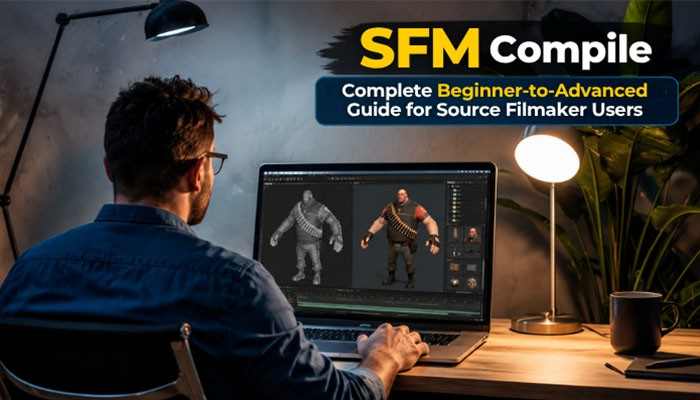

Creating professional animations in Source Filmmaker (SFM) requires more than placing characters into a scene and adjusting cameras. Behind every successful animation project, there is a technical process that prepares models, textures, animations, and other digital assets so they work correctly inside the Source engine. This process is known as sfm compile.
Many new SFM creators face problems such as invisible models, broken textures, missing animations, or failed imports because they do not understand how compilation works. A properly compiled asset ensures that Source Filmmaker can recognize the model structure, materials, physics settings, and animation data correctly.
In this detailed guide, we will explain everything about SFM compile, including what it means, why it is important, how the compilation process works, the tools required, common errors, and professional tips to improve your Source Filmmaker workflow in 2026.
What Is SFM Compile?
SFM compile is the process of converting raw 3D assets into a format that Source Filmmaker can understand and use. Before a custom model can appear correctly inside SFM, it must be processed through Source engine compilation tools.
A 3D artist usually creates models using software such as Blender, Maya, or 3ds Max. However, these programs create files that are not directly compatible with Source Filmmaker.
The compilation process converts these files into Source engine formats.
For example:
- A 3D mesh becomes a Source model file
- Textures become Valve material files
- Animations become playable sequences
- Physics information becomes collision data
After successful compilation, SFM can load the asset and allow creators to animate, edit, and render it.
Why Is SFM Compile Important?
A lot of beginners believe that animation quality depends only on lighting, camera movement, and editing. While those elements are important, the foundation of a good animation is properly prepared assets.
A correctly completed SFM compile process provides several benefits:
Better Model Compatibility
Compiled models are designed specifically for the Source engine. This allows SFM to understand:
- Character bones
- Facial controls
- Animation sequences
- Material settings
- Physics properties
Improved Animation Performance
Poorly prepared models can create problems during animation.
Proper compilation helps ensure:
- Smooth movement
- Correct bone behavior
- Working facial expressions
- Better scene performance
Reduced Errors
Many common SFM problems happen because assets are not compiled correctly.
Examples include:
- Missing textures
- Broken animations
- Incorrect model positions
- Crashes during loading
A proper compilation workflow prevents these issues.
Understanding Source Filmmaker Asset Files
To understand sfm compile, it is important to know the different file types used by the Source engine.
| File Extension | Purpose |
| .SMD | Stores model mesh and animation information |
| .DMX | Modern Source format for models and animation |
| .QC | Compilation instruction file |
| .MDL | Main compiled model file |
| .VVD | Stores vertex data |
| .VTX | Stores optimized mesh information |
| .PHY | Contains physics information |
| .VTF | Valve texture file |
| .VMT | Material definition file |
Each file has a specific role in making a model work correctly inside Source Filmmaker.
How Does SFM Compile Work?
The compilation process takes several stages. Each stage prepares different parts of the asset.
Stage 1: Creating the 3D Model
The first step begins inside a 3D modeling program.
Popular software includes:
- Blender
- Autodesk Maya
- 3ds Max
- Cinema 4D
During this stage, artists create:
- Character models
- Objects
- Weapons
- Environments
- Props
The model must have proper:
- Geometry
- Scale
- UV mapping
- Skeleton structure
Without these elements, the final compilation may fail.
Stage 2: Exporting the Model
After creating the model, it needs to be exported into a Source-compatible format.
Common export formats include:
SMD (Studiomdl Data)
SMD is one of the traditional formats used by the Source engine.
It can contain:
- Mesh information
- Bone structure
- Animation data
DMX (Data Model Exchange)
DMX is a newer format that provides more advanced support for:
- Facial animation
- Complex models
- Modern workflows
Both formats can be used during the SFM compile process depending on the project requirements.
Stage 3: Creating Materials and Textures
A model without materials will not appear correctly in SFM.
Source Filmmaker uses Valve’s material system.
The two important files are:
VTF Files
Valve Texture Format files store image textures.
They contain:
- Character skin textures
- Object surfaces
- Environment textures
VMT Files
Valve Material Type files tell the Source engine how the texture should behave.
They control:
- Reflection
- Transparency
- Lighting effects
- Surface properties
Incorrect VMT or VTF files are one of the biggest reasons for missing textures.
Stage 4: Creating the QC File
The QC file is one of the most important parts of the SFM compile workflow.
A QC file provides instructions to the Source compiler.
It tells the compiler:
- Where the model should be saved
- Which textures to use
- Which animations to include
- How the physics should work
A QC file usually includes information such as:
- Model name
- Body groups
- Material paths
- Animation sequences
- Collision settings
If the QC file contains incorrect information, the compilation process will fail.
Stage 5: Running the Compiler
After preparing the model files and QC instructions, the next step is compiling the asset.
Popular compilation tools include:
| Tool | Purpose |
| Crowbar | Easy Source model compiler |
| StudioMDL | Official Valve compiler |
| Source SDK Tools | Development tools |
| VTFEdit | Texture management |
Among these tools, Crowbar is commonly preferred by beginners because it provides a simpler interface.
Popular Tools Used for SFM Compile
Crowbar
Crowbar is one of the most widely used tools for Source engine model compilation.
Features include:
- Model compiling
- Model decompiling
- QC file support
- Error reporting
It simplifies many technical steps.
Blender
Blender is a free 3D modeling application used by many SFM creators.
It helps with:
- Creating custom characters
- Editing existing models
- Preparing animations
- Exporting SMD or DMX files
VTFEdit
VTFEdit helps creators manage Source textures.
It allows users to:
- Convert images into VTF format
- Preview textures
- Edit material resources
Notepad++
Many creators use Notepad++ for editing QC files because it makes code-like files easier to manage.
Complete SFM Compile Workflow: Step-by-Step Process
Understanding the complete workflow makes sfm compile much easier, especially for beginners creating custom models or importing external assets into Source Filmmaker.
The compilation process follows a structured path:
3D Model Creation → Export Files → Create QC File → Compile Model → Test in SFM → Fix Errors → Final Optimization
Each stage is important because a mistake in one step can affect the final result.
Step 1: Prepare Your Model Before Compilation
Before starting the compilation process, the model should be properly prepared.
A professional SFM-ready model should include:
- Correct model scale
- Clean geometry
- Proper UV mapping
- Organized materials
- Working skeleton
- Correct bone structure
- Animation compatibility
Poor preparation can cause problems later during compilation.
For example:
- Incorrect bone names can break animations
- Wrong scale can make models too large or small
- Missing textures can create visual errors
Taking time during preparation makes the sfm compile process faster and more reliable.
Step 2: Set Up the Source Filmmaker Folder Structure
Correct folder organization is one of the most important parts of successful compilation.
Source Filmmaker looks for files in specific locations.
A common structure looks like this:
usermod
│
├── models
│ └── custom_models
│
├── materials
│ └── custom_materials
│
├── scripts
│
└── animations
The compiled files should be placed in the correct folders.
For example:
- Models → models folder
- Textures → materials folder
- Animation files → animation directories
Incorrect folder placement can make SFM unable to find your assets.
Step 3: Create and Configure the QC File
The QC file controls how the Source engine builds the final model.
A basic QC file contains important instructions.
Common QC commands include:
| QC Command | Function |
| $modelname | Defines final model location |
| $body | Defines model mesh |
| $cdmaterials | Defines material location |
| $sequence | Adds animations |
| $collisionmodel | Creates physics information |
| $surfaceprop | Defines surface behavior |
A properly written QC file ensures that the compiler understands your model.
Step 4: Compile Using Crowbar
Crowbar is one of the easiest tools for performing an sfm compile.
The basic process is:
1. Open Crowbar
2. Select the Compile tab
3. Choose your QC file
4. Select the correct game configuration
5. Choose the Source engine version
6. Click Compile
7. Review the output log
If the process succeeds, the compiler creates files such as:
- MDL
- VVD
- VTX
- PHY
These files are required by Source Filmmaker.
Step 5: Test the Compiled Model in SFM
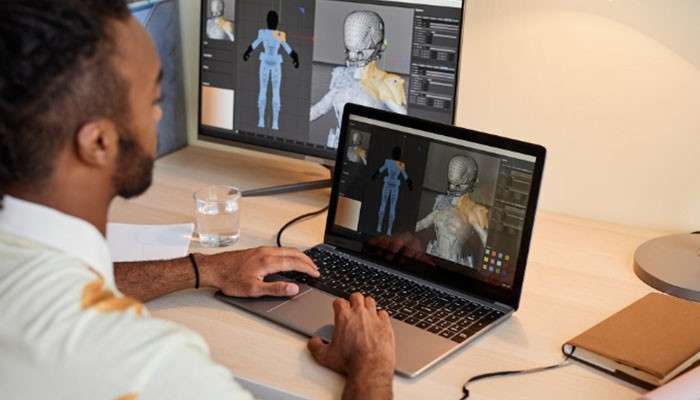
After compilation, always test the model before using it in a major project.
Check:
Model Appearance
Confirm:
- Textures appear correctly
- Materials work properly
- Model size is correct
Animation Controls
Check:
- Bone movement
- Facial controls
- Animation sequences
Physics
Test:
- Collision behavior
- Object movement
- Weight simulation
Testing early helps identify problems before they affect your animation project.
Common SFM Compile Errors and Their Solutions
Even experienced creators encounter compilation problems. Understanding common errors helps save time.
1. SFM Model Shows Purple and Black Textures
Problem:
The model appears with the famous purple and black missing texture pattern.
Cause:
Source Filmmaker cannot locate the texture files.
Possible reasons:
- Incorrect VMT path
- Missing VTF files
- Wrong material folder
Solution:
Check:
- Material file names
- Folder locations
- QC material paths
Example:
Incorrect:
materials/models/example
Correct:
materials/models/character/example
Small path mistakes can prevent textures from loading.
2. Model Does Not Appear in SFM
Problem:
The compilation completes, but the model does not appear.
Possible Causes:
- Wrong model directory
- Incorrect QC model name
- Missing compiled files
Fix:
Verify:
- MDL file location
- Model path
- Game search paths
Restart SFM after adding new models.
3. StudioMDL Compilation Failed
Problem:
The compiler stops with an error message.
Common Reasons:
- Incorrect QC syntax
- Missing SMD file
- Invalid animation name
- Unsupported model format
Solution:
Read the compiler log carefully.
The error message usually identifies:
- Missing files
- Incorrect commands
- Location of the problem
4. Animation Does Not Work After Compilation
Problem:
The model appears correctly, but animations fail.
Causes:
- Wrong skeleton structure
- Missing animation sequences
- Incorrect bone names
Solutions:
Check:
- Animation files
- Bone hierarchy
- QC sequence commands
Animations require matching bone structures between the model and animation files.
5. Model Has Incorrect Lighting
Problem:
The model looks too bright, too dark, or has strange shading.
Causes:
- Incorrect material settings
- Wrong normal maps
- Poor texture setup
Fix:
Review:
- VMT settings
- Normal maps
- Lighting properties
Advanced SFM Compile Techniques
Once beginners understand the basics, they can improve their workflow with advanced techniques.
Using Multiple Body Groups
Body groups allow creators to include different versions of a model inside one file.
Examples:
A character model can have:
- Different outfits
- Accessories
- Equipment options
Benefits:
- Smaller file size
- Easier animation workflow
- Faster project management
Adding Facial Animation Controls
Professional SFM characters often use facial controls.
These allow:
- Lip movement
- Eye control
- Expressions
- Emotional animation
During SFM compile, facial animation data must be correctly included.
Important elements include:
- Flex controllers
- Shape keys
- Facial animation files
Optimizing Models for Better Performance
Large models can slow down Source Filmmaker.
Optimization techniques include:
- Reducing unnecessary polygons
- Compressing textures
- Removing unused materials
- Simplifying physics models
A balanced model provides better animation performance.
Managing Animation Sequences
Animation sequences define how a model moves.
Examples:
- Walking
- Running
- Jumping
- Talking
- Facial expressions
The QC file controls which animations become available inside SFM.
Good animation organization improves productivity.
Best SFM Compile Practices for Professional Creators
Following professional habits makes the workflow easier.
Keep Backup Files
Always save copies of:
- QC files
- Source models
- Textures
- Animation files
A small mistake can damage the compilation setup.
Use Clear Naming Systems
Avoid confusing names.
Bad example:
model_final_new2_latest.mdl
Better:
soldier_character_v2.mdl
Clear naming helps manage large projects.
Test Small Changes
Do not rebuild an entire project after every adjustment.
Instead:
1. Change one element
2. Compile
3. Test
4. Continue
This saves time.
Keep Compiler Logs
Compiler messages are valuable for troubleshooting.
They help identify:
- Missing files
- Incorrect paths
- Syntax mistakes
Experienced creators often check logs before searching for solutions.
SFM Compile vs SFM Import: Understanding the Difference
Many beginners confuse importing and compiling.
| Feature | SFM Compile | SFM Import |
| Purpose | Convert assets into Source format | Add existing assets into SFM |
| Requires | Source tools | SFM browser |
| Used For | Custom models | Ready-made models |
| Technical Level | Medium to advanced | Beginner |
If a model is already compiled, you can directly import it into SFM.
If you create a new model, you usually need to compile it first.
How Long Does SFM Compile Take?
The compilation time depends on:
- Model complexity
- Number of textures
- Animation count
- Computer performance
Small models may compile within seconds.
Large character models with multiple animations may take several minutes.
Factors affecting speed:
- CPU performance
- File organization
- Model optimization
Why Learning SFM Compile Is Valuable in 2026
Source Filmmaker continues to have a strong creative community because it allows users to create:
- Animated videos
- Short films
- Game kinematics
- Educational content
- Fan animations
Learning SFM Compile gives creators more control over their projects.
Instead of depending only on existing assets, creators can:
- Build custom characters
- Modify existing models
- Create unique animations
- Develop professional workflows
Expert Tips to Improve Your SFM Compile Workflow
After learning the basic compilation process, creators can improve their workflow by following professional techniques. A good SFM compile workflow is not only about making a model work; it is about creating assets that are stable, optimized, and easy to manage.
1. Always Check File Paths Before Compiling
One of the most common reasons for failed compilation is incorrect file paths.
Source Filmmaker depends heavily on correct folder locations.
Before compiling, verify:
- Model paths
- Texture locations
- Animation directories
- Material references
- QC file commands
A single missing folder name can prevent the model from loading.
Example:
Incorrect:
materials/models/mycharacter/skin
Correct:
materials/models/my_character/skin
Even small differences can create missing texture problems.
2. Keep Your Models Optimized
Large and complicated models can slow down Source Filmmaker.
Before performing an SFM compile, optimize your assets.
Useful optimization methods include:
- Removing unnecessary polygons
- Reducing unused textures
- Combining similar materials
- Creating simple collision models
- Removing unused animations
Optimized models provide:
- Faster loading
- Better viewport performance
- Smoother animation
- Reduced crashes
3. Use Correct Bone Structures
Bones are the foundation of character animation.
A properly compiled character requires:
- Correct bone names
- Proper hierarchy
- Matching animation references
Common bone problems include:
- Broken movement
- Incorrect posing
- Missing controls
- Strange character deformation
Before compiling, always verify the skeleton.
4. Maintain Version Control
Professional creators avoid losing progress by keeping different versions of their files.
Create backups for:
- Original models
- Edited models
- QC files
- Materials
- Animations
Example:
character_v1
character_v2
character_final
character_final_updated
This allows easy recovery if a compilation creates unexpected problems.
SFM Compile Checklist Before Final Export
Use this checklist before compiling your project.
| Check | Completed |
| Model scale is correct | ✓ |
| Textures are properly linked | ✓ |
| QC file has no errors | ✓ |
| Animations are included | ✓ |
| Materials are working | ✓ |
| Collision model is created | ✓ |
| Output files are generated | ✓ |
| Model tested inside SFM | ✓ |
Following this checklist reduces unnecessary troubleshooting.
Common Mistakes Beginners Make During SFM Compile
Many new creators experience problems because they skip important steps.
Mistake 1: Ignoring QC Errors
Some beginners focus only on the final error message.
However, the real problem may appear earlier in the compiler log.
Always review the complete output.
Mistake 2: Using Wrong Source Engine Settings
Different Source engine games may require different compiler settings.
Using incorrect settings can cause:
- Broken models
- Missing features
- Compilation failures
Always select the correct engine version.
Mistake 3: Incorrect Material Paths
A model may compile successfully but still appear broken because materials are not correctly connected.
Always verify:
- VMT files
- VTF files
- Material folders
Mistake 4: Skipping Testing
Never assume a successful compilation means everything works.
Always test:
- Model appearance
- Animation controls
- Facial expressions
- Physics
SFM Compile for Custom Characters
One of the most popular uses of sfm compile is creating custom characters.
A custom SFM character usually requires:
- 3D model
- Rigged skeleton
- Textures
- Materials
- Facial controls
- Animation sequences
The workflow usually looks like:
1. Create character model
2. Add skeleton
3. Create textures
4. Export files
5. Write QC instructions
6. Compile model
7. Test inside SFM
This allows creators to produce unique characters instead of relying only on existing assets.
SFM Compile for Props and Objects
Compilation is not limited to characters.
Creators also compile:
- Weapons
- Vehicles
- Furniture
- Buildings
- Environmental objects
Props usually require:
- Mesh files
- Materials
- Collision information
- Physics settings
Proper compilation allows these objects to interact naturally inside scenes.
How SFM Compile Helps Professional Animation Projects
For larger animation projects, asset management becomes extremely important.
A professional workflow includes:
Asset Organization
Separate files into categories:
- Characters
- Props
- Locations
- Textures
- Animations
Testing Environment
Create a testing scene where you can quickly check:
- Models
- Materials
- Lighting
- Animations
Documentation
Keep notes about:
- Model versions
- Required files
- Compilation settings
This makes future updates easier.
Future of SFM Compile in 2026
Although newer animation tools continue to appear, Source Filmmaker remains popular among creators because of its flexibility and community support.
Modern workflows are improving with:
- Better Blender export tools
- Updated community utilities
- Improved model pipelines
- Easier compilation software
The future of sfm compile is focused on making custom asset creation easier for beginners while maintaining advanced options for professional users.
Conclusion
Learning sfm compile is an important step for anyone who wants to create advanced Source Filmmaker content. While the process may appear technical at first, understanding the basics of models, textures, QC files, and compiler tools makes the workflow much easier.
A successful compilation process creates reliable assets that work smoothly inside SFM. Whether you are creating custom characters, props, animations, or cinematic scenes, proper compilation improves quality and saves time.
The key to mastering sfm compile is patience, organization, and continuous testing. Start with simple models, learn how Source engine files work, and gradually move toward more advanced projects.
With the right workflow and tools, creators in 2026 can continue producing professional-quality animations using Source Filmmaker.
SFM Compile FAQs
1. What is SFM compile used for?
SFM compile is used to convert custom models, animations, textures, and other assets into formats that Source Filmmaker can use.
2. Do I need coding knowledge for SFM compile?
No. Basic compilation does not require advanced programming skills. However, understanding QC files and Source engine commands can make the process easier.
3. What is the best tool for SFM compile?
Crowbar is one of the most popular tools because it provides an easier interface for compiling and troubleshooting Source models.
4. Why does my compiled model have missing textures?
Missing textures usually happen because:
- VTF files are missing
- VMT paths are incorrect
- Materials are stored in the wrong folder
5. Can I compile Blender models for SFM?
Yes. Blender models can be exported into Source-compatible formats and compiled for use in Source Filmmaker.
6. Why does SFM compile fail?
Compilation failures usually happen because of:
- Incorrect QC files
- Missing model files
- Wrong paths
- Unsupported formats
- Incorrect compiler settings
7. Is SFM compile necessary for every model?
No. Only models that are not already compiled for Source Filmmaker need the compilation process.