


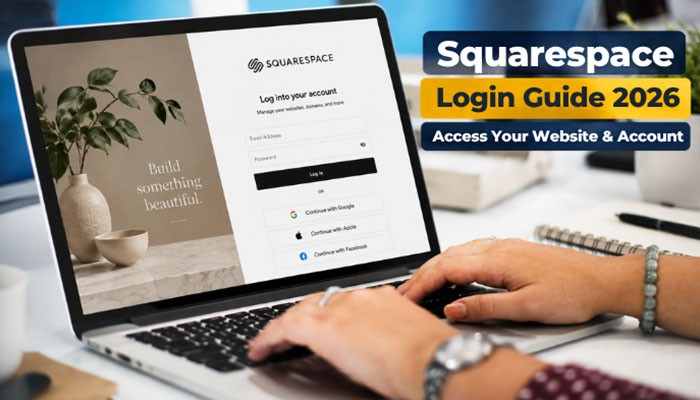

A Squarespace login gives website owners, administrators, contributors, and authorized team members access to websites, domains, subscriptions, billing settings, security controls, and other Squarespace services.
Most users can complete a Squarespace login with an email address and password or through a connected Google, Apple, or Facebook account. After signing in, the account dashboard becomes the main place to open websites, manage domains, review subscriptions, update account settings, and check recent activity.
Problems with a Squarespace login can happen when you use the wrong authentication method, forget your password or account email, lose access to two-factor authentication, select the wrong Google account, or encounter browser and subscription issues.
This guide explains how to complete a Squarespace login in 2026, access your website dashboard, recover your account, fix common login problems, manage business access, and protect your site.
Quick Answer: Squarespace Login
To complete a Squarespace login, open the official Squarespace login page and choose the authentication method linked to your account.
You can usually sign in with:
- Email and password
- Apple
After your Squarespace login is successful, open the account dashboard and select the website, domain, or subscription you want to manage.
Website administrators can also add /config to a Squarespace website address for direct login or editor access.
Squarespace Login Access at a Glance
| Access Method | Best Use | What It Does |
| Squarespace login page | Standard account access | Signs you into your account |
| Account dashboard | Managing multiple sites | Shows websites, domains, subscriptions, and settings |
| Website /config | Direct admin access | Opens the website login or editor |
| Domains dashboard | Domain management | Gives access to registered domains |
| Squarespace mobile app | Mobile site management | Lets supported users manage sites on mobile |
For frequent users, bookmarking the correct Squarespace login route can save time.
Key Takeaways
- Use the same authentication method originally connected to your Squarespace login.
- Squarespace supports email/password, Google, Apple, and Facebook authentication.
- Adding /config to your website address provides a direct admin route.
- One Squarespace account can manage multiple websites.
- Password recovery and account-email recovery use different processes.
- Two-factor authentication adds another layer of security.
- Browser settings and extensions can interfere with login.
- Customer accounts are different from the main Squarespace login used by site administrators.
- Businesses should use separate contributor accounts instead of sharing one password.
- Suspicious sessions should be reviewed and removed quickly.
What Is a Squarespace Login?
A Squarespace login is the authentication process that verifies your identity before giving you access to Squarespace products and services.
Depending on your account, a successful Squarespace account login may provide access to:
- Websites
- Domain registrations
- Website subscriptions
- Billing details
- Account settings
- Connected applications
- Analytics
- Commerce tools
- Customer information
- Digital products
- Email Campaigns
- Google Workspace subscriptions
- Contributor permissions
- Account security controls
The features available after your Squarespace login depend on your role.
A site owner normally has the highest level of control, while administrators and other contributors may receive only the permissions required for their work.
Squarespace Login Methods in 2026
There are several ways to complete a Squarespace login.
| Login Method | Best For | Important Point |
|---|---|---|
| Email and password | Standard access | Use the credentials associated with your Squarespace account |
| Accounts connected to Google | Select the correct Google profile | |
| Apple | Accounts connected to Apple | Use the appropriate Apple account |
| Accounts connected to Facebook | Use the correct Facebook profile | |
| Business SSO | Eligible organizations | Availability depends on the business plan |
The safest approach is to use the same method you selected when creating your account.
For example, if your original Squarespace login used Google, entering a random password with the same email address may not open the account you expect.
How to Complete a Squarespace Login on a Computer
The desktop process is straightforward.
Step 1: Open the Official Squarespace Login Page
Go directly to the official Squarespace website.
Avoid entering your Squarespace login credentials into unfamiliar pages linked from unexpected emails, messages, or advertisements.
Step 2: Choose Your Login Method
Select:
- Email and password
- Apple
If you use multiple Google or social accounts, choose the one associated with the correct Squarespace website.
Step 3: Complete Security Verification
If two-factor authentication is active, the Squarespace login process may ask for another verification method.
This can include:
- Passkey
- Authentication-app code
- Text-message code
Step 4: Open the Account Dashboard
After the Squarespace login is complete, your dashboard gives you access to websites, domains, subscriptions, account settings, apps, and recent account activity.
Step 5: Select Your Website
Users who manage several websites should confirm the correct title and domain before editing.
Squarespace Login URL and /config Admin Access
Website managers can access Squarespace in more than one way.
Common routes include:
account.squarespace.com
and
yourdomain.com/config
Adding /config to your website address provides a direct Squarespace login or editor route.
For example:
yourbusiness.com/config
This method is particularly useful when:
- You manage one site frequently.
- You know the website URL.
- Your site has a visitor password.
- You want quick editor access.
- You do not want to search through several dashboard sites.
If you are already signed in, /config may take you directly to the editor.
Squarespace Login With Email and Password
Email and password remain one of the most common ways to access Squarespace. Enter the email address associated with your account and your current password.
Remember that your Squarespace login credentials may be different from your:
- Gmail password
- Google Workspace password
- Domain registrar password
- Payment-service password
- Customer-account password
- Social-media password
The same email address can be used across several services without sharing the same password.
Squarespace Login With Google
A Squarespace login with Google can make account access faster, but it may cause confusion if several Google accounts are active in the browser.
If your login succeeds but your website is missing, check which Google profile you selected.
The website may actually belong to:
- Another Google account
- Another email address
- An Apple login
- A Facebook login
- A separate Squarespace account
- Another site owner
Before creating another account, check all existing Squarespace login options.
Squarespace Login With Apple or Facebook
Apple and Facebook can also be used to authenticate Squarespace accounts. If your original Squarespace login used Apple or Facebook, choose the corresponding button on the login page. Trying unrelated password combinations usually will not help if your account is connected to a social login method.
Squarespace Login on Mobile
You can also complete a Squarespace login through the Squarespace mobile app.
The general process is:
- Open the Squarespace app.
- Tap Log in.
- Enter your credentials or choose a connected social account.
- Complete two-factor authentication if requested.
- Select the website you want to manage.
Mobile users who manage several sites should confirm the website name before editing.
What Happens After Your Squarespace Login?
After a successful Squarespace login, most users arrive at the account dashboard.
Depending on your account, you may see:
- Active websites
- Trial websites
- Expired websites
- Domains
- Subscriptions
- Account settings
- Connected applications
- Recent login activity
For website owners who manage multiple digital properties, this dashboard becomes the central control point.
Access Multiple Websites With One Squarespace Login
One Squarespace login can provide access to several websites.
This is useful for:
- Entrepreneurs
- Agencies
- Freelancers
- Web designers
- Developers
- Companies operating several brands
After logging in, open the account dashboard and select the appropriate website.
If your Squarespace login works but a website is missing, check whether:
- Another email address owns the site.
- You selected the wrong Google account.
- You previously created a separate Squarespace account.
- Your contributor invitation uses another account.
- Ownership was transferred.
- You are viewing only a domain account.
Do not immediately assume the website has been deleted.
Squarespace Login for Domain Management
Some users mainly need their Squarespace login to manage domains.
After signing in, domain owners can review settings such as:
- Domain renewal
- DNS records
- Domain lock
- Registration information
- WHOIS privacy
- Domain connections
A domain can therefore appear inside your account even if the website itself is hosted elsewhere.
Forgot Your Squarespace Login Password?
If your Squarespace login password is not working, use the official reset process rather than repeatedly guessing.
How to Reset Your Password
- Open the Squarespace login page.
- Select Can’t log in?
- Enter your account email.
- Request a password-reset message.
- Check your inbox.
- Open the newest reset email.
- Create a new password.
- Try your Squarespace login again.
If you requested several reset emails, use the most recent message. Users who normally sign in with Google, Apple, or Facebook may need to manage the password through that service.
Forgot Your Squarespace Login Email?
Sometimes the problem is not the password but the account email.
Use Squarespace account recovery when:
- You cannot remember the email used for your Squarespace login.
- You have several email addresses.
- A former employee created the account.
- Your domain was migrated and the correct account is unclear.
Follow the recovery prompts and check all possible email inboxes, including spam and junk folders.
Can You Recover Squarespace Login Access by Phone?
Phone-based recovery may be available if a supported phone number was previously added to the account.
This can help identify the email associated with your Squarespace login. Availability can depend on the phone number, country, and account setup.
Squarespace Login Not Working? Common Problems
If your Squarespace login is not working, identify the exact problem before changing multiple account settings.
| Problem | Likely Cause | Recommended Fix |
| Password rejected | Wrong or outdated password | Reset your password |
| Website missing | Wrong account | Check other emails and social logins |
| Google opens wrong site | Wrong Google profile | Choose the correct account |
| Email forgotten | Unknown account email | Use account recovery |
| Reset email missing | Filtering or wrong email | Check spam and other accounts |
| 2FA code fails | Expired code or device-time issue | Generate a new code |
| Lock screen appears | Visitor password enabled | Use /config |
| Website expired | Subscription inactive | Sign in as owner and reactivate |
| Contributor cannot edit | Permission problem | Ask the owner to review access |
| Login works in another browser | Browser problem | Check cache and extensions |
| Social login fails | Third-party authentication issue | Retry or use another valid method |
| Several features fail | Possible platform issue | Check Squarespace service status |
This table can help you determine why your Squarespace login is failing before you reset credentials unnecessarily.
Browser Problems That Can Affect Squarespace Login
Browser issues can sometimes look like account problems.
If your Squarespace login behaves unexpectedly, try:
- Updating your browser
- Opening a private or incognito window
- Trying another supported browser
- Clearing cache
- Enabling cookies
- Enabling JavaScript
- Disabling problematic extensions
- Restarting the browser
- Testing another network
If your Squarespace login works normally in incognito mode, cached information or an extension may be causing the issue.
Squarespace Login Password vs Website Password
A site-wide password is not the same as your Squarespace login password.
| Password Type | Purpose |
|---|---|
| Squarespace account password | Gives owners and contributors admin access |
| Site-wide password | Restricts visitors from viewing the whole site |
| Page password | Protects an individual page |
| Customer password | Gives customers access to their own account |
If you see a visitor lock screen, your administrative Squarespace login may still be working correctly.
Use /config to reach the admin route.
What Does “Website Expired” Mean After Squarespace Login?
A Website Expired message usually means the site subscription is inactive.
It does not automatically mean your content has disappeared.
To restore access:
- Choose Owner Login.
- Complete your Squarespace login.
- Follow the reactivation instructions.
- Update payment information if required.
- Select a subscription.
- Reactivate the website.
Editing normally cannot continue until the site is active again.
Squarespace Login Works but You Cannot Edit
A successful Squarespace login does not guarantee full editing permissions.
Possible reasons include:
- You opened the wrong website.
- The website subscription expired.
- You are a contributor rather than the owner.
- Your contributor role is limited.
- A browser extension is interfering.
- You are using the wrong contributor account.
Ask the website owner or administrator to verify your permissions.
Squarespace Login and Two-Factor Authentication
Two-factor authentication adds another layer of protection to your Squarespace login.
Possible authentication methods include:
- Passkeys
- Authentication applications
- Text messages
Authentication Code Not Working
If your Squarespace login code fails:
- Wait for a fresh authentication-app code.
- Confirm that your phone uses automatic date and time.
- Request a new text-message code.
- Try an unused backup code.
- Check another trusted device where you may already be signed in.
Avoid repeatedly requesting unnecessary SMS codes.
Lost Your Phone?
If the device used for your Squarespace login authentication is lost, an unused backup code may help. If another trusted device is still signed in, use it to review account security settings.
When no recovery method remains available, additional account recovery may be necessary.
Why Squarespace Login May Ask You to Verify Again
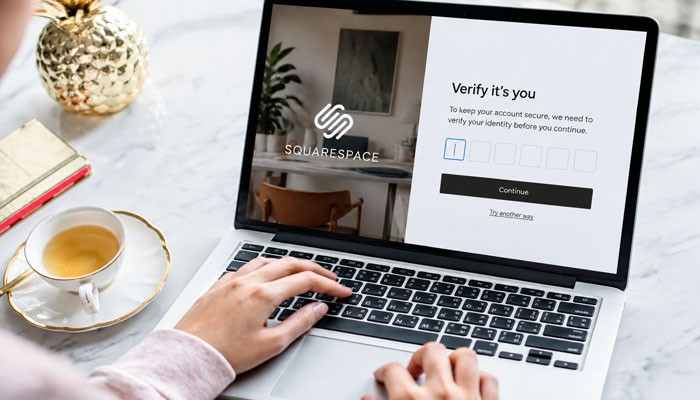
Squarespace can request another verification step even after you are already signed in.
This may happen before sensitive actions such as:
- Changing your password
- Changing login credentials
- Updating two-factor authentication
- Making ownership or security changes
This protects your Squarespace login from someone using an unattended device with an active session.
How to Secure Your Squarespace Login
For a business website, protecting your Squarespace login is essential because the account may control domains, billing, customer information, and website settings.
Enable Two-Factor Authentication
2FA makes it harder for someone to misuse a stolen password.
Use a Unique Password
Do not reuse your Squarespace login password for:
- Banking
- Social media
- Domain registrars
- Payment services
- Business applications
Review Account Activity
Regularly check for unfamiliar changes involving:
- Logins
- Domains
- Website settings
- Contributor access
- Account information
Check Active Sessions
If you see an unfamiliar session after a Squarespace login, end it immediately and review your account security.
What to Do After an Unfamiliar Squarespace Login
If you notice suspicious account activity:
- Change your password
- Review two-factor authentication
- Check recent account activity
- End unfamiliar sessions
- Review contributors
- Check domain settings
- Review billing details
- Inspect connected applications
- Confirm the account email
- Contact support if necessary
A suspicious Squarespace login should be treated seriously, especially on a business website.
Avoid Fake Squarespace Login Pages
Phishing pages can imitate the real Squarespace login screen.
Be cautious when messages:
- Create extreme urgency
- Threaten immediate website deletion
- Ask for your password
- Use suspicious sender addresses
- Link to unfamiliar domains
- Include unexpected attachments
- Request unnecessary payment details
When in doubt, manually open the official Squarespace website instead of clicking the message link.
Squarespace Login for Business Teams
Businesses should avoid sharing one Squarespace login among several employees.
Instead, website owners can invite contributors and assign appropriate permissions.
Contributor access may include:
- Administration
- Website editing
- Billing
- Store management
- Analytics
- Email marketing
Individual logins make it easier to manage employee access securely.
Contributor Invitation and Squarespace Login Problems
If a contributor cannot complete their Squarespace login after receiving an invitation:
- Check spam and junk folders.
- Confirm the invitation email address.
- Ask the site owner to resend the invitation.
- Request the invitation link directly.
- Try opening the invitation in a private browser window.
The contributor should accept the invitation using the Squarespace account they plan to use.
Remove Old Squarespace Login Access
Former employees and contractors should not retain unnecessary account access.
Review contributor permissions when:
- An employee leaves
- A freelancer finishes a project
- An agency relationship ends
- Someone changes roles
- Website ownership changes
- A business is sold
Removing unused Squarespace login access reduces unnecessary security risk.
What If the Website Owner Leaves?
Business continuity becomes difficult when the website’s main Squarespace login belongs to a former employee.
Before the owner leaves, review:
- Website ownership
- Administrator access
- Billing
- Domain ownership
- Account email
- Two-factor authentication
- Contributor permissions
- Connected applications
Transfer ownership to another trusted account when necessary.
Recover Squarespace Login Access When the Owner Is Unavailable
Normal password recovery may not work when:
- The website owner has left the company.
- Nobody can access the owner’s email.
- The account email is unknown.
- Business ownership has changed.
In these cases, Squarespace may require additional ownership verification before restoring Squarespace login access or changing sensitive account details.
Businesses should maintain reliable ownership and billing records to make recovery easier.
Squarespace Admin Login vs Customer Login
A customer login is different from the main Squarespace login used for site administration.
Admin and Contributor Accounts
These accounts are for:
- Website owners
- Administrators
- Editors
- Store managers
- Billing contributors
- Marketing teams
Their permissions determine what they can manage.
Customer Accounts
Customer accounts are for:
- Buyers
- Members
- Subscribers
- Donors
- Website visitors
Customers may use their accounts to review orders, access memberships, manage personal details, or view purchased content.
A customer account does not provide access to the Squarespace editor.
Member Login vs Squarespace Login
Members who purchase gated content or digital products may sign into a customer account.
That member access is separate from the administrative Squarespace login used by the website owner.
This distinction is useful when troubleshooting login complaints from website customers.
Squarespace Login vs Google Workspace Login
Squarespace and Google Workspace are separate platforms.
A business may simultaneously use:
- Squarespace login credentials
- Google Workspace credentials
- Domain-management credentials
- Customer accounts
- Payment-provider accounts
Even if the same email address is used, the passwords may differ.
If your Squarespace login works but your business Gmail account does not, troubleshoot Google Workspace separately.
Business Squarespace Login With SSO
Larger organizations may use single sign-on instead of standard passwords.
Eligible businesses may use organizational authentication through services such as:
- Microsoft Entra ID
- Okta
- Other supported enterprise configurations
SSO can simplify:
- Employee onboarding
- Employee offboarding
- Centralized access
- Organizational security policies
- Management of multiple websites
Availability depends on the company’s plan and setup.
Google Domains Migration and Squarespace Login
Users whose domains were moved from Google Domains may sometimes be unsure which account now controls the domain. If you cannot identify the correct Squarespace login, use account recovery before creating another account.
Multiple unnecessary accounts can make domain management harder.
When Should You Contact Squarespace Support?
Contact Squarespace Support when normal Squarespace login recovery steps fail.
Support may be necessary if:
- You cannot identify your account email.
- Password recovery fails.
- You have lost every 2FA recovery method.
- Your account appears compromised.
- The original owner is unavailable.
- Site ownership must be changed.
- Domain ownership is disputed.
- Unauthorized changes cannot be reversed.
Sensitive requests may require additional ownership verification.
Complete Squarespace Login Troubleshooting Checklist
Before contacting support, check:
- Use the official Squarespace login page.
- Verify your account email.
- Confirm the correct authentication method.
- Check your Google, Apple, or Facebook account.
- Reset your password if necessary.
- Check spam for recovery messages.
- Complete two-factor authentication.
- Try a backup code.
- Confirm your device time is correct.
- Update your browser.
- Try private or incognito mode.
- Enable cookies and JavaScript.
- Disable problematic extensions.
- Try another browser.
- Test another device or network.
- Check whether the website subscription expired.
- Verify the correct website.
- Review contributor permissions.
- Check recent login sessions.
- Check Squarespace service status.
Following this checklist can help determine whether your Squarespace login problem involves credentials, permissions, browser settings, authentication, billing, or the platform itself.
Conclusion: Squarespace Login
A Squarespace login is more than a simple way to enter the website editor. It can provide access to websites, domains, subscriptions, account settings, contributor permissions, security tools, and other important digital assets.
When your Squarespace login does not work, first confirm the correct account and authentication method. Then check your password, account email, two-factor authentication, browser settings, contributor permissions, and subscription status.
Businesses should take extra precautions with every Squarespace login. Use individual contributor accounts, enable two-factor authentication, review active sessions, remove outdated access, and keep website ownership connected to an account the organization can maintain.
With these practices in place, your Squarespace login remains easier to manage while reducing the risk that a forgotten password, expired subscription, departed employee, or unauthorized session disrupts an important website.
Squarespace Login FAQs
1. What is Squarespace Login used for?
Squarespace Login allows website owners, administrators, and contributors to access their Squarespace dashboard, manage websites, domains, subscriptions, settings, and account security features.
2. How can I complete a Squarespace Login?
To complete a Squarespace Login, visit the official Squarespace login page and sign in using your email and password or connected Google, Apple, Facebook, or supported business authentication methods.
3. Why is my Squarespace Login not working?
A Squarespace Login may fail because of incorrect credentials, wrong login method, forgotten password, browser issues, account email problems, or two-factor authentication errors.
4. How do I reset my Squarespace Login password?
If you cannot access your account, use the Squarespace password recovery option, enter your account email, follow the reset instructions, and try your Squarespace Login again.
5. Can I use one Squarespace Login for multiple websites?
Yes, a single Squarespace Login can manage multiple websites, domains, and subscriptions. After signing in, users can select the website they want to access from the account dashboard.
