




Want to download Instagram highlights and save important photos or videos to your phone or computer? The right method depends mainly on whether you are saving your own Highlights or content published by another Instagram account.
If you want to download Instagram highlights from your own profile, Instagram’s built-in Stories Archive should usually be your first option. It lets you access eligible past Stories without relying on an outside downloader. For larger backups, Meta’s account information tools can also help you preserve Instagram content.
If you want to download Instagram highlights from another public profile, some browser-based services may retrieve publicly accessible photos and videos. These services are not part of Instagram, so their reliability, privacy practices and supported features can vary.
This guide explains how to download Instagram highlights on iPhone, Android, Windows and Mac, how to save Highlights without installing another app, where downloaded files are stored, how public and private accounts differ, and what to do when an Instagram Highlight downloader is not working.
Quick Answer: How to Download Instagram Highlights
The easiest way to download Instagram highlights that belong to you is to access the Story through Instagram’s Archive.
Follow these steps:
- Open Instagram.
- Go to your profile.
- Tap the menu.
- Open Archive.
- Make sure Stories Archive is selected.
- Find the Story used in your Highlight.
- Open the Story.
- Use the available save option to store the photo or video on your device.
For another user’s public Highlight, Instagram does not give every viewer a built-in download button. A compatible browser-based downloader may instead allow you to enter a public profile or Highlight link and save available media.
For your own content, however, native Instagram tools are generally the better place to start.
Key Takeaways
If your main goal is to download Instagram highlights, remember these points:
- Use Instagram Stories Archive first for your own Highlight content.
- Use account export tools when you want a larger Instagram backup.
- You can save compatible Highlight photos and videos on iPhone, Android, Windows and Mac.
- You may be able to download Instagram highlights without an app by using a browser-based service for publicly available content.
- Public downloaders should not bypass private Instagram accounts.
- Never provide an unfamiliar downloader with your Instagram password or two-factor authentication code.
- Downloading another person’s content does not automatically give you permission to republish or commercially use it.
- Third-party Instagram downloader services can stop working when Instagram changes its platform.
What Are Instagram Highlights?
Instagram Highlights are collections of Stories that users choose to keep visible on their profiles after the original Story period ends.
A Highlight may contain:
- Photos
- Short videos
- Product demonstrations
- Tutorials
- Travel memories
- Customer reviews
- FAQs
- Promotions
- Restaurant menus
- Events
- Behind-the-scenes content
- Brand introductions
- Business information
Instagram Highlights are especially useful for creators and businesses because important Story content can remain easy to find on a profile instead of disappearing from public view with a normal Story.
That is also why many users want to download Instagram highlights for backup, offline viewing, content organization or permitted reuse.
Instagram Stories vs Instagram Highlights
Stories and Highlights are connected, but they are not identical.
| Feature | Instagram Story | Instagram Highlight |
|---|---|---|
| Normal public visibility | Temporary | Stays until removed |
| Main location | Stories interface | Profile Highlight section |
| Supports photos | Yes | Yes |
| Supports videos | Yes | Yes |
| Can be archived | Yes | Created from Story content |
| Organized into collections | Not permanently by default | Yes |
| Accessible after Story period | Usually not publicly | Yes, when added to a Highlight |
Understanding this difference is important when deciding how to download Instagram highlights.
Your own Highlight content may still be available through your private Story Archive even if the original Story is no longer publicly visible.
Best Ways to Download Instagram Highlights
There are several methods, and the best option depends on who owns the content.
| Method | Best For | Extra App Needed? | Private Content? |
|---|---|---|---|
| Instagram Stories Archive | Your own Highlights | No | Your content only |
| Meta Account Export | Large personal backups | No | Your account |
| Browser-Based Downloader | Public Highlights | Usually no | No |
| Mobile Downloader App | Public content | Yes | Should not bypass privacy |
| Browser Extension | Desktop downloading | Yes | Public content only |
If you want to download Instagram highlights from your own account, Instagram’s built-in tools are usually preferable because they reduce the need to send account information through a third party.
How to Download Your Own Instagram Highlights
You generally do not need another application to download Instagram highlights that you created yourself.
Start with Stories Archive.
Step 1: Open Instagram
Launch Instagram and sign into the account that contains the Highlight.
Step 2: Open Your Profile
Tap your profile picture to visit your profile.
Step 3: Open the Menu
Tap the menu icon in the upper-right corner.
Step 4: Select Archive
Open Archive.
If Instagram displays a different archive category, switch to Stories Archive.
Step 5: Find the Original Story
Scroll through your archived Stories and locate the photo or video included in the Highlight you want to save.
Step 6: Open the Story
Tap the archived Story.
Step 7: Save the Media
Open the available menu and look for the relevant save option.
The exact wording or placement of the save control can differ depending on your Instagram version and operating system.
For your own content, this is usually the simplest way to download Instagram highlights without depending on an external service.
What If Your Instagram Story Is Missing From Archive?
Sometimes you may open Archive and discover that the Story you need is missing.
Possible reasons include:
- Story archiving was disabled when the Story was posted.
- The Story was deleted.
- You are signed into the wrong account.
- The original photo or video exists only on your phone or cloud storage.
- The media was not successfully archived.
- Instagram’s interface or archive organization has changed.
Turning Story Archive on now does not necessarily restore content that was never archived.
If you cannot find an important Story, also check:
- Photos
- Gallery
- Google Photos
- iCloud Photos
- Downloads
- Cloud storage
- Old device backups
How to Download All Your Instagram Information
If you need to download Instagram highlights as part of a larger backup, exporting account information can be more efficient than saving Stories one at a time.
Meta’s account information controls can be used to request copies of information connected with your Instagram account.
Depending on the current Instagram interface, the general route may appear similar to:
Instagram → Accounts Center → Your information and permissions → Download or Export your information
An account-level export can be useful for:
- Backing up a creator profile
- Preserving business media
- Saving years of account information
- Preparing to deactivate an account
- Organizing a large content library
- Maintaining an offline backup
Use Story Archive when you need a few individual items.
Consider account export tools when you need a broader backup.
How to Download Instagram Highlights From a Public Account
Some users want to download Instagram highlights posted by another public account.
Instagram does not provide viewers with the same native save controls that account owners have for their own archived Stories.
Third-party tools therefore commonly ask for one of the following:
- Public Instagram username
- Instagram profile link
- Highlight link
A typical process looks like this:
- Open the public Instagram account.
- Find the Highlight you want.
- Copy the supported profile or Highlight link.
- Open a reputable browser-based downloader.
- Paste the username or URL.
- Load the available Highlights.
- Select the relevant collection.
- Preview the photo or video.
- Download the individual media file.
Only download or reuse content when you have an appropriate reason or permission to do so.
Third-party services can also become unavailable when Instagram changes its website or content-delivery systems.
How to Download Instagram Highlights on iPhone
You can download Instagram highlights on iPhone in different ways depending on who owns the media.
Download Your Own Instagram Highlights on iPhone
For your own content:
- Open Instagram.
- Go to your profile.
- Open the menu.
- Select Archive.
- Open Stories Archive.
- Find the original Story.
- Open its options.
- Use the available save function.
This is usually preferable to using a third-party downloader.
Download Public Instagram Highlights on iPhone
For eligible public content you are allowed to save:
- Copy the public Highlight or profile link.
- Open Safari.
- Visit a reputable browser-based downloader.
- Paste the link.
- Load the Highlight.
- Select the photo or video.
- Download the file.
Safari may store the downloaded file in Files → Downloads rather than immediately placing it in Photos.
If necessary, open the file and use the Share menu to save compatible media into Photos.
How to Download Instagram Highlights on Android
Android users can also download Instagram highlights using native Instagram tools or browser-based services.
Download Your Own Instagram Highlights on Android
Go to:
Instagram → Profile → Menu → Archive → Stories Archive
Find the Story used in the Highlight and use the available save option.
Download Public Instagram Highlights on Android
For public content you have permission to save:
- Copy the relevant Highlight or profile URL.
- Open Chrome or another trusted browser.
- Open a compatible Highlight downloader.
- Paste the URL.
- Load the available Highlight.
- Choose the photo or video.
- Download it.
Downloaded files commonly appear in:
Files → Downloads
or:
My Files → Downloads
Some Android devices may also display the downloaded photo or video in Gallery.
How to Download Instagram Highlights on Windows PC
It is also possible to download Instagram highlights using a Windows computer.
For publicly accessible content:
- Open Instagram in your web browser.
- Visit the relevant public profile.
- Find the Highlight.
- Copy the supported URL.
- Open a compatible browser-based downloader.
- Paste the link.
- Load the media.
- Select the item you want.
- Download the photo or video.
Unless you changed your browser settings, the file will normally appear inside the Windows Downloads folder.
A desktop browser can be particularly convenient when you need to manage several downloaded files.
How to Download Instagram Highlights on Mac
Mac users can follow a similar process.
To download Instagram highlights on Mac:
- Open Safari, Chrome, Firefox or another browser.
- Open Instagram.
- Find the public Highlight.
- Copy its link.
- Open a compatible Highlight downloader.
- Paste the URL.
- Select the media.
- Download the file.
- Check your Downloads folder.
For your own content, Instagram Archive remains the preferred starting point.
How to Download Instagram Highlights Without an App
You can often download Instagram highlights without an app.
There are two main approaches.
Method 1: Use Instagram Archive
This method is ideal for your own Stories and Highlights.
You do not need another application beyond Instagram itself.
Method 2: Use a Browser-Based Downloader
Some websites can process publicly accessible Highlight content directly through a browser.
These services may work on:
- iPhone
- Android
- Windows
- Mac
- Tablets
Using a browser means you may not need to install an APK, iPhone app or browser extension.
However, a browser-based downloader is not automatically trustworthy.
Avoid services requesting:
- Instagram passwords
- Email passwords
- Two-factor authentication codes
- Account recovery codes
- Banking details
- Excessive personal information
If a simple public-content tool asks for sensitive account credentials, reconsider using it.
How to Download Instagram Highlight Photos
If you want to download Instagram highlights containing photos, start with the original Story when the media belongs to you.
Using the original file or archived Story is generally better than taking a screenshot.
Screenshots can introduce:
- Cropping
- Screen overlays
- Interface elements
- Reduced effective resolution
Third-party public-content downloaders commonly save still Highlight media as JPG or JPEG files.
For your own photographs, preserve the original source files whenever possible.
How to Download Instagram Highlight Videos
You can also download Instagram highlights containing video when your chosen method supports that media.
Your own video Stories should first be checked in Story Archive or your original device storage.
Third-party public Highlight services commonly provide compatible video files in MP4 format.
Be cautious with websites advertising claims such as:
- Guaranteed 4K
- Better-than-original quality
- Automatic HD enhancement
- Original camera resolution
A downloader cannot restore genuine detail that is not available in the media Instagram provides.
Downloaded video quality depends on the available source and how the service processes it.
Can You Download an Entire Instagram Highlight at Once?
Sometimes.
A Highlight may contain many individual photos and videos, so users often want to download Instagram highlights as complete collections rather than saving every Story separately.
Whether this is possible depends on the downloader.
Some services:
- Display the entire Highlight
- Allow individual file downloads
- Support multiple selections
- Offer batch downloads
- Create ZIP archives
Others require each Story item to be downloaded individually.
Before choosing a service, check whether it supports:
- Full Highlight albums
- Batch downloading
- Multiple selections
- ZIP files
- JPG downloads
- MP4 downloads
For your own large content library, an Instagram account export may be more convenient.
Can You Download Instagram Highlights From a Private Account?
A legitimate public downloader should not bypass a private Instagram profile.
If an account is private, its Highlights are subject to the account owner’s privacy settings.
Be cautious of services claiming they can:
- Unlock private Instagram accounts
- Reveal private Highlights
- Access Close Friends Stories
- Bypass account restrictions
- Hack private profiles
These claims can expose users to scams, credential theft or malicious software.
If you need a file from a private account and have a legitimate reason to obtain it, ask the account owner to send the original media.
You should not attempt to download Instagram highlights by bypassing another user’s privacy settings.
Where Do Downloaded Instagram Highlights Go?
After you download Instagram highlights, the files can appear in different locations depending on your device.
| Device | Common Download Location |
|---|---|
| iPhone | Files → Downloads or Photos |
| Android | Downloads, Files, or Gallery |
| Windows | Downloads folder |
| Mac | Downloads folder |
| Instagram Native Save | Usually Photos or Gallery |
If you cannot find your downloaded file, check your browser’s download history.
You can also search your device for common file types such as:
.jpg.jpeg.mp4
How to Save Instagram Highlights to Gallery
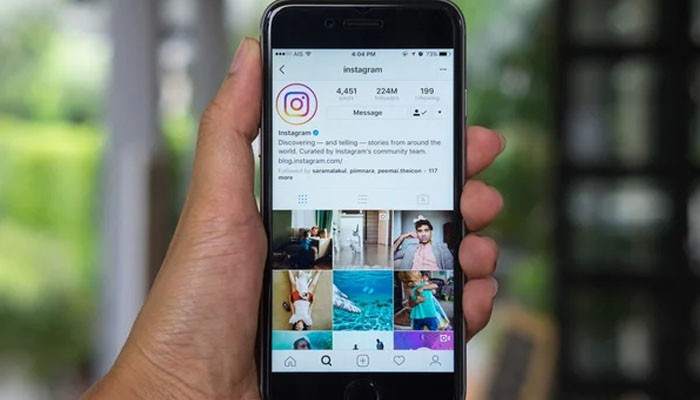
Many users want to download Instagram highlights directly to their phone’s Gallery or Photos app.
Save Instagram Highlights to Gallery on Android
Downloaded files often appear in the Downloads folder first.
If the media does not appear in Gallery:
- Open Files or My Files.
- Open Downloads.
- Find the downloaded file.
- Open it.
- Move or copy it to the appropriate media folder if necessary.
Save Instagram Highlights to Photos on iPhone
Safari downloads may first appear inside the Files app.
To save compatible media into Photos:
- Open Files.
- Go to Downloads.
- Select the photo or video.
- Tap Share.
- Choose Save Image or Save Video when available.
The exact wording may differ depending on your iOS version.
Instagram Highlight Downloader vs Screenshot vs Screen Recording
There are several ways to preserve Instagram Highlight content.
| Method | Best For | Main Limitation |
|---|---|---|
| Instagram Archive | Your own content | Limited to your account |
| Web Downloader | Eligible public media | Depends on third-party service |
| Screenshot | Single visible photo | May reduce quality |
| Screen Recording | Short visible video | May include interface elements |
| Account Export | Large personal backup | Designed for your account |
If you own the content, native Instagram tools and original media files are generally preferable to screenshots or screen recordings.
Is an Instagram Highlight Downloader Safe?
If you use an external service to download Instagram highlights, consider its security and privacy practices before proceeding.
A safer service should ideally:
- Work without your Instagram password
- Avoid requesting authentication codes
- Handle only publicly available content
- Avoid forcing unknown app installations
- Explain its privacy practices
- Avoid unnecessary browser permissions
- Avoid misleading download buttons
- Use a secure connection
Be especially cautious with unknown APK files and browser extensions.
A browser extension requesting permission to read or modify activity across unrelated websites may be asking for significantly more access than is necessary for a simple media download.
For your own content, Instagram Archive avoids many of these third-party risks.
Do You Need to Log In to Download Instagram Highlights?
It depends on what you are trying to save.
To access your own private Story Archive, you need to be signed into your Instagram account.
Some browser tools claim that users can download Instagram highlights from public profiles without signing into Instagram.
That is generally preferable to entering your Instagram credentials into an unknown service.
A simple public-media downloader should not need your Instagram password just to retrieve ordinary public content.
Can Someone See If You Download Their Instagram Highlight?
Instagram does not provide a standard notification specifically saying that someone downloaded a Highlight as a media file.
- However, downloading and viewing are not necessarily the same activity.
- If you open content directly through Instagram, normal Story or Highlight viewing behavior may still apply where relevant.
- A third-party service can work differently.
For that reason, avoid assuming that every way to download Instagram highlights is guaranteed to be anonymous.
Is It Legal to Download Instagram Highlights?
Being technically able to download Instagram highlights does not automatically give you the right to republish, modify or commercially use someone else’s media.
There are several different situations.
Your Own Content
Backing up your own photos or videos is straightforward because you control the content.
Someone Else’s Content
Public visibility does not automatically mean unrestricted reuse.
Copyright and permission may still apply.
Reposting Downloaded Content
You may need permission from the creator or rights holder before reposting the media.
Commercial Use
Using another person’s Instagram photos or videos in advertisements, products, websites or commercial campaigns can raise additional licensing concerns.
Giving credit is useful, but credit alone does not always replace the need for permission.
When in doubt, ask the creator before reusing downloaded content.
Why Can’t I Download Instagram Highlights?
Sometimes users try to download Instagram highlights and find that nothing happens.
Here are the most common causes.
The Account Is Private
Public downloader services generally cannot retrieve private Highlight content.
Solution: Respect the privacy setting and ask the owner for the file.
The Highlight Has Been Removed
The account owner may have deleted the Highlight or removed the individual Story.
Solution: Confirm that the Highlight is still visible.
The Link Is Incorrect
A copied URL may be incomplete or unsupported.
Solution: Return to Instagram and copy the link again.
The Downloader Is Temporarily Broken
Instagram changes can disrupt third-party tools.
Solution: Try a reputable alternative or use Instagram’s built-in features for your own content.
The Download Button Does Nothing
Browser settings may be blocking downloads, pop-ups or redirects.
Solution: Review your browser download settings and permissions.
The File Downloaded but You Cannot Find It
The file may have been saved in an unexpected folder.
Solution: Open your browser’s download history and check Downloads.
The Video Will Not Play
The file may be incomplete or corrupted.
Solution: Delete the broken file and download it again from a legitimate source.
Your Archived Story Is Missing
The Story may never have been archived.
Solution: Check your phone, cloud storage and Archive settings.
Your Device Is Low on Storage
Insufficient space can cause downloads to fail.
Solution: Free some storage and try again.
Best Way to Back Up Instagram Highlights
If your Highlights matter to your personal brand or business, do not rely on Instagram as your only copy.
A stronger backup process is:
- Keep your original photos and videos.
- Keep Story Archive enabled when appropriate.
- Save important content outside Instagram.
- Maintain a second backup in cloud storage.
- Periodically export important Instagram information.
- Organize media by date, campaign or topic.
This approach is useful for:
- Content creators
- Influencers
- Businesses
- Agencies
- Social media managers
- Photographers
- Travel creators
- Online stores
If you regularly need to download Instagram highlights from your own account, keeping organized original files can save considerable time later.
Tips for Organizing Downloaded Instagram Highlights
After you download Instagram highlights, organize the files so they are easy to find.
For example:
Instagram → Highlights → 2026 → Travel
or:
Instagram → Highlights → Product Launch → Videos
Instead of keeping vague automatically generated filenames, rename important files descriptively.
Examples:
summer-trip-rome-01.jpg
product-demo-highlight-03.mp4
For business accounts, you can also organize files by:
- Campaign
- Client
- Product
- Event
- Month
- Platform
- Content type
Good organization makes your downloaded Highlights easier to reuse in future campaigns or backups.
Conclusion: Download Instagram Highlights
There are several ways to download Instagram highlights, but choosing the right method depends on whether the content belongs to you or another account.
For your own media, the best place to start is Instagram’s Stories Archive. It gives you access to eligible past Story content without requiring an outside downloader. If you need a larger backup, Instagram and Meta’s account information tools can help you preserve more of your content.
If you want to download Instagram highlights from another public profile, browser-based tools may help save publicly accessible photos and videos on iPhone, Android, Windows or Mac. Choose those services carefully and avoid tools requesting passwords, authentication codes or unnecessary permissions.
You can also download Instagram highlights without an app in many situations, making browser-based options convenient when you only need a public photo or video. However, convenience should not come at the expense of account security or another user’s privacy.
Private Instagram content should remain private, and downloading someone else’s media does not automatically give you permission to republish or commercially use it.
For the safest experience, use Instagram’s native features whenever possible, maintain independent backups of content you own, and treat third-party downloaders carefully.
Download Instagram Highlights FAQs
