


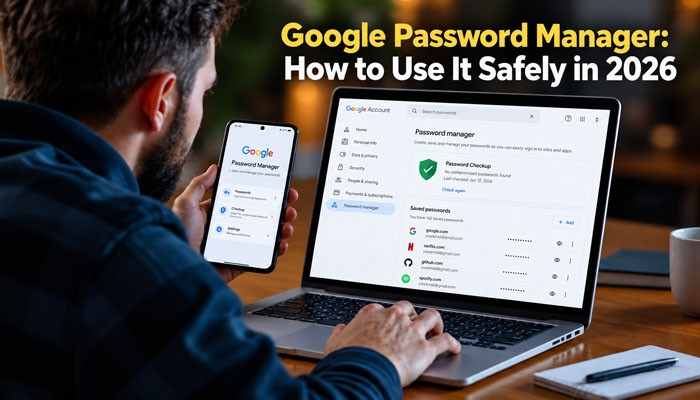

Google Password Manager is Google’s built-in tool for creating, saving, autofilling, checking, and managing passwords and passkeys. It works especially well with Chrome, Android, and Google Accounts, while supported iPhones and iPads can also use credentials saved through Google Password Manager.
Its biggest benefit is convenience. Instead of remembering dozens of passwords, you can use a different strong password for every account and let Google Password Manager save and fill those credentials when needed. The service can also warn you about compromised passwords, identify weak or reused credentials, store passkeys, support credential transfers, and help protect accounts with device authentication.
Google expanded Google Password Manager further in 2026. On September 10, Google introduced direct Android transfers that allow compatible password managers to move passwords and passkeys without requiring an unencrypted transfer file.
This complete guide explains how to use Google Password Manager safely in 2026, including setup, Password Checkup, password generation, autofill, passkeys, importing and exporting, Android transfers, account recovery, troubleshooting, and important security settings.
Quick Answer
Google Password Manager is Google’s password and passkey management service.
It can help you:
- Create strong passwords
- Save usernames and passwords
- Store passkeys
- Autofill login credentials
- Use account-saved passwords across supported devices
- Find compromised passwords
- Detect weak and reused passwords
- Add notes to saved credentials
- Import passwords
- Export passwords
- Transfer passwords and passkeys
- Use device authentication
- Share selected passwords with family members
- Manage saved credentials through passwords.google.com
For most Chrome and Android users, Google Password Manager provides a simple way to improve password security without installing a separate password-management service.
Key Takeaways
- Google Password Manager manages passwords and passkeys.
- It is especially convenient for Chrome and Android users.
- Password Checkup can identify compromised, weak, and reused passwords.
- Google Password Manager can generate strong passwords automatically.
- Account-saved credentials can become available across compatible devices.
- Passkeys provide stronger phishing resistance than ordinary passwords.
- Android supports direct password and passkey transfers between compatible managers.
- Chrome can help change some compromised passwords automatically.
- Password CSV exports should be deleted after migration.
- Businesses may need more advanced shared-vault and administrator features.
What Is Google Password Manager?
Google Password Manager is a credential-management system integrated into Google’s ecosystem. It allows users to save usernames, passwords, and passkeys so they do not need to remember every credential manually.
Google Password Manager can also:
- Generate unique passwords
- Autofill login information
- Check stored passwords
- Store passkeys
- Synchronize supported credentials
- Help migrate passwords
- Warn about compromised credentials
This makes Google Password Manager much more than the traditional “save password” feature found in older browsers.
What Can Google Password Manager Do?
| Feature | What It Does |
| Password storage | Saves usernames and passwords |
| Password generation | Creates strong, unique passwords |
| Autofill | Fills saved login credentials |
| Passkey support | Stores modern passwordless credentials |
| Password Checkup | Finds compromised, weak, or reused passwords |
| Password notes | Stores useful notes with credentials |
| Cross-device access | Makes account-saved passwords available on supported devices |
| Device authentication | Adds protection before sensitive actions |
| Import/export | Helps users move passwords |
| Android direct transfer | Transfers passwords and passkeys between compatible managers |
| Automatic passkey creation | Creates supported passkeys automatically |
| Automated password change | Helps replace certain compromised passwords |
How Does Google Password Manager Work?
When you create or enter login credentials, Chrome or Android can offer to save them in Google Password Manager. If you save the password to your Google Account, it can become available on other supported devices where you use the same account.
Google Account Storage vs Local Storage
| Storage Type | What It Means |
| Google Account | Credentials may be available across supported signed-in devices |
| Local device | Credentials remain on that device |
| Third-party manager | Another password provider stores the credential |
| Passkey provider | Storage depends on the selected platform or manager |
If a password exists on one computer but is missing from another, check whether it was saved locally rather than in Google Password Manager through your Google Account.
How to Access Google Password Manager
You can open Google Password Manager in several ways.
Google Password Manager on Computer
In Chrome:
- Open Google Chrome.
- Select the three-dot menu.
- Choose Passwords and autofill.
- Select Google Password Manager.
You can also manage account-saved passwords through passwords.google.com.
Google Password Manager on Android
On Android:
- Open Chrome.
- Open Settings.
- Select Google Password Manager.
You may also find Google Password Manager through Android Settings.
Google Password Manager on iPhone
Google Password Manager can also work on supported iPhones and iPads. Users can access Google-saved passwords through Chrome and enable Google or Chrome as a supported password/autofill provider in iOS settings.
Does Google Password Manager Have an App?
Yes.
Google provides a Google Password Manager app for Android.
The app mainly gives users direct access to functionality already built into Android rather than creating an entirely separate password vault.
The Google Password Manager app can provide faster access to:
- Saved passwords
- Passkeys
- Password Checkup
- Settings
- Credential-management tools
For users who regularly manage credentials, the app can be more convenient than navigating through Android Settings.
How to Save Passwords in Google Password Manager
When you enter credentials on a supported website, Chrome may ask whether you want to save them. Choose Save to store them in Google Password Manager.
When creating a new account, Chrome may also suggest a strong password.
Avoid using predictable passwords such as:
- Password123
- Google123
- Password2026
- Your birthday
- Your phone number
- Your company name
- Your pet’s name
- The same password used across multiple sites
Using Google Password Manager makes it easier to give every account a unique password.
How to Generate Strong Passwords With Google Password Manager
Chrome can generate a strong password when you create a new account.
Generated passwords are useful because they:
- Are difficult to guess
- Avoid personal information
- Reduce password reuse
- Can be saved automatically
- Do not need to be memorized
Using Google Password Manager for password generation is especially useful if you currently reuse similar passwords across many websites.
How to Turn Google Password Manager Password Saving On or Off
To control password-saving prompts:
- Open Google Password Manager.
- Select Settings.
- Find Offer to save passwords and passkeys.
- Turn the option on or off.
If Google Password Manager stops asking to save a password for one website, check whether you previously told Chrome not to save credentials for that site.
How to View a Saved Password in Google Password Manager
To view a saved password:
- Open Google Password Manager.
- Select the website or account.
- Authenticate if requested.
- Reveal the password.
Depending on your device, authentication may involve:
- PIN
- Password
- Fingerprint
- Face authentication
- Screen lock
This reduces the risk of someone immediately seeing passwords simply because they have temporary access to your browser.
How to Edit or Delete Google Password Manager Passwords
If a saved password is outdated:
- Open Google Password Manager.
- Find the relevant account.
- Authenticate.
- Choose Edit.
- Enter the new password.
- Save the change.
You can also delete old or duplicate credentials from Google Password Manager.
Removing outdated entries can make autofill more reliable.
How to Add Notes in Google Password Manager
Google Password Manager allows users to attach notes to saved credentials.
You might use a password note for:
- The email used for an account
- Special login instructions
- Account identifiers
- A reminder about the account
- Other useful credential-related information
Avoid storing unnecessary confidential information in notes simply because the feature exists.
Using Google Password Manager With Multiple Google Accounts
Many users have multiple Google Accounts, including:
- Personal account
- Work account
- School account
- Business account
Before saving a password in Google Password Manager, check which Google Account is active.
Otherwise, you may later search another account and think the password disappeared.
A simple approach is:
- Personal passwords → personal Google Account
- Work credentials → approved company account
- Shared business passwords → organization-approved password manager
What Is Google Password Manager Password Checkup?
Password Checkup is one of the most useful Google Password Manager security features.
It checks saved credentials and can identify passwords that are:
- Compromised
- Weak
- Reused
A compromised password may have appeared in a known data breach.
A reused password increases risk because one leaked password can potentially expose several accounts.
How to Run Google Password Manager Password Checkup
To run Password Checkup:
- Open Chrome.
- Open Google Password Manager.
- Select Checkup.
- Review the warnings.
- Change unsafe passwords.
You can also manage account-saved credentials through passwords.google.com.
Which Google Password Manager Warnings Should You Fix First?
| Password Problem | Priority | Recommended Action |
| Compromised password | Critical | Change immediately |
| Compromised and reused | Critical | Change on every affected account |
| Reused password | High | Replace with unique passwords |
| Weak password | High | Generate a stronger password |
| Old account | Medium | Secure or close the account |
| Duplicate credential | Low | Remove obsolete copies |
Give particular attention to accounts protecting:
- Banking
- Investments
- Cloud storage
- Social media
- Business systems
- Government services
- Shopping accounts with payment details
How Does Google Password Manager Check Compromised Passwords?
Google says Chrome encrypts your username and password before comparing credential information with encrypted data about known breaches.
This means Google Password Manager does not simply upload a readable list of your passwords for comparison.
The goal is to identify exposed credentials while protecting the underlying username and password information.
Can Google Password Manager Automatically Change a Password?
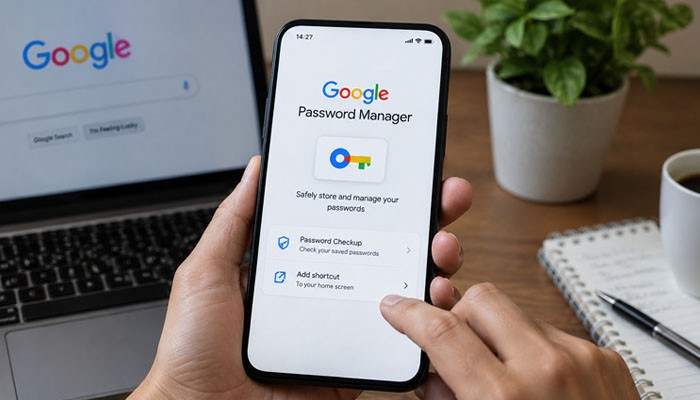
Chrome can help automatically change certain compromised passwords on supported websites.
If an eligible password stored in Google Password Manager has been compromised, Chrome may offer to replace it with a strong new password.
As of September 2026, availability is limited.
Google says eligible users must:
- Be at least 18
- Be located in the United States
- Be signed into Chrome
- Have Chrome sync enabled
- Have at least one password saved
- Have password saving enabled
Only a limited number of English-language websites currently support the feature.
If automatic password changing is unavailable, change the password manually.
Google Password Manager Password Checkup vs Chrome Safety Check
These features are related but different.
Google Password Manager Password Checkup focuses on credential security.
Chrome Safety Check looks more broadly at browser security, including areas such as:
- Browser updates
- Safe Browsing
- Password problems
- Extensions
- Permissions
Using both provides broader protection.
Is Google Password Manager Safe in 2026?
For most personal users, Google Password Manager is a safe and practical password-management option when configured correctly.
Its security features include:
- Encryption
- Password Checkup
- Passkeys
- Compromised-password alerts
- Device authentication
- Google Account security
- Screen-lock verification
However, Google Password Manager cannot eliminate every cybersecurity risk.
Your overall protection still depends on:
- Google Account security
- Device security
- Strong authentication
- Recovery settings
- Malware protection
- Phishing awareness
- Safe handling of exported passwords
How to Make Google Password Manager Safer
Use a Unique Google Account Password
Do not reuse the password protecting your Google Account anywhere else.
Because Google Password Manager may contain many important credentials, your Google Account itself must be strongly protected.
Turn On 2-Step Verification
2-Step Verification provides another layer of security if someone obtains your Google Account password.
Keep Recovery Information Current
Update your recovery email and phone number when necessary.
Use a Strong Device Screen Lock
Use a secure:
- PIN
- Password
- Fingerprint
- Face authentication
Avoid simple PINs such as 0000, 1111, or 1234.
Run Google Password Manager Password Checkup
Regularly review compromised, weak, and reused passwords.
Use Passkeys Where Available
Google Password Manager passkeys can reduce reliance on passwords and provide stronger phishing protection.
Review Old Devices
Remove devices from your Google Account when they are sold, lost, or no longer used.
Delete Password Export Files
Do not leave exported password files on your computer after migration.
What Are Google Password Manager Passkeys?
Passkeys are a modern alternative to passwords.
Instead of relying on reusable text, passkeys use cryptographic credentials connected to the legitimate website or app.
Users normally authorize a passkey using:
- Fingerprint
- Face authentication
- Device PIN
- Screen-lock password
Google Password Manager passkeys can provide stronger phishing protection because the credential is linked to the correct website or application.
Passwords vs Google Password Manager Passkeys
| Feature | Password | Passkey |
| Reusable text secret | Yes | No |
| Must be remembered | Often | No |
| Can be reused | Yes | No |
| Can be guessed | Yes | Not like a normal password |
| Phishing resistance | Limited | Strong |
| Public-key cryptography | No | Yes |
| Biometric authentication | Sometimes | Common |
| Google Password Manager support | Yes | Yes |
Passkeys are not replacing every password immediately.
Many websites still use passwords, while others support both passwords and passkeys.
Can Google Password Manager Create Passkeys Automatically?
Yes, on supported sites.
If a password is already stored in Google Password Manager, a supported service may be able to create a passkey automatically.
Users can control the Automatically create a passkey to sign in faster setting through Password Manager.
The original password may remain available as a backup login method.
Google Password Manager Passkey Requirements
For supported Android passkeys, users generally need:
- A compatible Android version
- A device screen lock
- A supported website or app
Passkeys stored through Google Password Manager can be available on supported devices associated with the same Google Account.
How to Use a Google Password Manager Passkey From Another Device
You can sometimes use a passkey stored on your phone to sign in on a computer.
Steps
- Open the website on your computer.
- Choose the passkey login option.
- Select Use a phone or tablet.
- Scan the displayed QR code.
- Authenticate on your phone.
- Complete sign-in.
The passkey remains on the mobile device.
This is useful when the computer itself does not contain the required passkey.
What Is the Google Password Manager PIN?
The Google Password Manager PIN helps protect and unlock encrypted passkeys in supported situations.
It is different from:
- Google Account password
- Android PIN
- SIM PIN
- Banking PIN
Android usually relies on the device screen lock, while other platforms may use a Google Password Manager PIN during passkey recovery or access.
What Happens to Google Password Manager If You Lose Your Phone?
Losing your phone does not automatically mean losing every saved credential.
Passwords stored through your Google Account may remain available from other authenticated devices.
If your phone is lost or stolen:
- Review devices connected to your Google Account.
- Secure the missing device.
- Sign it out where necessary.
- Review important credentials.
- Remove device-related access.
- Change passwords if compromise is suspected.
Using Google Password Manager does not remove the need to protect physical devices.
Google Password Manager Autofill
Google Password Manager autofill automatically inserts saved credentials into supported login forms. On Android, users can choose Google Password Manager or another compatible password manager as the credential provider. If another password manager is selected, that provider may supply passwords instead of Google Password Manager.
Should You Enable Google Password Manager Automatic Sign-In?
Automatic sign-in can be convenient on a trusted personal device.
Consider disabling it if:
- Your computer is shared
- Several people use the same Chrome profile
- Your device contains sensitive business data
- Physical access is difficult to control
Google Password Manager should improve convenience without weakening access control.
How to Import Passwords Into Google Password Manager
Google Password Manager supports password imports.
For CSV imports, the file should contain fields such as:
- url
- username
- password
Import Steps
- Export passwords from your existing manager.
- Open Google Password Manager.
- Open Settings.
- Choose the import option.
- Select the CSV file.
- Complete the import.
- Test several important accounts.
- Delete the CSV file.
Why Google Password Manager CSV Files Should Be Deleted
A CSV password export may contain readable passwords.
That means anyone who gains access to the file could potentially see your credentials.
Do not leave Google Password Manager export files unnecessarily in:
- Downloads
- Desktop folders
- Messaging apps
- Shared cloud drives
- USB drives
Delete temporary password files after migration.
New in 2026: Google Password Manager Direct Android Transfers
One of the biggest Google Password Manager 2026 updates arrived on September 10, 2026.
Google introduced an Android system that lets compatible password managers transfer passwords and passkeys directly between apps.
Previously, migration often required:
Password manager → CSV file → device storage → new password manager
The newer approach can use:
Password manager → secure transfer → new password manager
This reduces reliance on unencrypted password files.
How Google Password Manager Direct Transfers Work
The general process is:
- Open the new password manager.
- Choose its import option.
- Select Google Password Manager or another supported provider.
- Authenticate.
- Review the transfer.
- Approve it.
- Complete migration.
Direct migration can be especially useful for users who want to switch away from or move into Google Password Manager.
CSV Import vs Google Password Manager Direct Transfer
| Method | Passwords | Passkeys | Plain CSV Needed? |
| CSV import/export | Yes | Usually not | Yes |
| Android direct transfer | Yes | Yes when supported | No |
| App-to-app transfer | Depends on provider | Depends on provider | Usually no |
When supported, direct transfer provides a cleaner migration experience.
What to Do If Google Password Manager Import Fails
If a password or passkey transfer does not work:
- Update Chrome.
- Update Android.
- Update both password-manager apps.
- Confirm the correct Google Account.
- Enable a secure device screen lock.
- Unlock the old password manager.
- Authenticate when prompted.
- Check for duplicate credentials.
- Verify the CSV formatting.
- Search for the website name after import.
Some imported credentials may appear under slightly different names than expected.
How to Export Google Password Manager Passwords
To export passwords:
- Open Google Password Manager.
- Open Settings.
- Choose Export passwords.
- Authenticate when required.
- Download the file.
Treat a Google Password Manager export file as highly sensitive.
Delete it when the migration or backup process is complete.
Can You Switch From Google Password Manager?
Yes.
Google Password Manager allows users to export passwords, and supported Android workflows can move passwords and passkeys directly between compatible providers.
This means you are not necessarily locked permanently into Google Password Manager.
Can Google Password Manager Share Passwords With Family?
Yes.
Google Password Manager supports sharing selected passwords with eligible Google family-group members.
This can be useful for:
- Streaming accounts
- Household subscriptions
- Utility services
- Family services
Avoid sharing highly sensitive credentials such as:
- Primary email
- Banking accounts
- Investment accounts
- Business administrator accounts
- Government accounts
Google Password Manager family sharing should not be treated as a replacement for an enterprise password vault.
Can You Delete All Google Password Manager Data?
Yes.
Google Password Manager provides an option to delete stored Password Manager data, including passwords and passkeys.
Before deleting everything:
- Verify the correct Google Account.
- Check which credentials will disappear.
- Make sure you can access important accounts.
- Consider exporting required passwords.
- Confirm whether important passkeys can be recreated.
Deleting all Google Password Manager data is very different from deleting one outdated password.
Google Password Manager Security Checklist
| Security Setting | Recommendation |
| Unique Google Account password | Essential |
| 2-Step Verification | Enable |
| Recovery email | Keep current |
| Recovery phone | Keep current |
| Device screen lock | Essential |
| Google Password Manager Checkup | Run regularly |
| Compromised-password alerts | Keep enabled |
| Passkeys | Use when supported |
| Chrome updates | Keep current |
| Operating-system updates | Keep current |
| Password CSV files | Delete after migration |
| Old devices | Remove access |
| Suspicious extensions | Remove |
What Google Password Manager Cannot Protect You From
Even a well-configured Google Password Manager cannot stop every threat.
It cannot fully protect you if:
- Malware controls the device
- Someone knows your device PIN
- You approve a fraudulent login request
- Your recovery email is compromised
- You voluntarily share credentials with an attacker
- You leave exported passwords exposed
- Someone gains access to an unlocked device
- A malicious extension has excessive permissions
Google Password Manager should be part of a wider security strategy.
Google Password Manager vs Saving Passwords in Notes
Saving passwords in an ordinary document, spreadsheet, email, or note is usually less secure than using a dedicated credential-management tool.
Google Password Manager offers:
- Encryption
- Strong-password generation
- Autofill
- Password Checkup
- Passkey support
- Security alerts
- Device authentication
An ordinary text file does not provide the same integrated protection.
Google Password Manager vs Dedicated Password Managers
Google Password Manager covers the needs of many everyday users.
Dedicated password managers may provide additional advanced features.
| Feature | Google Password Manager | Dedicated Password Manager |
| Strong-password generation | Yes | Usually |
| Autofill | Yes | Yes |
| Passkeys | Yes | Increasingly common |
| Breach checking | Yes | Usually |
| Chrome integration | Excellent | Varies |
| Android integration | Excellent | Varies |
| Family sharing | Basic | Often advanced |
| Business vaults | Limited | Often available |
| Role-based access | Limited | Often available |
| Secure file storage | Not a core feature | Sometimes |
| Admin controls | Limited | Often advanced |
| Cross-browser focus | Google-centered | Usually broader |
Who Should Use Google Password Manager?
Google Password Manager is a strong option for people who:
- Use Chrome regularly
- Own Android phones
- Already use Google Accounts
- Want a simple built-in password manager
- Need password generation
- Want breach warnings
- Want passkey support
- Do not need advanced business vaults
Who May Need an Alternative to Google Password Manager?
A dedicated password manager may be better for:
- Large companies
- IT departments
- Security teams
- Businesses sharing credentials
- Teams requiring detailed permissions
- Organizations requiring audit logs
- Families requiring advanced shared vaults
- Users working mostly outside Google services
Is Google Password Manager Free?
For normal personal use, Google Password Manager is free and does not require a separate password-manager subscription.
Its core functions are integrated into Google Accounts, Chrome, and Android.
Can You Use Google Password Manager Without Chrome?
Yes, partly.
Passwords stored in your Google Account can be managed through passwords.google.com.
However, Chrome provides deeper Google Password Manager integration for:
- Saving passwords
- Password generation
- Autofill
- Passkeys
- Password warnings
- Automated password changes
Is Google Password Manager Good for Banking Passwords?
Google Password Manager can help protect financial accounts by allowing you to use a unique, strong password instead of reusing credentials.
For banking accounts, also use:
- Strong authentication
- A secure device lock
- Transaction alerts
- Passkeys when available
- Fraud alerts
Never share one-time authentication codes.
Common Google Password Manager Problems
Google Password Manager Is Not Saving Passwords
Check whether:
- Password saving is enabled
- You previously declined saving for the website
- You are using the correct Chrome profile
- Chrome is updated
- Another password manager is active
Google Password Manager Autofill Is Not Working
Check whether:
- The credential is saved
- You are using the correct Google Account
- Google Password Manager is the selected provider
- Another password manager is taking priority
- The website supports autofill
Google Password Manager Passwords Are Missing
Possible reasons include:
- The password was stored locally
- You are using another Google Account
- You are in another Chrome profile
- Another password manager stored the credential
Google Password Manager Passkey Is Not Working
Check whether:
- The website supports passkeys
- The correct credential provider is selected
- You are signed into the correct account
- The device has a screen lock
- Chrome is updated
- The operating system supports passkeys
Google Password Manager Automated Password Change Is Missing
The feature is not universally available.
Eligibility currently depends on factors including location, age, Chrome configuration, and website support.
Common Google Password Manager Mistakes to Avoid
- Reusing passwords
- Using a weak Google Account password
- Leaving 2-Step Verification disabled
- Saving passwords to the wrong Google Account
- Ignoring Password Checkup warnings
- Leaving exported CSV files on your computer
- Sharing sensitive passwords unnecessarily
- Saving passwords on public computers
- Leaving old devices signed in
- Approving suspicious login prompts
- Installing unsafe extensions
- Confusing passkeys with passwords
- Accidentally deleting all Google Password Manager data
Google Password Manager for Businesses
Google Password Manager can work for individual employees if company policy allows it.
However, businesses may require:
- Central administration
- Shared vaults
- Role-based permissions
- Employee offboarding
- Access revocation
- Audit logs
- Emergency access
- Privileged credential management
- Policy enforcement
For organizations with advanced security needs, enterprise credential-management tools may provide stronger administrative features.
Conclusion
Google Password Manager is a practical credential-management solution for people who want to create, save, autofill, and protect passwords and passkeys without relying on a separate password-management service. Its close integration with Google Accounts, Chrome, and Android makes it particularly convenient for users already working within Google’s ecosystem.
Features such as Password Checkup, strong-password generation, compromised-password warnings, passkey support, device authentication, and credential migration can help users improve everyday account security. However, using Google Password Manager effectively still requires good security habits. Users should protect their Google Account with a unique password, enable 2-Step Verification, maintain a secure device screen lock, review Password Checkup warnings, and remove old devices from their account. Exported password files should also be deleted once they are no longer required.
For individual users who want a free and straightforward password-management option, Google Password Manager can meet many everyday needs. Businesses and teams that require centralized administration, advanced shared vaults, role-based permissions, audit logs, or detailed access controls may need a dedicated enterprise password-management platform instead.
Google Password Manager FAQs
1. What is Google Password Manager used for?
Google Password Manager is used to create, save, manage, and autofill passwords and passkeys. It can also identify compromised, weak, or reused passwords through Password Checkup and help users manage credentials across supported devices.
2. Is Google Password Manager safe to use in 2026?
Yes. Google Password Manager includes security features such as encryption, device authentication, Password Checkup, compromised-password alerts, and passkey support. Its overall security also depends on how well you protect your Google Account and devices.
3. Is Google Password Manager free?
Yes. For normal personal use, Google Password Manager is free and does not require a separate password-manager subscription. Its core functionality is integrated with Google Accounts, Chrome, and Android.
4. Can Google Password Manager generate strong passwords?
Yes. Google Password Manager can suggest strong, unique passwords when you create accounts on supported websites. Using generated passwords can reduce password reuse and make credentials more difficult to guess.
5. What is Password Checkup in Google Password Manager?
Password Checkup is a security feature that reviews credentials stored in Google Password Manager and identifies passwords that may be compromised, weak, or reused. Users should prioritize changing compromised and reused passwords.
6. Does Google Password Manager support passkeys?
Yes. Google Password Manager supports passkeys on compatible devices, websites, and applications. Passkeys use cryptographic credentials and generally provide stronger resistance to phishing than conventional reusable passwords.
7. Can I access Google Password Manager on multiple devices?
Passwords saved to your Google Account can become available across supported devices where you use the appropriate Google Account. Credentials stored only on a local device may not automatically appear elsewhere.
8. Can I transfer passwords from another password manager to Google Password Manager?
Yes. Google Password Manager supports password imports, including CSV-based migration. Supported Android workflows can also transfer passwords and passkeys directly between compatible password managers, reducing the need for unencrypted CSV files.
9. What should I do if Google Password Manager autofill is not working?
First, confirm that the credential is saved and that you are using the correct Google Account. Also check whether Google Password Manager is selected as the credential provider, Chrome is updated, and another password manager is not taking priority.
10. Is Google Password Manager suitable for businesses?
Google Password Manager may be sufficient for individual employees when company policy permits its use. However, organizations requiring centralized administration, advanced shared vaults, audit logs, role-based permissions, access revocation, or privileged credential management may benefit from an enterprise password-management solution.