


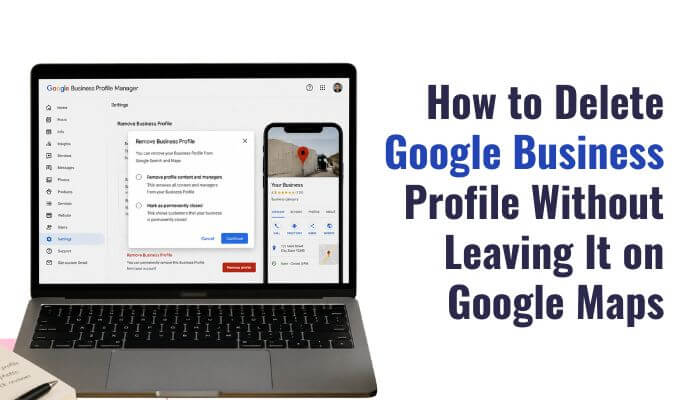

If you are trying to learn how to delete Google Business Profile, there is one important thing to know before clicking anything: removing a profile from your Google Account does not automatically remove the business from Google Maps.
Google treats profile removal, permanent closure, ownership transfer, duplicate listings, address hiding, and Maps removal as different actions. Choosing the wrong option could leave the listing visible, remove content you wanted to keep, or cause you to lose management access.
This guide explains how to delete Google Business Profile correctly, when to remove a listing from Google Maps, what happens to reviews and photos, and what to do with closed, moved, duplicate, suspended, fraudulent, or incorrectly created profiles.
Quick Answer
To understand how to delete Google Business Profile, first know that removing profile content and managers is different from removing the business from Google Search or Google Maps.
To remove profile content and managers:
- Sign in to the Google Account connected to the profile.
- Open your Business Profile.
- Select More.
- Choose Business Profile settings.
- Select Remove Business Profile.
- Choose Remove profile content and managers.
- Select Continue.
- Select Remove.
- Select Done.
Removing the profile this way does not guarantee that the business will disappear from Google Search or Google Maps.
If the business has permanently closed, marking it Permanently closed is generally more appropriate.
If the listing never existed, is a duplicate, is ineligible, or otherwise should not appear on Maps, use Google’s Maps editing or removal process instead.
Key Takeaways
- Knowing how to delete Google Business Profile starts with understanding that profile removal is different from Maps removal.
- Permanently closed businesses may still appear on Google Maps.
- Customer reviews may remain after profile removal.
- Moved businesses should usually update the existing profile instead of deleting it.
- Duplicate or ineligible listings should be reported through the appropriate Google process.
- Suspended profiles should usually be appealed rather than recreated.
Google Business Profile Deletion vs. Google Maps Removal
Before deleting anything, understanding how to delete Google Business Profile correctly starts with choosing the action that matches your actual goal.
| Your Goal | Best Action | Does It Automatically Remove the Maps Listing? |
|---|---|---|
| Stop managing the profile | Remove yourself or transfer ownership | No |
| Delete owner-managed content | Remove profile content and managers | No |
| Business permanently closed | Mark permanently closed | Not necessarily |
| Business temporarily closed | Mark temporarily closed or use special hours | No |
| Business never existed | Request removal through Maps | If Google approves |
| Listing is a duplicate | Report or merge the duplicate | Subject to Google review |
| Business moved | Update the existing address | No deletion needed |
| Hide your business address | Use service-area settings | No |
| Ineligible listing | Request removal | If Google approves |
| Suspended business | Appeal the suspension | No |
| Fraudulent listing | Report through the appropriate Google process | Subject to review |
The key distinction is simple: removing a profile from your account is not the same as removing the underlying place from Google Maps.
That is why selecting Remove Business Profile may not make the listing disappear.
How to Delete Google Business Profile
To understand how to delete Google Business Profile correctly, follow these steps to remove profile content and managers from the connected Google Account.
Step 1: Sign In to the Correct Google Account
Sign in to the Google Account associated with your Business Profile.
If you manage multiple accounts, make sure you are using the account with the necessary ownership permissions.
Step 2: Open Your Business Profile
Search for your business while signed in, or open the profile through Google Maps.
Step 3: Open Business Profile Settings
From your profile, select:
More → Business Profile settings → Remove Business Profile
Step 4: Remove Profile Content and Managers
Select:
Remove profile content and managers
This action can permanently affect content associated with the profile.
Step 5: Confirm the Removal
Select:
Continue → Remove → Done
Your profile-management content will be removed, but the business listing may still remain visible on Google Search and Google Maps.
How to Delete Multiple Google Business Profiles at Once
For businesses with several locations, understanding how to delete Google Business Profile in bulk can save time compared with removing each listing individually.
To remove multiple profiles:
- Sign in to Business Profile Manager.
- Select the Business Profiles you want to remove.
- Open Actions.
- Choose Remove businesses.
- Confirm the removal.
If the businesses have permanently closed, mark them appropriately before removing management access.
If bulk removal fails, you may need to remove the affected profiles individually.
Removing profiles from your account does not automatically guarantee that the corresponding listings will disappear from Google Maps.
Why Deleting Your Google Business Profile May Leave It on Google Maps
Understanding how to delete Google Business Profile also means knowing that removing profile management does not always remove the business from Google Maps.
A listing may remain visible because Google Maps can continue showing information about real-world places, including closed or previously managed businesses.
This commonly applies when a business:
- permanently closed;
- changed owners;
- moved to a new location;
- is no longer managed by the original account;
- still has customer reviews or user-submitted content.
If you want the listing removed from Maps, first confirm whether it actually qualifies for removal.
If Your Business Has Permanently Closed
If your business has permanently stopped operating, understanding how to delete Google Business Profile also means knowing that deletion may not be the best first step.
Instead, mark the profile Permanently closed:
- Open your Business Profile.
- Select Edit profile.
- Open Hours.
- Edit the business hours.
- Choose Permanently closed.
- Save your changes.
The profile may still appear in Google Search or Maps, but users should see that the business is permanently closed.
Why Google May Keep a Closed Business Visible
When learning how to delete Google Business Profile, it is important to know that a permanently closed business may still appear on Google Maps.
Keeping the listing visible with a Permanently closed label can help users understand that the business once existed but no longer operates.
That is why a closed business is treated differently from a listing for a business that never existed.
How to Remove a Business From Google Maps
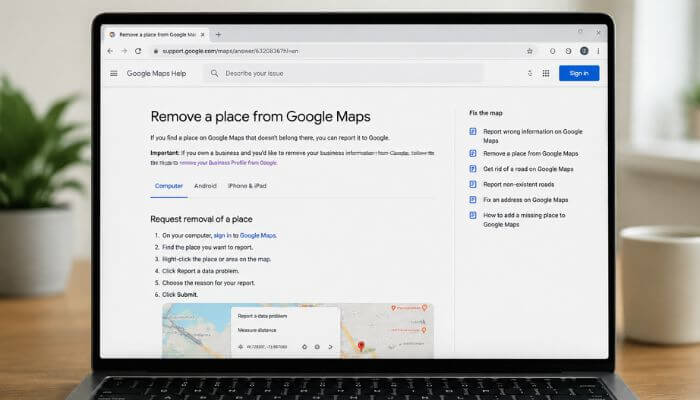
Understanding how to delete Google Business Profile also means knowing when a listing should be removed from Google Maps rather than simply removed from your account.
If the Business Profile is inaccurate or qualifies for removal:
- Sign in to Google.
- Open Google Maps.
- Search for the business.
- Select the listing.
- Choose Suggest an edit.
- Select Place is closed or not here.
- Choose the reason that accurately matches the situation.
- Submit the request.
Google reviews the edit before deciding whether to update or remove the place.
Always choose the reason that truthfully reflects the business status.
Reasons Google Maps May Let You Close or Remove a Place
When learning how to delete Google Business Profile, it is important to choose the Maps option that accurately matches the business situation.
Google Maps may provide options such as:
- Temporarily closed
- Permanently closed
- Doesn’t exist here
- Duplicate of another place
- Offensive, harmful, or misleading
- Not open to the public
- Moved to a new location
- Reopened
Permanently Closed vs. Doesn’t Exist Here
Permanently closed means the business previously existed but no longer operates.
Doesn’t exist here is more appropriate when the business or location does not actually exist as shown on Google Maps.
Choosing the correct option helps Google evaluate the listing accurately.
How to Report a Fake or Fraudulent Google Business Profile
Knowing how to delete Google Business Profile is different from reporting a fake or fraudulent listing.
If a Business Profile contains misleading information, such as a false business name, phone number, website, or identity details, Google’s Business Redressal Complaint process may be the appropriate option.
For simpler issues, such as a business that does not exist or is incorrectly marked open or closed, use Suggest an edit in Google Maps.
Use the reporting method that matches the actual problem.
What Happens After You Delete a Google Business Profile?
Understanding how to delete Google Business Profile also means knowing what may be removed and what can remain afterward.
Removing profile content and managers can permanently affect:
- posts;
- photos;
- videos;
- review replies.
If you want to manage the business again later, additional verification may be required.
What May Remain?
User-generated content may remain after profile removal, including:
- customer reviews;
- user-uploaded photos;
- other Google Maps contributions.
Deleting a Business Profile should not be used as a way to remove unwanted customer reviews.
Will Deleting Google Business Profile Delete Reviews?
Knowing how to delete Google Business Profile does not mean customer reviews will disappear with it.
Reviews are user-generated content, so removing profile management or profile content does not automatically remove them.
If a review violates Google’s policies, report the review through Google’s review-reporting process instead of deleting the Business Profile.
Will Deleting Google Business Profile Delete Photos?
Understanding how to delete Google Business Profile also means knowing that not every photo is removed.
Owner- and manager-added photos or videos may be deleted with profile content, while customer-uploaded photos can remain as user-generated content.
Before removing the profile, save copies of any business-owned photos or videos you may need later.
Can You Delete a Google Business Profile Immediately?
When learning how to delete Google Business Profile, keep in mind that newly added owners and managers may need to wait seven days before certain actions become available.
During this period, Google may restrict:
- deleting or undeleting a profile;
- removing other owners or managers;
- transferring primary ownership.
If you recently received access and cannot delete the profile, the seven-day restriction may be the reason.
Why Can’t I Delete My Google Business Profile?
If you are trying to understand how to delete Google Business Profile but the removal option is missing or unavailable, one of these issues may be the cause.
1. You Are Not the Primary Owner
Some removal actions require the correct ownership level.
Check:
Business Profile → More → Business Profile settings → People and access
Make sure you are signed in with the account that has the required permissions.
2. You Recently Became an Owner or Manager
New owners and managers may face a seven-day restriction on certain ownership and deletion actions. If you were added recently, wait until the restriction period ends.
3. You Are Using the Wrong Google Account
If you manage multiple Google Accounts, confirm that the account currently signed in has access to the correct Business Profile.
4. Bulk Removal Is Failing
If bulk removal returns an error, try removing the affected profiles individually instead. Do not create duplicate listings just because the removal process fails.
Should You Delete a Suspended or Disabled Google Business Profile?
If your Business Profile is suspended or disabled, deleting it is usually not the best first step.
First, review the reason for the suspension and check whether the profile may have violated Google’s guidelines. If the business is legitimate, use Google’s appeal process when appropriate.
Before submitting an appeal, prepare supporting documents such as:
- business registration;
- business licences;
- tax documents;
- qualifying utility bills;
- proof of the business location.
Make sure the business name and address on your documents match the information on the Business Profile as closely as possible.
Do not create a new profile simply to avoid a suspension. If the suspension was incorrect, correcting the issue and appealing the existing profile is usually the better option.
If you are learning how to delete Google Business Profile, remember that suspended profiles should be handled differently from normal profile removal.
What If You Only Want to Stop Managing the Business?
If the business is still operating but someone else will manage it, you usually do not need to delete the Business Profile. Transferring ownership or removing your own access is a better option.
If You Are the Primary Owner
If you are the primary owner, transfer primary ownership to the person who will continue managing the business. This keeps the profile active and avoids unnecessary deletion.
If You Are an Owner or Manager
Go to Business Profile → More → Business Profile settings → People and access, select your account, and choose the option to stop managing the profile when available. Your access will be removed while the business listing remains active.
When deciding how to delete Google Business Profile, first check whether you actually need deletion or only need to transfer ownership or remove your access.
What If Your Business Moved?
If your business has moved to a new location, do not delete the existing Business Profile. In most cases, updating the address on the current profile is the better option.
Keeping the same profile can help prevent:
- duplicate listings;
- customers visiting the old address;
- conflicting business information;
- unnecessary verification issues;
- fragmented local search visibility.
Google may require the profile to be verified again after certain address changes.
When considering how to delete Google Business Profile, first check whether updating the business address will solve the problem instead.
What If Your Business Changed Its Name or Rebranded?
A business name change does not always require a new Business Profile. If the business remains essentially the same, you may be able to update the existing profile instead.
A new profile may be more appropriate when the rebrand represents a substantially different business identity.
Before creating a new listing, check whether the business still has the same:
- ownership;
- core services;
- business category;
- location;
- underlying business identity.
Creating a new profile unnecessarily can lead to duplicate listings and verification problems.
When deciding how to delete Google Business Profile, first determine whether the rebrand only requires an update to the existing profile.
What If You Created a Duplicate Google Business Profile?
If two profiles represent the same business, do not automatically mark one as permanently closed. Businesses should generally have one eligible Business Profile for each legitimate location.
Report the duplicate through Google or use the appropriate merging process when available. If eligible profiles are merged, information such as reviews may be consolidated.
When deciding how to delete Google Business Profile, check whether the listing is actually a duplicate first. Reporting or merging it may be better than deleting the wrong profile and losing useful business information.
What If Your Business Never Existed?
A business that never existed should not be treated the same as one that permanently closed. If a listing represents a business that was never actually present at the stated location, submit an edit through Google Maps.
Use:
Google Maps → Business listing → Suggest an edit → Place is closed or not here
Choose the reason that accurately describes the issue and submit the request for review.
When considering how to delete Google Business Profile, first confirm whether the business actually existed or whether the listing should be reported as nonexistent.
What If the Business Is Online Only?
Not every online business is eligible for a Google Business Profile. Businesses generally need to interact with customers in person, although some categories may have different requirements.
A purely online business that never meets customers may be ineligible for a Business Profile. In that case, requesting removal of the listing may be more appropriate than simply leaving it unmanaged.
When deciding how to delete Google Business Profile, first check whether the business is actually eligible to appear on Google Maps.
What If You Work From Home and Just Want to Hide Your Address?
You may not need to delete the Business Profile if customers do not visit your business address. Service-area businesses can often hide the street address and show the areas they serve instead.
This commonly applies to:
- plumbers;
- cleaners;
- electricians;
- mobile repair services;
- landscapers;
- contractors;
- other home-service businesses.
Using service-area settings can protect your privacy while keeping the Business Profile active.
When deciding how to delete Google Business Profile, first check whether hiding the address will solve the problem instead.
What If Your Business Is Only Temporarily Closed?
If your business is only closed for a short period, do not permanently delete the business profile. Google provides different options depending on how long the closure lasts.
Closures of Six Days or Less
Use special hours for short closures such as:
- holidays
- brief maintenance
- private events
- short weather-related closures
Closures of Seven Days or More
Use Temporarily closed when the business will be unavailable for a longer period, during an off-season, or for an uncertain length of time.
This may apply to:
- major renovations
- seasonal shutdowns
- extensive repairs
- staffing problems
- Disaster recovery
When deciding how to delete Google Business Profile, first check whether a temporary closure setting is more appropriate than permanent removal.
Can You Reopen a Permanently Closed Google Business Profile?
Yes. If a business reopens or was marked permanently closed by mistake, the Business Profile may be eligible to reopen.
Do not reopen the old profile if the business has moved, changed into a different business, or the listing is now a duplicate. In those cases, updating or creating the correct profile may be more appropriate.
If you are learning how to delete Google Business Profile, it is also important to know that a closed profile may sometimes be reopened instead of removed permanently.
Can Anyone Request Removal of a Google Business Profile?
Yes. You do not always need to own a Business Profile to suggest that it should be corrected or removed from Google Maps.
Anyone can submit an edit when a listing contains inaccurate information, represents a business that no longer exists, or otherwise appears to qualify for removal. Google reviews the request before deciding whether to update or remove the listing.
When learning how to delete Google Business Profile, keep in mind that submitting a removal request does not guarantee approval. Google may check the listing details and other available information before making a final decision.
How Long Does Google Business Profile Removal Take?
There is no fixed removal time for every Business Profile or Google Maps request. Some changes may be processed quickly, while others can take longer if Google needs additional review.
The processing time can depend on:
- The type of removal request
- The reason for removal
- The information provided
- The status of the business profile
- whether additional review is required
When learning how to delete Google Business Profile, remember that submitting a request does not mean the listing will disappear immediately. Google may need time to review the information before making a final decision.
Be cautious of third-party services that promise guaranteed removal within a specific number of hours or days.
Why Your Google Business Profile Still Appears After Deletion
If your Business Profile still appears after you removed it from your account, that does not necessarily mean the action failed.
You may have removed:
Your management content and access
rather than:
The underlying real-world place from Google Maps.
If the business genuinely existed, Google may still display information about it.
Instead of repeatedly trying to delete the profile, determine which situation applies.
Why Your Google Business Profile Still Appears After Deletion
If your business profile still appears after you remove it from your account, that does not always mean the removal failed. You may have removed your management access and profile content while the underlying business listing remains visible on Google Maps.
If the business genuinely existed, Google may continue displaying information about it. The correct next step depends on the situation.
| Situation | Correct Next Step |
|---|---|
| Business permanently closed | Mark permanently closed |
| Business moved | Update the location |
| Business never existed | Submit a Maps removal request |
| Duplicate listing | Report the duplicate |
| Business was sold | Transfer ownership |
| You no longer manage it | Remove your own access |
| Home address should be hidden | Use service-area settings |
| Listing is fraudulent | Submit the appropriate report |
| Profile is suspended | Appeal the suspension if eligible |
When learning how to delete Google Business Profile, it is important to identify whether you want to remove management access, close the business, or remove the listing from Google Maps.
Back Up Your Google Business Profile Before Deleting It
Before learning how to delete Google Business Profile, save any important information you may need later. Some removal actions can permanently affect profile content, so creating a backup first is a smart precaution.
Consider saving:
- business name and contact details
- opening hours
- website information
- service areas
- business description
- photos and videos
- performance data
- historical reports
A backup can be useful for future marketing reports, business records, ownership transfers, rebranding, or reopening the business.
Once profile content is removed, rebuilding everything manually can be difficult. That is why backing up important information should be part of the process when deciding how to delete Google Business Profile.
Common Google Business Profile Deletion Mistakes
When learning how to delete Google Business Profile, avoid these common mistakes:
- Assuming Remove Profile Means Remove From Maps: Removing management access does not automatically remove the business from Google Maps.
- Deleting a Profile Because the Business Moved: Update the existing address instead of deleting the profile and creating a new one.
- Marking a Duplicate as Permanently Closed: Report or merge the duplicate rather than marking a legitimate business as closed.
- Deleting a Profile to Remove Bad Reviews: Customer reviews may remain even after profile content or management access is removed.
- Removing the Wrong Location: Before deleting a profile, verify the business name, address, location, ownership, and profile details.
- Deleting When You Only Need to Hide Your Address: Eligible service-area businesses can often hide their street address without deleting the profile.
- Deleting Without Backing Up Content: Save important photos, videos, business details, and performance information before removal.
- Creating a New Profile to Avoid Suspension: Correct the issue and use Google’s appeal process instead of creating a replacement listing.
- Deleting a Profile After a Minor Rebrand: If the business remains the same, updating the existing profile is usually better than starting over.
- Choosing the Wrong Maps Removal Reason: Select the option that accurately reflects the real status of the business.
Before You Delete Your Google Business Profile: Checklist
Before deciding how to delete Google Business Profile, check whether removal is actually the right action for your situation.
- Is the business permanently closed?
- Is the closure only temporary?
- Would special hours be enough?
- Has the business moved?
- Has the business changed its name or rebranded?
- Is the listing a duplicate?
- Do you only want to stop managing the profile?
- Can ownership be transferred instead?
- Do you only need to hide your address?
- Is the profile suspended or disabled?
- Is the listing fake or fraudulent?
- Have you backed up important photos and business information?
- Do you understand that customer reviews may remain?
- Are you signed in to the correct Google Account?
- Do you have the required ownership permissions?
Reviewing these points before removal can help prevent unnecessary deletion, lost access, duplicate listings, and other profile-management problems.
Delete, Close, Transfer, or Remove? Decision Table
When deciding how to delete Google Business Profile, use this quick guide:
| Situation | Best Action |
|---|---|
| Business closed permanently | Mark permanently closed |
| Business closed temporarily | Use special hours or temporary closure |
| Business moved | Update the address |
| Business sold | Transfer ownership |
| Duplicate listing | Report or merge it |
| Business never existed | Request Maps removal |
| Want to hide your address | Use service-area settings |
| Profile suspended | Appeal if appropriate |
Is Deleting a Google Business Profile Bad for Local SEO?
If your business is still operating, deleting or abandoning a legitimate Business Profile can reduce your control over how the business appears in local search.
A Business Profile helps you manage details such as:
- business name
- address
- phone number
- website
- opening hours
- business category
- photos
Do not delete an active profile just because the business moved, changed hours, rebranded, received a negative review, or needs to hide an address. When deciding how to delete Google Business Profile, first check whether updating the existing profile will solve the issue instead.
Conclusion
Understanding how to delete Google Business Profile is not just about finding a delete option. The right action depends on whether the business is closed, moved, duplicated, suspended, rebranded, or simply no longer managed by you.
Removing profile content and managers does not guarantee that the business disappears from Google Maps. Permanently closed businesses should usually be marked closed, moved businesses should update their address, and ownership should be transferred when someone else takes over.
Duplicate, nonexistent, ineligible, or fraudulent listings should be handled through the appropriate Google Maps or Business Profile reporting process.
Before deciding how to delete Google Business Profile, check whether updating, transferring, hiding, or reporting the profile would be a better solution.
How to delete Google Business Profile FAQs
1. How to delete Google Business Profile if a former employee owns it?
Request ownership of the existing profile first. Google gives the current owner 3 days to respond before other claim options may become available.
2. Does deleting a Google Business Profile delete my Google Account?
No. Removing a Business Profile does not delete the Google Account used to manage it.
3. Can a manager use the how to delete Google Business Profile process?
Managers cannot remove a Business Profile. An owner with the required permissions must complete the removal.
4. How to delete Google Business Profile for only one location?
Select only that location in Business Profile Manager and remove it without affecting the other profiles you manage.
5. Can I recover content after using the how to delete Google Business Profile process?
Removed owner-managed content may be permanent. Google says you may need to reverify the profile to manage the business again.
6. Can I claim a Business Profile owned by someone else?
Yes. If you are authorized to manage the business, you can request ownership from the current profile owner.
7. What happens to past review replies after an owner leaves?
Past review replies, posts, comments, and other actions can remain on the Business Profile even after that user stops managing it.
8. Can one Google Account manage several Business Profiles?
Yes. A Google Account can manage multiple eligible Business Profiles, depending on the business setup and permissions.
