
You press the power button. You wait. And wait. The Windows logo spins, the desktop finally shows up, but your icons are still loading, and your mouse feels like it’s stuck in syrup. If this sounds familiar, you already know exactly why you’re here: You want to know how to fix slow startup on Windows, and you want a fix that actually works, not another list of vague “restart your PC” advice.
The good news is that a slow boot is almost never a sign that your computer is dying. In most cases, it’s a software traffic jam too many programs fighting to load at once, a drive that’s nearly full, an outdated driver, or a setting that’s quietly working against you. Learning how to fix slow startup on Windows usually comes down to clearing that traffic jam, one cause at a time, starting with the easiest fixes first.
In this guide, we’ll walk through proven, up-to-date methods to fix slow startup on Windows 10 and Windows 11, based on how these systems actually behave in 2026. We’ll explain what’s really happening in the background when your PC boots slowly, show you exactly where to click, and help you figure out which fix matches your specific situation, whether you’re on an old laptop with a spinning hard drive or a newer machine that’s just gotten cluttered over time. By the end, you’ll have a clear, tested plan to get your PC starting up fast again.
Why Is Windows Starting Up So Slowly?
Before jumping into fixes, it helps to understand what’s actually going on when your computer boots. Every time you power on your PC, your motherboard’s firmware initializes your hardware, Windows loads its core system files, background services start up, and then any programs you’ve told it to open automatically get launched. When too many of these things pile up, or one step is broken, your boot time stretches out.
The most common causes of a slow Windows startup include:
- Too many startup programs launching at once and competing for resources
- A nearly full or aging hard drive (HDD) instead of a solid-state drive (SSD)
- Outdated or corrupted device drivers, especially for storage and graphics
- Corrupted system files that Windows has to work around during boot
- Windows updates that are overdue, which can leave bugs and inefficiencies unfixed
- Malware or background processes quietly consuming CPU and memory
- Low RAM, forcing the system to rely on slower virtual memory
- A cluttered system drive packed with temporary files and unused apps
- A failing or aging drive, which slows down before it fully stops working
- BIOS/UEFI settings, like Fast Boot being disabled or misconfigured
- Fast Startup misbehaving, which sounds backwards but does happen on some setups
Once you know the likely culprit, fixing a slow Windows startup becomes a lot less mysterious. Let’s go through the fixes, starting with the simplest and safest ones.
Before You Start: Create a Restore Point
Before changing any system settings, it’s smart to create a restore point. This gives you a safety net if a fix causes an unexpected problem; you can roll your PC back to how it was in a few clicks.
- Search “Create a restore point” in the Start menu and open it
- Click Create, give it a name like “Before startup fixes,” and confirm
This takes less than a minute and is standard practice before making system-level changes, so don’t skip it.
1. Restart Your PC the Right Way (Not Just Sleep)
It sounds too simple to matter, but it’s the first thing worth trying. If you normally just close your laptop lid or let your PC sleep, background processes and memory clutter can build up over days or weeks. A full restart clears that out.
- Click Start > Power > Restart, not Shut Down
- Let the PC boot completely before opening any programs
- Avoid opening ten apps the moment the desktop appears; give Windows a minute to finish loading background services first
This is always step one when you’re trying to fix slow startup on Windows, simply because it’s free, fast, and rules out a temporary glitch before you touch any settings.
2. Disable Unnecessary Startup Programs
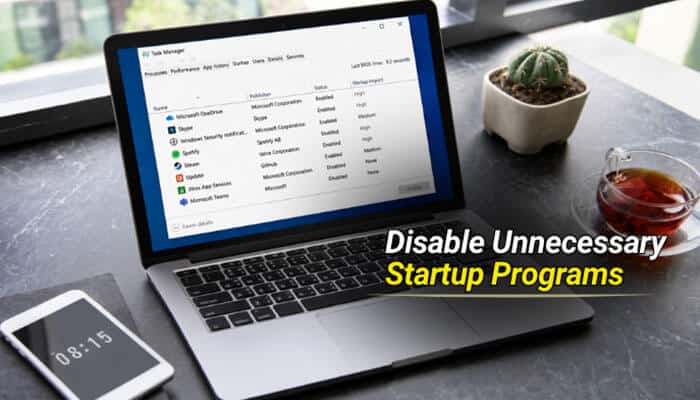
This is the single biggest fix for most people. Many apps quietly set themselves to launch every time you turn on your PC, even ones you rarely use. Each one adds to your boot time. Microsoft’s own performance updates in 2026 have specifically targeted this issue, noting that startup apps now launch noticeably faster after recent patches, but trimming the list yourself still makes the biggest difference.
How to disable startup apps:
1. Press Ctrl + Shift + Esc to open Task Manager
2. Click the Startup tab (or Startup apps in Windows 11)
3. Look at the Startup impact column; it shows High, Medium, Low, or None
4. Right-click anything with High or Medium impact that you don’t need immediately, and select Disable
A word of caution: don’t disable anything made by Microsoft related to security or drivers, such as Windows Defender, chipset utilities, or GPU drivers. Those aren’t slowing you down in a meaningful way, and turning them off can cause other problems.
| App Type | Safe to Disable? | Why |
|---|---|---|
| Cloud storage sync tools (rarely used) | Yes | Loads in background, not urgent |
| Chat/messaging apps you don’t use daily | Yes | Can be opened manually when needed |
| Printer software | Usually | Only needed when printing |
| Antivirus (non-Microsoft) | No | Needed for protection from boot |
| Graphics/audio drivers | No | Required for hardware to work properly |
| Windows Security/Defender | No | Core protection, don’t touch |
3. Turn Fast Startup On (or Off, Depending on Your PC)
Fast Startup is a Windows feature that saves a snapshot of your system state when you shut down, so the next boot is quicker. For most PCs, this genuinely helps. But on some systems, especially those with certain SSDs, dual-boot setups, or specific drivers, it can actually cause conflicts and slow things down or cause freezes. It’s also worth knowing that with Fast Startup on, your PC never does a true cold boot, which can mask driver issues over time.
To check or change Fast Startup:
1. Open Control Panel > Hardware and Sound > Power Options
2. Click Choose what the power buttons do
3. Click Change settings that are currently unavailable
4. Check or uncheck Turn on fast startup (recommended)
5. Click Save changes
The best approach if you’re trying to fix slow startup on Windows through this setting is to test both ways. Time your boot with it on, then time it with it off, and keep whichever is genuinely faster on your machine.
4. Check Fast Boot in BIOS/UEFI
This is a step many guides skip, but it matters: Your BIOS or UEFI firmware has its own “Fast Boot” setting, completely separate from Windows’ Fast Startup. If this is disabled, your PC spends extra time checking hardware every single boot, before Windows even starts loading.
- Restart your PC and press the key shown on screen to enter BIOS/UEFI setup (commonly F2, Del, or Esc, depending on your manufacturer)
- Look for a setting labeled Fast Boot, Quick Boot, or similar, usually under a Boot tab
- Enable it, save changes, and exit (usually F10)
If you’re not comfortable navigating BIOS, this step is optional; skip it and focus on the Windows-level fixes instead, since they’re safer and just as effective for most people.
5. Update Windows and Your Drivers
An outdated system doesn’t just miss new features; it can also miss performance fixes that Microsoft has already released. Storage and graphics drivers in particular have a direct effect on how quickly your PC reaches a usable desktop. In fact, a 2026 Windows 11 update specifically improved memory handling and boot-sequence performance, which shows just how much staying current can matter.
On Windows 11:
- Go to Start > Settings > Windows Update > Check for updates
- After installing what’s offered, open Advanced options > Optional updates to grab driver updates too
On Windows 10:
- Go to Start > Settings > Update & Security > Windows Update > Check for updates
- Click View optional updates for drivers
Install everything offered, restart, and check whether your boot feels faster. This single step has genuinely resolved slow startup issues after recent Windows updates specifically targeted boot-sequence performance and memory handling.
6. Run System File Checker and DISM
If your system files have become corrupted, often from an interrupted update or a crashed program, Windows may struggle silently during every boot as it works around the damage. Two built-in tools can repair this without reinstalling anything.
1. Search “cmd”, right-click Command Prompt, and choose Run as administrator
2. Type `sfc /scannow` and press Enter. This scans and repairs core system files
3. If issues remain, run `DISM /Online /Cleanup-Image /RestoreHealth`, which repairs the underlying Windows image itself
4. Restart your PC once both commands finish
This is a more advanced fix, but it’s one of the most effective ways to fix slow startup on Windows when nothing else seems to explain the slowdown.
7. Free Up Space on Your System Drive
Windows needs breathing room on your main drive (usually C:) to manage temporary files, virtual memory, and system caches efficiently. When that drive gets close to full, everything, including startup, slows down.
- Open Settings > System > Storage
- Turn on Storage Sense to automatically clean temporary files
- Manually check the Temporary files category and delete what you don’t need
- Uninstall large programs you no longer use via Settings > Apps > Installed apps
Aim to keep at least 15–20% of your drive free. This isn’t just a rule of thumb; Windows genuinely performs worse when storage runs low, and it’s one of the most overlooked reasons people struggle to fix slow startup on Windows.
8. Scan for Malware and Unwanted Background Processes
Malware and adware don’t always announce themselves with pop-ups. Sometimes the only symptom is a PC that’s mysteriously slow to boot and slow to respond afterward, because something is running quietly in the background.
- Open Windows Security > Virus & threat protection
- Click Quick scan, then follow up with a Full scan if anything looks suspicious
- Check Task Manager’s Processes tab for anything unfamiliar using high CPU or disk at startup
If a scan turns up something, remove it and restart. It’s common for boot times to improve noticeably once a hidden background process is gone.
9. Try a Clean Boot to Find the Real Culprit
Task Manager only shows you apps, not background services, and some of the worst startup delays come from services, not visible programs. A clean boot starts Windows with only the bare minimum, so you can test whether things speed up, then re-enable items one at a time to find the exact cause.
1. Search for “msconfig” and open System Configuration
2. On the Services tab, check Hide all Microsoft services, then click Disable all
3. Go to the Startup tab, click Open Task Manager, and disable remaining startup apps
4. Restart your PC and check your boot time
This is a diagnostic step more than a permanent fix. Once you find the service causing the slowdown, you can re-enable everything else and leave just that one disabled.
10. Check Your Disk Health
Sometimes a slow startup isn’t about clutter or settings at all; it’s an early warning sign that your drive is failing. Drives rarely stop working all at once; they usually slow down first.
- Open Command Prompt as administrator and type chkdsk C: /f to check and repair file system errors (you’ll be asked to schedule this on next restart)
- For a deeper check, third-party tools can read your drive’s S.M.A.R.T. status, which reports on its physical health
If your drive shows warning signs, back up your files immediately and consider replacing it. This is one of the few causes on this list that hardware fixes alone can solve, not settings.
11. Check Your Startup Time in Task Manager
Windows actually tells you where your time is going during boot. This step won’t fix anything by itself, but it tells you exactly what to fix next.
1. Open Task Manager > Startup apps
2. Note which individual apps show the highest impact
3. For a deeper look, open Event Viewer > Applications and Services Logs > Microsoft > Windows > Diagnostics-Performance > Operational, and look for Event ID 100, which logs your exact boot duration
Comparing this number before and after each fix is the most reliable way to know whether you’re actually making progress, rather than guessing.
12. Adjust Power Plan and Visual Effects
Two smaller settings can also add up. First, your power plan: if your PC is set to a power-saving plan, it may deliberately hold back performance, including at startup.
- Go to Control Panel > Power Options and switch to Balanced or High Performance if you’re currently on Power Saver
Second, visual animations look nice but do cost a small amount of processing time, especially on older or lower-powered machines.
- Right-click Start > System > Advanced system settings
- Under Performance, click Settings
- Choose Adjust for best performance, or manually uncheck the animations you don’t care about
These fixes matter most on machines with 8GB of RAM or less, or older CPUs, where every bit of freed-up processing power counts.
13. Reduce Desktop Clutter
An overloaded desktop with dozens of icons, especially shortcuts to files stored on network drives, can add real delay as Windows tries to render everything and check file locations after login. This is a commonly missed fix because it doesn’t feel related to “startup,” but symptoms often show up right after sign-in, when the desktop is still catching up.
- Move unused shortcuts and files into folders
- Remove widgets you don’t check regularly
- If you use mapped network drives, confirm they’re actually reachable; a drive that’s timing out during load can visibly delay your desktop
14. Upgrade to an SSD (If You’re Still on a Hard Drive)
If you’ve tried the software fixes above and boot time is still painfully slow, your hardware is likely the real bottleneck, specifically if you’re still running a traditional hard disk drive (HDD).
Here’s why this matters so much:
| Drive Type | Typical Boot Time | Notes |
|---|---|---|
| Traditional HDD | 60–120+ seconds | Mechanical parts, slowest option |
| SATA SSD | 15–30 seconds | Major upgrade over HDD |
| NVMe SSD | 8–15 seconds | Fastest consumer option available |
Moving your operating system from an HDD to an SSD is widely considered the single most effective upgrade for fixing a slow Windows startup, because it removes the physical bottleneck entirely rather than just working around it. Many PC repair shops and manufacturers can clone your existing Windows installation onto a new drive, so you don’t have to reinstall everything from scratch.
One important note: never defragment an SSD. Defragmenting is a maintenance step designed for spinning hard drives, and running it on an SSD provides no benefit while adding unnecessary wear.
15. Check Your RAM
If your PC has 8GB of RAM or less, Windows may be leaning on your drive as overflow memory (called a page file) more than it should, which slows down boot and general performance. This becomes especially noticeable if you have several browser tabs, background apps, or cloud sync tools all starting at once.
- Check your current RAM under Settings > System > About
- If you’re at 8GB, consider upgrading to 16GB for noticeably smoother day-to-day performance
- If you’re already at 16GB or more, RAM likely isn’t your bottleneck, and the fix probably lies elsewhere on this list
Windows 11 has also introduced a newer feature worth knowing about: the Low Latency Profile, which briefly boosts CPU speed during interactive moments, like opening apps or clicking the Start menu. It doesn’t fix startup time directly, but it’s a sign that Microsoft continues to invest in making the overall experience feel faster in 2026.
A Simple Order to Follow
If you’re not sure where to start, work through the list in this order. Most people solve the problem within the first three or four steps.
1. Restart properly and let Windows fully load
2. Disable unnecessary startup apps
3. Check Fast Startup and BIOS Fast Boot settings
4. Update Windows and drivers
5. Run SFC and DISM if you suspect corrupted files
6. Free up drive space
7. Run a malware scan
8. Try a clean boot if the cause still isn’t clear
9. Check disk health if your PC is older
10. Only move to hardware upgrades (SSD, RAM) if software fixes aren’t enough
This step-by-step approach is the most reliable way to fix slow startup on Windows without spending money you don’t need to spend. Most people find their answer in the free software fixes before ever needing a hardware upgrade.
Final Thoughts
A slow-booting PC is frustrating, but it’s rarely unfixable. In most cases, the cause is one of a short, predictable list: too many startup apps, a cluttered drive, outdated drivers, a misconfigured BIOS setting, or an aging hard drive doing more work than it should. Work through the fixes above in order, starting with the free and easy ones, and you’ll likely notice a real difference before you even get to the hardware upgrades.
The next time your PC feels slow to start, you won’t need to search “how to fix slow startup on Windows” again; you’ll already know exactly where to look.
How to Fix Slow Startup on Windows FAQs
1. Why does my Windows PC boot fine but the desktop takes forever to load?
This usually means startup apps are loading right after sign-in rather than during boot itself. Trim your startup apps list in Task Manager and check for slow-loading network drives or widgets, since these often show up as delay right after login rather than during the boot screen.
2. Is Fast Startup always a good idea?
Not always. It helps most PCs boot faster, but it can cause conflicts on certain systems, particularly dual-boot setups or specific drivers. Test your boot time with it on and off, then keep whichever is actually faster for you.
3. What’s the difference between Fast Startup and Fast Boot?
Fast Startup is a Windows feature that saves a system snapshot at shutdown. Fast Boot is a separate BIOS/UEFI setting that skips certain hardware checks before Windows even loads. They work at different stages, and it’s worth checking both if you’re troubleshooting a slow boot.
4. Will upgrading to an SSD really fix slow startup on Windows?
Yes, for machines still running a traditional hard drive, this is typically the single biggest improvement available. It can cut boot time from over a minute down to well under 20 seconds, and it also speeds up everyday tasks like opening apps and files.
5. How much free drive space does Windows need to run smoothly?
Aim to keep at least 15–20% of your main drive free. When storage runs low, Windows has less room to manage temporary files and virtual memory efficiently, which can noticeably slow down startup and overall performance.
6. Can a Windows update actually make startup slower?
It can happen occasionally, but far more often, updates fix startup problems rather than cause them. Microsoft has specifically targeted boot-sequence performance and memory usage in recent updates, so staying current is generally the safer bet.
7. Should I defragment my drive to fix slow startup?
Only if you’re using a traditional HDD. Defragmenting an SSD provides no speed benefit and simply adds unnecessary wear, so skip this step entirely if you already have a solid-state drive.
8. Do I need to reinstall Windows to fix a slow startup?
Rarely. A clean reinstall is a last resort, not a first step. Almost every slow startup issue can be resolved through the software fixes above: Startup app cleanup, driver updates, freeing up space, and malware scans before a reinstall is ever necessary.