



My desktop became so crowded with files, folders, and shortcuts that finding what I needed quickly became difficult. I chose desktop organizer software to avoid constantly having to manually organize my desktop. It helped me reduce clutter and keep my workspace organized with minimal effort. In this guide, I’ll explain the problems I faced, why traditional organization fell short, and how desktop organizer software improved my workflow and desktop experience.
The Problem: When Your Desktop Icons Take Over Your Screen
Over time, my desktop filled up with files, folders, shortcuts, screenshots, and project documents. What started as a convenient place to save important items gradually turned into a cluttered workspace that was difficult to manage. Finding the file I needed often meant searching through dozens of icons, and I occasionally opened the wrong document.
As time went on, my desktop became cluttered with files, folders, shortcuts, screenshots, and work documents. Rearranging files every few days only provided a temporary solution because the clutter quickly returned. The cluttered desktop made my workspace feel overwhelming, which affected my focus and slowed my workflow.
Instead of focusing on my work, I spent too much time organizing my desktop. I realized that relying on manual organization was no longer practical, especially as my workload continued to grow.
Why Traditional File Organization Wasn’t Working
At first, I relied on Windows’ built-in organization tools to manage my files. Maintaining an organized desktop required creating folders, renaming files, and moving icons by hand. While this worked for a while, it became difficult to maintain as my workload increased. New files and shortcuts accumulated every day, and my desktop quickly became cluttered again. I found myself spending too much time moving files, searching for documents, and cleaning up my desktop instead of focusing on my work. Even after organizing everything, the clutter would return soon. The process was repetitive, time-consuming, and required constant attention. realized that traditional file organization depended too much on manual effort and wasn’t practical for managing a busy desktop.
The Simple Solution I Found: iTop Easy Desktop
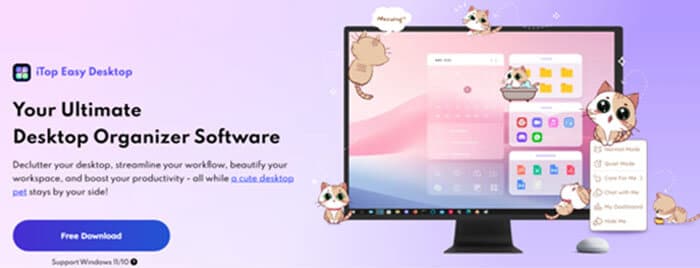
Before using iTop Easy Desktop, I tried several ways to organize my desktop.. It provided a simple, practical way to keep my files, folders, and shortcuts organized without constant manual effort. Instead of regularly cleaning up my desktop, the software kept everything neatly organized, making it easy to maintain a clean, clutter-free workspace.
iTop Easy Desktop is designed to organize files, folders, and shortcuts on Windows.. It helps reduce desktop clutter by automatically organizing items into customizable desktop boxes, making related files easier to group and locate. The software also includes privacy features for hiding sensitive items and tools that help maintain a clean, organized workspace. Simplifying desktop management makes finding files faster and creates a more efficient environment for everyday work.
1. Features That Made the iTop Easy Desktop a Perfect Solution
What convinced me to keep using iTop Easy Desktop was its combination of practical organization features and ease of use. Here are the core features that make it the ultimate solution.
- Smart Auto-Decluttering: Automatically organizes files, folders, and shortcuts into customizable desktop boxes.
- Folder Portal: Access folders and files directly from your desktop.
- Quick Search & Hotkeys: Find files instantly with Smart Search and custom hotkeys.
- Private Box: Securely lock sensitive files and folders with password protection.
- Distraction-Free Desktop: Hide or restore desktop icons instantly with a double-click.
- AI Assistant: Built-in AI tools for quick assistance and task reminders.
2. How I Reclaimed My Screen Space with iTop Easy Desktop
I was surprised by how easy it was to reclaim my screen space with iTop Easy Desktop.
I replaced scattered desktop icons with customizable desktop boxes that kept related files organized. Whenever I wanted a distraction-free workspace, I could instantly hide all icons with a double-click. As a result, my desktop became cleaner, more organized, and much easier to work with. Check out the step-by-step process.
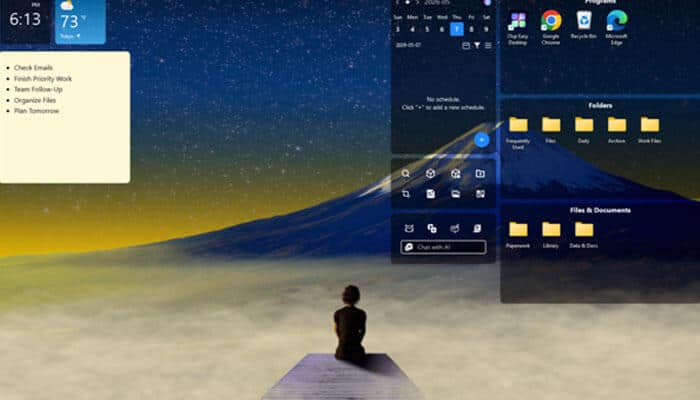
Step 1: Download and install iTop Easy Desktop. After the initial setup, it automatically groups scattered files, folders, and shortcuts into organized desktop boxes.
Step 2: Create desktop boxes for different projects or file types. You can also set sorting rules to automatically place new files into the appropriate box, reducing manual organization.
Step 3: Adjust box layouts, colors, fonts, and transparency to match your preferences. You can also personalize your desktop with wallpapers while keeping everything organized and easy to access.
Step 4: Take advantage of built-in productivity tools like Sticky Notes, Calendar, Clock, and Pomodoro Timer. Store sensitive files in a password-protected Private Box, and use the double-click hide feature whenever you need a clean, distraction-free desktop.
Before vs. After Using iTop Easy Desktop
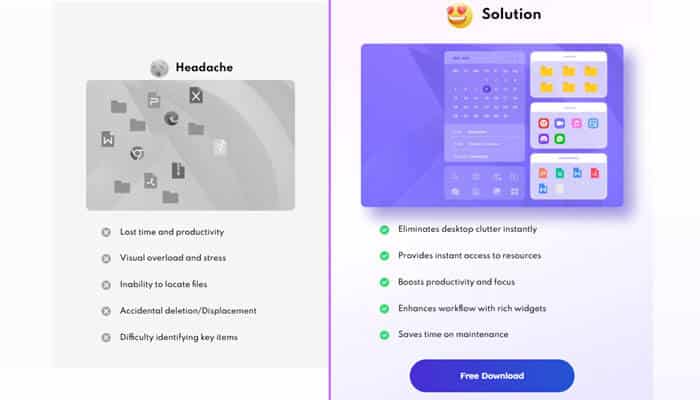
Before using iTop Easy Desktop, my desktop was cluttered with files, folders, and shortcuts. I wasted time searching for important documents and constantly reorganizing icons to reduce clutter. Despite my efforts, the clutter always returned, making my workspace look overwhelming and affecting my productivity.
After switching to iTop Easy Desktop, my desktop became much more organized. Related files were grouped into customizable desktop boxes, making them easier to find and manage. I no longer had to constantly rearrange files because the software kept everything organized with minimal effort. The cleaner layout reduced distractions and made my workspace feel more manageable. Instead of wasting time searching for files or cleaning up my desktop, I could focus on my work. Overall, the software helped me maintain a tidy desktop and made my daily workflow more efficient.
Conclusion
Managing desktop clutter manually became increasingly difficult as my workload grew. Using iTop Easy Desktop helped me keep files, folders, and shortcuts organized with far less effort. If you’re looking for reliable desktop organizer software, it offers a practical way to maintain a cleaner workspace, quickly find important files, and improve your daily productivity.
FAQs
Q1. Will organizing my desktop delete any files?
No. Desktop organization software simply rearranges or groups your files, folders, and shortcuts. It does not delete your data, so your files remain safe and accessible unless you choose to remove them yourself.
Q2. Will organizing my desktop delete any files?
No. Organizing your desktop only changes how files, folders, and shortcuts are arranged. Your original files remain untouched, so nothing is deleted unless you remove it yourself.
Q3. Will iTop Easy Desktop slow down my computer?
iTop Easy Desktop is designed to use system resources efficiently. On most computers, it runs smoothly in the background without noticeably affecting performance during everyday tasks.
