



A Honeywell thermostat may freeze, stop following its schedule, lose its Wi-Fi connection or display settings left by a previous homeowner. Resetting the thermostat can solve many of these problems, but numerous Honeywell Home models do not include a visible physical reset button. Learning how to reset Honeywell thermostat with no reset button begins with identifying the exact model and selecting the least destructive reset.
Newer thermostats usually place reset controls inside the Menu, Preferences, Advanced Setup or Installer Options screen. Older models may use a button combination, numbered installer function or basic power cycle. There is no universal reset sequence for every Honeywell thermostat. Instructions for a T5, T6, T9, T10, FocusPRO or VisionPRO model can be completely different. Following the wrong procedure may erase schedules, disconnect wireless sensors or change important HVAC equipment settings.
This complete guide explains how to reset Honeywell thermostat with no reset button across popular smart, programmable, Wi-Fi and older thermostat families. It also explains when to use a restart, Wi-Fi reset, schedule reset, smart-home reset or full factory reset.
Do not begin with a factory reset. Try a restart, Wi-Fi reset, or schedule reset first when the problem affects only one feature.
Quick Answer: How to Reset Honeywell Thermostat With No Reset Button
To understand how to reset Honeywell thermostat with no reset button, follow these general steps:
- Find the complete thermostat model number.
- Open Menu, Preferences, Advanced Setup or Installer Options.
- Select Reset, Restore Defaults or the equivalent option.
- Choose the reset that matches the problem:
- Restart or power cycle
- Wi-Fi reset
- Schedule reset
- HomeKit or Matter reset
- Wireless-sensor reset
- Factory reset
- Confirm the selection.
- Allow the thermostat and HVAC equipment time to restart.
- Reconfigure Wi-Fi, schedules, sensors and equipment settings if they were erased.
For many T5, T5+ and supported T6 Wi-Fi thermostats, press and hold Menu, scroll to Reset, choose Factory Reset, and confirm. T9 models use Menu → Advanced Setup → Reset, while T10 and T10+ models require the thermostat’s date code before Installer Options can be opened.
Key Takeaways
- Find the complete model number before following reset instructions.
- Use the least destructive reset that matches the problem.
- Removing batteries may restart the thermostat but does not guarantee a factory reset.
- Not every Honeywell thermostat labeled T6 uses the same procedure.
- Record HVAC and installer settings before performing a factory reset.
- Seek professional help if the thermostat repeatedly loses power or the HVAC configuration is uncertain.
Why Honeywell Thermostats Have No Reset Button
A missing reset button does not mean the thermostat cannot be reset. Honeywell Home thermostats use several control designs, including:
- Touchscreen menus
- Menu and Select buttons
- Arrow-button combinations
- Hidden installer screens
- Numbered configuration functions
- Date-code-protected menus
- Mobile-app controls
Newer connected thermostats usually provide several separate reset options because erasing the entire thermostat is rarely necessary.
Depending on the model, the reset menu may contain:
- Reset Schedule
- Reset Wi-Fi
- Reset HomeKit
- Reset Matter
- Delete Sensors
- Delete All Devices
- Factory Reset
Older programmable thermostats may provide only a schedule-restoration function. Removing their batteries may restart the display, but schedules and equipment settings stored in permanent memory can remain unchanged.
How to Identify Your Honeywell Thermostat
Finding the complete model number is the most important step before resetting.
The model information may be located:
- On the back of the removable thermostat faceplate
- On the original product packaging
- On an identification card supplied with the thermostat
- Inside Thermostat Information
- Inside Device Information
- Inside Dealer Information
- In the thermostat’s mobile-app settings
Common model numbers include:
- RCHT8610WF
- RCHT8612WF
- RCHT9510WF
- RCHT9610WF
- TH6220WF
- TH6320WF
- THX321WF
- RTH6580WF
- RTH9585WF
- TH8320WF
- TH8321WF
- TH4110U
- RTH2300
- RTH221
How to check the model safely
- Set the thermostat’s system mode to Off.
- Hold the thermostat by both sides.
- Pull it gently and evenly away from the wall plate.
- Do not remove the wall plate or disconnect any wires.
- Photograph the label containing the model number and date code.
- Align the thermostat with the wall plate.
- Press it back into position evenly.
Do not force a thermostat that does not detach easily. Consult the product manual instead.
Do not rely only on the product name
Not every thermostat labeled “T6” uses the same instructions.
| T6 category | Common identifier | Connection type |
| T6 Pro Smart | Model number often contains WF | Wi-Fi |
| T6 Pro Programmable | Model number often contains U | Usually non-Wi-Fi |
| T6 Z-Wave | Model number may contain ZW | Z-Wave hub |
| T5/T6 retail smart family | RCHT or related number | Wi-Fi |
| Regional T6 models | May connect to a receiver box | Market-dependent |
A reset sequence intended for a T6 Pro Smart thermostat should not automatically be used on a T6 Pro Programmable, T6 Z-Wave or regional T6 model.
Check the country and voltage
Honeywell and Resideo sell regional products that may share similar names but use different hardware and reset procedures.
Before proceeding, confirm:
- Country of purchase
- Complete model number
- Voltage rating
- Whether the thermostat controls a boiler or forced-air HVAC system
- Whether it communicates with a separate receiver
- Whether it uses Wi-Fi, Matter, RedLINK or Z-Wave
Stop if you see thick electrical wires, wire nuts or a 120/240-volt label. These can indicate a line-voltage thermostat that should be handled by a qualified technician.
What to Record Before a Factory Reset
A factory reset may return the thermostat to its pre-installation state. Before proceeding, photograph or write down:
- Complete model number
- Date code
- MAC ID and CRC
- Current Wi-Fi network
- Heating equipment type
- Cooling equipment type
- Conventional or heat-pump configuration
- Number of heating and cooling stages
- Auxiliary and emergency-heat settings
- O/B reversing-valve setting
- Fan-control setting
- Temperature limits
- Temperature-display offset
- Current schedule
- Connected room sensors
- RedLINK accessories
- Equipment interface module
- Humidifier settings
- Dehumidifier settings
- Ventilator settings
- HomeKit or Matter pairing
- Geofencing settings
- Utility energy-program enrollment
- Installer or HVAC contractor details
This is particularly important for heat pumps, multistage equipment, and thermostats connected to an equipment interface module.
Which Type of Reset Should You Use?
The word “reset” can describe several different procedures.
| Reset type | What it does | Best used when |
| Restart or power cycle | Reboots the thermostat without intentionally erasing settings | Frozen display, delayed response or temporary fault |
| Wi-Fi reset | Clears or replaces network information | New router, changed password or offline thermostat |
| Schedule reset | Restores or clears programmed temperature periods | Incorrect or unwanted schedule |
| HomeKit reset | Removes Apple Home pairing | HomeKit connection has failed |
| Matter reset | Removes Matter pairing | Matter ownership or pairing has changed |
| Sensor reset | Removes connected wireless sensors | Replacing or troubleshooting sensors |
| Reminder reset | Clears maintenance notifications | Filter has been replaced |
| Factory reset | Restores broad default settings | New installation, new owner or serious configuration issue |
| Account removal | Unregisters the thermostat from an online account | Previous owner still controls the device |
Restart versus factory reset
A restart is similar to rebooting a phone or router. It may clear a temporary problem without intentionally changing the thermostat’s setup.
A factory reset is more destructive. It may erase:
- Schedules
- Time and date
- Wi-Fi credentials
- Mobile-app connection
- HomeKit or Matter pairing
- Sensor associations
- Geofencing
- Display preferences
- Equipment type
- Heating and cooling stages
- Installer configuration
Choose the right reset for the problem
| Problem | Best first action | Avoid initially |
| Frozen screen | Power cycle | Factory reset |
| New router installed | Change Network or Reset Wi-Fi | Erasing HVAC settings |
| Schedule changes temperature | Cancel Hold or reset schedule | Factory reset |
| HomeKit pairing fails | HomeKit reset | Full factory reset |
| Matter pairing fails | Matter reset | Deleting system configuration |
| One sensor fails | Delete and re-add that sensor | Deleting every sensor |
| Blank display | Check batteries and HVAC power | Entering installer options |
| “Wait” or flashing “Cool On” | Allow compressor delay | Repeated power cycling |
| Filter alert remains | Clear the reminder | Factory reset |
| Previous owner is registered | Remove device from previous account | Assuming reset unregisters it |
Honeywell Thermostat Reset Methods by Model
| Thermostat family | Example models or family | Factory-reset access |
| X7S and X7B | X7 family | Menu → Advanced Setup → Reset |
| X8S and X8Q | X8 family | Menu → Advanced Setup → Reset |
| T5, T5+ and T6 Smart | RCHT8610WF, RCHT8612WF, TH6220WF2, TH6320WF2 | Hold Menu → Reset → Factory Reset |
| T9 | RCHT9510WF, RCHT9610WF | Menu → Advanced Setup → Reset → Factory Reset |
| T10 and T10+ | THX321WF family | Thermostat Information → Date Code → Installer Options → Reset |
| Smart/Lyric Round | TH8732WFH | Hold Cloud icon → Reset |
| Smart Wi-Fi 9000 | RTH9580WF, RTH9585WF, TH9320WF | Menu → Preferences → Restore Factory Defaults |
| FocusPRO P200/S200 | P200 and S200 families | Hold bottom-left button + Up arrow → RSET |
| FocusPRO 6000 Wi-Fi | TH6320WF1, RTH6580WF | Hold Up arrow + Fan → 90/1 |
| VisionPRO 8000 | TH8320WF, RTH8580WF | System → blank center area → 0710/1 |
| VisionPRO TH8321WF | TH8321WF | Dealer Information → Date Code → Installer Options |
| ElitePRO | S900–S1200 families | Thermostat Information → Date Code → Installer Options → Reset |
Menu wording can vary by model, firmware, region, and installation configuration.
How to Reset Honeywell Thermostat With No Reset Button by Model
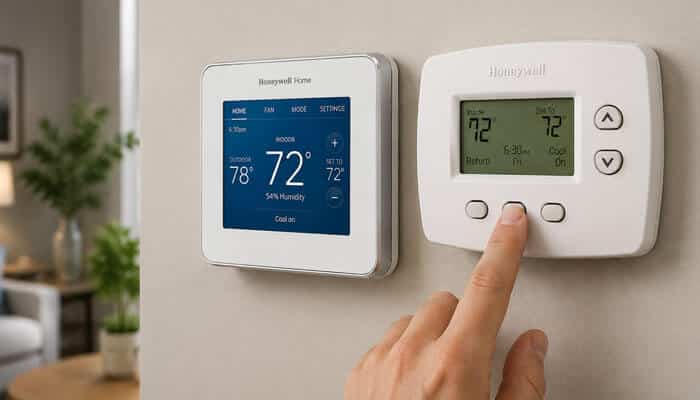
The correct procedure depends on the exact thermostat family. Use the instructions below only after confirming the complete model number.
How to Reset a Honeywell X7S or X7B
The X7S and X7B place their reset options inside Advanced Setup.
- Touch the Menu icon.
- Select Advanced Setup.
- Scroll to Reset.
- Choose the appropriate option.
- Confirm the reset.
Available options may include:
- Reset Schedule
- Delete All Devices
- Reset Matter
- Reset Wi-Fi
- Factory Reset
Delete All Devices removes connected wireless sensors. Factory Reset returns the thermostat to its pre-installation condition.
Choose the right X7 reset
| Problem | Recommended option |
| New router or password | Reset Wi-Fi |
| Matter pairing problem | Reset Matter |
| Incorrect program | Reset Schedule |
| Removing wireless sensors | Delete All Devices |
| Complete reinstallation | Factory Reset |
How to Reset a Honeywell X8S or X8Q
The X8S and X8Q use a reset menu similar to the X7 family.
- Touch Menu.
- Select Advanced Setup.
- Open Reset.
- Choose the appropriate reset.
- Confirm the selection.
Available choices may include:
- Reset Schedule
- Delete All Devices
- Reset Matter
- Reset Wi-Fi
- Factory Reset
Use Reset Wi-Fi when changing the network. Reserve Factory Reset for a complete reinstallation or ownership transfer.
How to Reset a Honeywell T5, T5+ or T6 Smart
These instructions apply to supported Wi-Fi models such as:
- RCHT8610WF
- RCHT8612WF
- TH6220WF2
- TH6320WF2
Factory-reset steps
- Wake the thermostat display.
- Press and hold Menu.
- Press the right arrow until Reset appears.
- Select Reset.
- Scroll to Factory Reset.
- Select it.
- Confirm the reset.
- Allow the thermostat to restart.
Reset only Wi-Fi
- Press and hold Menu.
- Scroll to Reset.
- Select Wi-Fi.
- Confirm the reset.
- Reconnect using the compatible app or thermostat screen.
Reset only the schedule
- Press and hold Menu.
- Scroll to Reset.
- Select Schedule.
- Confirm the reset.
Reset HomeKit
- Press and hold Menu.
- Scroll to Reset.
- Select HomeKit Reset.
- Confirm the selection.
Do not apply these instructions automatically to non-Wi-Fi T6 Pro Programmable or T6 Z-Wave thermostats.
How to Reset a Honeywell T9
The T9 uses its touchscreen Advanced Setup menu.
Factory reset
- Tap Menu.
- Scroll to Advanced Setup.
- Select Reset.
- Select Factory Reset.
- Confirm the reset.
Change the Wi-Fi network
- Open Menu.
- Select Wi-Fi.
- Choose Change Network.
- Select the replacement network.
- Enter the password.
Reset the schedule
- Open Menu.
- Select Advanced Setup.
- Select Reset.
- Choose Schedule Reset.
Reset HomeKit
- Open Menu.
- Select Advanced Setup.
- Select Reset.
- Choose HomeKit Reset.
These procedures apply to supported T9 models such as RCHT9510WF and RCHT9610WF.
How to Reset a Honeywell T10 or T10+
The T10 and T10+ protect installer-level controls with the thermostat’s date code.
- Touch Menu.
- Scroll to Thermostat Information.
- Record the displayed date code.
- Return to the previous menu.
- Open Installer Options.
- Enter the date code.
- Select Reset.
- Choose the required option.
- Confirm the reset.
Available options may include:
- Reset Schedule
- Delete All Sensors
- Reset HomeKit
- Reset Wi-Fi
- Factory Reset
Important T10 and T10+ warning
Some installations include:
- RedLINK sensors
- Equipment interface modules
- Humidifiers
- Dehumidifiers
- Ventilators
- Multistage equipment
- Heat pumps with backup heat
A factory reset may require these devices and settings to be configured again. Photograph the current equipment setup before proceeding.
How to Reset a Smart or Lyric Round Thermostat
The TH8732WFH Smart/Lyric Round uses icons rather than a conventional reset button.
Factory reset
- Press and hold the Cloud icon.
- Continue holding until the setup screen appears.
- Press the information or navigation control until Reset appears.
- Select Reset.
- Allow the thermostat to restart.
Wi-Fi reset
- Hold the Cloud icon.
- Navigate to Wi-Fi.
- Continue to Setup.
- Select the setup option.
- Reconnect the thermostat.
Schedule reset
- Press Menu.
- Select Preferences.
- Select Restore Default Schedule.
HomeKit reset
- Hold the Cloud icon.
- Navigate to HomeKit Reset.
- Select and confirm it.
How to Reset a Smart Wi-Fi 9000
This family includes:
- RTH9580WF
- RTH9585WF
- TH9320WF
Factory reset
- Tap Menu.
- Select Preferences.
- Select Restore Factory Defaults.
- Select Yes.
- Wait for the thermostat to restart.
Wi-Fi reset
- Tap Menu.
- Select Wi-Fi Setup.
- Follow the displayed connection instructions.
Schedule reset
- Tap Menu.
- Select Preferences.
- Select Restore Default Schedule.
- Confirm the change.
How to Reset a FocusPRO P200 or S200
The newer FocusPRO P200 and S200 thermostats use a hidden Installer Menu.
- Press and hold the bottom-left button and Up arrow together.
- Hold them for approximately five seconds.
- Release them when Installer Menu appears.
- Use the arrows to find RSET.
- Press Select.
- Choose:
- Reset Schedule
- Reset Wi-Fi on compatible S200 models
- Factory Reset
- Confirm the selection.
- Exit the Installer Menu.
Do not change unrelated installer settings. They may control:
- Equipment type
- Heat-pump reversing valve
- Compressor stages
- Backup heat
- Fan control
- Temperature limits
- Compressor protection
How to Reset a FocusPRO 6000
These instructions apply to supported TH6320WF1 and RTH6580WF models.
Factory reset
- Press and hold Up arrow + Fan.
- Set the left number to 90.
- Set the right number to 1.
- Press Done.
Wi-Fi reset
- Hold Up arrow + Fan.
- Set the left number to 39.
- Set the right number to 0.
- Press Done.
Schedule reset
- Hold Up arrow + Fan.
- Set the left number to 85.
- Set the right number to 1.
- Press Done.
Do not alter other numbered functions while navigating this menu.
How to Reset a VisionPRO 8000
The TH8320WF and RTH8580WF use a hidden installer screen.
Factory reset
- Press System.
- Press and hold the blank center area near the bottom of the display.
- Set the left number to 0710.
- Set the right number to 1.
- Press Done.
Wi-Fi reset
- Open the same hidden screen.
- Set the left number to 0900.
- Set the right number to 0.
- Press Done.
Schedule reset
- Open the hidden screen.
- Set the left number to 0165.
- Set the right number to 1.
- Press Done.
How to Reset a VisionPRO TH8321WF
The TH8321WF uses a different procedure from the TH8320WF.
Factory reset
- Press Menu.
- Open Dealer Information.
- Scroll to the bottom.
- Record the date code.
- Press Done.
- Open Installer Options.
- Enter the date code.
- Select Reset to Defaults.
- Select Yes.
Wi-Fi reset
- Press Menu.
- Navigate to Wi-Fi Setup.
- Select it.
- Follow the connection prompts.
For a basic reconnection attempt, remove the faceplate from the wall plate for approximately 30 seconds and then reattach it. This restarts the connection attempt without necessarily erasing stored network information.
How to Reset an ElitePRO Thermostat
ElitePRO thermostats may control advanced equipment, RedLINK accessories and equipment interface modules. Treat a factory reset as an installer-level action.
- Touch Menu.
- Select Thermostat Information.
- Record the date code.
- Return to the previous screen.
- Select Installer Options.
- Enter the date code.
- Select Reset.
- Choose:
- Reset Schedule
- Delete All Devices
- Reset Matter
- Reset Wi-Fi
- Factory Reset
- Confirm the selection.
Do not perform a complete reset unless you have recorded:
- Heating and cooling stages
- Heat-pump configuration
- Equipment interface module
- RedLINK accessories
- Indoor-air-quality equipment
- Sensor-priority settings
How to Restart a Honeywell T4 Pro
If you are trying to understand how to reset Honeywell thermostat with no reset button, note that the Honeywell T4 Pro does not use battery removal as a complete factory-reset method. Most thermostat settings are stored permanently and remain saved even when battery power is removed.
Steps to Restart a Honeywell T4 Pro
- Set the thermostat system mode to Off.
- Gently pull the thermostat straight away from the wall plate.
- Replace the AA alkaline batteries if your model uses them.
- Reattach the thermostat securely to the wall plate.
- Restore the correct heating, cooling or automatic operating mode.
- Reset the time and day if they are no longer correct.
This process restarts the thermostat but may not erase installer settings, schedules or system configuration. When searching for how to reset Honeywell thermostat with no reset button, always follow the instructions for your exact T4 Pro model.
Consult the official T4 Pro installer guide before changing advanced system settings. Do not use Honeywell T5 or T6 Smart thermostat reset instructions on a T4 Pro, because the menu options and reset procedures are different.
How to Reset an Older RTH2300 or RTH221
Older RTH thermostats may not provide a complete factory reset.
Restore the RTH2300 schedule
- Enter the thermostat’s System Setup menu.
- Advance to function 40.
- Change the setting from 0 to 1.
- Save and exit.
Function 40 restores the default RTH2300 schedule. It is not a complete factory reset and does not apply to the RTH221.
When no factory-reset option exists
- Set the system switch to Off.
- Install fresh batteries correctly.
- Reset the time and day if necessary.
- Reprogram the schedule.
- Consult the exact model manual for available setup options.
How to Power-Cycle a Honeywell Thermostat
A power cycle is usually the safest first step when the thermostat is frozen, slow or temporarily unresponsive.
Battery-operated thermostat
- Set the system to Off.
- Remove the thermostat faceplate.
- Remove the batteries.
- Wait approximately 30 seconds.
- Install fresh alkaline batteries in the marked orientation.
- Reattach the thermostat.
- Select Heat, Cool or Auto.
- Allow the HVAC system time to respond.
Wired thermostat
- Set the thermostat to Off.
- Turn off the correct HVAC breaker or service switch.
- Wait 30 to 60 seconds.
- Restore power.
- Allow the thermostat to restart.
- Select the correct operating mode.
- Wait for any compressor-protection delay.
Avoid the reverse-battery trick
Some unofficial guides recommend inserting batteries backward. This is not a universal Honeywell Home reset method.
Install batteries only in the polarity shown inside the thermostat unless the official manual for the exact model states otherwise.
How to Reset Honeywell Thermostat With No Reset Button When Wi-Fi Fails
A complete factory reset is normally unnecessary when the thermostat works locally but cannot connect to the internet.
Try these steps:
- Restart the router.
- Confirm the network name and password.
- Check whether the thermostat displays a Wi-Fi icon.
- Power-cycle the thermostat.
- Use Change Network, Choose Network, Wi-Fi Setup or Reset Wi-Fi.
- Reconnect using the compatible app.
- Allow several minutes for the status to update.
Wi-Fi troubleshooting table
| Problem | Recommended action |
| New router installed | Choose Change Network or Wi-Fi Setup |
| Password changed | Reconnect and enter the new password |
| Thermostat suddenly offline | Restart the router and thermostat |
| No networks appear | Confirm that a compatible network is active |
| App cannot find thermostat | Use Add Device in the correct app |
| Device belongs to another account | Ask the previous owner to remove it |
| App says offline while thermostat is online | Check the app service and account |
| Connection repeatedly drops | Check signal strength, power, and router settings |
Which Honeywell thermostat app should you use?
Depending on the model and account history, a Honeywell Home thermostat may use:
- First Alert App
- Resideo App
- Honeywell Home App
- Total Connect Comfort
- Resideo Pro App for supported professional setup
Honeywell Home continues to support multiple app environments. Use the exact thermostat model and official app guidance rather than assuming every thermostat uses the same application.
How to Fix Schedule and Hold Problems
A thermostat that changes temperature unexpectedly may be following a programmed feature rather than malfunctioning.
Check for:
- Temporary Hold
- Permanent Hold
- Recovery
- Geofencing
- Auto Away
- Room-sensor priority
- Smart-home routines
- Utility energy-saving programs
- Incorrect time or time zone
- Another app user changing the temperature
Temporary hold
A temporary hold normally remains active until the next scheduled period. Select Cancel Hold, Run Schedule or the equivalent command to end it.
Permanent hold
A permanent hold stays active until manually canceled. Select Cancel Hold or Run Schedule.
Recovery mode
Recovery allows the thermostat to begin heating or cooling early so the target temperature is reached at the scheduled time. It does not mean the thermostat is malfunctioning.
Reset the schedule only when you want to restore or erase the entire programmed timetable.
How to Reset HomeKit, Matter or Wireless Sensors
A narrow connection reset is safer than a full factory reset.
HomeKit reset
Use HomeKit Reset when:
- The thermostat cannot be added to Apple Home
- It belongs to a previous Apple Home
- Pairing information appears corrupted
- Ownership is changing
Supported T5/T6, T9 and T10 families provide dedicated HomeKit reset options.
Matter reset
Newer X7, X8 and ElitePRO thermostats may provide a separate Matter reset. This removes Matter pairing without necessarily erasing the HVAC configuration.
Wireless-sensor reset
Use Delete All Devices, Delete All Sensors or an individual sensor’s delete option when:
- A sensor has been replaced
- Sensors belong to a previous owner
- A sensor repeatedly fails to communicate
- The thermostat is being moved to another property
Do not delete every sensor when only one is malfunctioning if individual deletion is available.
How to Clear a Filter Reminder
A filter-reminder reset does not restart the thermostat or erase its schedule.
The exact process varies by model, but it generally involves:
- Replace or inspect the HVAC filter.
- Open Menu, Alerts or Reminders.
- Select the filter notification.
- Choose Clear, Dismiss or Reset.
- Confirm that the alert disappears.
On a supported T4 Pro:
- Press Menu.
- Scroll to ALRT.
- Press Select.
- Locate the filter reminder.
- Choose CLER.
- Press Select.
Replace or inspect the filter before clearing the reminder.
How to Unlock a Honeywell Thermostat
A locked display may prevent access to the reset menu.
Supported T5, T5+ and T6 Pro Wi-Fi models
The recovery PIN may be calculated from the four-digit date code:
- Remove the faceplate gently.
- Find the four-digit date code.
- Add 1234 to the date code.
- Enter the result as the PIN.
Example:
1632 + 1234 = 2866
The unlock PIN would be 2866.
Supported T4 Pro models
- Press the center button.
- Enter 1234.
- Press Select after each digit.
Do not assume the same unlock method applies to every thermostat.
If the thermostat is controlled by a landlord, employer, school or building manager, obtain authorization before changing it.
How to Transfer a Thermostat to a New Owner
A hardware reset and online-account removal are not always the same process.
When moving into a home
- Ask the previous owner to remove the thermostat from their account.
- Change or reset Wi-Fi.
- Add the thermostat to the correct app.
- Remove old HomeKit or Matter connections.
- Review schedules and sensor priorities.
- Factory-reset only if the complete configuration should be cleared.
- Verify the HVAC equipment settings afterward.
When leaving a home
- Remove the thermostat from your app account.
- Reset Wi-Fi.
- Remove HomeKit or Matter pairing.
- Disconnect Alexa, Google Home, Apple Home or other services.
- Remove personal geofencing information.
- Factory-reset the thermostat when appropriate.
- Leave the model number and equipment information for the new owner.
A factory reset may erase local network information but may not automatically unregister the thermostat from an online account.
What Happens After a Factory Reset?
After resetting, the thermostat may ask you to configure:
- Language
- Date and time
- Time zone
- Temperature scale
- Heating equipment type
- Cooling equipment type
- Conventional or heat-pump system
- Heating and cooling stages
- O/B reversing-valve operation
- Fan control
- Wi-Fi network
- App account
- HomeKit or Matter connection
- Room sensors
- Schedule
- Geofencing
- Humidifier or ventilator settings
Post-reset checklist
Before relying on the thermostat:
- Confirm that the displayed temperature appears reasonable.
- Set the correct date, time and time zone.
- Verify conventional versus heat-pump operation.
- Confirm the number of heating and cooling stages.
- Check the O/B reversing-valve setting.
- Verify fan control.
- Reconnect Wi-Fi.
- Add the thermostat to the correct app.
- Restore the schedule.
- Reconnect sensors.
- Reconnect smart-home services.
- Test heating.
- Test cooling when outdoor conditions permit.
- Allow the equipment-protection delay to expire.
How long should recovery take?
| Function | Possible post-reset behavior |
| Thermostat screen | Usually returns within a few minutes |
| Wi-Fi | May reconnect automatically or require setup |
| App status | May take several minutes to update |
| Heating or cooling | May be delayed for about five minutes |
| Wireless sensors | May take several minutes to reconnect |
| HomeKit or Matter | May require pairing again |
| Time and weather | May require an internet connection |
A flashing Cool On, Heat On, Wait or Waiting for Equipment message usually indicates compressor protection rather than a failed reset.
Troubleshooting How to Reset Honeywell Thermostat With No Reset Button
If the correct reset procedure does not work, the thermostat may have a power, wiring, account or HVAC-equipment problem.
The thermostat screen is blank
Check:
- Fresh batteries
- HVAC circuit breaker
- Furnace or air-handler power switch
- Furnace access door
- Wall-plate connection
- C-wire connection
- Low-voltage fuse
- Condensate safety switch
A reset cannot restore missing HVAC power.
The reset option is missing
Possible causes include:
- Wrong model instructions
- Locked screen
- Factory reset hidden under Installer Options
- Regional model variation
- Different firmware
- Thermostat supports only schedule restoration
- Incorrect T6 or VisionPRO instructions
Check the complete model number and consult its official manual.
Heating or cooling does not start
Confirm that:
- The thermostat is in the correct mode.
- The heating setpoint is above room temperature.
- The cooling setpoint is below room temperature.
- Heat On or Cool On appears.
- The protection delay has expired.
- The breaker and HVAC switch are on.
- The furnace door is closed.
- Installer settings match the equipment.
The thermostat keeps restarting
Repeated startup screens can indicate:
- Loose C-wire connection
- Intermittent furnace power
- Loose wall-plate connection
- Failing transformer
- Furnace control-board problem
- Condensate safety switch
- Dirty HVAC filter
- Restricted airflow
- Furnace high-limit switch
Do not repeatedly factory-reset a thermostat that continually loses power.
The thermostat keeps returning to an unwanted temperature
Check:
- Programmed schedule
- Temporary-hold expiration
- Recovery mode
- Geofencing
- Smart-home routines
- Utility energy events
- Remote-sensor priority
- Another app user
- Incorrect date or time zone
- Heating and cooling range limits
The displayed temperature appears incorrect
Before resetting:
- Compare the reading with a reliable thermometer.
- Allow both readings time to stabilize.
- Check for direct sunlight.
- Check nearby supply vents.
- Look for drafts through the wall opening.
- Check nearby lamps, televisions or appliances.
- Review the temperature offset.
- Check which room sensor controls the system.
A reset may clear a configured offset, but it cannot repair a failed sensor or poor thermostat placement.
The thermostat is already registered
A factory reset may not remove the thermostat from a previous owner’s account.
Ask the previous owner to delete the device. If that is not possible, contact Resideo support with:
- Model number
- MAC ID
- CRC
- Date code
- Proof of ownership if requested
Common Reset Myths
Myth 1: Removing the batteries always factory-resets the thermostat
Many Honeywell thermostats store settings permanently. Battery removal may restart the display without erasing schedules or installer configuration.
Myth 2: Every T6 uses the same reset procedure
T6 Smart, T6 Pro Programmable, and T6 Z-Wave products can use different controls and menus.
Myth 3: Factory reset is always the best first step
A restart, Wi-Fi reset, schedule reset or pairing reset is usually safer.
Myth 4: A blank screen means the software failed
A blank display can result from dead batteries, a breaker, furnace-door switch, C-wire problem, or interrupted HVAC power.
Myth 5: Factory reset automatically removes the previous owner
Online registration may remain until the device is deleted from the previous account.
Myth 6: Resetting repairs a damaged temperature sensor
A reset may remove an offset, but it cannot repair a defective sensor.
Myth 7: Installing batteries backward is a universal reset method
It is not a universal official procedure and should not be attempted without exact model instructions.
When Not to Reset the Thermostat
Do not perform a factory reset when:
- The thermostat smells burned.
- Wires are loose, damaged or overheated.
- A breaker repeatedly trips.
- Water is leaking near the furnace or air handler.
- The thermostat repeatedly loses power.
- The system type is unknown.
- The thermostat controls specialized commercial equipment.
- An equipment interface module cannot be reconfigured.
- The thermostat belongs to a managed building.
- Extreme weather makes losing heating or cooling unsafe.
A reset cannot repair:
- Failed transformer
- Blown low-voltage fuse
- Damaged wiring
- Faulty contactor
- Broken compressor
- Failed furnace control board
- Clogged condensate drain
- Defective limit switch
- Empty heating-fuel supply
- Mechanical HVAC failure
Contact a qualified HVAC technician when the wiring, system type or installer configuration is uncertain.
Final Thoughts
Understanding how to reset Honeywell thermostat with no reset button requires identifying the exact model and choosing the correct reset for the problem. A Wi-Fi problem should normally receive a Wi-Fi reset. An incorrect schedule should receive a schedule reset. A frozen display should be power-cycled before a complete factory reset is considered.
Do not choose a procedure based only on the product name printed on the thermostat. Similar-looking T6, FocusPRO and VisionPRO models can use different menus and installer functions. When a factory reset is necessary, record the HVAC configuration, network details, sensors and connected equipment first. After resetting, verify the system type, stages, fan operation, schedule and smart-home connections.
Following the correct steps for how to reset Honeywell thermostat with no reset button can resolve many software, scheduling and connection problems without erasing settings unnecessarily. If the thermostat remains blank, repeatedly restarts or causes incorrect heating and cooling operation, stop resetting it and contact a qualified HVAC technician.
How to Reset Honeywell Thermostat With No Reset Button FAQs
1. How to reset Honeywell thermostat with no reset button?
To reset a Honeywell thermostat without a reset button, first identify the complete model number. Open Menu, Preferences, Advanced Setup or Installer Options, select Reset, and choose the appropriate option. The exact steps vary between T5, T6, T9, T10, FocusPRO, VisionPRO and older models.
2. Will removing the batteries reset a Honeywell thermostat?
Removing the batteries may restart the thermostat, but it does not always perform a factory reset. Many Honeywell thermostats store schedules and equipment settings in permanent memory. Leave the batteries out for about 30 seconds, reinstall them correctly and use the official model-specific reset menu for a complete reset.
3. Are all Honeywell T6 reset instructions the same?
No. T6 Pro Smart, T6 Pro Programmable, T6 Z-Wave and regional T6 models can use different reset procedures. Check the full model number before following instructions because a reset sequence intended for a Wi-Fi T6 may not work on a non-Wi-Fi or Z-Wave model.
4. How do I reset a Honeywell thermostat after installing a new router?
Open Wi-Fi Setup, Change Network, Choose Network or Reset Wi-Fi. Select the new network and enter the password. A full factory reset is usually unnecessary because a Wi-Fi reset normally preserves the schedule and HVAC configuration.
5. Why does my Honeywell thermostat say “Wait” after resetting?
A Wait, Cool On, Heat On or Waiting for Equipment message usually indicates compressor protection. The thermostat delays heating or cooling to prevent the equipment from restarting too quickly. Wait approximately five minutes before troubleshooting further.
