


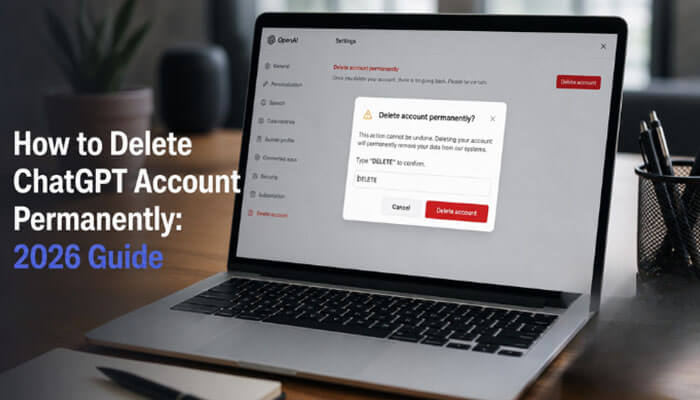

Learning how to delete ChatGPT account is important if you no longer want to use ChatGPT, want to remove your OpenAI account, or want better control over your personal data. Many users think deleting chats, uninstalling the app, canceling ChatGPT Plus, and deleting a full ChatGPT account are the same thing. They are not.
Deleting a single chat only removes that conversation from your chat history. Deleting your ChatGPT account permanently removes your OpenAI account access, including access to ChatGPT and API services. OpenAI says account deletion is permanent, cannot be undone, and prevents access to OpenAI services, including ChatGPT and API. OpenAI also says deleted account data is deleted within 30 days, except for limited data that may be retained longer where required or permitted by law.
This complete 2026 guide explains how to delete ChatGPT account permanently on the web, iPhone, Android, and through OpenAI’s Privacy Portal. It also explains what to do before deletion, how to export your data, how to cancel subscriptions, how to delete chats, how to remove saved memories, how to delete uploaded files, how to revoke shared links, and what alternatives you can use if you do not want to delete your full account.
What Does Deleting a ChatGPT Account Mean?
Deleting a ChatGPT account means permanently deleting your OpenAI account. This is different from logging out, clearing browser history, uninstalling the ChatGPT app, deleting one conversation, archiving chats, turning off memory, or canceling a paid plan.
When you delete your account, you lose access to OpenAI services connected to that account. This can include ChatGPT access, API access, chat history, saved settings, files, projects, billing access, and account-level features. OpenAI states that account deletion is permanent and cannot be undone.
| Area | What Happens |
| ChatGPT access | You can no longer use that account |
| Chat history | Removed from your account and scheduled for deletion |
| OpenAI API access | Access through that account is removed |
| ChatGPT Plus/Pro access | Access ends for that account |
| Uploaded files | May need separate review before deletion |
| Shared links | Deleted account removes shared links |
| Same email signup | Usually possible after 30 days if fully deleted |
| Account recovery | Deleted accounts cannot be reactivated |
If your main goal is only to remove old conversations, you may not need to delete your full account. You can delete individual chats, archive chats, delete saved memories, remove uploaded files, revoke shared links, turn off model training, or use Temporary Chat instead.
My Experience Before Deleting a ChatGPT Account
Many users assume deleting the ChatGPT app or clearing chat history removes their account completely. During testing, I found that account deletion, chat deletion, memory removal, file deletion, and subscription cancellation are all separate actions. Before deleting an account, it is worth checking saved memories, uploaded files, and active subscriptions to avoid unexpected surprises later.
Quick Answer: How to Delete ChatGPT Account
To delete your ChatGPT account on the web:
- Sign in to ChatGPT.
- Click your profile icon.
- Go to Settings.
- Open Account.
- Find Delete account.
- Click Delete.
- Enter your account email.
- Type DELETE when asked.
- Click Permanently delete my account.
OpenAI says you may only delete your account if you have logged in within the last 10 minutes. If your login session is older, you may need to sign in again before you can delete the account.
Chat vs Memory vs Account
| Action | Removes Chats | Removes Memories | Removes Account |
|---|---|---|---|
| Delete Chat | ✅ | ❌ | ❌ |
| Delete Memory | ❌ | ✅ | ❌ |
| Delete Account | ✅ | ✅ | ✅ |
Before You Delete Your ChatGPT Account
Before following the steps for how to delete ChatGPT account permanently, review these important points.
1. Account Deletion Is Permanent
Once deleted, your ChatGPT account cannot be recovered. OpenAI says deleted accounts cannot be reactivated. You may be able to create a new account later with the same email only after the required waiting period, if the previous account was fully deleted.
2. Save Important Chats First
If you have useful writing drafts, SEO outlines, research notes, code, business ideas, prompts, uploaded documents, or client-related content, save them before deleting your account. Deleted chats cannot be recovered through the ChatGPT interface, APIs, or support.
3. Cancel Mobile Subscriptions Separately
If you subscribed through the Apple App Store or Google Play Store, deleting your OpenAI account does not cancel that mobile subscription. You must cancel the subscription through Apple or Google Play to stop future charges.
4. Deleting the App Is Not Enough
Uninstalling the ChatGPT app from your phone does not delete your account. It only removes the app from your device. Your account may still exist unless you delete it from ChatGPT settings or through OpenAI’s Privacy Portal.
5. Check Chats, Memories, Files, and Shared Links
Before deleting your full account, review your chats, saved memories, uploaded files, and shared links. These are separate privacy areas inside ChatGPT, and users often miss them when they only focus on account deletion.
Export Your ChatGPT Data Before Deleting
Before you delete your account, export your ChatGPT data if you want a personal copy. This is useful if your ChatGPT history includes articles, blog drafts, business notes, coding help, prompts, uploaded files, or research.
To export your ChatGPT data:
- Sign in to ChatGPT.
- Click your profile icon.
- Go to Settings.
- Click Data Controls.
- Under Export Data, click Export.
- Follow the verification steps.
- Check your email for the data export link.
OpenAI says chat exports are available from Settings > Data Controls > Export Data, but chat exports are not available for ChatGPT Business or Enterprise accounts.
Quick Pre-Deletion Checklist
| Task | Why It Matters |
| Export ChatGPT data | Keeps a personal copy before deletion |
| Save important chats | Deleted chats cannot be recovered |
| Delete sensitive chats | Removes private conversations from chat history |
| Delete saved memories | Removes remembered personal details |
| Delete uploaded files | Files may be stored separately from chats |
| Revoke shared links | Stops public access to shared conversations |
| Cancel mobile subscriptions | Apple/Google billing may continue unless cancelled |
| Check Business/API usage | Workspaces, billing, API keys, and projects may be affected |
How to Delete ChatGPT Account on Web
Follow these steps if you use ChatGPT from a desktop browser or a mobile browser.
Step-by-Step Process
- Open ChatGPT and sign in to your account.
- Click your profile icon in the top-right corner.
- Select Settings.
- Click Account.
- Under Delete account, click Delete.
- Enter your account email on the confirmation screen.
- Type DELETE in the required field.
- Click Permanently delete my account.
OpenAI’s web deletion process requires users to enter their account email and type DELETE before the permanent deletion button becomes available.
If you have not logged in within the last 10 minutes, ChatGPT may ask you to sign in again before allowing account deletion. This is a security step to make sure the account owner is making the request.
How to Delete ChatGPT Account on iPhone
If you use the ChatGPT iOS app, you can delete your account from the app settings.
Steps to Delete ChatGPT Account on iPhone
- Open the ChatGPT app on your iPhone.
- Navigate to your account settings.
- Tap Data Controls.
- Select Delete Account.
- Confirm by tapping Delete Account.
OpenAI’s iOS help page says users can delete their account from the ChatGPT app through Data Controls > Delete Account.
iPhone Subscription Warning
If you subscribed through Apple, cancel the subscription from your iPhone subscription settings. OpenAI says deleting a ChatGPT account through the web interface does not cancel an Apple App Store subscription.
How to Delete ChatGPT Account on Android
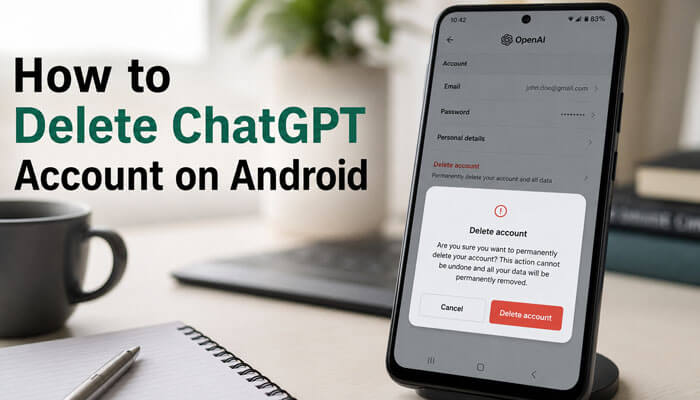
If you use the ChatGPT Android app, you can delete your account inside the app.
Steps to Delete ChatGPT Account on Android
- Open the ChatGPT Android app.
- Tap the menu icon.
- Open your account settings.
- Go to Data Controls.
- Tap Delete Account.
- Confirm the deletion.
OpenAI’s Android help page says deleting your account prevents access to OpenAI services, including ChatGPT and API, and deleted data is generally deleted within 30 days, except for limited legal or permitted retention cases.
Android Subscription Warning
If your subscription was purchased through Google Play, cancel it through the Google Play Store. OpenAI says Google subscriptions can be cancelled from the Google Play Store app or website while signed in with the same Google account used to subscribe.
How to Delete ChatGPT Account Through OpenAI Privacy Portal
You can also delete your account by submitting a request through OpenAI’s Privacy Portal.
Steps to Use the Privacy Portal
- Go to OpenAI’s Privacy Portal.
- Click Make a Privacy Request.
- Select I have a consumer ChatGPT account.
- Choose Delete my ChatGPT account.
- Follow the on-screen verification steps.
OpenAI says Privacy Portal self-serve deletion requires verification through an account email or phone number already linked to the account. If you cannot access either one, you may not be able to complete self-serve deletion and may need support for manual review.
Delete ChatGPT Account vs Delete Chats
Many users search for how to delete ChatGPT account when they only want to delete old conversations. These two actions are different.
| Action | What It Does | Can You Still Use ChatGPT? | Best For |
| Delete one chat | Removes one conversation | Yes | Removing private or old chats |
| Delete all chats | Removes all conversations | Yes | Cleaning chat history |
| Archive chats | Hides chats from the sidebar | Yes | Reducing clutter without deleting |
| Turn off model training | Stops chats from training models | Yes | Privacy control |
| Delete saved memory | Removes remembered personal details | Yes | Personalization control |
| Delete uploaded files | Removes saved files from the Library | Yes | File privacy |
| Revoke shared links | Removes public/shared chat access | Yes | Shared content control |
| Delete account | Permanently removes account access | No | Leaving ChatGPT completely |
OpenAI says deleted chats are removed from view immediately and scheduled for permanent deletion within 30 days, while archived chats remain in your account under standard retention settings.
How to Delete a ChatGPT Conversation
If you do not want to delete your full account, you can delete individual chats instead.
Steps to Delete One Chat
- Go to your ChatGPT chat history sidebar.
- Hover over the conversation you want to delete.
- Click the three dots next to the chat title.
- Select Delete.
- Confirm your deletion.
OpenAI says deleted chats cannot be recovered through the user interface, APIs, or support.
How to Delete or Archive All Chats
ChatGPT includes options to archive or delete all chats from Settings > Data Controls.
Use Archive all chats if you only want to hide conversations from the sidebar while keeping them in your account. Use Delete all chats if you want conversations removed from your account and scheduled for deletion.
OpenAI notes that archive/delete-all actions apply to all conversations, including conversations inside projects.
What About ChatGPT Memory?
Many users want to know how to delete ChatGPT account because they are worried about what ChatGPT remembers. However, deleting a chat and deleting saved memory are not always the same thing.
ChatGPT memory can include saved details you asked ChatGPT to remember or information used for personalization. OpenAI says turning saved memory off does not delete anything already remembered, and deleting a chat does not remove saved memory from that conversation.
How to Delete ChatGPT Saved Memories
- Open ChatGPT.
- Click your profile icon.
- Go to Settings.
- Select Personalization.
- Open Manage memories.
- Delete individual memories or delete all saved memories.
You can also ask ChatGPT to forget something. However, checking Manage memories is better if you want to confirm what is saved.
OpenAI says that to fully remove a memory, users should delete both the saved memory and the chat where the information was originally shared.
Delete Chat vs Delete Memory
| Action | What It Removes | Best For |
| Delete chat | Removes one conversation from history | Cleaning old chats |
| Delete saved memory | Removes remembered personal details | Privacy control |
| Turn off memory | Stops memory-based personalization | Future privacy |
| Temporary Chat | Avoids saving history or creating memories | Private one-time chats |
| Delete account | Permanently removes account access | Leaving ChatGPT completely |
How to Delete Uploaded Files from ChatGPT Library
If you uploaded documents, PDFs, spreadsheets, images, or other files to ChatGPT, do not assume they are deleted just because you delete a chat. OpenAI says chats and files are managed separately, and deleting a chat does not delete files saved to your Library.
Steps to Delete Uploaded Files
- Open ChatGPT.
- Go to the Library tab.
- Select the file you want to remove.
- Click Delete or the trash icon.
- Check projects or custom GPTs if you uploaded files there.
OpenAI says files are saved to your account until you delete them manually. When a file is deleted, it is removed from your account immediately and scheduled for permanent deletion within 30 days, unless exceptions apply.
This section is important because users searching how to delete ChatGPT account may also want to remove uploaded files before deleting their full account.
How to Delete or Revoke ChatGPT Shared Links
If you shared any ChatGPT conversation links, review them before deleting your account. Shared links allow other people to view a snapshot of a conversation.
OpenAI says deleting the original ChatGPT conversation deletes the shared link. OpenAI also says deleting your account deletes all your shared links. However, if someone imported the shared conversation into their own chat history, deleting your link may not remove that copied version from their account.
Steps to Delete or Revoke a Shared Link
- Open the shared conversation or shared link modal.
- Click the delete icon.
- Select Delete link.
- Confirm the action.
OpenAI says users can delete a shared link by opening the shared link modal and clicking Delete link.
Why This Matters
If your shared chat included personal details, business information, client data, private prompts, passwords, legal notes, health details, or confidential content, revoke the shared link before deleting your account. This gives you better control before permanent account deletion.
Account Deletion Problems and Solutions
| Problem | Solution |
|---|---|
| Delete button missing | Log out and sign in again |
| Verification failed | Check email or phone access |
| Subscription still active | Cancel through Apple or Google |
| Shared links remain accessible | Delete or revoke links manually |
| Uploaded files still visible | Remove files separately from Library |
| Memory still exists | Delete saved memories from Personalization |
What Happens After You Delete ChatGPT Account?
After you delete your ChatGPT account, several things happen.
| Item | Result |
| Account access | You lose access to ChatGPT and connected OpenAI services |
| Chat history | Removed from the account and scheduled for deletion |
| API access | No longer available through that account |
| Account recovery | Not available |
| Same email reuse | Usually possible after 30 days if fully deleted |
| Mobile subscription | Must be cancelled through Apple/Google if purchased there |
| Data deletion | Deleted account data is generally deleted within 30 days, with limited exceptions |
OpenAI says deleted account data is deleted within 30 days, except for a limited set of data that may be retained longer where required or permitted by law.
Can You Recover a Deleted ChatGPT Account?
No. A deleted ChatGPT account cannot be reactivated.
OpenAI says deleted accounts cannot be reactivated. If you want to use ChatGPT again later, you may be able to create a new account with the same email address after 30 days, provided the earlier account was fully deleted and not deactivated for policy reasons.
Can You Create a New ChatGPT Account With the Same Email?
Yes, but usually not immediately. OpenAI says you can create a new account using the same email address after 30 days, provided the previous account was fully deleted and not deactivated.
If you need ChatGPT access sooner, you may need to use another email address. However, if your account was disabled for policy reasons or associated with an Enterprise organization, the same email reuse option may not apply.
How to Cancel ChatGPT Subscription Before Deleting Account
Before you delete your ChatGPT account, check how you subscribed.
| Subscription Method | What to Do |
| ChatGPT website | Cancel the plan from account settings or delete the account if you are sure |
| Apple App Store | Cancel from iPhone App Store subscriptions |
| Google Play Store | Cancel from Google Play subscriptions |
| Business/Team account | Check workspace billing or admin settings |
| API billing | Review API billing, usage, invoices, and keys |
OpenAI says deleting an account does not cancel Apple App Store or Google Play Store subscriptions. Those must be cancelled separately through the mobile store.
Special Note for Business, Enterprise, and API Users
If you use ChatGPT for work, a team, or OpenAI API access, account deletion can affect more than normal chat history. OpenAI says deleting your account prevents access to OpenAI services, including ChatGPT and API.
Before deleting a work-related account, check the following:
| User Type | What to Check Before Deleting |
| ChatGPT Plus/Pro user | Cancel subscription or confirm billing status |
| Apple/Google subscriber | Cancel through App Store or Google Play |
| Business user | Check workspace billing and admin settings |
| API user | Save billing records, usage details, and important configuration |
| Shared project user | Move or save important project chats/files |
| Admin/owner | Transfer important workspace access if needed |
| Client work user | Save approved drafts, research, and files before deletion |
For business users, do not delete an account suddenly if it is connected to a team workspace, client workflow, API usage, billing records, or shared projects. Review workspace ownership, exported data, files, and payment settings first.
Alternatives to Deleting ChatGPT Account
You may not need full account deletion. Here are safer alternatives.
- Delete Specific Chats
Use this if only a few conversations contain personal or unwanted information.
- Delete All Chats
Use this if you want a clean ChatGPT history but still want to keep your account.
- Archive Chats
Use this if you want to hide conversations from the sidebar without deleting them.
- Delete Saved Memories
Use this if ChatGPT has remembered personal details that you no longer want saved.
- Delete Uploaded Files
Use this if you uploaded PDFs, images, spreadsheets, documents, or private files.
- Revoke Shared Links
Use this if you shared conversations with others and want to remove public access.
- Turn Off Model Training
If your concern is privacy, you can turn off model training. OpenAI says turning off model training applies across the account, and chats still appear in history but are not used to train ChatGPT.
- Use Temporary Chat
Temporary Chat is useful when you do not want a conversation saved in your regular chat history. OpenAI says Temporary Chats are deleted from its systems after 30 days, are not used to train models, are not saved in history, and do not create memories.
Common ChatGPT Account Deletion Problems
| Problem | Possible Reason | Solution |
| The delete account button is not showing | You may not have logged in recently | Log out, log in again, and retry |
| Cannot verify account | You may not have access to the linked email or phone | Use Privacy Portal guidance or contact support |
| Subscription still active | Mobile subscriptions are managed by Apple or Google | Cancel directly from App Store or Google Play |
| Deleted chat is still remembered | Saved memory may be separate from chat history | Delete saved memories from Personalization settings |
| Uploaded files are still visible | Files may be stored separately in the Library | Delete files from the Library manually |
| Shared link still accessible | The link may not have been revoked yet | Delete or revoke the shared link |
| Want the account back | Deletion is permanent | Wait 30 days and create a new account if eligible |
| API access stopped | Account deletion removes OpenAI service access | Save billing/API details before deleting |
| Chat history missing | You may be in the wrong account or workspace | Check email, workspace, archived chats, and data export |
OpenAI says deleted chats are removed from view immediately and scheduled for permanent deletion within 30 days, unless de-identification, legal, or security exceptions apply.
Common Reasons People Delete ChatGPT Accounts
- Privacy concerns
- Unused accounts
- Multiple accounts
- Subscription cancellation
- Business account changes
- Data management preferences
Conclusion
Knowing how to delete ChatGPT account is important if you want to permanently remove your OpenAI account and stop using ChatGPT. The process is simple, but the decision should be made carefully because account deletion is permanent and cannot be undone.
If you only want more privacy, you may not need to delete your full account. You can delete chats, archive chats, delete saved memories, delete uploaded files, revoke shared links, turn off model training, or use Temporary Chat.
Deleting a ChatGPT account should be a final step rather than the first option. Many privacy concerns can be addressed by deleting chats, removing saved memories, revoking shared links, deleting uploaded files, or turning off model training. If you decide to proceed, make sure you have exported important data and cancelled active subscriptions because account deletion is permanent and cannot be reversed.
How to Delete ChatGPT Account FAQs
1. How to delete ChatGPT account permanently?
To delete your ChatGPT account permanently, sign in to ChatGPT, go to Settings > Account > Delete account, enter your email, type DELETE, and confirm permanent deletion. This action cannot be undone.
2. What happens after I delete my ChatGPT account?
After you delete your ChatGPT account, you lose access to ChatGPT and other OpenAI services connected to that account. Deleted chats are generally removed from OpenAI systems within 30 days, unless legal or security exceptions apply.
3. Can I recover my ChatGPT account after deleting it?
No, a deleted ChatGPT account cannot be reactivated. OpenAI says you may need to wait at least 30 days before creating a new account with the same email address.
4. Is deleting ChatGPT chats the same as deleting a ChatGPT account?
No. Deleting chats only removes conversations from your ChatGPT history, while deleting your ChatGPT account permanently removes account access. If you only want to clean your history, deleting or archiving chats is a better option.
5. What should I do before deleting my ChatGPT account?
Before deleting your ChatGPT account, export important data, save useful chats, cancel any active subscription, delete saved memories, remove uploaded files, and revoke shared links. This helps you avoid losing important content permanently.
