


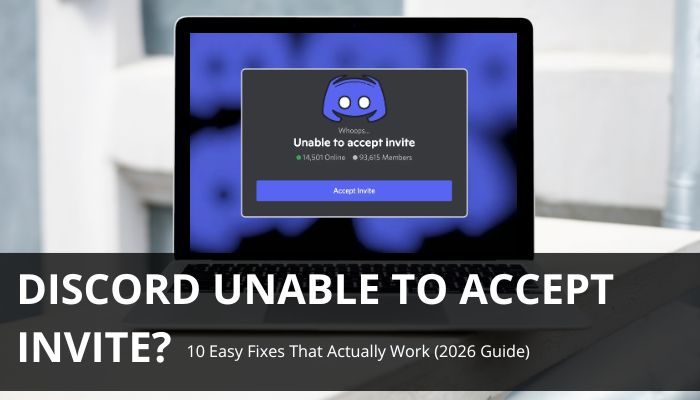

Discord Unable to Accept Invite is one of the most common Discord errors users face when trying to join a gaming server, study group, creator community, business server, or private chat. This issue usually happens when Discord cannot verify the invite link, your account cannot access the server, or the server settings are blocking new members.
In most cases, the Discord Unable to Accept Invite error is caused by an expired invite link, invalid invite code, deleted invite, Discord server limit, account restriction, VPN conflict, or server verification settings. Discord’s official support documentation also explains that invite problems may happen when the invite link is invalid, expired, the server is full, or the user is banned from the server.
This guide explains the most common causes behind the Discord invite error and shares 10 easy fixes that actually work in 2026 for both desktop and mobile users.
Estimated Fix Time: 2–10 Minutes
Most Discord invite problems can be solved within a few minutes using the troubleshooting methods explained in this guide.
Fastest Fix by Problem
If you want to solve the Discord Unable to Accept Invite error quickly, the table below highlights the most common problems and the fastest fixes users can try before moving to advanced troubleshooting steps.
| Problem | Fastest Fix |
|---|---|
| Expired Discord invite | Ask for a fresh invite link |
| Invalid invite code | Copy the full invite again |
| Server join limit reached | Leave unused Discord servers |
| Banned from server | Contact server admin |
| Discord cache issue | Clear Discord cache |
| Discord app outdated | Update or reinstall Discord |
| VPN or proxy conflict | Turn off VPN or proxy |
| Discord outage | Check Discord Status |
| Browser issue | Try another browser or device |
| Verification restriction | Complete server verification |
What Does “Discord Unable to Accept Invite” Mean?
The Discord Unable to Accept Invite error means Discord cannot let your account join a server through a specific invite link. In most cases, the Discord Unable to Accept Invite message appears because the invite link is expired, invalid, deleted, restricted, or blocked by server settings.
This does not always mean your Discord account is broken. Usually, the issue is related to the invite link, server permissions, account restrictions, app cache, or network connection. Many users see the Discord Unable to Accept Invite error when trying to join gaming servers, creator communities, study groups, or private Discord channels.
This issue commonly appears when users try joining gaming communities from old Reddit posts, expired creator links, or inactive Discord invitations shared on social media.
Common reasons behind the Discord Unable to Accept Invite problem include:
- The invite link has expired
- The invite code is incorrect
- The server admin deleted the invite
- The Discord server reached its member limit
- Your account was banned from the server
- The server has verification or membership restrictions
- Discord app cache is causing issues
- Your internet connection, VPN, browser, or Discord app version is interfering
Common Discord Invite Error Messages
Users may see different messages when Discord cannot accept an invite. These errors usually mean the invite link is expired, invalid, restricted, or blocked by server settings. Understanding these messages can help users fix the Discord Unable to Accept Invite issue faster.
| Error Message | What It Means | Best Fix |
|---|---|---|
| Invalid Invite | The invite code may be wrong, deleted, or no longer active. | Ask for a fresh invite link. |
| Invite Expired | The invite link passed its time limit. | Request a new invite from the server admin. |
| Unable to Accept Invite | Discord cannot connect your account to the server. | Check ban status, server limit, app cache, and link validity. |
| Invite Link Invalid | The copied link may be broken or incomplete. | Copy the full invite again without extra spaces. |
| This Invite May Be Expired | The link may have expired or reached its usage limit. |
10 Easy Fixes for Discord Unable to Accept Invite

1. Ask for a New Discord Invite Link
One of the most common causes of the Discord Unable to Accept Invite error is an expired or inactive invite link. Many Discord invite links are temporary and may stop working after a certain amount of time or after reaching a limited number of uses.
If you keep seeing the Discord Unable to Accept Invite message, ask the server owner, admin, or moderator to generate and share a fresh invite link. For better long-term access, server admins can create invite links with no expiration limit and higher maximum uses to reduce future invite problems.
2. Check If the Invite Link Is Typed Correctly
The Discord Unable to Accept Invite problem can also happen when the invite code is typed incorrectly. Discord invite codes are case-sensitive, so even one missing letter, symbol, or number may prevent the invite from working properly.
Discord also explains that invalid invite errors may happen if the invite code is incorrect, incomplete, or no longer valid. To reduce the chances of the Discord Unable to Accept Invite error, carefully review the invite link before opening it.
Make sure:
- The full invite link is copied correctly
- There are no extra spaces in the URL
- The invite code is not cut off
- You are opening the original Discord invite link
- The link is not shortened or modified by another website
3. Check Whether the Invite Has Expired
4. Confirm You Are Not Banned From the Server
The Discord Unable to Accept Invite error may appear if your account was banned from the Discord server you are trying to join. In many situations, Discord may show an “Invalid Invite” or Discord Unable to Accept Invite message instead of directly telling users they are banned.
If you believe the ban was accidental or outdated, contact the server owner, admin, or moderator and ask them to review the server’s ban list. A banned account cannot rejoin the server until the ban is manually removed by the server administration team.
Checking your ban status is important because a fresh invite link usually will not fix the Discord Unable to Accept Invite issue if the account itself is blocked from joining the server.
5. Leave Some Servers If You Reached the Server Limit
Another possible reason for the Discord Unable to Accept Invite problem is reaching Discord’s server join limit. Discord accounts can only join a limited number of servers at one time to help maintain platform stability and reduce abuse.
If your account has already joined too many communities, Discord may stop you from accepting new invites and display the Discord Unable to Accept Invite error.
To fix this problem:
- Open Discord
- Review servers you no longer use
- Leave inactive or unnecessary servers
- Restart Discord if needed
- Try accepting the invite link again
Freeing up server space often fixes the Discord Unable to Accept Invite issue quickly.
6. Try Opening the Invite in Another Browser or Device
7. Clear Discord Cache
Mobile vs Desktop Discord Fixes
Desktop Fixes for Discord Unable to Accept Invite
If the Discord Unable to Accept Invite error appears on a desktop or laptop computer, the issue may be connected to browser cache, extensions, outdated Discord software, VPN conflicts, or corrupted app files.
Try these desktop troubleshooting methods:
- Open the Discord web version
- Use the Discord desktop application
- Clear browser and Discord cache
- Disable browser extensions temporarily
- Turn off VPN or proxy services
- Restart Discord completely
- Reinstall the Discord desktop app if necessary
These desktop fixes often help resolve browser conflicts and software issues causing the Discord Unable to Accept Invite message.
Why Discord Invite Links Stop Working
Discord invite links can stop working for several different reasons. In many situations, users may see the Discord Unable to Accept Invite message because the invite itself is no longer valid or because account restrictions are blocking access to the server.
Common causes include:
- The invite link expired
- The invite reached its maximum number of uses
- The server admin deleted the invite link
- The server changed its custom or vanity invite URL
- The server has permission or verification restrictions
- The account was banned from the server
- The Discord account reached the server join limit
- Discord cache or app problems are interfering with the invite process
- VPNs, proxies, or filtered networks are blocking Discord traffic
Understanding these causes can help users identify the exact reason behind the Discord Unable to Accept Invite error and apply the correct fix faster.
Discord Invite Error Causes
The table below summarizes the most common reasons behind the Discord Unable to Accept Invite problem and explains what each issue means.
| Cause | Description |
|---|---|
| Expired invite | Invite link passed its expiration time |
| Deleted invite | Admin removed the invite link |
| Server limit reached | Discord account joined too many servers |
| Ban restriction | User banned from the server |
| Verification settings | Server requires verification |
| App cache issue | Discord stored corrupted cached data |
| Network/VPN issue | Connection blocked or filtered |
| Discord outage | Temporary Discord system problem |
Is Discord Unable to Accept Invite a Discord Bug?
In some situations, the Discord Unable to Accept Invite error may be caused by a temporary Discord app bug, server-side issue, or connection problem. However, most cases are usually connected to expired invite links, invalid invite codes, server bans, verification settings, account restrictions, or Discord server limits.
Before assuming Discord itself is broken, try a few simple troubleshooting steps. Test the invite link on another device, ask the server admin for a fresh invite, clear Discord cache, and check whether other users can successfully join the same server.
If the invite works for other people but not your account, the Discord Unable to Accept Invite issue is more likely related to account restrictions, network settings, VPN conflicts, or app cache problems instead of a global Discord outage.
Check Discord Status
Sometimes the Discord Unable to Accept Invite problem is not caused by your account, browser, device, or invite link. Discord may be experiencing a temporary outage, API issue, server disruption, or connection failure affecting invite systems across the platform.
Before changing many account or app settings, it is a good idea to check the official Discord Status page for live service updates. Discord explains that its status page provides real-time and historical information about platform performance, outages, and server-related incidents.
You can check Discord’s official status page to see whether invite systems, servers, or connection services are currently affected.
Checking Discord Status first can save time because temporary outages may cause the Discord Unable to Accept Invite error even when your invite link is valid.
Safety Warning: Be Careful With Old Discord Invite Links
Users should be careful when opening old or unknown Discord invite links from forums, social media posts, random websites, or unofficial communities. Cybersecurity researchers have warned that attackers may abuse expired or reused Discord invite links to redirect users toward malicious servers, fake verification pages, phishing scams, or malware downloads.
If you encounter suspicious Discord invite links while troubleshooting the Discord Unable to Accept Invite issue, avoid:
- Downloading unknown files
- Running scripts or applications
- Completing suspicious “verification” steps
- Sharing personal information
- Entering Discord login credentials on unofficial websites
Using only trusted Discord invite links can help reduce security risks and prevent account compromise.
Important:
Never share your Discord login credentials, verification codes, or account tokens with unofficial Discord servers or third-party websites claiming to fix invite errors.
How Server Admins Can Prevent Invite Problems
Server owners and moderators can reduce the chances of users seeing the Discord Unable to Accept Invite error by properly managing invite settings and community permissions.
To prevent common Discord invite issues, server admins should:
- Create fresh Discord invite links regularly
- Set invite links to never expire when appropriate
- Increase or remove maximum-use limits
- Keep at least one public text channel visible to new users
- Review membership screening settings
- Check server verification requirements
- Monitor and update ban lists
- Avoid creating too many duplicate invite links
- Share only official Discord invite URLs
Proper server configuration can help users join communities more easily and reduce future Discord Unable to Accept Invite problems.
Who This Guide Is For
This guide is designed for Discord users who cannot join servers because of invalid invite links, expired invites, server restrictions, VPN conflicts, cache issues, or Discord account limitations. The troubleshooting steps work for both desktop and mobile users.
Conclusion
Discord Unable To Accept Invite FAQs
1. Why does Discord Unable to Accept Invite happen on only one account?
The Discord Unable to Accept Invite error may affect only one account because of bans, verification restrictions, server limits, cached login problems, or account-specific security checks.
2. Can Discord Unable to Accept Invite happen because of server verification?
Yes. Some Discord servers require phone verification, email verification, or membership screening before users can join successfully.
3. Does Discord Unable to Accept Invite mean the server is deleted?
Not always. The error can happen even if the server still exists. Expired invite links, restrictions, or connection problems are more common causes.
4. Can browser extensions cause Discord Unable to Accept Invite issues?
Yes. Privacy blockers, VPN extensions, script blockers, and ad blockers may interfere with Discord invite processing in some browsers.
5. Why does Discord Unable to Accept Invite appear after clicking a valid link?
A valid invite link may still fail because of bans, server restrictions, app cache problems, VPN conflicts, or temporary Discord outages.
6. Can Discord Unable to Accept Invite happen on mobile only?
Yes. Mobile app cache, outdated app versions, broken in-app browsers, or restricted mobile networks can trigger the issue on smartphones.
7. How long do Discord invite links usually last?
Discord invite links can expire after minutes, hours, days, or after reaching a usage limit depending on the settings selected by the server admin.
8. Can restarting Discord fix Discord Unable to Accept Invite?
Yes. Restarting Discord can refresh cached sessions, reload invite requests, and fix temporary connection or app-related problems.
