


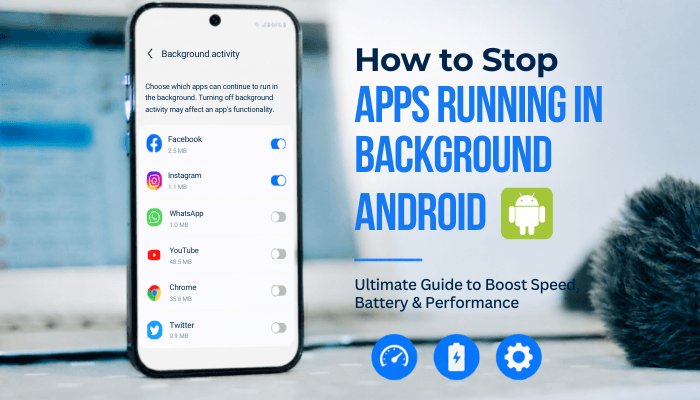

How to stop apps running in background Android is a common question among users dealing with fast battery drain, excessive mobile-data usage, overheating, or a phone that feels slower than usual. While background apps are not always the cause, certain applications can continue syncing, tracking location, refreshing content, or using system resources even when you are not actively using them.
Modern Android devices are designed to manage memory automatically, and many apps that appear to be running are simply cached for faster access. This means closing every app repeatedly is often unnecessary and may not improve performance the way many people expect.
The real challenge is identifying which apps are genuinely consuming resources and knowing which settings actually make a difference. In this guide, you’ll discover how to stop apps running in background Android using built-in battery controls, data restrictions, permission settings, and manufacturer-specific tools to improve performance, reduce battery drain, and keep your device running efficiently.
Quick Answer
To stop apps running in background Android devices:
1. Check Battery Usage.
2. Restrict apps with excessive background activity.
3. Enable Adaptive Battery.
4. Use Data Saver if needed.
5. Disable unnecessary location permissions.
6. Uninstall apps you no longer use.
Avoid force-stopping every app because Android already manages most background processes automatically.
How We Evaluated Background-App Controls
This guide is based on Android’s official battery-management features, modern Android background-process behavior, manufacturer-specific battery controls, and real-world troubleshooting scenarios involving battery drain, overheating, excessive data usage, delayed notifications, and app-performance issues.
Because Android manufacturers customize battery-management settings differently, menu names and available options may vary slightly between Samsung, Google Pixel, Xiaomi, Redmi, POCO, OnePlus, OPPO, Realme, Motorola, Vivo, and other Android devices.
The recommendations focus on identifying apps that genuinely consume resources rather than unnecessarily restricting every app on the device.
Key Takeaways
- Android automatically manages most cached and background processes, so closing every app is usually unnecessary.
- Understanding how to stop apps running in background Android starts with identifying which apps are actually using battery, data, or system resources.
- Swiping an app away from Recent Apps does not always stop its background activity.
- Check Battery Usage before restricting or force-stopping any app.
- Use the Restricted battery setting for nonessential apps that consume excessive power.
- Force Stop is best used for frozen, overheating, crashing, or malfunctioning apps.
- Restricting background mobile data can help reduce unnecessary cellular-data usage.
- Avoid heavily restricting messaging, navigation, health, VPN, wearable, alarm, or accessibility apps unless you understand the potential side effects.
- Third-party task killers and RAM-cleaner apps are rarely necessary and can sometimes reduce performance.
- Samsung Deep Sleeping Apps, Xiaomi Background Autostart controls, and similar manufacturer tools can provide additional background-app management options.
Quick Recommendation
If you want the fastest and safest way to stop apps running in background Android devices, start with these three steps:
- Check Battery Usage to identify apps causing excessive drain.
- Leave most apps on Optimized Battery mode.
- Restrict only apps that consistently use excessive battery, mobile data, or system resources.
Avoid force-stopping every app or installing RAM-cleaner apps. Modern Android versions already manage memory and background processes efficiently, and unnecessary restrictions can cause delayed notifications or broken app features.
For most users, Adaptive Battery combined with Optimized Battery settings provides the best balance between battery life, performance, and reliability.
Which Method Should You Use to Stop a Background App?
Not all background-app controls work the same way. Some methods temporarily close an app, while others restrict its battery usage, mobile data access, or background activity over the long term. Choosing the wrong option can lead to delayed notifications, syncing issues, or features that stop working unexpectedly.
Many users searching for how to stop apps running in background Android immediately force-stop apps or close everything from the Recent Apps screen. In most cases, a more targeted approach is safer and more effective.
| Method | What It Does | How Long It Lasts | Main Risk |
|---|---|---|---|
| Swipe Away from Recent Apps | Removes the app’s visible recent task | Usually temporary | Background activity may continue |
| Force Stop | Immediately ends the app and its active processes | Until the app is opened again | Notifications and syncing may stop |
| Restricted Battery Mode | Limits future background activity | Until the setting is changed | Notifications may arrive late |
| Disable Background Data | Limits background cellular-data use | Until re-enabled | Updates may be delayed on mobile data |
| Sleeping or Deep Sleeping Mode | Applies manufacturer battery restrictions | Until removed from the list | Features may work only when the app is opened |
| Disable App | Stops a supported preinstalled app from operating normally | Until enabled again | Related system features may stop |
| Uninstall App | Removes the app from the device | Until reinstalled | Local app data may be lost |
For most users, the best approach is to check Battery Usage first, keep most apps on Optimized mode, and restrict only those that show confirmed battery drain, excessive data usage, overheating, or performance problems.
What Does “Running in the Background” Mean on Android?
Many people are trying to figure out how to stop apps running in background Android assume that every app shown in the Recent Apps screen is actively draining battery or slowing down the device. In reality, Android manages apps in different ways, and not every background app is a problem.
Cached Apps
Android often keeps recently used apps in memory so they can reopen faster. These cached apps may use some RAM, but they are not necessarily using the processor, GPS, internet connection, or significant battery power.
If your phone needs more memory, Android can automatically remove cached apps when necessary. This is why seeing an app in the Recent Apps screen does not automatically mean it is affecting performance.
Background Tasks
Some apps perform short activities even when they are not open on the screen. Examples include:
- Checking for new messages
- Syncing email accounts
- Uploading photos and files
- Downloading updates
- Refreshing weather information
- Updating widgets
- Backing up data
- Communicating with smart-home devices
Modern Android versions automatically limit many of these tasks to improve battery life and performance.
Foreground Services
Certain apps continue performing important functions after you leave them. Examples include:
- Music playback
- Navigation
- Fitness tracking
- Screen recording
- File downloads
- VPN connections
- Phone calls
- Hotspot and device-sharing features
These activities are known as foreground services and usually display an ongoing notification while they are active.
Understanding these differences is important because how to stop apps running in background Android is not about closing every app. The real goal is identifying which apps are actually consuming resources and choosing the right method to manage them.
Android 15 and Android 16 Background-App Changes
Background-app management has become stricter with recent Android updates. Android 15 introduced tighter controls on certain long-running foreground services, while Android 16 expanded limits on some scheduled background tasks.
For everyday users, these changes can mean:
- Large downloads or backups may take longer in the background.
- Some tasks may pause when an app is not open.
- Restricted apps may face stronger background limitations.
- Certain transfers may require the app to remain open.
- Ongoing notifications do not always guarantee unlimited background activity.
These built-in improvements help Android manage battery life more efficiently and reduce the need for third-party task-killer apps.
Signs a Background App Is Causing Problems
Not every background app requires attention. However, an app may need to be restricted or investigated if you notice:
- Rapid battery drain while the phone is idle
- Unusually high mobile-data usage
- Frequent overheating
- Constant location activity
- Excessive notifications
- Slower device performance
- Increased battery usage after an app update
- High background usage in Battery Statistics
- Unexpected battery drain overnight
Identifying these warning signs can help you focus on problematic apps rather than making unnecessary changes to apps that are working normally.
Should You Stop Every Background App?
Closing every background app might seem like a quick way to improve performance, but it is usually unnecessary. Android is designed to manage memory automatically and uses available RAM to keep frequently used apps ready for faster access.
Repeatedly closing and reopening apps can actually require more processing power and battery because Android must reload the app each time.
Instead of closing everything, focus on identifying apps that are genuinely causing problems. This is one of the most important parts of how to stop apps running in background Android effectively.
Consider restricting an app when it:
- Uses unusually high battery in the background
- Consumes excessive mobile data
- Causes the phone to overheat while idle
- Continuously refreshes without a clear reason
- Runs a service you no longer need
- Causes lag, freezing, or crashes
- Sends unwanted notifications
- Tracks location unnecessarily
- Started causing problems after a recent installation or update
The goal is not to eliminate all background activity. The goal is to reduce unnecessary resource usage while keeping important features working normally.
How to Check Which Apps Are Running in the Background
Before changing battery or performance settings, it is important to identify which apps are actually consuming resources. One of the biggest mistakes people make when trying to how to stop apps running in background Android is restricting apps without checking whether they are causing the problem in the first place.
Android provides several built-in tools that can help you find apps using battery power, mobile data, location services, or active background processes.
Method 1: Check Battery Usage
Battery Usage is often the quickest way to identify a problematic app.
- Open Settings.
- Tap Battery.
- Select Battery Usage, Battery Activity, or View Battery Usage.
- Choose View by Apps if available.
- Review which apps used the most power.
- Tap an app to view its foreground and background activity.
Pay special attention to apps showing high background usage even when you rarely use them.
Keep in mind that battery percentages can sometimes be misleading. Compare app activity over several hours or a complete charging cycle before making changes.
Method 2: Check Active Apps on Android 13 and Later
Android 13 and newer versions include an Active Apps feature that shows ongoing foreground services.
- Swipe down from the top of the screen.
- Expand the Quick Settings panel.
- Look for Active Apps near the bottom.
- Tap it to view currently active apps.
- Select Stop if you no longer need a particular activity.
This section highlights apps performing ongoing tasks such as music playback, navigation, screen recording, downloads, or VPN connections.
Method 3: Check Mobile Data Usage
Background data usage can reveal apps that continue working even when you are not using them.
- Open Settings.
- Tap Network & Internet, Connections, or SIMs and Mobile Network.
- Select Data Usage or App Data Usage.
- Choose a billing period.
- Tap an app to compare foreground and background data activity.
Apps with unusually high background data usage may be syncing files, refreshing content, downloading media, or communicating with connected services.
Method 4: Check the Privacy Dashboard
The Privacy Dashboard helps identify apps that recently accessed sensitive permissions.
- Open Settings.
- Tap Privacy or Security & Privacy.
- Select Privacy Dashboard.
- Choose Location, Microphone, or Camera.
- Review which apps accessed those permissions and when.
Unexpected location activity is especially important because it can significantly affect battery life. Understanding these usage patterns makes how to stop apps running in background Android much easier because you can focus on the apps that are genuinely consuming resources instead of restricting everything indiscriminately.
How to Stop Apps Running in Background Android Devices
Apps running in the background can quietly drain battery, use mobile data, and slow down your phone. The good news is that Android provides several built-in tools to control unnecessary background activity without uninstalling your favorite apps.
Here are the most effective ways to stop apps running in background Android devices while keeping essential apps working properly.
1. Close Apps from the Recent Apps Screen
This is the quickest way to temporarily stop an app.
- Swipe up from the bottom of the screen and hold.
- If your phone uses three-button navigation, tap the Recent Apps button.
- Find the app you want to close.
- Swipe the app preview away.
- Some devices also offer a Clear All option.
What happens?
This removes the app from recent tasks, but it may still perform approved background activities such as notifications, widgets, syncing, or scheduled tasks.
Use this method for quick cleanup rather than long-term battery savings.
2. Restrict Background Battery Usage
For most users, this is the best way to stop apps running in background Android devices.
- Open Settings.
- Tap Apps.
- Select See all apps.
- Choose the app.
- Tap Battery or App battery usage.
- Select Restricted or disable background activity if available.
You may see these options:
- Unrestricted – Allows continuous background activity.
- Optimized – Android manages activity automatically.
- Restricted – Strongly limits background processes.
Recommended: Use Optimized for most apps and Restricted only for apps you rarely use.
Possible side effects:
- Delayed notifications
- Slower syncing
- Paused uploads
- Widget refresh issues
- Missed location updates
- Delayed email or chat alerts
If problems occur, switch the app back to Optimized.
3. Enable Adaptive Battery
Before restricting dozens of apps manually, turn on Adaptive Battery.
This Android feature learns your usage habits and automatically limits apps you rarely open.
Typical Pixel path:
- Open Settings.
- Tap Battery.
- Select Battery Saver.
- Tap Adaptive Battery.
- Enable Use Adaptive Battery.
Many Samsung, Xiaomi, OnePlus, OPPO, and Realme phones include a similar feature under battery-management settings.
Adaptive Battery is one of the easiest ways to stop apps running in background Android devices without constant manual adjustments.
4. Force Stop a Problem App
If an app is frozen, overheating your phone, or draining battery excessively, use Force Stop.
- Open Settings.
- Tap Apps.
- Select the app.
- Tap Force Stop.
- Confirm the action.
You can also long-press the app icon and open App Info.
Use Force Stop when an app:
- Keeps crashing
- Won’t close normally
- Gets stuck downloading
- Drains battery unexpectedly
- Causes performance issues
Force Stop is a troubleshooting tool, not a daily maintenance method.
5. Stop Active Foreground Services
Android 13 and later allows you to stop certain active services directly.
- Open the notification panel.
- Tap Active Apps.
- Find the running app.
- Tap Stop.
This is useful for ending:
- Screen recording
- VPN sessions
- Music playback
- Navigation
- Fitness tracking
- Long-running downloads
Save any important work before stopping the service.
6. Restrict Background Mobile Data
Background data can continue even when an app is not open.
- Open Settings.
- Tap Apps.
- Select the app.
- Open Mobile Data, Data Usage, or a similar menu.
- Turn off Background Data.
This helps stop apps running in background Android devices from using mobile data unnecessarily.
Keep in mind that disabling background data may delay:
- Email delivery
- Social-media updates
- Cloud backups
- Photo uploads
- Messaging notifications
Avoid restricting apps that require real-time updates.
7. Turn On Data Saver
Data Saver helps stop apps running in background Android devices from using unnecessary mobile data.
- Open Settings.
- Tap Network & Internet.
- Select Data Saver.
- Turn on Use Data Saver.
You can allow important apps to bypass this restriction:
- Open the Data Saver page.
- Tap Unrestricted Data Access.
- Enable essential apps such as messaging, email, navigation, or work tools.
Data Saver is especially useful on limited mobile-data plans, but it does not stop all background processes or Wi-Fi activity.
8. Change Location Permissions
Location tracking can keep apps active even when they are not open.
To reduce unnecessary activity:
- Long-press the app icon.
- Tap App Info.
- Select Permissions.
- Tap Location.
- Choose one of the following:
- Allow all the time
- Allow only while using the app
- Ask every time
- Don’t allow
Disable Precise Location when approximate location is enough.
For most users, Allow only while using the app is the best balance between privacy, battery life, and convenience.
This is another effective way to stop apps running in background Android devices without removing important app features.
9. Review App Permissions and Special Access
Some apps continue running because they have access to additional system features.
Go to:
Settings → Apps → Select App → Permissions
Remove permissions that are not necessary for the app’s primary function.
Also review:
Settings → Apps → Special App Access
Depending on your device, you may see:
- Display over other apps
- Unrestricted data access
- Usage access
- Install unknown apps
- Notification access
- Modify system settings
- Battery optimization exemptions
Pay extra attention to unfamiliar apps with extensive permissions. Reviewing these settings can help stop apps running in background Android devices more effectively.
Run a Google Play Protect Scan
To check for potentially harmful apps:
- Open the Google Play Store.
- Tap your profile picture.
- Select Play Protect.
- Tap Scan.
If battery drain or performance issues started after installing an APK from an unofficial source, investigate those apps first.
10. Turn Off Automatic Sync Inside Apps
Many apps include built-in sync options that can trigger background activity.
Look for settings such as:
- Automatic sync
- Background refresh
- Auto-download
- Automatic backup
- Location history
- Feed refresh
- Device discovery
Disabling unnecessary sync features can stop apps running in background Android devices without affecting the entire app.
For example, you can keep a cloud-storage app installed while turning off automatic photo uploads.
11. Enable Battery Saver
Battery Saver limits background activity across the entire device.
- Open Settings.
- Tap Battery.
- Select Battery Saver or Power Saving Mode.
- Turn it on.
Battery Saver may reduce:
- Background app activity
- Automatic syncing
- Location updates
- Network activity
- Visual effects
This feature can help stop apps running in background Android devices when battery life is running low.
12. Manage Unused Apps
Android can automatically optimize apps that you rarely use.
- Open Settings.
- Tap Apps.
- Select Unused Apps.
- Review the list.
Look for options such as:
- Pause app activity if unused
- Remove permissions if app isn’t used
- Manage app if unused
This feature helps stop apps running in background Android devices by limiting apps that have been inactive for a long time.
13. Uninstall or Disable Unnecessary Apps
The most effective way to stop apps running in background Android devices is to remove apps you no longer need.
- Long-press the app icon.
- Tap App Info.
- Select Uninstall.
For preinstalled apps, you may see Disable instead of Uninstall.
Avoid disabling critical system apps, security services, phone components, or Google Play services unless you fully understand their purpose.
Removing unused apps reduces battery drain, frees storage space, and improves overall device performance.
Quick Tip
To stop apps running in background Android devices, start with Adaptive Battery, Optimized Battery Settings, and Data Saver. If an app still consumes excessive resources, review its permissions, restrict background access, or uninstall it completely.
How to Stop Background Apps on Samsung Galaxy Phones
Samsung Galaxy phones include built-in tools that can automatically limit apps that consume battery in the background.
Put Unused Apps to Sleep
- Open Settings.
- Tap Battery.
- Select Background Usage Limits.
- Turn on Put Unused Apps to Sleep.
You may also see these categories:
Sleeping Apps
Apps in this list have limited background activity but can still run occasionally when needed.
Deep Sleeping Apps
Deep sleeping apps rarely run in the background and usually work only when you open them manually.
To add an app:
- Open Background Usage Limits.
- Tap Deep Sleeping Apps.
- Tap the + (Plus) icon.
- Select the apps.
- Tap Add.
This is one of the easiest ways to stop apps running in background Android devices on Samsung phones.
Never Sleeping Apps
Apps in this category are excluded from Samsung’s battery-saving controls and can continue running in the background.
Use this option only for apps that require real-time activity, such as:
- Messaging apps
- Alarm apps
- Smartwatches and wearables
- VPN services
- Medical monitoring apps
- Smart-home security apps
How to Stop Background Apps on Xiaomi, Redmi, and POCO Phones
Xiaomi devices running HyperOS or MIUI include additional battery and autostart controls.
Restrict App Battery Activity
- Open Settings.
- Tap Battery.
- Open Battery Settings or App Battery Saver.
- Select the app.
- Choose the available battery-saving or restricted option.
The exact menu names may vary depending on your device and software version.
Turn Off Background Autostart
On supported Xiaomi devices:
- Open Settings.
- Tap Apps.
- Select Permissions or Background Autostart.
- Choose the app.
- Turn off Background Autostart.
Disabling autostart can help stop apps running in background Android devices by preventing apps from launching automatically after system events or reboots.
Keep in mind that some apps may deliver notifications more slowly or delay syncing after autostart is disabled.
What About OnePlus, OPPO, and Realme Phones?
Trying to reduce battery drain without missing important notifications? OnePlus, OPPO, and Realme phones include several built-in tools that help control background activity while keeping essential apps working properly.
If you’re looking for how to stop apps running in background android, these settings are usually located in one of the following menus:
- Settings → Battery → More Settings
- Settings → Battery → App Battery Management
- Settings → Apps → App Management → Select App → Battery Usage
- Settings → Apps → Auto Launch
- Settings → Mobile Network → Data Usage
Look for options such as:
- Allow Background Activity
- Auto Launch
- App Battery Management
- Optimize Battery Use
- Background Data
- Power Saving Mode
For most apps, choose the standard Optimized setting first. Apply stronger restrictions only to apps that do not need real-time notifications, syncing, or location updates.
Apps You Should Be Careful About Restricting
Restricting the wrong app can cause missed alerts, delayed syncing, or broken features.
| App Type | What May Stop Working |
|---|---|
| Messaging Apps | New-message notifications and calls |
| Email Apps | Real-time email delivery |
| Alarm & Reminder Apps | Scheduled alerts and reminders |
| Navigation Apps | Turn-by-turn directions and trip tracking |
| VPN Apps | Secure network connections |
| Wearable Apps | Watch syncing and health data |
| Fitness Apps | Step counts, workouts, and route tracking |
| Medical or Safety Apps | Monitoring and emergency alerts |
| Cloud Backup Apps | Photo and file uploads |
| Smart-Home Apps | Camera, doorbell, and security notifications |
| Accessibility Apps | Essential accessibility features |
| Password Managers | Autofill and authentication prompts |
| Calendar Apps | Event reminders and synchronization |
If notifications become unreliable after changing settings, switch the app back to Optimized, allow background data, and review your device’s battery-management or auto-launch settings.
Following these recommendations is one of the safest ways to implement how to stop apps running in background android without affecting apps that depend on real-time activity.
When You Should Leave Background Apps Alone
Not every background app should be restricted. Some apps depend on background activity to provide important features and real-time updates.
Avoid aggressive restrictions for:
- Messaging apps
- Email apps
- Navigation apps
- Smartwatch and wearable apps
- VPN services
- Security and antivirus apps
- Medical monitoring apps
- Smart-home security apps
- Accessibility tools
- Password managers
If these apps stop working properly, restore their battery settings to Optimized or Unrestricted and verify that Background Data remains enabled.
How to Restore an App That Stopped Working
After applying restrictions to stop apps running in background Android devices, you may notice delayed notifications, failed syncing, missing uploads, or disconnected wearable devices.
The best approach is to reverse changes one at a time until the app works normally again.
Restore Battery Access
- Open Settings.
- Tap Apps.
- Select the affected app.
- Open App Battery Usage or Battery.
- Change Restricted to Optimized.
Use Unrestricted only for apps that require continuous background activity, such as messaging, navigation, security, or wearable apps.
Restore Background Data
- Open the app’s Mobile Data, Data Usage, or Mobile Data & Wi-Fi settings.
- Turn Background Data back on.
This allows the app to sync and receive updates even when it is not open.
Check Data Saver Settings
- Open Settings → Network & Internet → Data Saver.
- Tap Unrestricted Data Access.
- Enable access for apps that need real-time updates.
Examples include:
- Messaging apps
- Email apps
- Navigation apps
- Work and collaboration tools
- Security and monitoring apps
Remove Manufacturer Restrictions
Samsung
- Open Settings → Battery → Background Usage Limits.
- Remove the app from Sleeping Apps or Deep Sleeping Apps.
Xiaomi, Redmi, and POCO
- Review Background Autostart settings.
- Check the app’s battery-saving mode.
- Allow automatic launching if required.
OnePlus, OPPO, and Realme
- Review Auto Launch settings.
- Check App Battery Management.
- Enable background activity when necessary.
Restore Permissions and Notifications
Restrictions may also affect permissions and notification delivery.
Check that the app still has access to:
- Notifications
- Location (if required)
- Contacts
- Calendar
- Nearby devices
- Other permissions needed for its main features
Final Check
After restoring settings:
- Reopen the app.
- Sign in again if required.
- Restart your phone.
- Test notifications, syncing, uploads, and connected-device features.
These steps usually restore normal operation while still allowing you to manage stop apps running in background Android devices settings more effectively.
Why Does an App Start Running Again?
Many users successfully stop apps running in background Android devices, only to notice the same app becoming active again later. In most cases, this is normal Android behavior rather than a sign of malware or a problem.
You Reopened the App
Opening an app removes the effect of a Force Stop and allows the app to function normally again.
A Widget Needs to Refresh
Widgets may update information such as:
- Weather
- News
- Calendar events
- Clock data
- Battery information
Push Notifications Arrive
Android can deliver messages, emails, and alerts through Google’s notification system, causing an app to become active briefly.
A Scheduled Task Runs
Android periodically allows approved activities such as:
- Syncing
- Backups
- Downloads
- Maintenance tasks
The App Uses a Foreground Service
Some apps require ongoing activity to perform their main function, including:
- Music players
- Navigation apps
- VPN services
- Fitness trackers
- Screen recorders
- Download managers
Another Device or App Launches It
An app may restart when triggered by:
- Smartwatches
- Bluetooth accessories
- Android Auto
- Smart-home devices
- Shared links
- Automation tools
It’s a System App
Certain Android and manufacturer services must run periodically to support:
- Calls and messaging
- Notifications
- Security features
- Account syncing
- App updates
- Connectivity and location services
When Should You Be Concerned?
Seeing an app restart does not automatically indicate a problem. Instead, check whether it is causing:
- Excessive battery drain
- Phone overheating
- Unusual data usage
- Slow performance
- Frequent crashes
If none of these issues are present, the app is likely performing a legitimate background task as part of normal Android operation.
This behavior is common even after you stop apps running in background Android devices because Android automatically manages many essential services in the background.
Do Background Apps Make Android Phones Slow?
Many people looking for how to stop apps running in background Android assume every background app slows their phone. In reality, Android is designed to manage background processes efficiently.
A cached or inactive app usually does not reduce performance simply because it occupies RAM. Problems typically occur when an app continuously consumes system resources.
Background apps are more likely to affect performance when:
- The device has limited RAM
- Storage is nearly full
- An app has a memory leak
- Multiple apps are syncing constantly
- A process repeatedly crashes and restarts
- Malware or adware is installed
- Location or sensor usage is excessive
- The phone is overheating
- Android or installed apps are outdated
If your phone feels slow, also check available storage, recent app installations, software updates, overheating, and battery health.
Can Background Apps Cause Overheating?
Background apps can contribute to overheating when they continuously use the processor, GPS, mobile data, Bluetooth, camera, or other hardware components.
Common causes include:
- Continuous location tracking
- Large cloud backups
- Stuck uploads or downloads
- Malware or adware
- Navigation apps running for long periods
- Poorly optimized apps
If the phone becomes unusually warm while idle, check Battery Usage, Active Apps, and recent installations to identify the cause.
Why You Should Avoid Task Killer and RAM Cleaner Apps
Many third-party task killers claim to free RAM, speed up Android, and improve battery life. In most cases, these promises are misleading.
Android automatically manages memory and closes cached apps when resources are needed. A task killer may force apps to close, only for Android to reload them moments later, which can increase battery and processor usage.
Some cleaner apps may also:
- Show intrusive advertisements
- Request unnecessary permissions
- Run their own background services
- Send constant notifications
- Remove useful cached data
- Disrupt app notifications
- Encourage unnecessary manual cleaning
For most users, Android’s built-in tools are the better option. If your goal is how to stop apps running in background Android, use battery settings, background-data controls, app permissions, and Adaptive Battery instead of installing task-killer apps.
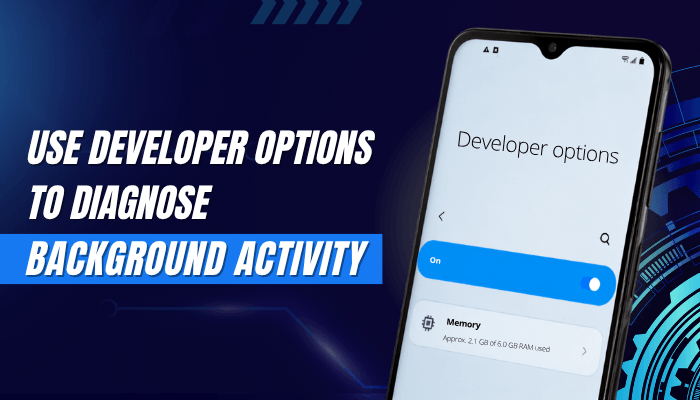
Use Developer Options to Diagnose Background Activity
Still seeing apps become active after trying several fixes? Developer Options can help identify what is running behind the scenes and why.
If you’re troubleshooting how to stop apps running in background Android, these tools can reveal active services, memory usage, and system processes. Use them for investigation—not routine app management.
How to Enable Developer Options
On most Android phones:
- Open Settings.
- Tap About Phone.
- Find Build Number.
- Tap it seven times.
- Enter your screen-lock PIN if prompted.
- Return to Settings.
- Open System → Developer Options.
The exact menu path may vary by manufacturer.
Check Running Services and Memory Usage
Inside Developer Options, look for:
- Running Services
- Memory
- Memory Used by Apps
- Cached Processes
- Active System Services
These tools can show:
- Active app services
- Average memory usage
- Cached applications
- System processes
- Service runtime duration
Keep in mind that high RAM usage does not automatically mean an app is draining battery. Android intentionally uses available memory to improve performance and app-loading speed.
Services You Should Not Stop
Avoid stopping essential services such as:
- Android System
- Google Play Services
- System UI
- Phone Services
- Wi-Fi and Bluetooth Services
- Device Security Tools
- Home-Screen Launcher
- Manufacturer System Frameworks
Stopping these services can cause issues with calls, notifications, connectivity, or device stability.
Should You Change the Background Process Limit?
Developer Options also includes a Background Process Limit setting. Although it may seem useful for how to stop apps running in background Android, it is primarily designed for app testing and development.
Reducing the limit can:
- Force apps to reload frequently
- Interrupt multitasking
- Lose unsaved app data
- Delay notifications
- Disconnect wearable devices
- Increase loading times
- Cause unexpected app crashes
For most users, the best option is to keep Background Process Limit set to Standard Limit.
Quick Tip
Developer Options can help diagnose background activity, but it should not replace Android’s built-in battery, permission, and app-management tools. For long-term results with how to stop apps running in background Android, use Developer Options for troubleshooting and leave advanced settings at their default values whenever possible.
Best Method for Different Problems
Not every background app issue requires the same fix. Choosing the right solution can save battery life, reduce data usage, and avoid breaking important notifications.
| Problem | Recommended Action |
|---|---|
| App is frozen | Force Stop the app |
| High background battery usage | Set Battery Mode to Restricted |
| Excessive mobile-data usage | Disable Background Data or enable Data Saver |
| Unnecessary location tracking | Allow Location Only While Using the App |
| Rarely used app | Enable Unused-App Optimization or Uninstall |
| Samsung app runs too often | Add it to Sleeping or Deep Sleeping Apps |
| Xiaomi app launches automatically | Disable Background Autostart |
| Ongoing recording, VPN, or download | Stop it through Active Apps |
| Notifications arrive late | Change Battery Mode to Optimized or Unrestricted |
| Phone remains slow | Check storage, updates, overheating, and recent apps |
| Problem disappears in Safe Mode | Remove recently installed apps one at a time |
Following the correct fix is often more effective than trying every method when troubleshooting how to stop apps running in background Android.
Best Background-App Control Methods Compared
| Method | Battery Savings | Difficulty | Risk Level |
|---|---|---|---|
| Optimized Battery Mode | Moderate | Easy | Low |
| Restricted Battery Mode | High | Easy | Medium |
| Force Stop | Temporary | Easy | Medium |
| Data Saver | Moderate | Easy | Low |
| Disable Background Data | Moderate | Easy | Medium |
| Deep Sleeping Apps | High | Medium | Medium |
| Adaptive Battery | Moderate | Easy | Low |
| Uninstall App | Highest | Easy | Low |
For most users, Adaptive Battery and Optimized Battery settings provide the best balance between battery life, performance, and reliable notifications.
Which Method Should You Choose?
Different background-app problems require different solutions. Using the correct method can improve battery life and performance without breaking important features such as notifications, syncing, navigation, or wearable-device connectivity.
| Situation | Recommended Fix | Why It Works |
|---|---|---|
| Battery Drain | Restricted Battery Mode | Limits unnecessary background activity while keeping the app installed. |
| High Mobile Data Usage | Disable Background Data or Enable Data Saver | Prevents apps from using cellular data when not actively in use. |
| Phone Overheating | Check Battery Usage and Force Stop the Problem App | Helps identify apps continuously using CPU, GPS, or network resources. |
| Too Many Notifications | Review Notification Settings and App Permissions | Reduces unwanted alerts without affecting app functionality. |
| Unused Apps | Uninstall or Disable the App | Completely removes unnecessary background activity and frees storage space. |
| Slow Performance | Check Storage, Updates, and Battery Usage | Performance issues are often caused by low storage or problematic apps rather than background processes alone. |
| Delayed Notifications | Change Battery Mode to Optimized | Allows important apps to sync and receive updates normally. |
| Excessive Location Tracking | Set Location Permission to “Allow Only While Using the App” | Reduces battery drain while maintaining app functionality. |
| App Keeps Crashing | Force Stop and Update the App | Resolves temporary software issues and known bugs. |
| Overnight Battery Drain | Review Battery Usage and Active Apps | Identifies apps consuming resources while the phone is idle. |
Quick Recommendation
For most users, start with:
- Check Battery Usage.
- Enable Adaptive Battery.
- Keep apps on Optimized Battery Mode.
- Restrict only apps showing excessive background activity.
- Uninstall apps you no longer use.
This approach provides the best balance between battery life, performance, and reliable notifications.
Real-World Examples
These examples show how common background-app issues can be resolved without aggressively restricting every app on your phone.
Example 1: Social Media App Draining Battery
Problem:
A social media app appears near the top of Battery Usage despite being rarely used.
Solution:
- Review Battery Usage statistics
- Set the app to Restricted mode
- Disable unnecessary Background Data
- Turn off Auto-Play videos if available
Result:
Battery consumption decreases while the app remains available when needed.
Example 2: Messaging Notifications Arrive Late
Problem:
Messages only appear after opening the app manually.
Solution:
- Change Battery Mode from Restricted to Optimized
- Enable Background Data
- Remove the app from Sleeping or Deep Sleeping lists
Result:
Notifications begin arriving in real time again.
Example 3: Phone Overheats While Idle
Problem:
The device becomes warm even when it is not actively being used.
Solution:
- Check Battery Usage
- Review Active Apps
- Force Stop the suspected app
- Update the app
- Remove unnecessary applications
Result:
Background activity decreases and device temperature returns to normal.
These real-world scenarios demonstrate how to stop apps running in background Android is often about identifying the specific cause rather than restricting every app on the device.
How to Test Whether the Restriction Worked
After changing a battery or background setting, do not judge the result immediately. Some apps sync, back up, or update at different times of day, so a few minutes of testing may give the wrong result.
To test how to stop apps running in background Android settings properly, use a simple before-and-after check.
- Charge the phone to a similar level before each test.
- Open Settings → Battery → Battery Usage.
- Record the suspected app’s battery percentage.
- Note its foreground and background usage time.
- Check the phone’s total screen-on time.
- Change only one app setting.
- Use the phone normally for about 24 hours.
- Check Battery Usage again at a similar time.
- Compare battery drain, background time, heat, and mobile-data use.
- Reverse the setting if there is no real improvement.
A successful restriction should reduce unusual background activity without causing:
- Missing notifications
- Failed uploads
- Delayed messages
- Broken widgets
- Lost wearable connections
- Interrupted navigation
- Failed backups
If battery usage does not improve, that app may not be the real cause.
Troubleshooting Persistent Battery Drain
If one app restriction does not solve the issue, follow this sequence before making stronger changes.
1. Restart the Phone: A restart can stop a stuck process and clear temporary software issues.
2. Update Android: Go to:
Settings → System → Software Update
Install available system and security updates.
3. Update All Apps: Open the Google Play Store and go to:
Profile Icon → Manage Apps & Device → Update All
Outdated apps may contain battery or performance bugs.
4. Check Storage Space: A nearly full phone may become slow, unstable, or less efficient. Keep enough free storage for Android and apps to create temporary files.
5. Remove Recently Installed Apps: If battery drain started after installing a new app, uninstall it and monitor the phone for one full charging cycle. This is often more effective than repeatedly searching for how to stop apps running in background Android without identifying the actual cause.
6. Test Safe Mode: Safe Mode temporarily disables downloaded apps. If overheating, crashing, or rapid battery drain stops in Safe Mode, a downloaded app is likely responsible.
The Safe Mode startup method varies by manufacturer.
7. Scan for Harmful Apps: Use Google Play Protect and remove unknown apps, especially apps installed from unofficial websites or third-party APK stores.
8. Check Battery Health: An old or damaged battery may drain quickly even when background usage looks normal.
Battery replacement may be needed if the phone:
- Shuts down unexpectedly
- Becomes unusually hot
- Shows swelling
- Loses charge very quickly
Battery Drain After an Android Update
Battery drain can temporarily increase after an Android or manufacturer update. The phone may be optimizing apps, rebuilding indexes, updating services, syncing accounts, or relearning Adaptive Battery patterns.
When battery drain starts immediately after an update:
- Restart the phone once.
- Update all apps through Google Play.
- Keep Adaptive Battery enabled.
- Connect to Wi-Fi and a charger for a while.
- Allow background optimization to complete.
- Monitor battery usage for several days.
- Investigate individual apps if abnormal drain continues.
A newly configured or factory-reset phone may also need extra time to learn your usage habits.
Do not disable system services or factory-reset the phone just because battery life is temporarily worse after an update. For long-term results with how to stop apps running in background Android, test one setting at a time and confirm the cause before applying stronger restrictions.
Common Mistakes When Stopping Background Apps
Many users trying how to stop apps running in background Android accidentally make changes that reduce battery life, break notifications, or create new performance issues.
Avoid these common mistakes.
Force-Stopping Every App Daily
Android already manages memory and background processes automatically. Repeatedly force-stopping apps can increase battery consumption because apps must fully reload each time you open them.
Using RAM Cleaner or Task Killer Apps
Most task killers close apps that Android later reopens. This cycle creates unnecessary activity and may reduce battery efficiency rather than improve it.
Restricting Messaging Apps
Apps such as WhatsApp, Telegram, Signal, Messenger, Gmail, and Outlook rely on background access for timely notifications. Overly aggressive restrictions can delay messages and alerts.
Disabling Google Play Services
Google Play Services supports notifications, security features, account syncing, location services, and many core Android functions.
Disabling it can cause widespread problems across the device.
Turning Off Important Permissions
Removing permissions without understanding their purpose may break:
- Navigation features
- Smartwatch syncing
- Cloud backups
- Accessibility tools
- Smart-home integrations
Using “No Background Processes”
The No Background Processes option in Developer Options is intended for testing, not everyday use.
It may cause:
- Frequent app reloads
- Delayed notifications
- Poor multitasking
- Unstable app behavior
If your goal is how to stop apps running in background Android, battery-management settings are usually a safer and more effective solution.
How Often Should You Check Background Apps?
Most Android users do not need to manage background apps every day.
Review Battery Usage and app activity when:
- Battery life suddenly drops
- Mobile-data usage increases unexpectedly
- The phone becomes unusually warm
- Performance feels slower than normal
- Notifications stop arriving correctly
- A new app has been installed
- A major Android update has been completed
For most people, a quick review once per month is enough.
Constantly closing apps or aggressively managing background processes rarely improves performance and can sometimes create additional issues.
Best Android Background-App Settings for Most Users
For most Android users, the following setup provides the best balance between battery life and functionality:
- Adaptive Battery: Enabled
- Battery Mode: Optimized
- Background Data: Enabled for important apps
- Data Saver: Optional
- Location Permission: Allow Only While Using the App
- Unused App Optimization: Enabled
- Play Protect Scanning: Enabled
Apps that require real-time communication, navigation, health monitoring, security alerts, wearable-device syncing, or smart-home controls should generally remain on Optimized battery settings rather than Restricted mode.
This approach reduces unnecessary background activity while maintaining reliable notifications and app functionality.
Conclusion
Understanding how to stop apps running in background Android is not about closing every app you see. Android is designed to manage cached apps and background processes efficiently on its own.
The most effective approach is to identify apps that are causing real problems, such as excessive battery drain, data usage, overheating, or delayed performance. Then apply the least restrictive fix that solves the issue.
Start with Optimized Battery Settings, review background data usage, and use Force Stop only for troubleshooting. Keep essential messaging, navigation, security, health, and wearable apps working normally by avoiding unnecessary restrictions.
By following a targeted approach to stop apps from running in the background on Android, you can improve battery life, reduce unwanted background activity, and maintain reliable notifications without affecting everyday phone usage. This balanced strategy is the safest and most effective way to manage how to stop apps running in background Android on any modern device.
FAQs About How to Stop Apps Running in Background Android
1. Can stopping background apps improve Android battery life?
Yes. Restricting apps that continuously sync data, track location, or run unnecessary services can reduce battery drain. However, restricting every app is usually unnecessary because Android already manages many background processes automatically.
2. Does restarting an Android phone stop background apps?
A restart temporarily closes running apps and services, but many apps can restart automatically afterward if Android allows them to perform background tasks.
3. Will stopping background apps free up RAM on Android?
It may free some memory temporarily, but Android automatically manages RAM and removes cached apps when additional memory is needed. Free RAM alone does not always improve performance.
4. Can background apps use Wi-Fi even when they are closed?
Yes. Some apps may continue syncing, downloading updates, backing up files, or refreshing content in the background while connected to Wi-Fi.
5. Does Airplane Mode stop background apps?
Airplane Mode disables most wireless connections, which can prevent many background network activities. However, apps can still perform certain local tasks on the device.
6. Why do some Android apps restart after Force Stop?
Apps may restart when triggered by notifications, scheduled jobs, connected devices, widgets, or system processes that Android considers necessary.
7. Can background apps drain battery overnight?
Yes. Apps that frequently sync data, use location services, communicate with servers, or run foreground services can contribute to overnight battery drain.
8. Is it safe to disable preinstalled Android apps?
Many preinstalled apps can be disabled safely, but critical system apps and services should remain enabled because they support notifications, security, connectivity, and core Android functions.
9. Can background apps drain battery when the screen is off?
Yes. Apps can continue syncing, tracking location, downloading files, or communicating with servers while the screen is off, which may contribute to battery drain.
10. Does clearing RAM make Android faster?
Not necessarily. Android uses RAM efficiently and automatically manages memory. Constantly clearing RAM can sometimes reduce performance because apps must reload more frequently.
11. Is Force Stop better than Restricted Battery Mode?
No. Force Stop is intended for troubleshooting, while Restricted Battery Mode provides long-term control over background activity.
12. Will restricting apps stop notifications?
It can. Messaging, email, wearable, navigation, and cloud-sync apps may experience delayed notifications when heavily restricted.
