



Learning how to set up dual boot is one of the best ways to run Windows and Linux on the same computer without removing either operating system. With a dual boot setup, you can choose Windows or Linux every time your PC starts, making it useful for developers, students, cybersecurity learners, gamers, privacy-focused users, and anyone who wants Linux flexibility while keeping Windows apps.
Before you learn how to set up dual boot, you should understand that this process changes partitions, boot settings, encryption behavior, and sometimes firmware options. Windows 11 requires UEFI firmware with Secure Boot capability and TPM 2.0, so checking your system settings matters before installing Linux beside Windows.
Many beginners also search how to dual boot Linux and Windows because they want a clear, safe path. This guide explains how to set up dual boot from start to finish, including backup, UEFI, GPT, BitLocker, USB creation, Linux installation, GRUB, troubleshooting, and safe removal.
Key Takeaways
| Key Point | Quick Explanation |
| Best setup order | Install Windows first, then install Linux beside it |
| Safest boot mode | UEFI with GPT partition style |
| Biggest risk | Formatting the wrong partition |
| Must-do step | Back up files before changing partitions |
| Encryption warning | Save your BitLocker or Device Encryption recovery key |
| Beginner Linux choices | Ubuntu, Linux Mint, Fedora, and Zorin OS |
| Best install method | Bootable USB installer |
| Safer alternative | Use WSL or a virtual machine if you do not want partition risk |
Quick Answer: How to Set Up Dual Boot
If you want the fast answer to how to set up dual boot, follow these steps:
- Back up your important files.
- Create Windows recovery media.
- Check whether Windows uses UEFI mode.
- Confirm your disk uses GPT partition style.
- Disable Fast Startup in Windows.
- Save your BitLocker or Device Encryption recovery key.
- Shrink the Windows partition using Disk Management.
- Leave the new space as unallocated.
- Download a Linux ISO from the official website.
- Verify the ISO file if possible.
- Create a bootable USB installer.
- Boot the USB in UEFI mode.
- Choose Install alongside Windows Boot Manager.
- Restart and choose Windows or Linux from the boot menu.
The safest method for how to set up dual boot is to keep Windows installed first and then install Linux beside it. Ubuntu’s official installation guide covers downloading Ubuntu, creating a bootable USB, booting from USB, choosing installation type, and completing setup.
Dual Boot Meaning Explained
What is a dual boot? A dual boot is a computer setup where two operating systems are installed on the same computer, and you choose which one to use at startup. For example, you can install Windows 11 and Ubuntu Linux on the same laptop, then select either Windows or Linux from the boot menu.
The simple answer to what is a dual boot is this: it is not one operating system running inside another. Each operating system is installed separately, and each can run directly on the hardware.
Many beginners ask what is a dual boot because they confuse it with a virtual machine. A virtual machine runs Linux inside Windows as software, while dual boot gives Linux its own real installation on the drive.
Another way to explain what is a dual boot is that your computer has two complete operating systems, but you only use one at a time. You restart the PC to switch from Windows to Linux or from Linux to Windows.
Understanding what is a dual boot helps you decide whether this setup is right for you. If you need full Linux performance, direct hardware access, and Windows compatibility on the same PC, dual boot is a strong choice.
Why Learn How to Set Up Dual Boot in 2026?
People learn how to set up dual boot because Windows and Linux solve different problems. Windows is still important for Microsoft Office, Adobe software, business tools, games, and many device utilities. Linux is popular for coding, cybersecurity, servers, privacy, open-source tools, and system customization.
If your goal is how to dual boot Linux and Windows, dual boot gives you the best of both systems without forcing you to fully switch. You can keep Windows for daily software and use Linux for development, learning, testing, privacy, or advanced technical work.
| Benefit | Why It Matters |
| Full Windows access | Use Windows apps, games, drivers, and business tools |
| Full Linux access | Use Linux terminal, package managers, and open-source tools |
| Better performance than VM | Linux runs directly on your hardware |
| Great for learning | Useful for students, developers, and IT learners |
| Safer Linux testing | Try Linux without deleting Windows |
| Separate environments | Keep work, coding, and experiments separate |
| Hardware-level testing | Test Wi-Fi, GPU, battery, and Linux drivers directly |
Real-World Example of a Dual Boot Setup
Many users choose dual boot because they need software from both operating systems. For example, a software developer might use Windows for Microsoft Office, meetings, and business applications while using Linux for coding, Docker containers, programming tools, and server testing. A cybersecurity student may use Windows for daily activities and Linux for security labs and learning ethical hacking tools.
This flexibility is one of the main reasons dual boot remains popular in 2026.
Before You Begin: Dual Boot Safety Checklist
Before learning how to set up dual boot, complete these safety steps. Dual booting is usually safe when done properly, but mistakes during partitioning or boot setup can cause data loss, boot errors, or BitLocker recovery prompts.
| Safety Step | Why It Matters |
| Back up important files | Protects documents, photos, videos, and work files |
| Create Windows recovery media | Helps repair Windows if boot problems happen |
| Save your BitLocker recovery key | Prevents lockout after startup changes |
| Disable Fast Startup | Avoids Windows partition access issues |
| Check UEFI mode | Prevents bootloader conflicts |
| Check GPT partition style | Confirms modern Windows/Linux compatibility |
| Create unallocated space | Gives Linux a safe place to install |
| Download Linux from official sources | Reduces security risk |
| Verify the ISO file | Confirms the download is not corrupted |
| Keep charger connected | Prevents shutdown during installation |
A BitLocker recovery key may be needed when Windows cannot automatically unlock an encrypted drive. Microsoft describes it as a 48-digit number used to regain access to the drive.
Important Warning Before You Start
Before installing Linux beside Windows, understand this clearly: how to set up dual boot is not just clicking an installer. You are changing storage layout and boot behavior. If you delete, format, or resize the wrong partition, you may lose Windows or personal files.
Do not randomly change BIOS settings such as RAID, RST, Secure Boot, TPM, or boot mode without understanding the impact. A wrong setting can stop Windows from booting properly. A safe guide on how to set up dual boot always starts with backup, recovery media, and careful partitioning.
Minimum Requirements for Dual Boot
| Requirement | Recommended |
| Existing OS | Windows 10 or Windows 11 |
| Boot mode | UEFI recommended |
| Partition style | GPT recommended |
| Storage | At least 50 GB free for Linux; 80–100 GB is better |
| RAM | 8 GB or more recommended |
| USB drive | 8 GB or larger |
| Linux ISO | Ubuntu, Linux Mint, Fedora, Debian, Pop!_OS, or Zorin OS |
| Backup | External drive, cloud backup, or full disk image |
| Internet | Helpful for updates and drivers |
| Recovery key | Required if BitLocker or Device Encryption is enabled |
Ubuntu explains that the ISO must be written to a USB stick to create installation media. This is not the same as simply copying the ISO file to the USB drive, and the USB will be erased during the process.
Best Linux Distributions for Dual Boot
Choosing the right distro makes how to set up dual boot easier, especially for beginners. Ubuntu and Linux Mint are usually the simplest choices because they have friendly installers and strong community support.
| Linux Distribution | Best For |
| Ubuntu | Beginners, developers, general users |
| Linux Mint | Windows-like experience and beginners |
| Fedora | Developers and newer Linux technologies |
| Debian | Stability and advanced users |
| Pop!_OS | Creators, developers, NVIDIA users |
| Zorin OS | Windows users switching to Linux |
If your search is how to dual boot Linux and Windows with the least confusion, start with Ubuntu or Linux Mint. Advanced users can choose Fedora, Debian, or another distribution based on their needs.
Step 1: Back Up Your Data
The first step in how to set up dual boot is creating a backup. Do not skip this step. A backup protects your files if you accidentally format the wrong partition or if Windows fails to boot after installation.
Back up:
- Documents
- Photos
- Videos
- Downloads
- Desktop files
- Browser bookmarks
- Work projects
- License keys
- Password manager backup
- Important app settings
You can use an external hard drive, USB SSD, cloud storage, Windows Backup, or full disk image software. A normal file backup is helpful, but a full disk image is better because it can restore your complete Windows setup.
Step 2: Create Windows Recovery Media
A careful tutorial on how to set up dual boot should include Windows recovery media. Before installing Linux, create a Windows recovery drive or system repair option. This gives you a way to repair Windows if boot problems happen after partitioning or bootloader changes.
A recovery drive is useful if:
- Windows does not boot after installation.
- Windows Boot Manager disappears.
- The boot menu breaks.
- A partition mistake causes startup problems.
- You need access to advanced recovery tools.
Keep the Windows recovery USB separate from the Linux installer USB. This makes how to set up dual boot much safer for beginners.
Step 3: Check Whether Windows Uses UEFI or Legacy BIOS
Modern dual boot setups should use UEFI. If you are learning how to dual boot Linux and Windows, make sure both Windows and the Linux USB are using the same boot mode. Windows 11 requires UEFI with Secure Boot capability, so UEFI is the best choice for a Windows 11 and Linux dual boot setup.
To check boot mode:
- Press Windows + R.
- Type msinfo32.
- Press Enter.
- Look for BIOS Mode.
- If it says UEFI, your system is ready.
- If it says Legacy, be careful before continuing.
Avoid mixing Legacy and UEFI boot modes. If Windows is installed in UEFI mode, boot the Linux USB in UEFI mode too.
Step 4: Check Your Disk Partition Style
Another key step in how to set up dual boot is checking the partition style. Most modern Windows 11 systems use GPT partitioning. UEFI and GPT are the best combination for dual boot.
To check partition style:
- Right-click the Start button.
- Click Disk Management.
- Right-click your main disk, usually Disk 0.
- Click Properties.
- Open the Volumes tab.
- Check Partition style.
- Look for GUID Partition Table (GPT).
If your system uses GPT and UEFI, how to set up dual boot becomes smoother because Windows and Linux can share a modern boot structure.
Step 5: Check Intel RST or RAID Mode
One issue many guides on how to set up dual boot miss is Intel RST, also called RAID mode on some laptops. If your computer uses Intel Rapid Storage Technology, the Linux installer may not detect your internal SSD or Windows partitions. Ubuntu’s documentation says RST conflicts can require manual configuration, and changing from RST to AHCI can affect Windows booting if handled incorrectly.
Check this if:
- The Linux installer does not show your SSD.
- The installer does not show Windows Boot Manager.
- Your BIOS shows RAID, RST, or Optane.
- You use a Dell, HP, Lenovo, Acer, ASUS, or MSI laptop.
Do not randomly switch RAID/RST to AHCI without preparation. First back up your data, create recovery media, and follow a trusted guide for your exact laptop model.
Step 6: Disable Fast Startup in Windows
Fast Startup can cause problems in how to set up dual boot because Windows may not fully shut down. This can make Windows partitions difficult to access safely from Linux.
To disable Fast Startup:
- Open Control Panel.
- Go to Power Options.
- Click Choose what the power buttons do.
- Click Change settings that are currently unavailable.
- Uncheck Turn on fast startup.
- Click Save changes.
After disabling Fast Startup, fully shut down Windows instead of using hibernate before installing Linux.
Step 7: Check BitLocker or Device Encryption
If you want to know how to set up dual boot safely, check BitLocker or Device Encryption before installing Linux. Encryption is useful, but bootloader and firmware changes can trigger recovery prompts. Microsoft says the BitLocker recovery key may be requested during startup because of a security risk or hardware change.
To check BitLocker:
- Open Start.
- Search Manage BitLocker.
- Open it.
- Check whether your C: drive is encrypted.
If BitLocker is enabled, save your recovery key before changing partitions or boot settings. Save the recovery key in at least two safe places, such as your Microsoft account, a printed copy, an external USB drive, a password manager, or a secure offline note.
If you are installing Linux for the first time, Ubuntu and Linux Mint are usually the safest choices because they offer excellent hardware compatibility, beginner-friendly installers, large support communities, and extensive documentation. Most dual boot troubleshooting guides are also written with Ubuntu-based distributions in mind, making it easier to find solutions if problems occur.
BitLocker vs Device Encryption on Windows 11 Home
Some Windows 11 Home users may not see “BitLocker” by name because their device may use Device Encryption instead. This still matters when learning how to set up dual boot because encryption can affect Linux installation and Windows startup.
Before installing Linux:
- Search for Device Encryption in Windows Settings.
- Save your recovery key from your Microsoft account.
- Suspend or turn off encryption only if required.
- Restart Windows once before installing Linux.
- Keep the recovery key available during setup.
This small step can prevent one of the most stressful dual boot problems: Windows asking for a recovery key after Linux installation.
Step 8: Create Free Space for Linux
The next major step in how to set up dual boot is making space for Linux. Do this from Windows, not from the Linux installer, because Windows understands its own partition layout better.
Steps:
- Right-click the Start button.
- Click Disk Management.
- Right-click your Windows C: partition.
- Click Shrink Volume.
- Enter the amount of space to shrink.
- Click Shrink.
- Leave the new space as Unallocated.
Microsoft’s Disk Management documentation says you can shrink a basic volume by right-clicking it in Disk Management and selecting Shrink Volume. It also notes that only basic volumes with no file system or NTFS can be shrunk.
Recommended Linux space:
| Usage Type | Suggested Linux Space |
| Basic testing | 30–40 GB |
| Regular use | 60–100 GB |
| Programming | 100 GB+ |
| Gaming on Linux | 150 GB+ |
| Development + Docker | 150–250 GB |
Do not format the unallocated space in Windows. Leaving it empty gives the Linux installer a safe place to install.
Step 9: Download a Linux ISO File
A complete guide on how to set up dual boot should always tell users to download Linux from official sources. Choose your Linux distribution and download the ISO file from its official website.
Popular options include:
- Ubuntu Desktop
- Linux Mint Cinnamon
- Fedora Workstation
- Debian
- Pop!_OS
- Zorin OS
For this guide, the steps are mainly written for Ubuntu, but the process is similar for Linux Mint, Fedora, Zorin OS, Debian, and many other distributions.
Step 10: Verify the Linux ISO
A trustworthy guide on how to set up dual boot should include ISO verification. Verifying the ISO confirms that the download is complete, authentic, and not corrupted.
Basic ISO verification process:
- Download the Linux ISO from the official website.
- Download the SHA256 checksum file if available.
- Generate the SHA256 hash of your ISO.
- Compare it with the official checksum.
- If the values match, the ISO is safe to use.
- If the values do not match, download the ISO again.
This step is especially useful for cybersecurity learners, developers, and users who want a safer installation process.
Step 11: Create a Bootable USB Drive
Creating a bootable USB is one of the most important parts of how to dual boot Linux and Windows. You need a USB drive to install Linux.
| Tool | Works On | Best For |
| Rufus | Windows | Advanced control |
| balenaEtcher | Windows, macOS, Linux | Simple flashing |
| Fedora Media Writer | Windows, macOS, Linux | Fedora installation |
| Ventoy | Windows, Linux | Multiple ISO files |
Ubuntu’s bootable USB documentation explains that you may need to hold a boot-menu key, often F12, to choose the USB during startup.
Basic process:
- Insert the USB drive.
- Open Rufus, balenaEtcher, Fedora Media Writer, or another trusted USB tool.
- Select the Linux ISO file.
- Select the USB drive.
- Use GPT/UEFI settings if available.
- Start the process.
- Wait until it finishes.
Warning: creating a bootable USB will erase the USB drive.
Best Bootable USB Settings for Dual Boot
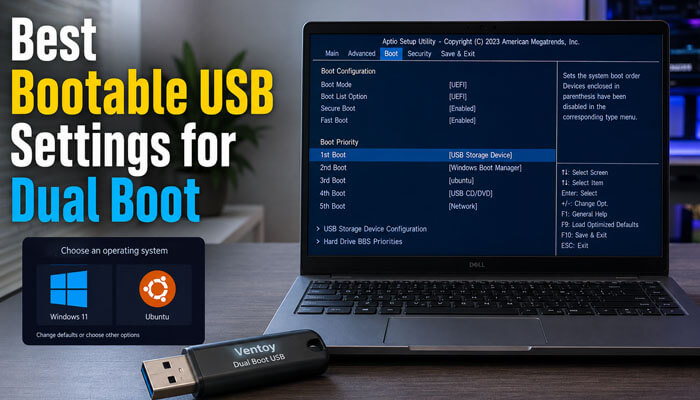
Wrong USB settings can break how to set up dual boot before the installer even starts. If the computer uses UEFI, create the USB installer in UEFI-compatible mode.
| Setting | Recommended Option |
| Partition scheme | GPT |
| Target system | UEFI |
| File system | FAT32 when possible |
| Boot mode | UEFI USB option |
| Secure Boot | Keep enabled first, disable only if needed |
| ISO source | Official Linux website |
When opening the boot menu, choose the USB option that starts with UEFI. Avoid choosing Legacy USB if Windows is installed in UEFI mode.
Step 12: Boot From the USB Drive
When learning how to set up dual boot, booting from the USB correctly is essential. Restart your computer and open the boot menu.
| Brand | Common Boot Menu Key |
| Dell | F12 |
| HP | Esc or F9 |
| Lenovo | F12 or Novo button |
| ASUS | Esc or F8 |
| Acer | F12 |
| MSI | F11 |
| Gigabyte | F12 |
Choose the USB option that says UEFI, such as UEFI: SanDisk USB. Avoid booting the USB in Legacy mode if your Windows installation uses UEFI.
Step 13: Try Linux Before Installing
A safe approach to how to set up dual boot is to test Linux before installing it. Most Linux installers allow you to try Linux from the USB first.
Test:
- Wi-Fi
- Keyboard
- Touchpad
- Display
- Sound
- Bluetooth
- External monitor
- Battery detection
- Webcam
- GPU behavior
If basic hardware works during the live session, installation is usually safer.
Step 14: Start the Linux Installer
After testing Linux, start the installer. If your goal is how to dual boot Linux and Windows, do not rush this part. Read every screen carefully.
In Ubuntu, you will usually choose:
- Language
- Keyboard layout
- Wi-Fi connection
- Normal or minimal installation
- Third-party drivers if needed
- Installation type
If you use NVIDIA graphics or certain Wi-Fi cards, selecting third-party drivers may help.
Step 15: Choose the Correct Installation Type
This is the most important part of how to set up dual boot. The installer option you choose decides whether Windows stays or gets erased.
| Installer Option | Meaning |
| Install alongside Windows Boot Manager | Best option for beginners |
| Erase disk and install Linux | Deletes Windows; do not choose this for dual boot |
| Something else / Manual partitioning | Advanced option |
| Replace partition | Risky if you select the wrong partition |
Choose Install alongside Windows Boot Manager if available. Do not choose Erase disk and install Linux unless you truly want to delete Windows.
What If Linux Does Not Detect Windows?
A common problem in how to set up dual boot is that the Linux installer does not show Install alongside Windows Boot Manager. This does not always mean Windows is gone. It usually means the installer cannot detect the correct boot, storage, or partition setup.
| Problem | Possible Fix |
| BitLocker or Device Encryption is active | Save recovery key and suspend encryption |
| Fast Startup is enabled | Disable Fast Startup in Windows |
| No unallocated space exists | Shrink C: drive using Disk Management |
| USB booted in Legacy mode | Reboot USB in UEFI mode |
| Intel RST / RAID is enabled | Check BIOS storage mode carefully |
| Windows was hibernated | Fully shut down Windows before installing |
Do not click Erase disk just because the installer does not show Windows. Stop, reboot into Windows, check the settings above, and try again.
Step 16: Manual Partitioning Option
Manual partitioning is an advanced part of how to set up dual boot. Use it only if you understand partitions or if the automatic “install alongside” option does not appear.
A simple manual layout:
| Mount Point | Size | File System |
| / root | 40–60 GB | ext4 |
| /home | Remaining space | ext4 |
| swap | 4–16 GB | swap |
On UEFI systems, there is usually already an EFI System Partition created by Windows. Do not format it unless you fully understand what you are doing. Linux can usually add its boot files to the existing EFI partition.
Step 17: Install the Bootloader
The bootloader is a major part of how to set up dual boot. Most beginner-friendly Linux installers automatically install GRUB or another boot manager. GRUB shows a menu where you can choose Linux or Windows during startup.
On UEFI systems, Windows and Linux boot entries usually live inside the EFI System Partition. After installation, restart the computer and remove the USB drive when asked.
Step 18: Choose Between Windows and Linux
After installation, how to set up dual boot ends with choosing the operating system at startup. You should see a boot menu that may show Ubuntu, advanced Ubuntu options, Windows Boot Manager, and UEFI firmware settings.
Select the operating system you want to use. If the computer boots directly into Windows, open your BIOS or UEFI settings and move the Linux boot entry above Windows Boot Manager.
Secure Boot and Dual Boot
Secure Boot is important in how to dual boot Linux and Windows because it affects startup security. Secure Boot helps prevent untrusted startup code from running during boot. Microsoft explains that Secure Boot can only be enabled with UEFI on Windows 11-supported systems.
Many mainstream Linux distributions support Secure Boot, including Ubuntu and Fedora. However, Secure Boot can sometimes create problems with custom kernels, unsigned drivers, older bootloaders, or third-party modules.
For beginners:
- Try keeping Secure Boot enabled first.
- If Linux will not boot, check your distro’s Secure Boot instructions.
- Disable Secure Boot only if necessary.
- Keep your BitLocker recovery key available.
Windows + Linux Dual Boot Checklist
Use this checklist while following how to set up dual boot.
| Task | Done |
| Backed up important files | ☐ |
| Created Windows recovery media | ☐ |
| Checked UEFI boot mode | ☐ |
| Checked GPT partition style | ☐ |
| Checked Intel RST / RAID mode | ☐ |
| Disabled Fast Startup | ☐ |
| Saved BitLocker recovery key | ☐ |
| Created unallocated space | ☐ |
| Downloaded official Linux ISO | ☐ |
| Verified Linux ISO | ☐ |
| Created bootable USB | ☐ |
| Booted USB in UEFI mode | ☐ |
| Selected correct install option | ☐ |
| Confirmed Windows still boots | ☐ |
| Updated Linux after installation | ☐ |
Common Dual Boot Problems and Fixes
Troubleshooting is part of how to set up dual boot because small boot, firmware, or partition issues can happen.
1. Linux Installer Does Not Show “Install Alongside Windows”
Possible causes:
- BitLocker is enabled.
- Windows was not fully shut down.
- Fast Startup is enabled.
- The disk has no unallocated space.
- USB was booted in Legacy mode.
- Intel RST or RAID mode is blocking disk detection.
Fix:
- Disable Fast Startup.
- Save and suspend BitLocker if required.
- Shrink the Windows partition from Disk Management.
- Reboot the USB in UEFI mode.
- Check BIOS storage mode carefully.
2. Computer Boots Directly Into Windows
This usually means Windows Boot Manager is first in the boot order.
Fix:
- Restart the computer.
- Enter BIOS or UEFI.
- Open boot order settings.
- Move Ubuntu, Fedora, or Linux boot entry above Windows Boot Manager.
- Save and restart.
3. Windows Asks for BitLocker Recovery Key
This can happen after boot or firmware changes.
Fix:
- Enter your recovery key.
- Boot into Windows.
- Check BitLocker settings.
- Make sure your recovery key is saved safely.
- Avoid repeatedly changing Secure Boot, TPM, or boot mode settings.
4. Wrong Partition Was Selected
This is the most dangerous issue in how to set up dual boot. If you format the wrong partition, you may delete Windows or personal files.
Fix:
- Stop immediately.
- Do not install anything else.
- Use your backup or disk image.
- Seek professional data recovery help if needed.
5. Time Is Wrong Between Windows and Linux
Windows and Linux may treat system time differently.
Fix:
- Set both systems to automatic time.
- Adjust Linux or Windows time settings.
- Restart both systems and check again.
6. Wi-Fi Does Not Work in Linux
Some Wi-Fi cards need extra drivers.
Fix:
- Connect with Ethernet or USB tethering.
- Open your Linux driver manager.
- Install recommended proprietary drivers.
- Update the system.
7. GRUB Menu Does Not Show Windows
Sometimes Windows may not appear in the Linux boot menu after installation.
Fix:
- Boot into Linux.
- Update the bootloader.
- Check whether Windows Boot Manager appears in BIOS.
- Confirm Windows was installed in the same UEFI mode.
- Avoid deleting the EFI System Partition.
Dual Boot vs Virtual Machine
Before choosing how to set up dual boot, compare it with a virtual machine.
| Feature | Dual Boot | Virtual Machine |
| Performance | Better | Lower |
| Hardware access | Full | Limited |
| Setup risk | Higher | Lower |
| Switching OS | Requires reboot | Instant |
| Best for gaming | Better | Not ideal |
| Best for testing | Good | Excellent |
| Beginner safety | Medium | High |
Choose dual boot if you want full Linux performance. Choose a virtual machine if you only want to test Linux safely.
Dual Boot vs WSL
If your question is how to dual boot Linux and Windows only for coding, WSL may be enough. Windows Subsystem for Linux lets developers run a GNU/Linux environment directly on Windows without the overhead of a traditional virtual machine or dual boot setup.
| Option | Best For |
| Dual boot | Full Linux desktop, privacy, performance, hardware access |
| WSL | Command-line tools, coding, and Linux utilities inside Windows |
| Virtual machine | Safe testing and learning |
| Live USB | Trying Linux without installation |
If you only need Linux terminal commands, WSL may be enough. If you want the full Linux desktop experience, dual boot is better.
Which Option Should You Choose?
| If You Want To… | Best Choice |
|---|---|
| Learn Linux commands | WSL |
| Run Linux desktop applications | Dual Boot |
| Play Linux games | Dual Boot |
| Test Linux safely | Virtual Machine |
| Access full hardware performance | Dual Boot |
| Learn cybersecurity tools | Dual Boot |
| Experiment without modifying partitions | Virtual Machine |
| Use Linux occasionally | WSL |
Best Practices After Installing Dual Boot
After you finish how to set up dual boot, follow these best practices:
- Update Linux immediately.
- Update Windows carefully.
- Keep your BitLocker recovery key saved.
- Do not delete EFI partitions.
- Do not format unknown partitions.
- Keep a bootable USB ready.
- Learn how to open BIOS/UEFI boot menu.
- Back up both systems regularly.
- Check boot order after major Windows updates.
- Avoid changing Secure Boot or TPM repeatedly.
Should You Install Linux on the Same Drive or Separate Drive?
When people ask how to dual boot Linux and Windows, they often wonder whether to use one drive or two drives.
| Setup | Pros | Cons |
| Same drive | Works on most laptops, no extra hardware | More partition risk |
| Separate drive | Cleaner setup and safer separation | Needs extra SSD/HDD |
| External SSD | Portable and less internal change | Slower unless USB SSD is fast and stable |
If you have a desktop or laptop with two SSD slots, installing Linux on a second drive is often cleaner. For most laptops, using the same drive is common.
Should You Create a Shared Data Partition?
A shared data partition can make how to set up dual boot more useful because it lets both Windows and Linux access common files.
A shared partition is helpful for:
- Documents
- Downloads
- Project files
- Photos
- Videos
- Work folders
| File System | Windows Support | Linux Support | Best Use |
| NTFS | Yes | Yes | Best for shared Windows/Linux files |
| exFAT | Yes | Yes | External drives and simple sharing |
| ext4 | No by default | Yes | Linux-only files |
| FAT32 | Yes | Yes | Small files only |
For most users, NTFS is the best choice for a shared internal partition. However, disable Windows Fast Startup before accessing Windows partitions from Linux because Windows may leave NTFS partitions in a hibernated state.
Who Should Use Dual Boot?
Learning how to set up dual boot is useful for:
- Students learning Linux
- Developers
- Cybersecurity learners
- Data science users
- Open-source users
- Windows users testing Linux
- People who need both Windows and Linux tools
- Users who want full Linux performance without deleting Windows
Who Should Avoid Dual Boot?
Not everyone needs how to set up dual boot. Dual boot may not be ideal for:
- Users with no backup
- Users are uncomfortable with partitions
- Business laptops with strict IT policies
- Encrypted corporate systems
- People who only need Linux occasionally
- Users who cannot risk boot problems
In these cases, use a virtual machine, WSL, or a live USB instead.
How to Remove Dual Boot and Return to Windows Only
A complete guide on how to set up dual boot should also explain how to remove dual boot safely. Some users may try Linux and later decide to return to Windows only.
Before removing Linux:
- Back up files from Linux.
- Boot into Windows.
- Open Disk Management.
- Identify Linux partitions carefully.
- Delete only the Linux partitions.
- Extend the Windows partition if the unallocated space is next to it.
- Set Windows Boot Manager as the first boot option in BIOS/UEFI.
- Use Windows Recovery Environment if Windows does not boot.
Do not delete the EFI System Partition unless you fully understand what it contains. It may store boot files needed by Windows.
Official Sources to Reference
| Source | Why It Helps |
| Microsoft Windows 11 specifications | Supports UEFI, Secure Boot, TPM 2.0 requirements |
| Microsoft BitLocker recovery key help | Supports recovery key and encryption guidance |
| Ubuntu Desktop installation guide | Supports USB installer and installation flow |
| Ubuntu Intel RST documentation | Supports storage/RST warning |
| Microsoft Disk Management shrink volume guide | Supports partition shrinking steps |
| Microsoft WSL documentation | Supports WSL vs dual boot comparison |
| Microsoft Windows Recovery Environment | Supports recovery and Startup Repair guidance |
Common Beginner Mistakes When Setting Up Dual Boot
Even when following a guide carefully, beginners often make avoidable mistakes.
Most Common Mistakes
- Forgetting to back up important files
- Installing Linux in Legacy mode while Windows uses UEFI
- Not saving the BitLocker recovery key
- Shrinking the wrong partition
- Selecting “Erase Disk” instead of “Install Alongside Windows”
- Ignoring Intel RST or RAID settings
- Deleting the EFI System Partition
- Not testing Linux hardware before installation
Avoiding these mistakes can prevent hours of troubleshooting and greatly reduce the risk of data loss.
Is Dual Boot Still Worth It in 2026?
Yes. Dual boot remains one of the best ways to use Windows and Linux on the same computer while maintaining full hardware performance. Although alternatives such as WSL and virtual machines have improved significantly, many developers, cybersecurity learners, gamers, and power users still prefer dual boot because it provides direct access to system hardware without virtualization overhead.
Final Thoughts
Learning how to set up dual boot is useful if you want the power of Linux without removing Windows. The safest process is to back up your files, create Windows recovery media, disable Fast Startup, check BitLocker or Device Encryption, shrink Windows from Disk Management, boot the Linux USB in UEFI mode, and install Linux alongside Windows.
This is why many users search how to set up dual boot before changing partitions. A careful answer to how to set up dual boot should always protect Windows first.
A successful setup gives you the best of both worlds: Windows for apps, games, and business tools, and Linux for development, privacy, customization, and open-source software. If you followed this guide on how to set up dual boot carefully, you should be able to choose Windows or Linux from the boot menu without deleting your existing Windows installation.
How to Set Up Dual Boot FAQs
1. How to set up dual boot safely without losing data?
To set up dual boot safely, back up your files, create Windows recovery media, shrink the Windows partition, leave the new space unallocated, and choose Install alongside Windows Boot Manager during Linux installation.
2. How to set up dual boot Windows and Linux for beginners?
Beginners should install Windows first, download a beginner-friendly Linux distro like Ubuntu or Linux Mint, create a bootable USB, boot in UEFI mode, and install Linux beside Windows.
3. How to set up dual boot if Linux does not detect Windows?
If Linux does not detect Windows, disable Fast Startup, check BitLocker or Device Encryption, make sure unallocated space exists, boot the USB in UEFI mode, and check Intel RST or RAID settings.
4. How to set up dual boot with Secure Boot enabled?
You can usually set up dual boot with Secure Boot enabled if your Linux distribution supports it. Keep Secure Boot on first, save your BitLocker recovery key, and disable Secure Boot only if Linux fails to boot.
5. How to set up dual boot and remove Linux later?
To remove Linux later, boot into Windows, back up Linux files, delete only the Linux partitions in Disk Management, extend the Windows partition, and set Windows Boot Manager first in BIOS or UEFI.
