


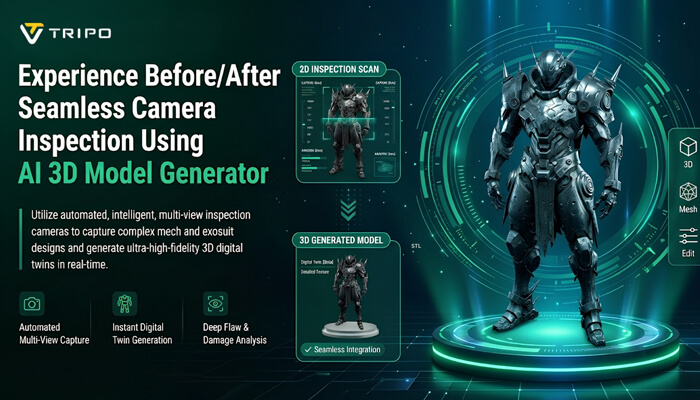

Modern 3D workflows in Tripo 3D rely on advanced camera and preview tools that allow designers to evaluate assets before and after inspection. These features allow comparison between initial outputs and refined views after camera adjustments, helping identify changes in geometry clarity, texture quality, and spatial structure using an AI 3D Model Generator. With interactive viewing, users can assess models from multiple angles and observe improvements after inspection adjustments. The AI-driven creation and visualization system supports structured quality control throughout the workflow.
Understanding Camera Control in AI 3D Model Generation
Tripo 3D’s camera control system allows detailed inspection of AI-generated 3D assets by comparing default views with adjusted viewpoints. Models can be rotated to examine how the structure appears before and after camera repositioning. Zoom and pan functions help inspect fine details and compare clarity between broader and focused views. Texture details and geometric form become more visible when switching between different inspection angles.
The navigation system supports evaluating models from multiple perspectives, making it easier to observe differences between initial and refined camera positions. This reduces misinterpretation of geometry during evaluation and supports more consistent review outcomes. Users gain better insight into mesh flow by comparing standard and adjusted camera views. Regular use of camera tools improves workflow efficiency during review sessions. Quick access to multiple viewing angles helps reduce time spent on manual inspection. Complex surface topology can be more clearly understood when comparing before-and-after navigation states. Improved camera control supports a more reliable assessment of model structure across different viewpoints.
Scene Preview Capabilities in Tripo 3D
Tripo 3D supports scene preview functionality that allows comparison between initial model outputs and adjusted visual results. The AI 3d model generator workflow supports preview-based evaluation by allowing users to compare scene appearance before and after lighting or angle changes. This helps analyze depth, scale accuracy, and lighting response in different preview states. Scene previews can reveal differences in material balance and structure across viewing conditions. Users can evaluate model appearance under varied lighting setups by comparing raw output with refined presentation.
Lighting simulation helps show how materials respond in different environments, especially when comparing baseline and adjusted scenes. Shadow behavior supports spatial evaluation by showing differences in depth perception. Texture preview tools help identify stretching issues when comparing early and refined versions. Continuous visual feedback supports iteration cycles by displaying changes between preview states. Color accuracy can be assessed more effectively through comparative viewing, while multiple preview modes support experimentation. Interactive previews help streamline decision-making by showing before-and-after visual differences during evaluation stages.
Steps to Experience Camera control and scene preview tools using the AI 3D model generator
Using Tripo 3D supports asset creation through structured generation and editing tools. The text to 3d model feature enables prompt-based creation within the workflow.
Step 1: Upload source files and start the workspace
- First, you need to access Tripo 3D and signup. Next, go to the “Model” tab present in the vertical left menu bar.
- Under the menu, click on the “HD Model”. You can generate the model either using the text prompt or through image upload.
- You can drag and drop to upload the image, or you can also upload the image from a specific location of your device using the “Upload” tab.
4. If you don’t have an image, just click on the “Text to model” tab to generate the model using a descriptive text prompt.
Step 2: Configure generation preferences for better scene previews
1. Under the “General settings” tab, you can either allow the AI to completely generate on its own by switching “AI complete”. Or you can turn on texture and select the custom “Texture Quality” like 2K, 4K, or 8K.
2. You can also turn on “PBR” for accurate material reflective properties.
3. For better topology characteristics, select either “Quad” or “Triangle” topology.
4. You can also set the custom polycount.
5. Later choose the model from the list, including v3.1 best quality, v3.0 fast and balanced, or v2.5 legacy.
6. If you are a member, then you can choose “Generate in Parts”, “8K Texture”, and “Privacy” options.
7. Finally, click on the “Generate Model” to begin generation.
Step 3: Preview scenes and manage camera controls
- Tripo 3D allows users to view their models using different visual styles based on their evaluation needs. Key styles include “Solid View”, “Cartoon Style”, “Sketch Style”, “Hologram Style”, and “Unlit” form. You can also “Refine” your design right through the bottom menu.
- You can also edit the “Environment Settings” and camera settings through “Reset Camera”.
- You can 3D print the design you want, or you can share it directly by clicking “3D Print”.
- In the end, click on the “Export” tab from the bottom menu. Next, choose the resolution, format, and file name, and click again on “Export” to save the design to your local device.
Exploring Visual Inspection Features Before and After Export
Tripo image to 3d provides visualization tools that allow users to compare models before and after inspection adjustments. Users can examine geometry alignment in the initial output and compare it with corrected or refined views. Texture placement can be evaluated across different camera angles to observe changes. Proportion checks help identify differences in structural balance between early and refined stages. Early evaluation can reduce the need for major revisions after export. This workflow supports consistent model refinement through comparison of baseline and adjusted outputs. Material consistency can be evaluated across different preview states. Early detection of surface issues helps reduce downstream corrections depending on generation settings. This supports higher-quality 3D outputs through comparative inspection.
Scene Preview Elements That Improve Model Evaluation
Tripo 3D includes scene preview tools that support comparison-based evaluation of models. Lighting adjustments show differences in material appearance before and after environmental changes. Depth analysis helps identify structural improvements between preview states. Environment controls simulate real-world conditions for comparative visualization. These features support decision-making during refinement by highlighting differences across views. Real-time feedback helps make iterative comparison more efficient. Variation in environment settings enhances the evaluation of lighting realism. Preview stability ensures consistent comparison during review sessions. Interactive viewing allows more consistent evaluation of geometry, texture, and scale differences. Structured workflows help reduce unnecessary iterations in complex projects.
Key Camera and Preview Functions in Tripo 3D
- Orbit Navigation: Compare model structure from default and adjusted rotational views.
- Zoom Inspection: Identify differences in fine details before and after zoom-based evaluation.
- Perspective Adjustment: Evaluate scale differences across varied camera positions.
- Environment Preview: Compare lighting and material response across different scene setups.
- Reset Camera Tool: Restore default view for baseline comparison.
- Multi-Style Viewing: Switch between styles to compare visual output variations.
Integrating Camera Control into Professional Asset Reviews
Tripo 3D’s camera control feature supports comparative review workflows where teams evaluate models before and after adjustments. Designers can inspect assets repeatedly and compare changes across iterations. Camera tools assist in reviewing animation and rigging preparation through multi-angle comparison. This helps align assets with project requirements and intended visual results. Quality assurance benefits from interactive viewing when comparing consistent camera perspectives. Teams can collaborate more effectively by reviewing initial and refined outputs. Structured inspection cycles help improve review workflows. Visual communication becomes clearer when before-and-after comparisons are used in distributed teams. Standardized inspection methods support consistent evaluation across projects.
Future of Interactive AI 3D Viewing Experiences
Future versions of Tripo 3D are expected to include more advanced comparative viewing systems. Preview tools may offer more advanced interpretation of changes between model states. Faster validation cycles may support smoother creative pipelines through improved comparison tools. Future features may enable more immersive before-and-after exploration experiences. Designers may have access to more adaptive visualization options over time. AI may suggest optimal viewing angles for comparative inspection tasks. Automation may improve preview generation for complex models. Adaptive interfaces may personalize comparison workflows. Collaborative viewing systems may allow real-time comparison between teams. Predictive AI may help identify the most relevant inspection differences.
Conclusion
The camera control and scene preview features in Tripo 3D provide effective tools for comparing models before and after inspection. These capabilities support more accurate evaluation of geometry, texture, and scale differences. Interactive viewing helps users observe changes across iterative design stages. Visual comparison supports a more informed assessment of asset quality during review processes. Tripo 3D provides structured visualization tools that complement AI-based 3D workflows. In complex projects, comparative inspection workflows can improve iteration efficiency and reduce unnecessary revisions.
