


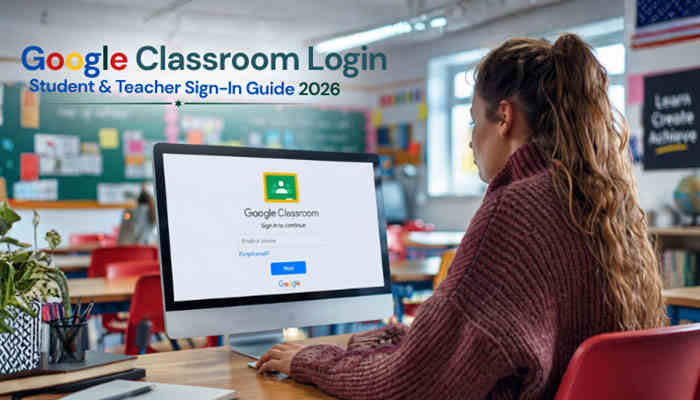

A Google Classroom login gives students and teachers quick access to classes, assignments, announcements, grades, feedback, learning materials, and connected Google education tools. Most users can sign in within seconds, but problems may happen if the wrong Google Account is active, a school password has changed, a class code is incorrect, or an administrator has restricted access.
Students at schools using Google Workspace for Education should normally complete their Google Classroom login with the school account issued by their institution. Teachers should use an account with the appropriate Classroom permissions. Eligible personal Google Accounts and other managed Google Workspace accounts can also use Classroom in certain settings.
This complete guide explains how Google Classroom login works for students and teachers on computers, Chromebooks, Android phones, iPhones, and iPads. It also covers class codes, account switching, password recovery, Google Meet, offline access, guardian access, and the most common Google Classroom login problems.
Quick Answer: How Do I Complete a Google Classroom Login?
To complete a Google Classroom login:
- Open the official Google Classroom website.
- Select Sign in or Go to Classroom.
- Enter the Google Account email connected to your class.
- Select Next.
- Enter your password.
- Complete any additional verification required by your school.
- Follow any first-time setup prompts.
- Open your class from the Classroom homepage.
The account you use matters. If your teacher invited your school account but you complete the Google Classroom login with a personal Gmail account, your class may not appear.
Key Takeaways
- Use the Google Account connected to your school or class.
- A school Google Classroom login normally uses an account created and managed by the school’s Google Workspace administrator.
- Students can join classes with a class code, class link, or email invitation.
- Google Classroom class codes are currently 6 to 8 characters long.
- Students normally enter a class code only once when joining.
- Teachers need the correct permissions to create school classes.
- Google Classroom works in supported browsers and on Android and iOS devices.
- Some Classroom content can be accessed offline after it has been downloaded.
- Gmail can be disabled while Classroom still works, although email notifications may stop.
- Classroom functionality becomes very limited if Google Drive is disabled.
- Parents and guardians generally do not use the same Google Classroom login as students.
- The wrong Google Account is one of the first things to check when classes or assignments are missing.
What Is Google Classroom Login?
Google Classroom is a class-management and learning platform that connects students and teachers through Google Workspace.
A Google Classroom login connects your Google Account to the Classroom courses associated with that account. If you sign in with a different Gmail or Google Workspace account, your normal classes may not appear.
Students can use Classroom to:
- Join classes.
- View assignments.
- Submit schoolwork.
- Check deadlines.
- Read announcements.
- Review teacher feedback.
- Access attached files.
- Contact teachers or classmates when permitted.
- Join eligible Google Meet sessions.
Teachers can use Classroom to create assignments, distribute materials, organize coursework, communicate with students, review submissions, and provide grades or feedback.
The Google Classroom login process is therefore more than simply entering an email and password. The account must also have access to the correct classes and services.
What Account Can You Use for Google Classroom Login?
Google Classroom supports several account types.
| Account Type | Common Use | Managed By |
| Google Workspace for Education account | Schools and colleges | School administrator |
| Personal Google Account | Homeschooling, tutoring, and independent learning | Individual user |
| Google Workspace account | Organizations and workplaces | Organization administrator |
School Account
A school account is normally created and managed by an educational institution.
A school email may look like:
student@yourschool.edu
Students should normally use this account for their Google Classroom login at school and at home. If you do not know your school email address or password, contact your teacher or school IT department.
Personal Google Account
A personal Google Account may also work with Classroom in supported settings such as homeschooling or tutoring. However, personal accounts do not always receive the same Classroom features available through Google Workspace for Education.
Google Classroom Login for Students
A Google Classroom login for students should normally use the Google Account assigned by the school.
Student Login Steps
- Open Google Classroom.
- Enter your school email address.
- Select Next.
- Enter your password.
- Complete any school-required verification.
- Open the Classroom homepage.
- Select an existing class or join a new class.
After the Google Classroom login is complete, students can access assignments, class materials, announcements, feedback, due dates, and other tools permitted by their teacher or administrator.
What Students Can Do After Google Classroom Login
Depending on the class and account settings, students may be able to:
- Review active classes.
- Open assignments.
- Turn in homework.
- Check missing work.
- View returned assignments.
- Review grades where available.
- Comment on class posts.
- Communicate with teachers.
- Access Google Drive attachments.
- Join Google Meet sessions.
- Use supported mobile and offline features.
- Access eligible Gemini learning tools.
Google Classroom Login for Teachers
The Google Classroom login for teachers uses the same Google authentication system, but teachers receive additional permissions.
After signing in, teachers may be able to:
- Create classes.
- Invite students.
- Add co-teachers.
- Post announcements.
- Create assignments.
- Add learning materials.
- Review submissions.
- Grade and return work.
- Provide feedback.
- Manage class settings.
- Create Google Meet access.
- Set up guardian email summaries.
- Use supported Gemini tools.
Teacher access can depend on the school’s Google Workspace configuration.
How Teachers Create a Class After Google Classroom Login
After completing the Google Classroom login:
- Open the Classroom homepage.
- Select the option to add a class.
- Choose Create class.
- Enter the class name.
- Add optional information such as section, subject, or room.
- Create the class.
- Invite students.
If the Create class option is missing, the teacher’s account may not have the required permissions.
What If a Teacher Is Identified as a Student?
An incorrect Classroom role can limit what an account can do.
Possible symptoms include:
- No option to create a class.
- Missing teacher tools.
- Limited class-management permissions.
If a teacher completes a Google Classroom login but appears as a student, the school administrator may need to correct the account role.
How to Join a Google Classroom
Students can normally join a class in three ways:
- Class code
- Class link
- Email invitation
After joining a class on one device, the class should remain connected to the same Google Account across supported devices.
How to Join With a Class Code
After your Google Classroom login:
- Confirm that the correct Google Account is active.
- Select Join class.
- Enter the code provided by your teacher.
- Select Join.
Google Classroom class codes are currently:
- 6 to 8 characters long.
- Made from letters and numbers.
- Written without spaces.
- Written without special symbols.
You normally need to enter the class code only once. After joining successfully, the class remains connected to your account.
How to Join With a Class Link
If your teacher sends a direct Classroom link:
- Open the link.
- Check which Google Account is active.
- Switch to your school account if necessary.
- Select Join.
If the link opens under your personal Gmail account, change accounts before continuing.
How to Join With an Email Invitation
Teachers can also invite students by email.
When you receive an invitation:
- Open the invitation email.
- Confirm that the correct Google Account is active.
- Open the Classroom invitation.
- Join the class.
If you cannot find the invitation, check your spam folder and confirm that your teacher used the correct email address.
Can You Join Google Classroom Without Logging In?
No.
A class code, class link, or invitation does not replace a Google Classroom login. Students must first sign in with an eligible Google Account and then join the class.
Google Classroom Login on a Computer
A Google Classroom login can be completed through a supported browser on Windows, Mac, Chromebook, and other compatible computers.
The basic steps are:
- Open Google Classroom.
- Select Go to Classroom.
- Enter your Google Account email.
- Enter your password.
- Complete any additional verification.
- Open the required class.
A separate Windows or Mac desktop application is not required for normal Classroom use.
Google Classroom Login on Android
Google provides an official Classroom app for Android devices.
To complete a Google Classroom login on Android:
- Install and open the Classroom app.
- Select Get started if prompted.
- Select or add your Google Account.
- Enter your account credentials.
- Complete additional authentication if required.
- Open your classes.
The Android app allows students to view and turn in assignments, join classes, access files, communicate with teachers, and use supported Classroom features.
Google Classroom Login on iPhone or iPad
Students and teachers can also complete a Google Classroom login through the Classroom app on iPhone and iPad.
To sign in:
- Install Google Classroom.
- Open the app.
- Select or add the correct Google Account.
- Enter your credentials.
- Complete authentication if required.
- Open or join a class.
Students can also use class codes and invitation links on supported iOS devices.
Google Classroom Login on Chromebook
Chromebooks are commonly used with Google Workspace for Education.
To access Classroom:
- Sign in to the Chromebook with your school Google Account.
- Open a supported browser.
- Go to Google Classroom.
- Open the required class.
School-issued Chromebooks are often managed by the institution, so the correct school account may already be active.
Google Classroom Login From Home
Students can normally complete their Google Classroom login from home using the same school account they use in class.
You generally need:
- An internet connection.
- Your school email address.
- Your school password.
- Any required verification method.
- Classroom enabled for your account.
Some schools may apply additional device, network, or security rules.
Google Classroom Login Not Working
If your Google Classroom login is not working, identify the problem before changing passwords or creating another account.
| Problem | Likely Cause | What to Do |
| Classroom does not open | Wrong account | Switch to the school account |
| Can’t use Classroom with this account | Unsupported or incorrect account | Sign out and use an eligible account |
| Classroom not activated | Administrator restriction | Contact school IT |
| Password does not work | Password changed or forgotten | Recover it or contact administrator |
| Class does not appear | Wrong account or enrollment issue | Switch accounts and verify enrollment |
| Class code fails | Wrong account or invalid code | Check the account and code |
| Create class option missing | Teacher permissions unavailable | Contact administrator |
| Assignment will not attach | Google Drive or file problem | Check Drive access |
| Meet link unavailable | Meet disabled or not shared | Ask teacher or administrator |
| External app blocked | School security restriction | Request administrator approval |
Error: “You Can’t Use Classroom With This Account”
If your Google Classroom login displays this message, the current Google Account may not be permitted to use Classroom in that environment.
Try:
- Sign out.
- Check your account email.
- Sign in with your school account.
- Open Classroom again.
- Contact your administrator if the correct account still does not work.
Do not create another account unless your school specifically tells you to do so.
Error: Classroom Has Not Been Activated
If Classroom has not been activated for your account, the school administrator may need to enable it.
Students normally cannot change this setting themselves.
Contact:
- Your teacher.
- School IT support.
- Your Google Workspace administrator.
Why Is My Class Missing After Google Classroom Login?
A successful Google Classroom login does not always mean every class will appear.
Possible reasons include:
- You signed in with the wrong Google Account.
- The teacher invited another email address.
- You are no longer enrolled.
- The class was archived.
- The teacher removed you.
- Your school account changed.
Check the account shown in Classroom before asking for another class invitation.
Why Is My Google Classroom Class Code Not Working?
If the code does not work, first check the account used for your Google Classroom login.
Then confirm that the code:
- Is 6 to 8 characters long.
- Contains only letters and numbers.
- Does not contain spaces.
- Does not contain special symbols.
- Was entered correctly.
If the code still does not work, ask your teacher for a current code, direct link, or email invitation.
How to Switch Google Classroom Accounts

Multiple Google Accounts in the same browser can cause Google Classroom login problems.
To switch accounts:
- Open Classroom.
- Select your profile image.
- Choose your school account.
- Add the account if it is not listed.
- Reopen the class.
If your class suddenly disappears after login, checking the active Google Account should be one of your first troubleshooting steps.
Forgot Your Google Classroom Password?
Password recovery depends on your account type.
School Account
If your Google Classroom login uses a school-managed Google Workspace for Education account, contact your teacher or administrator if you cannot recover the password.
Your school may control password resets and security settings.
Personal Google Account
If you use a personal Google Account, use Google’s normal account recovery options.
Google Classroom Login With 2-Step Verification
Some schools require extra authentication during the Google Classroom login process.
Possible verification methods include:
- Google prompts.
- Verification codes.
- Security keys.
- Backup codes.
- Passkeys.
If you cannot complete your school’s required verification, contact the administrator rather than creating another account.
Can You Use a Passkey for Google Classroom Login?
Google Accounts can support passkeys.
Depending on the account and device, a passkey may use:
- Fingerprint recognition.
- Face recognition.
- Device PIN.
- Screen lock.
For a school-managed Google Classroom login, passkey availability can depend on administrator policies.
Why Does Google Classroom Redirect Me to My School Login Page?
Some schools use single sign-on systems. In these environments, your Google Classroom login may follow a process such as:
Google Classroom → School login page → Account verification → Google Classroom
This can be normal.
Contact school IT if:
- The login page keeps looping.
- Your school password is rejected.
- The wrong account appears.
- You are not returned to Classroom after signing in.
Google Classroom Login Works but Assignment Won’t Submit
Sometimes the Google Classroom login works correctly, but an assignment cannot be submitted.
Possible causes include:
- Google Drive problems.
- File permissions.
- Attachment errors.
- Browser issues.
- App problems.
- School administrator restrictions.
Try:
- Save your work.
- Refresh Classroom.
- Check whether Google Drive opens.
- Reopen the assignment.
- Reattach the file.
- Try another supported browser or device.
- Contact your teacher if the problem continues.
If Classroom opens normally, the problem may involve the assignment rather than the Google Classroom login itself.
Can Google Classroom Work Without Gmail?
Yes.
Classroom can work even when Gmail is disabled. However, users may not receive normal Classroom email notifications.
This can affect notifications about:
- New assignments.
- Returned work.
- Invitations.
- Teacher comments.
- Other class activity.
Can Google Classroom Work Without Google Drive?
Only with very limited functionality.
Google Classroom relies heavily on Drive, Docs, and other Google Workspace services for assignment workflows.
If Drive is disabled:
- Some Docs features may also be unavailable.
- Teachers may not be able to attach normal Drive materials.
- Students may not be able to attach Drive files to assignments.
- Classroom functionality becomes limited.
| Google Service | Effect on Classroom |
| Gmail disabled | Classroom works, but email notifications may stop |
| Drive disabled | Major assignment features become unavailable |
| Classroom disabled | Normal Classroom access is unavailable |
| Meet disabled | Classroom works, but video meetings may not |
| Third-party app restricted | Classroom works while that external app remains blocked |
How to Join Google Meet After Google Classroom Login
Google Meet can work with Classroom when it is enabled by the school.
Students usually:
- Complete the Google Classroom login.
- Open the correct class.
- Select the Meet link.
- Check that the correct school account is active.
- Join when permitted.
If Classroom works but Meet does not, the problem may involve Meet permissions rather than the Google Classroom login.
Can Google Classroom Work Offline?
Partially.
Students using supported Android and iOS devices can access some Classroom content without internet after downloading it.
Offline features may include:
- Reviewing announcements.
- Reviewing assignments.
- Opening downloaded attachments.
- Editing supported downloaded files.
- Managing offline files.
An internet connection is still needed for the initial Google Classroom login and for syncing changes back to Classroom.
Google Classroom Login for Parents and Guardians
Parents and guardians generally do not use a student’s normal Google Classroom login. Instead, eligible schools can provide guardian features such as email summaries.
Guardian summaries may include:
- Missing work.
- Upcoming assignments.
- Recent class activity.
They do not normally include grades.
Some eligible education environments may also offer read-only guardian preview features.
Can You Use Google Classroom Without a Gmail Address?
Yes.
A Google Classroom login does not require an email address ending in @gmail.com.
School accounts often use a school domain, such as:
student@yourschool.edu
Organization-managed Workspace accounts may also use custom domains.
The important requirement is that the account is an eligible Google Account with Classroom access.
Does Google Classroom Support Screen Readers?
Yes.
Google Classroom supports accessibility tools, including screen readers on compatible devices and browsers.
Students using supported assistive technology can perform tasks such as:
- Complete a Google Classroom login.
- Join classes.
- Open assignments.
- Review coursework.
- Check upcoming work.
- Join supported video meetings.
Is Google Classroom Free of Ads?
Google says Classroom does not contain advertising as part of Google Workspace for Education.
Students should still protect their Google Classroom login details by:
- Never sharing passwords.
- Avoiding unfamiliar login pages.
- Signing out on shared devices.
- Keeping browser and app software updated.
- Reporting suspicious activity to school IT.
Google Classroom Login and Gemini in 2026
Google Classroom now includes Gemini-based features for educators and eligible students.
Available features can depend on:
- Google Workspace edition.
- Administrator settings.
- Account permissions.
- Enabled Gemini services.
- Device availability.
Gemini Features for Students
Eligible students may have access to tools such as:
- Help me learn.
- Quiz me.
- Flashcards.
- Study guides.
- Gemini for Education.
- Gemini Notebook.
Gemini Features for Teachers
Teachers may be able to use Gemini for:
- Brainstorming projects.
- Drafting learning resources.
- Creating quizzes.
- Translating text.
- Creating study materials.
- Working with Gemini Notebook and Gems where enabled.
Two users can therefore complete the same Google Classroom login and still see different Classroom features.
Google Classroom Security Tips
Protect your Google Classroom login and school account by following these simple rules:
- Never share your password.
- Never share verification codes.
- Use only your school’s approved login method.
- Sign out of shared computers.
- Verify the active Google Account before joining a class.
- Avoid entering school credentials on unfamiliar websites.
- Keep browsers and mobile apps updated.
- Contact school IT if you suspect unauthorized access.
Student vs Teacher Google Classroom Login
| Feature | Student | Teacher |
| Google Classroom login with school account | Yes | Yes |
| Join a class | Yes | Yes |
| Create school classes | Usually no | Yes, with permission |
| View assignments | Yes | Creates and manages assignments |
| Submit work | Yes | Reviews submissions |
| Grade work | No | Yes |
| Invite students | No | Yes |
| Add co-teachers | No | Yes |
| Manage class settings | Limited | Yes |
| Use Google Meet | Yes, when enabled | Yes, when enabled |
Google Classroom Login Troubleshooting Checklist
Before contacting your teacher or school administrator, check the following:
- Make sure your internet connection works.
- Confirm your school email address.
- Verify that the correct Google Account is active.
- Recheck your password.
- Complete required verification.
- Update your browser or Classroom app.
- Sign out and complete the Google Classroom login again.
- Verify your class code.
- Ask whether Classroom is enabled for your account.
- Check whether Google Drive opens.
- Ask whether Google Meet is enabled.
- Contact your teacher if the class still does not appear.
Conclusion: Google Classroom Login
A successful Google Classroom login starts with using the correct Google Account. Students should normally sign in with the school-issued Google Workspace for Education account connected to their classes, while teachers need an account with the correct teaching permissions.
If your Google Classroom login is not working, check the active Google Account first. Then verify your password, internet connection, class code, account verification, and administrator settings. If you can sign in but cannot find a class, confirm that the class was joined with the same account you are currently using.
Google Classroom also works alongside Google Drive, Google Meet, mobile offline tools, guardian features, accessibility tools, and Gemini. Understanding how these services connect can help students and teachers solve Google Classroom login problems faster and return to their classes with less confusion.
Google Classroom Login FAQs
1. How do I complete a Google Classroom Login as a student?
To complete a Google Classroom Login, students should sign in with their school-issued Google Account, open Google Classroom, and select their assigned class. The correct account is important because classes and assignments are connected to that specific account.
2. Why is my Google Classroom Login not working?
A Google Classroom Login may fail because of an incorrect Google Account, wrong password, disabled Classroom access, or school administrator restrictions. Check your account details, update your password if needed, and contact school support for account issues.
3. Can teachers use the same Google Classroom Login process as students?
Yes, teachers use the same Google Classroom Login system but need proper permissions from their Google Workspace administrator. Teacher accounts can create classes, post assignments, grade work, and manage student access.
4. Can I access Google Classroom Login on mobile devices?
Yes, students and teachers can complete a Google Classroom Login on Android phones, iPhones, and tablets using the official Google Classroom app. The same Google Account used for classes should be selected during sign-in.
5. Why can’t I see my class after Google Classroom Login?
If a class is missing after a Google Classroom Login, check whether you are signed in with the correct Google Account. Other causes may include an incorrect class invitation, expired enrollment, archived classes, or teacher access changes.
