




Introduction: Lost Your Excel File on Mac? Here’s What to Do
Losing an Excel file on your Mac is not permanent, even if you think that it is. Whether Excel crashed, you didn’t save, or the file went missing, there are usually ways to recover deleted Excel on Mac, if you act quickly. This guide shares all the main recovery options. You can choose between built-in Excel tools and professional recovery software based on your situation.
Key Takeaways
- Recover Excel files on Mac using AutoRecover, Trash, Time Machine, or recovery tools.
- Unsaved files can be restored from AutoRecover or temporary system files.
- Permanently deleted files may need software like 4DDiG to scan and recover.
- Stop using your Mac after data loss to avoid overwriting files
- Regular backups and cloud storage help prevent future file loss
Part 1: Why Excel Files Go Missing on Mac
It helps to know why Excel files go missing, because the cause determines which recovery method will work. Here are some popular reasons for missing Excel files:
- Accidental deletion or Trash emptying: The file existed but was removed.
- Excel crash or force quit: The app closed before you could save.
- macOS shutdown or kernel panic: Your Mac shut down unexpectedly mid-work.
- “Don’t Save” clicked by mistake: A single wrong click on close.
- File overwritten during Save As: Original replaced by a newer version.
- Disk corruption or failing storage: SSD or external drive issues caused data loss.
Note: The recovery approach differs for each case of a missing Excel file. An unsaved file needs AutoRecover or temp file access. Whereas a permanently deleted file needs dedicated data recovery software
Part 2: Can Deleted or Unsaved Excel Files Be Recovered?
Yes. In most cases, you can recover deleted Excel on Mac. Here’s what determines success:
- Unsaved files: Excel’s AutoRecover saves temporary versions every 10 minutes by default. As long as you didn’t reboot or overwrite the temp directory, these are usually recoverable.
- Deleted files: Until the storage space they occupied is reused by new data, deleted files remain on the disk and can be scanned and restored.
- Permanently deleted files (Trash emptied): Recoverable with professional software like 4DDiG, provided you haven’t written large amounts of new data to the drive since deletion.
Critical step: Stop using your Mac the moment you realize data is lost. Every file you save, download, or create reduces the chance of recovery by potentially overwriting deleted data.
Part 3: How to Recover Deleted or Unsaved Excel Files on Mac
Here are the 5 effective ways to retrieve deleted or unsaved Excel files on a Mac. Pick a solution based on your situation:
Method 1: Recover Unsaved Excel Files via AutoRecover
Excel for Mac automatically saves recovery copies every 10 minutes by default. If Excel crashes or you accidentally close a file without saving, AutoRecover is usually the quickest way to restore your work. However, it only functions if AutoRecover was enabled and enough time had passed for a backup to be created. If not, you’ll need to try other recovery methods. Here’s how to recover unsaved Excel file using AutoRecover:
Step 1: Reopen “Microsoft Excel” on your Mac. If a crash happened, Excel should display an “AutoRecover” pane on the left side automatically.
Step 2: Click the file you want to restore. If the pane doesn’t appear, head to “File.” Choose “Open Recent” and look for any auto-recovered versions.
Step 3: Alternatively, head to “File.” Choose “Info.” Tap “Manage Workbooks.” Click “Recover Unsaved Workbooks.”
Step 4: Once the file opens, immediately head to “File.” Choose “Save As” and save the Excel file to a secure location.
Method 2: Search Temporary Excel Files
When you work on a new Excel file that hasn’t been saved yet, macOS may create a temporary file in the background. If Excel crashes before you save, this file might still contain your work. You can manually check the “AutoRecover” folder for temporary files. The folder’s location may vary depending on your Office version. Since temporary files often have unclear names, use the creation date and time to identify the correct one. Here’s how to search for temporary Excel files:
Step 1: Open “Finder.” In the menu bar, click “Go.” Tap “Go to Folder” (or press “Shift + Command + G”).
Step 2: Paste the following appropriate path, and press “Return:”
- Office 365, 2021, 2020, 2016: ~/Library/Containers/com.microsoft.Excel/Data/Library/Preferences/AutoRecovery
- Office 2011 and 2008: /Users/[username]/Library/Application Support/Microsoft/Office/Office [X] AutoRecovery
Step 3: Look for files beginning with “AutoRecovery save of.” These are your candidates.
Step 4: Double-click to open in Excel, then save to a new location immediately.
Method 3: Restore Deleted Excel Files from Trash
In case you recently deleted an Excel file and haven’t emptied the Trash, restoring it is usually the quickest solution. Deleted files typically stay in the Trash for up to 30 days unless you manually empty it or have automatic Trash cleanup enabled. Here’s how:
Step 1: Click the “Trash” icon in your “Dock.” Browse or search for your Excel file (.xlsx or .xls).
Step 2: Right-click the file and select “Put Back.” It returns to its original folder. Alternatively, drag it to a different location of your choice.
Method 4: Restore from Time Machine Backup
If you had Time Machine set up before losing the Excel file, you can restore its earlier version. This is a good option for recovering lost or overwritten data. Even if your backup drive isn’t connected, Time Machine may still keep local backups of files changed within the last 24 hours. Here’s how to restore Excel file from a Time Machine backup:
Step 1: Connect your “Time Machine” backup drive (if external) to your computer. In “Finder,” find the folder where the Excel file was originally stored.
Step 2: Open “Time Machine” from the menu bar or “System Settings.”
Step 3: Use the timeline on the right to travel back to a point before the file was deleted. Select the Excel file and click “Restore.”
Method 5: Recover Permanently Deleted Excel Files (Most Effective)
If the file isn’t in Trash, AutoRecover, or Time Machine, especially after the Trash has been emptied, you’ll need professional Excel file recovery software. 4DDiG Mac Data Recovery can perform a deep scan of your drive to find permanently deleted, corrupted, missing, hidden, or formatted Excel files.
Main Features of 4DDiG:
- Recovers Excel files, like .xlsx , .xls , and .csv, alongside 2,000+ other file types
- Performs deep scans on Mac internal SSDs, USB drives, SD cards, and external HDDs.
- Supports Mac models running macOS Tahoe, Sequoia, Ventura, Sonoma, and earlier.
- Offers a free file preview before you commit to recovery. So, you only pay if your file is there.
- Simple interface designed for non-technical users.
Steps to Use 4DDiG:
Step 1: Install and Execute 4DDiG
Download and install 4DDiG Mac Data Recovery on your Mac.
Step 2: Choose the Drive
Open 4DDiG and select the drive where the Excel file was saved (usually Macintosh HD).
Step 3: Start Scanning
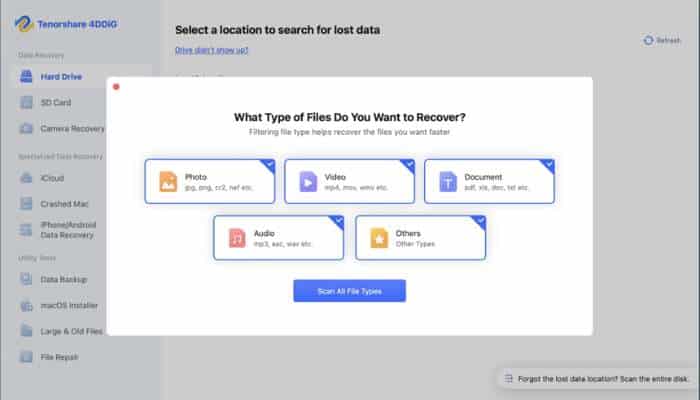
Select the file type as “Document” for scanning to find only documents, including Excel files. Click “Scan” to search deeply for deleted files.
Step 4: Find and Preview Excel Files
After scanning, filter results to show only .xlsx or .xls files. Open a preview to make sure it’s the correct file.
Step 5: Recover Safely
Select the file, click “Recover,” and save it to a different drive or folder.
Important tip: Always save recovered files somewhere else to avoid overwriting other lost data.
Part 4: How to Prevent Excel File Loss on Mac
Once you’ve recovered your Excel file, follow these concrete measures so you won’t lose it again:
- Turn on AutoSave & AutoRecover: In Excel settings, enable AutoRecover and set it to save every 5 minutes, and keep the last autosaved version if you close without saving.
- Save often: Press “Command + S” regularly to avoid losing work.
- Use backups: Set up Time Machine with an external drive for automatic backups.
- Use cloud storage: Save files in OneDrive or iCloud Drive to access version history and restore older versions.
- Don’t force-quit quickly: If Excel freezes, wait a short time, as it may still be saving in the background.
Final Words
Most lost Excel files on Mac can be recovered, but speed matters. The sooner you act, before new data overwrites the deleted file or temp files get cleared, the better your odds are. Start with AutoRecover and Trash, then go through the temp file method if needed.
Reach for 4DDiG Mac Data Recovery when the built-in options come up empty, or you don’t have a backup. It can recover deleted Excel on Mac, even permanently erased files, with high success. The tool also allows selective file recovery and offers a preview for recovered files.
FAQs
Q1: Can I recover an unsaved Excel file on Mac?
Yes. Excel AutoRecover automatically saves temporary copies of your work every 10 minutes by default. If Excel crashes or you close a file without saving, a recovery option may appear when you reopen it. You can also manually find these files in the AutoRecovery folder using Finder’s “Go to Folder” option.
Q2: How do I recover permanently deleted Excel files on Mac?
If a file is permanently deleted (like after emptying the Trash), you’ll need recovery software such as 4DDiG Mac Data Recovery. It scans your Mac deeply to find deleted Excel files and can restore them if the data hasn’t been overwritten.
Q3: Where are Excel AutoRecover files stored on Mac?
- For Excel 365, 2021, 2020, and 2016, AutoRecover files are usually stored in:
~/Library/Containers/com.microsoft.Excel/Data/Library/Preferences/AutoRecovery - For older versions (2011/2008), check:
/Users/[username]/Library/Application Support/Microsoft/Office/Office [X] AutoRecovery - You can open these folders in Finder using Go → Go to Folder.
Q4: Does Time Machine recover deleted Excel files?
Yes. If a backup exists from before the file was deleted, open Time Machine, and head to the folder where the file was stored. Then, go back to a date before it was deleted, and click “Restore.”
Q5: How long can deleted Excel files be recovered?
There’s no set time limit for recovery. Deleted files can still be restored until new data overwrites the space they were using. Using your Mac a lot after deletion increases the risk of losing them permanently, so stop adding new files and act quickly.
