



Getting locked out of an iPhone can interfere with calls and messages as well as everyday tasks. Many users panic as they forget their iPhone passcode and cannot access anything on their device. Since Apple provides official ways for your phone, they require certain conditions.
When those options feel confusing or don’t work, a guided solution can make the process simpler. Tools like Dr.Fone iPhone Unlock help users follow clear steps and avoid mistakes. Hence, in this guide, you will learn about every option to help you find the right method and ensure safe recovery.
Part 1. What Is an iPhone Passcode Lock? Understanding the Device-Level Security Barrier
An iPhone passcode lock is a basic security feature for your mobile device. It prevents unknown people from seeing your private messages and personal media files. You must enter your secret code to verify your identity on the phone. Without the right digits, the system prevents you from using your hardware features. Yet, if you forget your passcode, access becomes impossible without erasing the device through official recovery tools.
That is why users search for safe ways to unlock iPhone without passcode when needed. Thus, understanding this barrier helps you choose the right solution before attempting resets. Apple designed this system to prevent unknown bypassing and secure sensitive information. So, knowing how a passcode lock functions is essential for restoring normal access and avoiding mistakes.
Part 2. Passcode vs Activation Lock: Knowing Which Screen You’re Seeing
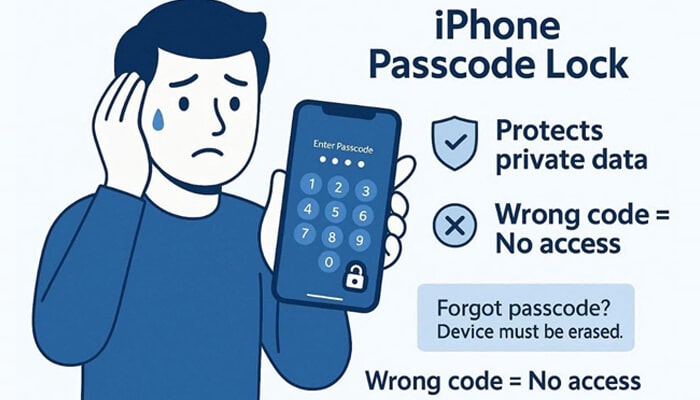
Many users confuse two different lock screens when their iPhone becomes inaccessible. The passcode lock protects local device access, while Activation Lock ties ownership to an Apple ID. Both appear in different situations but look similar, leading to mistakes in troubleshooting. So, understanding these clues helps you decide how to unlock an iPhone screen. The table below highlights how both locks differ in purpose and appearance:
| Feature | Passcode Lock | Activation Lock |
| Where It Appears | Normal lock screen after waking or restarting the device | During setup after erase, reset, or Lost Mode |
| What It Asks For | 4–6 digit code or custom alphanumeric passcode | Apple ID and password are linked to the device |
| Purpose | Protects local device access and stored data | Prevents reactivation without the original Apple ID |
| Visual Clues | Numeric keypad with “Enter Passcode” message | “Activation Lock” message with Apple ID shown |
| Email Displayed | No Apple ID email visible | Shows a full or partially masked Apple ID |
| How to Remove | Usually requires erase and restore if forgotten | Requires correct Apple ID credentials |
Part 3. Official Ways to Unlock an iPhone with Apple’s Restore and Erase Tools
Apple provides official solutions for users who forget their passcode. These native methods ensure safe recovery using Apple’s verified tools and account authentication. You can unlock an iPhone without a passcode by erasing it through iCloud or restoring it. Thus, let’s explore both official approaches to restoring your locked device:
1. Unlock iPhone via iCloud Find Devices
iCloud Find Devices is a remote feature that clears your forgotten iPhone security code. It helps when you forget your passcode, but previously enabled Find My. Moreover, remember that this process will permanently erase all data stored on your phone. Having a recent backup is crucial before starting this remote erase process. While learning how to unlock an iPhone screen, go through the guide to use this approach:
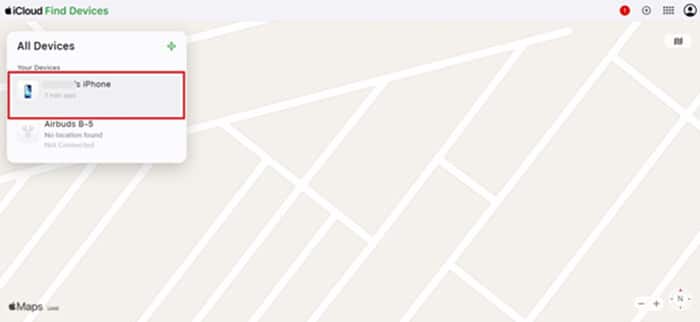
Step 1. Upon accessing the “iCloud Find Devices” website, log in with your account credentials. After that, click on your iPhone from the “All Devices” section.
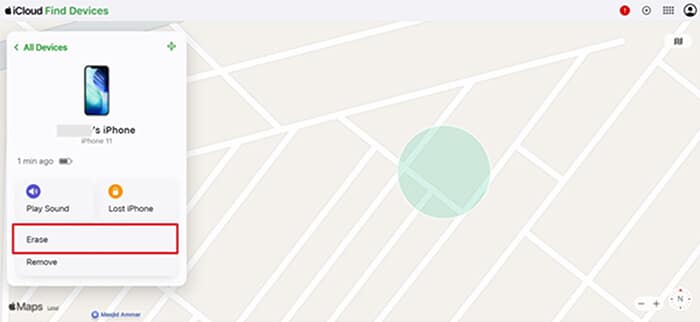
Step 2. Moving forward, press the “Erase” option to complete the process.
2. Restore iPhone via iTunes/Finder
Using the iTunes/Finder program is another reliable method for fixing your locked device. This manual process will reinstall your iOS and clear your forgotten phone security passcode. You must connect your mobile phone to a computer using a working USB cable. So, follow these steps below to start the restoration on your primary computer:
Step 1:
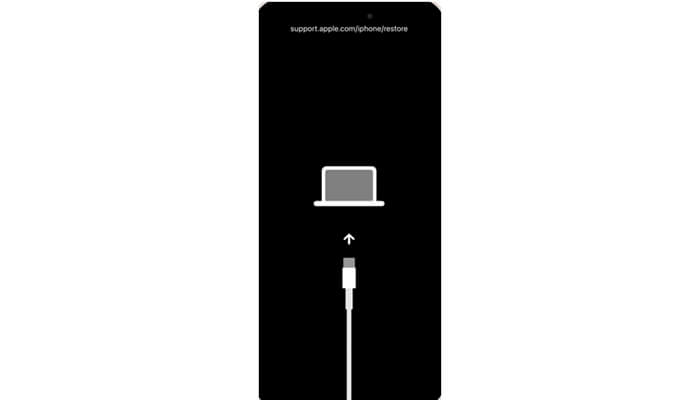
Upon powering off your phone, connect it to the PC and run “iTunes/Finder.” You will then need to put your phone into the “Recovery Mode” via the approach below:
- On iPhone 8 or Later: Press “Volume Up” and release it, then do the same with “Volume Down.” After that, keep pressing the “Side” button until the recovery mode screen appears.
- On iPhone 7/7 Plus: You need to press the “Side” and “Volume Down” buttons together until recovery mode appears.
- On iPhone 6s and Earlier: Keep holding down the “Home” and “Top/Side” buttons at once until recovery mode shows up.
Step 2:
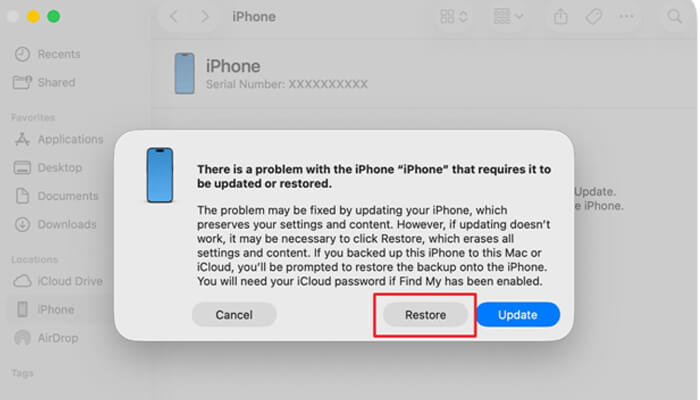
As your device appears in the “Finder” program, click the “Restore” button, and your passcode will be removed.
Part 4. Using Dr.Fone for Guided iPhone Unlocks When Official Routes Don’t Work
Sometimes official restore routes fail when users lack Apple ID access or technical clarity. In such cases, a guided method offers a more direct and effortless solution for unlocking. For this need, Dr.Fone – Screen Unlock (iOS) is the most reliable tool designed for these lockout problems. This professional iPhone unlocker helps you remove any 4-digit or 6-digit screen lock passcode.
Alongside this, it even supports unlocking your device if Face ID or Touch ID is not working. You can also use this software to remove screen time passcodes without any stress. Apart from that, Dr.Fone provides a very easy way to remove MDM from iPhone for enterprise users. You can even bypass your Apple ID account and regain access within 5 minutes.
Key Features
- Wide Support: Compatible with almost every single version of iOS, ranging up to the latest 26.
- Data Security: Uses advanced encryption to ensure personal data safety during unlock processes.
- Screen Time: Disable all active screen time limitations without needing the original user passcode.
Comprehensive Guide to Using Dr.Fone for Guided iPhone Screen Unlocks
Dr.Fone offers a simple and reliable path to help you regain device control. This software allows you to unlock an iPhone without a passcode in several minutes. Therefore, review the following clear steps below to start the unlocking procedure right now:
Step 1. Access the iPhone Screen Unlock Tool
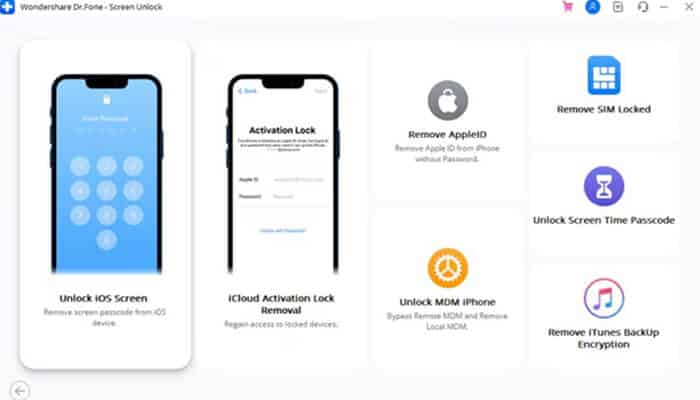
From the program’s “Toolbox” section, head to the “Screen Unlock” section and opt for “iOS.” As you move forward, select “Unlock iOS Screen” and attach your iPhone to the PC.
Step 2. Confirm Your iOS Version for Unlocking
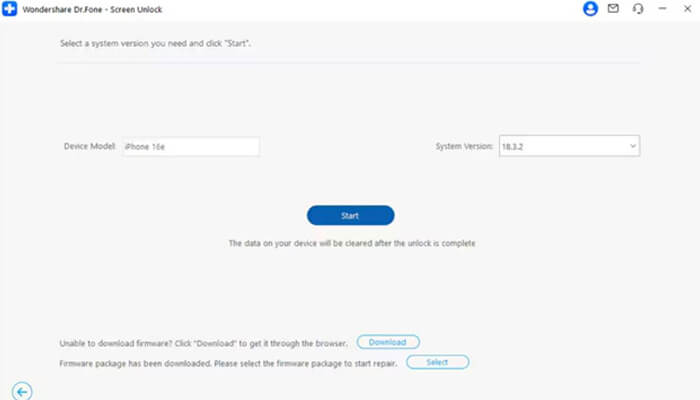
Going ahead, you need to put your iPhone into “Recovery Mode” by adhering to the visual prompts. When done, Dr.Fone will detect your device model and specific iOS version details. After that, press the “Start” button to move forward.
Step 3. Start Unlocking Your iPhone via Dr.Fone
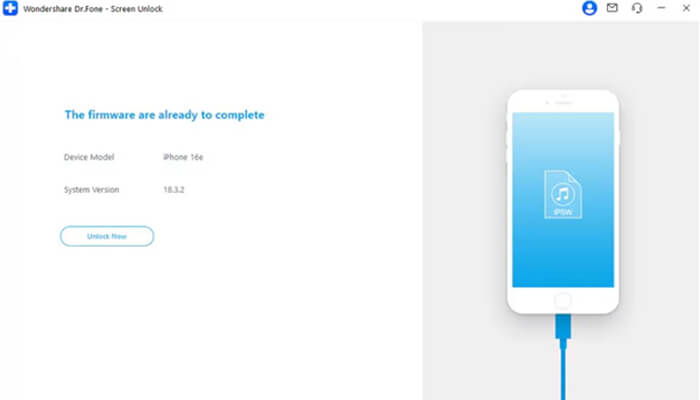
The program will then initiate downloading the required firmware for unlocking. Upon installing, hit the “Unlock” button to start unlocking your locked iPhone.
Part 5. Best Practices After Unlocking: Securing Your Data and Device
After learning how to unlock an iPhone screen, you must focus on data security. Many users forget to plan proper data safety once they have regained full access again. Thus, apply these essential tips to prevent future lock issues on your mobile device:
- Regular Backups: Perform regular backups to ensure that your personal data remains very safe. In addition, use the cloud or your computer to save all your files every week.
- Strong Passcode: Create a very strong passcode that you can easily remember for your phone. Avoid using common numbers that other people might guess to access your device.
- Biometric Setup: Enable Face ID or Touch ID features to access your phone with ease. These secure features provide a fast way to verify your identity every time.
- System Updates: Install the latest software updates to keep your phone running securely. Plus, security bugs and device performance are also updated with new fixes.
- Enable Protection: You need to turn on the Find My service to assist in the search for the device in case it is lost. Thus, this is to save your phone in case you lose it in open areas.
Conclusion
To summarize, recovering access to your locked phone is simple if you use the correct methods. Yet, understanding the specific lock type always helps you choose the best path. Official Apple tools work well but require strict conditions for a successful reset process. Besides, guided workflows provide much better clarity for users needing a quick and safe fix. When official routes feel too complex, you should definitely choose Dr.Fone iPhone unlock.
